How to Fix Onimusha: Way of the Sword Micro Stuttering on AMD Radeon GPUs
If there is one thing I hate about PC gaming, it is micro stuttering in a game that demands precise combat. A game can be running at 80, 100, or even 144 FPS, yet still feel strangely rough because the frame times are all over the place. That is exactly the kind of problem some AMD Radeon users can run into with Onimusha: Way of the Sword, and it is especially annoying here because Capcom built the combat around timing.
Onimusha: Way of the Sword is the sort of action game where you quickly learn to watch enemy movements rather than simply mash attacks. A perfectly timed parry or Issen can completely change a fight, while a tiny hitch at the wrong moment can make an otherwise clean encounter feel unfair. After dealing with performance problems across plenty of PC games myself, I would approach this issue systematically rather than randomly changing ten settings at once.
The good news is that AMD Radeon micro stuttering is not necessarily a sign that your GPU is too weak. Shader compilation, VRR settings, driver features, background overlays, GPU clock behavior, and even motherboard configuration can all contribute to inconsistent frame pacing. Here are the fixes I would try, starting with the ones that are easiest and least invasive.
Onimusha Way of the Sword Best Settings RTX 3060 Max FPS Guide
Why Does Onimusha: Way of the Sword Stutter on AMD GPUs?
Before changing anything, it helps to understand what you are actually trying to fix. A normal FPS drop means the game is rendering fewer frames, while micro stuttering is often more noticeable as an inconsistent rhythm between individual frames. You might see a counter reporting 90 FPS while the game still feels like it briefly freezes every few seconds.
One major suspect is shader compilation. Modern games frequently need to prepare shaders when new effects, enemies, environments, or visual techniques appear for the first time. If that compilation happens during gameplay, the CPU and storage system can briefly become busy, producing a hitch that feels much worse than the actual FPS number suggests.
There can also be problems with Radeon driver features. Technologies designed to improve latency or performance do not behave perfectly in every game engine, particularly around a new release. That is why I prefer testing with a clean, conservative Radeon profile first and then enabling additional features one by one.
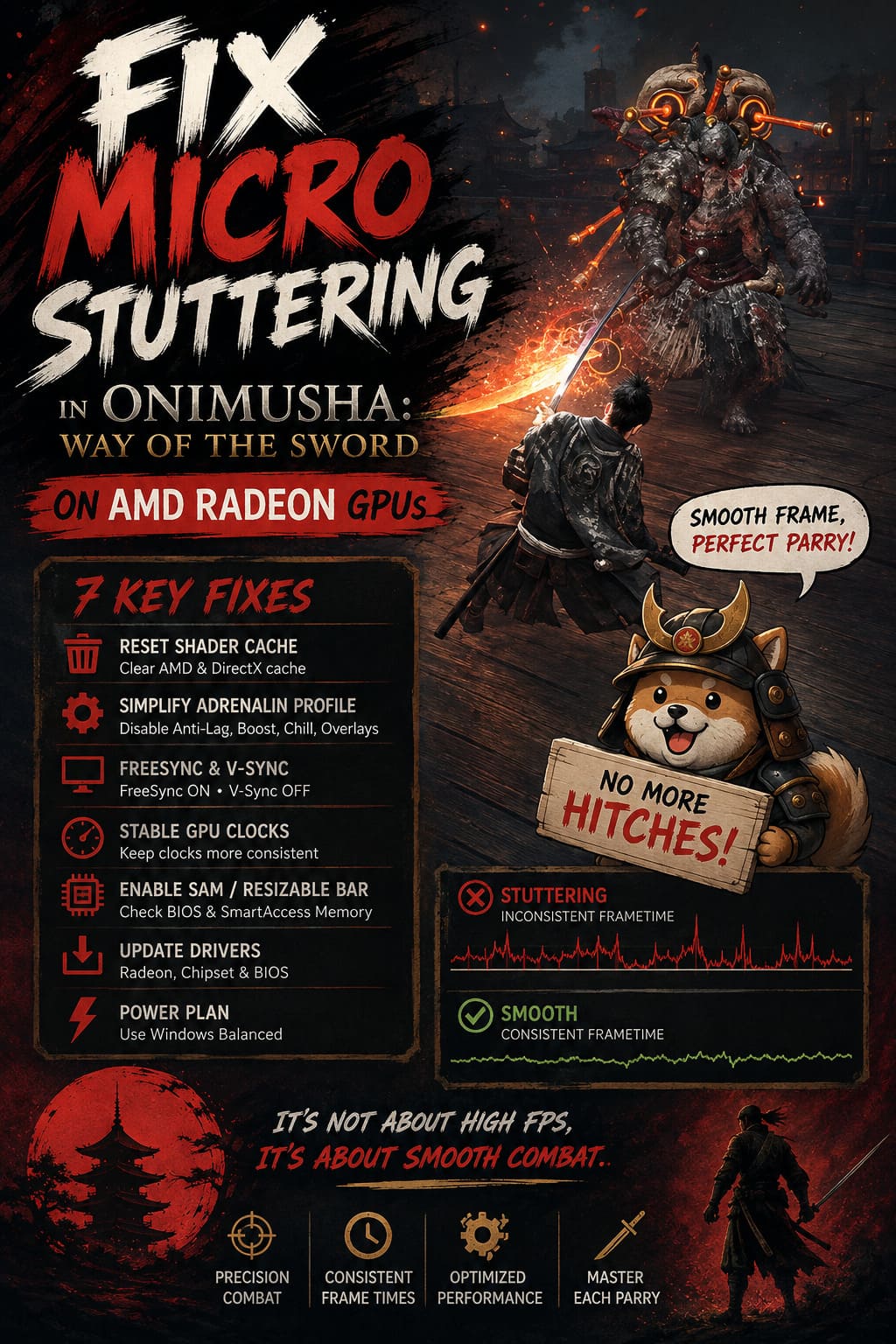
1. Reset the AMD Shader Cache
This is the first thing I would try because it is simple, safe, and directly targets one of the most common causes of temporary stutters.
A corrupted or outdated shader cache can sometimes cause strange behavior after changing drivers or updating a game. Clearing it gives the driver a fresh start, although you should expect some shader-related hitching while the cache is rebuilt.
Open AMD Software: Adrenalin Edition and go to the graphics settings. Look for the option to reset the shader cache and confirm the reset. You can also use Windows’ Disk Cleanup utility to remove the DirectX Shader Cache from your system drive.
Afterward, launch Onimusha: Way of the Sword and don’t immediately start running through Kyoto. Give the game a few minutes at the main menu or in a relatively safe area. The first time you encounter certain effects afterward, there may still be small compilation hitches, but they should become less frequent once the cache has been rebuilt.
Don’t judge the result after 30 seconds. Shader-related problems can take a little time to settle.
2. Create a Conservative Adrenalin Profile
I have found that troubleshooting PC performance is much easier when the graphics driver is kept simple. If you have several Radeon features enabled at the same time, it becomes difficult to determine which one is actually responsible for a problem.
For your Onimusha profile, temporarily disable:
- Radeon Anti-Lag
- Radeon Boost
- Radeon Chill
- AMD’s in-game overlay
- Any unnecessary third-party overlays
Anti-Lag is particularly worth testing without. Its purpose is to reduce latency, but if you are troubleshooting inconsistent frame delivery, the priority should be stability first. Once the game is smooth, you can experiment with Anti-Lag again and see whether your particular system benefits from it.
I would also close unnecessary background applications while testing. Discord, recording software, monitoring utilities, browser windows with hardware acceleration, and other overlays can occasionally complicate troubleshooting.
3. Check FreeSync and V-Sync
This is one of those settings combinations that can be perfectly fine on one PC and irritating on another. If your monitor supports AMD FreeSync, you want to make sure that your VRR configuration and the game’s own synchronization aren’t fighting each other.
| Setting | Recommended Starting Point |
|---|---|
| FreeSync | On |
| In-game V-Sync | Off |
| Radeon Chill | Off |
| Radeon Boost | Off |
| Display Mode | Fullscreen, if available |
| Frame Limiter | Test separately |
Turn off V-Sync inside the game and test the result with FreeSync enabled. If you suddenly get tearing, you can experiment with driver-level synchronization options rather than immediately turning every synchronization feature back on.
I would also test Fullscreen versus Borderless Windowed. Borderless mode is convenient, but Windows’ desktop composition and other background processes can sometimes affect frame pacing. If exclusive fullscreen is available and behaves correctly on your system, it is worth comparing.
4. Keep the Radeon GPU Clock More Consistent
This is a more advanced fix, so I would not start here.
Radeon GPUs dynamically adjust their clock speeds depending on workload and power requirements. Usually this is exactly what you want. There is no reason for a GPU to run at maximum frequency when it is barely doing anything.
The problem is that certain games can produce workloads that repeatedly move between GPU-heavy and CPU-limited situations. If the GPU clock constantly jumps around, some systems can feel less consistent than expected.
In AMD Adrenalin, open the Onimusha game profile and look at the Performance/Tuning section. If manual GPU tuning is available for your card, you can test a more stable frequency range by enabling advanced GPU control.
A commonly suggested starting point is setting the minimum frequency somewhat below the maximum frequency rather than leaving an enormous gap between them. For example, if your card’s maximum frequency is around 2500 MHz, testing a minimum around 2200–2300 MHz can provide a useful comparison.
However, don’t blindly copy someone else’s frequency values. Radeon models have different power limits, cooling systems, and factory clocks. Watch temperatures, stability, and power consumption, and return to automatic tuning if you encounter crashes, graphical corruption, or excessive heat.
5. Check SmartAccess Memory and Resizable BAR
If you have a modern AMD CPU, motherboard, and Radeon GPU, SmartAccess Memory (SAM) is another setting worth checking.
SAM is AMD’s implementation of Resizable BAR, allowing the CPU to access a larger portion of the GPU’s VRAM address space rather than relying on the traditional smaller windows. It can help performance in some games and can be particularly useful when games are streaming a lot of assets.
Enter your motherboard’s BIOS and look for settings such as:
- Above 4G Decoding
- Re-Size BAR Support
- Smart Access Memory
The exact names and menu locations vary considerably between motherboard manufacturers, so don’t worry if your BIOS looks nothing like somebody else’s screenshot.
I wouldn’t expect enabling Resizable BAR to magically cure every stutter. Think of it as making sure your system is configured correctly before you start blaming the game or graphics driver.
6. Update More Than Just Your Radeon Driver
When troubleshooting gaming performance, many players immediately install the newest GPU driver and stop there. That’s not always enough.
Your AMD chipset driver also matters because it affects communication between the processor, motherboard, and other parts of the platform. If you’re running a Ryzen-based system, I would make sure the chipset package is current rather than assuming the Radeon driver is the only software that matters.
Also check your motherboard manufacturer’s support page for BIOS updates. I would not recommend updating the BIOS purely because you saw one random forum post claiming it fixed stuttering, but if your motherboard has a relevant stability or compatibility update, it can be worth considering.
7. Don’t Ignore Windows Power Settings
Power management can become surprisingly complicated on modern PCs.
For troubleshooting, I generally prefer Windows Balanced mode rather than immediately switching to Ultimate Performance. The latter sounds like the obvious choice for gaming, but maximum performance settings are not automatically better for every modern CPU.
Balanced mode allows Windows to manage processor behavior dynamically and is generally a sensible baseline for testing. Once you have stable frame pacing, you can experiment with alternative power plans if you really want to.
The important thing is consistency. Change one setting, test the game, record the result, and then move on.
My Recommended Order for Fixing the Stutter
If you don’t want to spend an entire evening changing every setting in Adrenalin and BIOS, this is the order I would personally use:
- Reset AMD and DirectX shader caches.
- Restart the PC.
- Disable Radeon Anti-Lag, Boost, Chill, and overlays.
- Test FreeSync with in-game V-Sync disabled.
- Compare Fullscreen and Borderless modes.
- Update Radeon and AMD chipset drivers.
- Verify Resizable BAR/SAM configuration.
- Only then experiment with manual GPU frequency tuning.
That order matters because the first several fixes are relatively easy to reverse. There is no reason to start tweaking voltages or frequencies when deleting a broken shader cache might solve the problem.
What If Nothing Here Fixes It?
This is where I would stop assuming the problem is entirely on your side.
PC releases can have game-specific frame-pacing problems, and no amount of driver tweaking can completely repair an issue that originates in the game’s renderer. If the stutter happens consistently in the same location, during the same animation, or whenever a particular effect appears, that is a useful clue.
Pay attention to your frametime graph, not just the FPS counter. A game showing 100 FPS can still have nasty spikes that are immediately visible on a frametime graph. Monitoring CPU usage, GPU usage, GPU clock, VRAM usage, and temperatures at the same time can also tell you whether the problem is actually GPU-related.
For example, if the GPU suddenly drops to low utilization while one CPU core becomes heavily loaded during every hitch, increasing GPU clocks probably won’t solve anything. Conversely, if GPU clocks repeatedly collapse and recover during the stutters, Radeon power management becomes a much more interesting suspect.
Final Thoughts
Onimusha: Way of the Sword is exactly the kind of game where smooth frame pacing matters more than a giant FPS number. When you’re trying to read an enemy’s attack and respond with a perfectly timed counter, a tiny hitch can be far more distracting than it would be in a slower strategy game.
If you’re using an AMD Radeon GPU, I’d start with the boring fixes first: clear the shader cache, simplify your Adrenalin profile, check FreeSync/V-Sync behavior, and make sure your chipset and system configuration are up to date. Only after those steps would I start touching manual GPU tuning.
And honestly, that’s the approach I prefer with PC gaming in general. Don’t chase benchmark numbers if the game doesn’t feel smooth. A stable 80 FPS with consistent frame times is much more enjoyable than 110 FPS that randomly freezes for a fraction of a second while a Genma is about to take your head off.
If Onimusha: Way of the Sword still stutters after all of this, the next step is to identify exactly when the hitch occurs rather than continuing to change random settings. That information can reveal whether you’re dealing with shader compilation, CPU limitations, VRR behavior, asset streaming, driver issues, or a genuine game-side optimization problem.