How to Fix Modern Warfare 2 Not Launching After 2026 Update (Steam & Battle.net)
There are few things more annoying than coming home after work, seeing a new update for Call of Duty: Modern Warfare II, and expecting to jump into a few multiplayer matches—only to discover the game refuses to launch.
That was exactly my experience after the latest update. I clicked Play, the launcher appeared for a few seconds, and then… nothing. No error message, no crash report, just silence. Judging by the number of discussions across gaming forums and social media, I quickly realized I wasn’t the only one dealing with it.
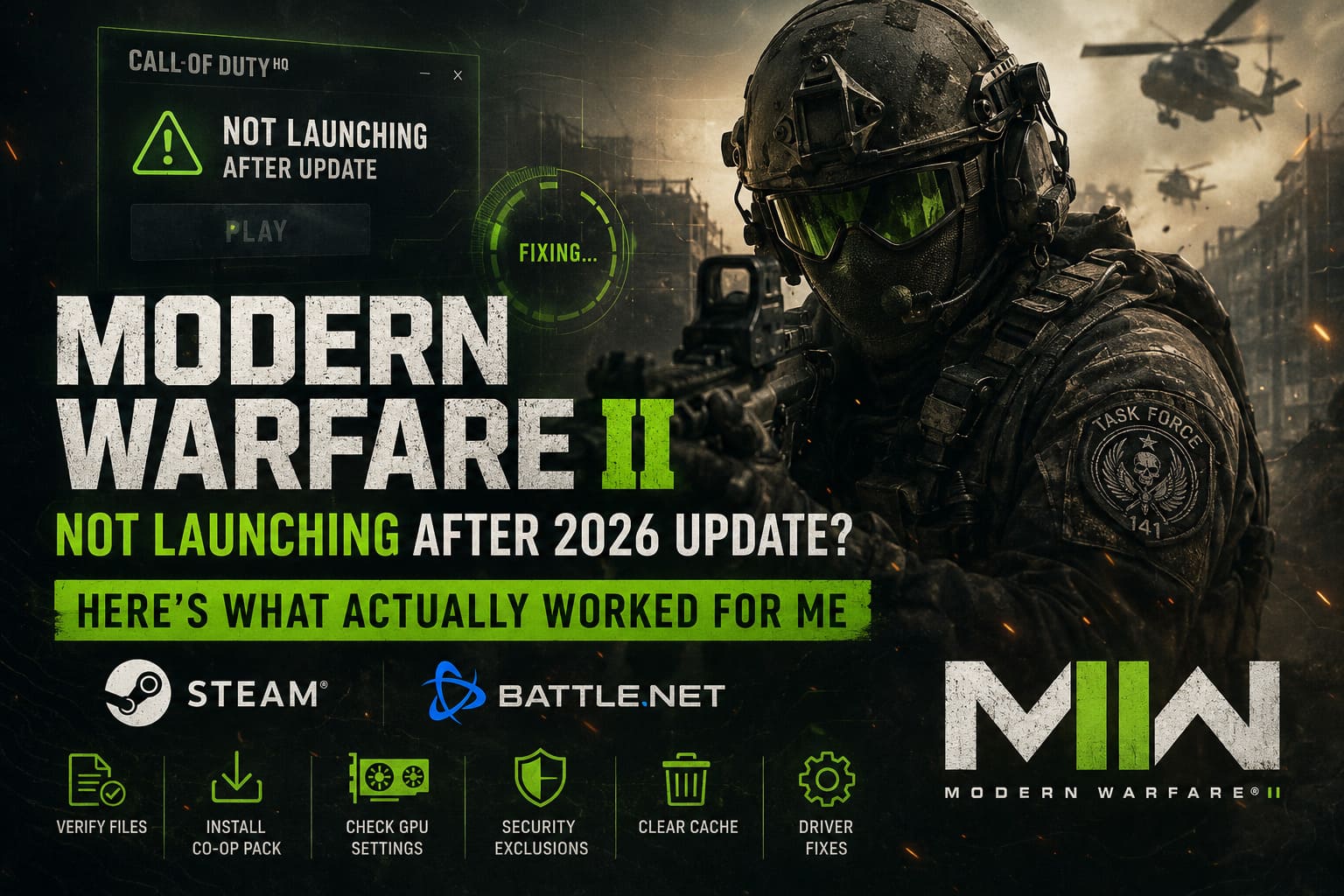
After spending several hours testing different fixes, reading community suggestions, and experimenting with my own setup, I finally got MW2 running again. If your game refuses to start through Steam or Battle.net, these are the methods that gave me the best results.
Why Modern Warfare 2 Stops Launching After Major Updates
One thing I’ve noticed with recent Call of Duty releases is that everything is now tied together through the unified launcher. While this makes switching between titles easier, it also means a single update can unexpectedly affect games that were working perfectly the day before.
From what I’ve seen, launch problems usually come from one or more of these issues:
- Damaged or incomplete update files
- Conflicts inside the Call of Duty HQ launcher
- Graphics driver compatibility problems
- Windows security blocking new game files
- Corrupted local configuration files
- Incorrect GPU selection after the update
Fortunately, most of these problems are easier to fix than they first appear.
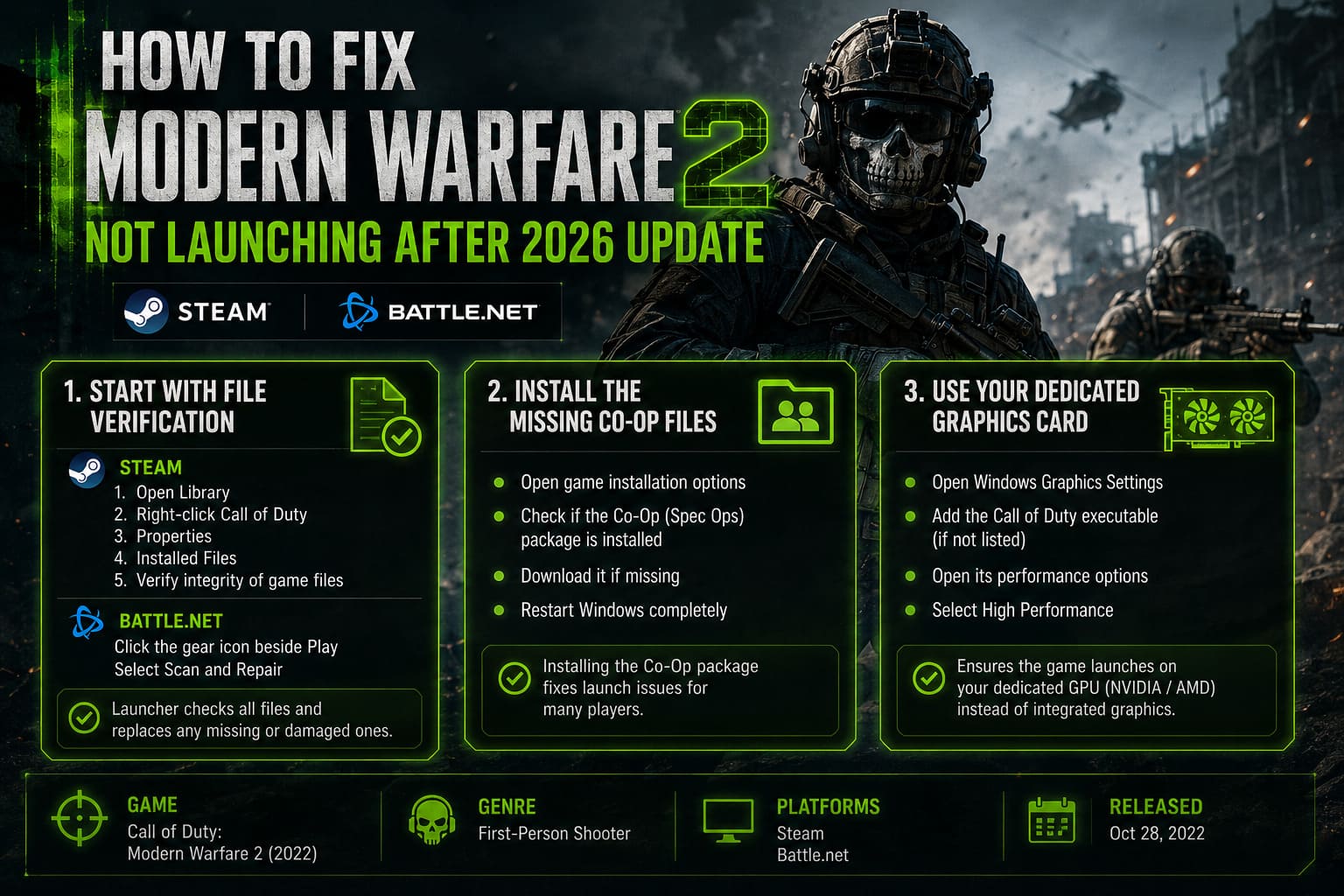
Start With File Verification
Whenever a game suddenly refuses to launch after an update, the first thing I do is verify the installation.
Large patches sometimes leave behind incomplete or corrupted files, especially if the download was interrupted or Steam updated while another application was using the drive.
Steam
If you’re playing through Steam:
- Open your Library.
- Right-click Call of Duty.
- Choose Properties.
- Open Installed Files.
- Select Verify integrity of game files.
Steam will compare every installed file against the official version and automatically replace anything that’s missing or damaged.
Battle.net
Battle.net users have an almost identical option.
Simply click the gear icon beside Play, choose Scan and Repair, and let the launcher finish checking everything before trying again.
This alone fixes the issue for many players.
Install the Missing Co-Op Files
This one surprised me.
A number of players discovered that certain shared assets aren’t always installed correctly after recent updates. Even if you only play Multiplayer, the launcher sometimes expects files from the Co-Op (Spec Ops) package.
Here’s what I did:
- Open the game’s installation options.
- Check whether the Co-Op package is installed.
- Download it if necessary.
- Restart Windows completely.
It sounds strange, but several launch issues disappeared immediately after installing the missing component.
Make Sure Windows Uses Your Dedicated Graphics Card
Another problem I encountered involved Windows automatically choosing the wrong GPU.
After updating, the game suddenly tried launching on integrated graphics instead of my NVIDIA card.
To check:
- Open Windows Graphics Settings.
- Add the Call of Duty executable if it isn’t already listed.
- Open its performance options.
- Select High Performance.
If you own both integrated and dedicated graphics, this step is definitely worth checking before trying anything more complicated.
Windows Security May Be Blocking the Game
Security software has become much more aggressive over the past few years.
Sometimes freshly updated game files are scanned repeatedly during launch, causing the game to freeze before it even reaches the loading screen.
I added my entire Call of Duty installation folder to Windows Security exclusions, restarted the PC, and noticed the game loaded considerably faster.
If you use third-party antivirus software, look for a similar exclusion option there as well.
Delete the Local Cache
Corrupted configuration files have caused problems in almost every Call of Duty title I’ve played.
Fortunately, removing them doesn’t delete your online progress.
The process is simple:
- Close the game completely.
- Exit Steam or Battle.net.
- Delete the local Call of Duty cache inside %localappdata%.
- Remove the game’s configuration folder from Documents.
- Restart the launcher.
The game will rebuild fresh configuration files during the next launch.
You’ll need to reconfigure your graphics and audio settings afterward, but your multiplayer progression remains linked to your Activision account.
Consider Rolling Back Your Graphics Driver
Updating GPU drivers isn’t always the best solution.
In fact, I’ve occasionally had newer drivers introduce more problems than they solved, especially with older games receiving new updates.
If your crashes started immediately after installing a new NVIDIA or AMD driver, try installing a slightly older stable release instead.
A clean installation generally works better than simply installing over the existing driver because it removes leftover profiles that can create conflicts.
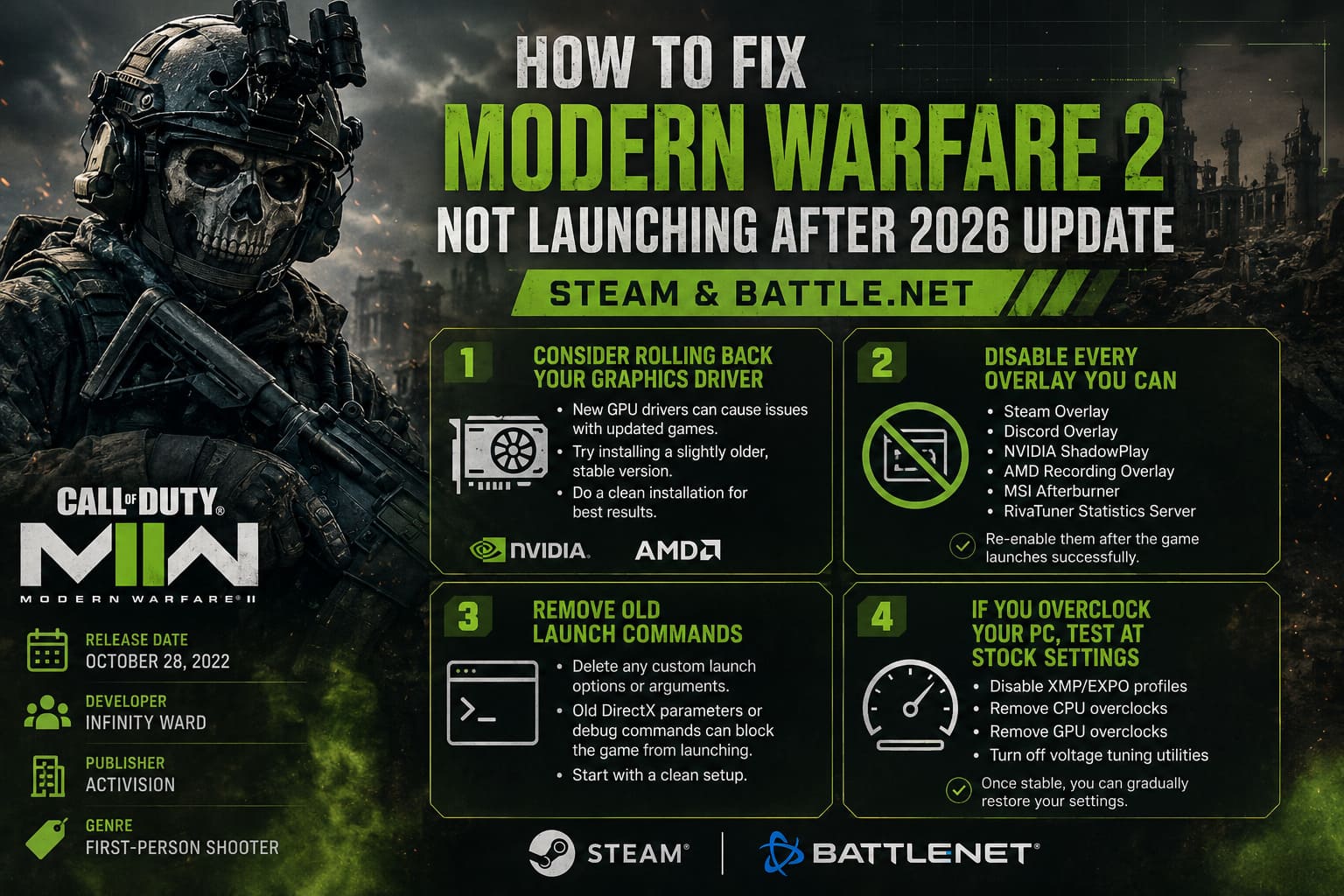
Disable Every Overlay You Can
This has become one of my standard troubleshooting steps for almost every PC game.
Various overlays hook directly into DirectX, and sometimes they simply don’t cooperate with a freshly updated game.
Try temporarily disabling:
- Steam Overlay
- Discord Overlay
- NVIDIA ShadowPlay
- AMD Recording Overlay
- MSI Afterburner
- RivaTuner Statistics Server
You can always turn them back on once you’ve confirmed the game launches correctly.
Remove Old Launch Commands
Many players forget they’ve experimented with launch options months or even years ago.
If you previously added custom launch arguments for troubleshooting, delete them and start with a clean configuration.
I’ve seen outdated DirectX parameters and old debugging commands prevent games from launching after major updates.
Sometimes the simplest fix is simply removing settings you forgot existed.
If You Overclock Your PC, Test at Stock Settings
This probably won’t affect everyone, but it’s worth mentioning.
Modern Warfare has never been my favorite game when it comes to system overclocks.
Even perfectly stable CPU, GPU, or RAM overclocks in stress tests have occasionally caused crashes inside Call of Duty.
If nothing else works, temporarily disable:
- XMP or EXPO memory profiles
- CPU overclocks
- GPU overclocks
- Voltage tuning utilities
Once the game launches consistently, you can gradually restore your preferred settings.
Is STATE Z Multiplayer Co Op? Full 2026 Gameplay & Multiplayer Guide
Quick Troubleshooting Table
| Problem | Most Likely Cause | Recommended Fix |
|---|---|---|
| Game closes instantly | Corrupted update | Verify game files |
| Black screen after Play | Graphics driver conflict | Roll back or reinstall GPU driver |
| Launcher opens then disappears | Missing shared files | Install Co-Op package |
| No error message | Security software interference | Add installation folder to exclusions |
| Crash before menu | Corrupted configuration | Delete local cache |
| Random launch failures | Overlay conflicts | Disable overlays |
My Final Thoughts
After trying almost every possible solution, I realized there wasn’t a single universal fix. Different systems failed for different reasons, even though the symptoms looked nearly identical.
For me, verifying the game files followed by installing the missing Co-Op component solved the problem completely. Others may find that their graphics driver or Windows Security settings are responsible instead.
The good news is that very few of these fixes require reinstalling the entire game, which can save hours of downloading.
If your copy of Modern Warfare II still refuses to launch, work through these solutions one by one instead of changing everything at once. That way you’ll know exactly which fix resolved the issue, making future troubleshooting much easier whenever the next major update inevitably arrives.
Hopefully, Activision improves the stability of future updates, but until then, these methods have proven to be the most reliable way I’ve found to get back into the game without wasting an entire evening staring at a launcher that refuses to cooperate.