Onimusha Way of the Sword Best Settings RTX 3060: Max FPS Guide
There is something especially satisfying about playing a samurai action game when the controls are completely responsive. In a game like Onimusha: Way of the Sword, that matters even more because a split-second counter or perfectly timed Issen can be the difference between looking like a swordmaster and getting absolutely destroyed by a Genma. After spending plenty of time tweaking demanding PC games on mid-range hardware, I can say that the RTX 3060 is still a surprisingly capable card in 2026. It just needs a little help when a modern game starts throwing heavy lighting, volumetric effects, detailed environments, and large combat encounters at it.
Capcom’s return to the Onimusha series is visually ambitious. The new game combines detailed historical environments with supernatural effects, elaborate character models, and the kind of dramatic combat animation that makes every sword clash look expensive. That beauty comes at a cost, though. If you simply select an Ultra preset and expect the RTX 3060 to maintain a stable 60 FPS, you may end up staring at the settings menu more often than you would like.
The good news is that you don’t have to make the game look ugly to get good performance. The best RTX 3060 settings for Onimusha: Way of the Sword are mostly about cutting the options that have a huge performance cost while leaving the settings that actually make the game look better. For 1080p, I would aim for a high and consistent frame rate, while 1440p is perfectly playable if you are comfortable using DLSS and making a few additional compromises.
How to Recover Corrupted Save Files in Onimusha: Way of the Sword (2026)
Can the RTX 3060 Run Onimusha: Way of the Sword?
Yes, the RTX 3060 remains a reasonable GPU for Onimusha: Way of the Sword, particularly at 1080p. The desktop model’s 12GB of VRAM is also useful for a modern game that can become surprisingly hungry for video memory when you increase texture quality.
That said, the RTX 3060 is no longer a card I would recommend pushing toward maximum settings in every new AAA release. There is a big difference between having enough VRAM and having enough GPU horsepower to render everything at Ultra settings. Shadows, volumetric lighting, ray-traced effects, and certain forms of ambient lighting can put much more pressure on the GPU than their visual improvements justify.
Your CPU, RAM, SSD, and background applications can also influence the experience. If the game is installed on a slow mechanical drive, for example, you may encounter streaming-related pauses that changing the graphics preset will not magically fix. An SSD is the sensible choice for a modern title with detailed environments and frequent asset streaming.
My Recommended RTX 3060 Settings
Rather than recommending an Ultra preset and calling it a day, I would build the configuration around consistent frame times. Smooth combat feels much better than a benchmark screenshot showing a high average FPS followed by massive drops whenever the action gets busy.
Here is the configuration I would personally start with:
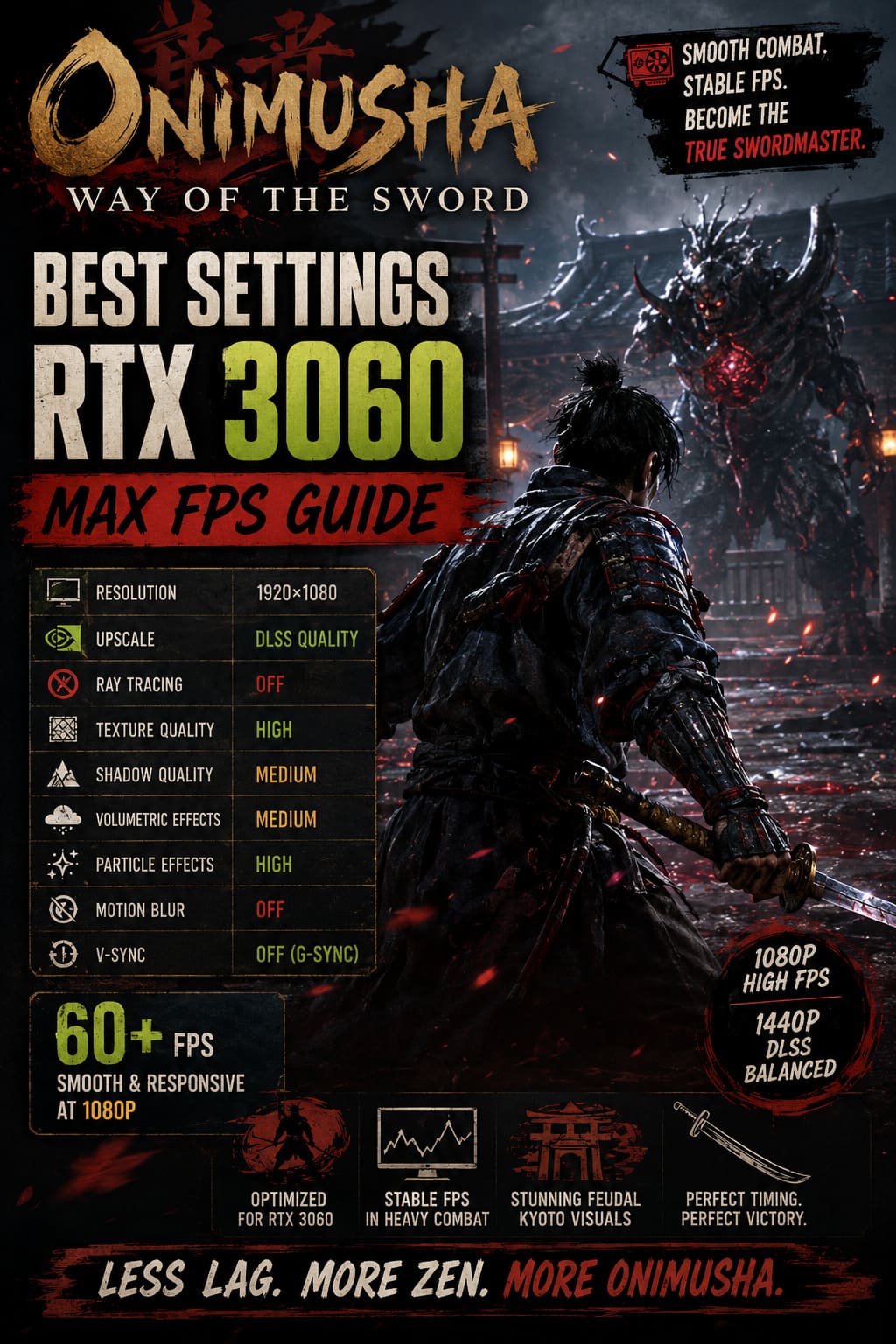
| Setting | RTX 3060 Recommendation |
|---|---|
| Resolution | 1920×1080 |
| Upscaling | DLSS Quality |
| Ray Tracing | Off |
| Texture Quality | High |
| Texture Filtering | Anisotropic 16x |
| Mesh / Geometry | High |
| Shadow Quality | Medium |
| Ambient Occlusion | SSAO / HDAO |
| Volumetric Effects | Medium |
| Particle Effects | High |
| Motion Blur | Off |
| Bloom | On |
| Lens Flare | On |
| V-Sync | Off with G-Sync/VRR |
This setup isn’t flashy on paper, but it is exactly the kind of configuration I prefer for action games. You retain high-quality textures, detailed geometry, strong particle effects, and the atmosphere that makes Kyoto interesting, while reducing the settings that can cause the largest performance swings.
Turn Ray Tracing Off First
If you only change one setting, turn ray tracing off.
Ray tracing can make reflections and lighting look fantastic, but the RTX 3060 simply doesn’t have enough raw performance to make heavy ray-traced effects feel like an obvious upgrade in every situation. In a slow cinematic scene, you might appreciate the difference. During a chaotic fight with several enemies, particles, effects, shadows, and environmental lighting happening simultaneously, the performance hit becomes much easier to notice.
Personally, I would rather have a stable frame rate than slightly prettier reflections on a wet surface. In a sword-fighting game, responsiveness wins every time.
If you’re currently experiencing drops into the 30s or severe frame-time spikes, disabling ray tracing should be one of the first troubleshooting steps.
DLSS Quality Is the Sweet Spot
The RTX 3060’s biggest advantage in a modern game like this is not just its hardware ray-tracing capability. DLSS can make a huge difference to the overall experience.
At 1080p, I would start with DLSS Quality. It offers a good balance between image clarity and performance, and I generally find it preferable to sacrificing several graphics settings just to maintain native rendering.
At 1440p, Quality is still worth trying first. If your frame rate refuses to stay around your target, switching to DLSS Balanced is the next move. I wouldn’t immediately jump to Performance mode unless you have exhausted the other options, because the reduction in image detail can become more noticeable.
For a fast-paced game, however, don’t obsess over whether every tiny edge is perfectly sharp. A stable image at a consistent frame rate usually looks better while you’re actually playing than a technically sharper image that constantly stutters.
Keep Textures High on the 12GB RTX 3060
Texture quality is one setting where I don’t recommend being overly aggressive with reductions.
The desktop RTX 3060 with 12GB of VRAM has a comfortable amount of memory for high-quality textures. If your VRAM usage remains under control, High texture quality is an easy choice. It helps characters, armor, buildings, weapons, and environmental surfaces retain the detail that makes a modern Capcom game look impressive.
There is an important distinction for laptop owners. Some RTX 3060 laptop configurations come with 6GB of VRAM, so you have less headroom. If you’re seeing hitching when rapidly turning the camera or moving between detailed areas, reducing textures can help.
I would try High first and only move lower if you’re actually experiencing a problem. There is no reason to lower a setting simply because a guide says you should.
Medium Shadows Are a Smart Compromise
Shadows are one of those settings that can quietly consume a lot of GPU resources.
Ultra shadows may look beautiful when you’re standing still and inspecting the environment, but during normal gameplay you’re unlikely to notice the difference between High and Medium nearly as much as you will notice a frame-rate drop.
That’s why Medium shadow quality is my preferred RTX 3060 setting. Musashi still has convincing shadows, buildings retain depth, and the world doesn’t suddenly look flat. You simply avoid spending a large chunk of your GPU budget on shadow detail that isn’t particularly important during combat.
If you have performance to spare, High is worth testing. Ultra would be near the bottom of my priority list.
Don’t Ignore Volumetric Effects
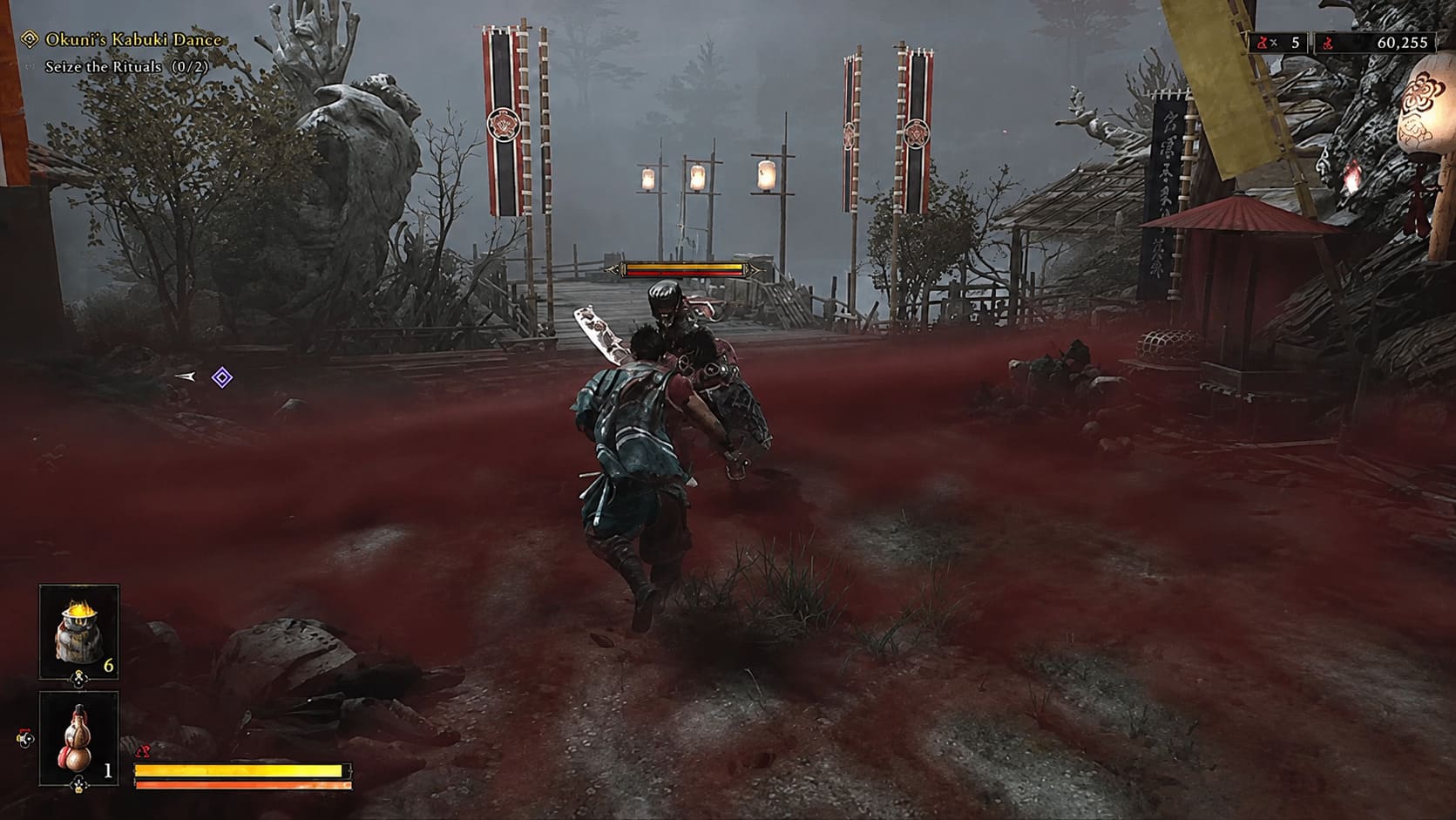
Onimusha’s supernatural atmosphere depends heavily on fog, mist, lighting, and other volumetric effects. They look fantastic when everything comes together, but these effects can also become expensive.
I recommend Medium volumetric quality at 1080p. At 1440p, Medium is still a good target, although Low can be useful if you are struggling to maintain your desired frame rate.
This is one of those compromises that makes sense because you are unlikely to notice the difference while fighting. The atmosphere remains intact, but your GPU isn’t constantly working overtime to produce extremely expensive fog and lighting calculations.
Best 1080p Settings for High FPS
If you’re using a 1080p monitor, the RTX 3060 has its best chance of delivering a highly responsive experience.
My preferred configuration would look like this:
- Resolution: 1920×1080
- Display Mode: Fullscreen
- DLSS: Quality
- Ray Tracing: Off
- Textures: High
- Texture Filtering: 16x
- Mesh Quality: High
- Shadows: Medium
- Ambient Occlusion: SSAO or HDAO
- Volumetrics: Medium
- Particles: High
- Motion Blur: Off
- Bloom: On
- Lens Flare: On
- V-Sync: Off when using G-Sync or another VRR technology
This is the configuration I would use on my own RTX 3060 rather than chasing Ultra settings.
Depending on your CPU, RAM, game area, and other system variables, performance will naturally vary. Don’t treat a claimed FPS number as a guarantee. The important goal is consistent performance during combat, not the highest number you can see while staring at an empty hallway.
Best 1440p Settings for the RTX 3060
1440p is where things get more interesting. The RTX 3060 can still produce a good-looking experience, but you have less performance headroom.
For 2560×1440, I would use:
- Resolution: 2560×1440
- DLSS: Quality
- Ray Tracing: Off
- Textures: High
- Texture Filtering: 8x or 16x
- Mesh Quality: Medium or High
- Shadows: Medium
- Ambient Occlusion: SSAO
- Volumetrics: Low or Medium
- Particles: Medium
- Motion Blur: Off
If the frame rate isn’t where you want it, don’t immediately lower the resolution. First experiment with DLSS Balanced, volumetrics, shadows, and particle effects.
For me, a stable 60 FPS target at 1440p makes more sense than trying to force an 80–100 FPS experience and turning half the visual settings down in the process.
NVIDIA Control Panel Tweaks Worth Trying
Once the in-game settings are sorted, there are a few Windows and NVIDIA settings that can help with consistency.
First, make sure your NVIDIA Game Ready Driver is up to date. New AAA releases can sometimes have shader compilation or driver-related issues that are improved through subsequent updates. If you’re troubleshooting stuttering immediately after launch, checking for a newer driver is one of the easiest things to eliminate.
You can also create a profile for the game in the NVIDIA Control Panel and set Power Management Mode to Prefer Maximum Performance. I wouldn’t recommend changing global settings unnecessarily; applying the adjustment specifically to the game is cleaner.
On Windows 11, Hardware-Accelerated GPU Scheduling is another option worth testing. It can help with latency and scheduling behavior on some systems, although I wouldn’t promise a dramatic FPS increase. If your system behaves worse after changing it, simply revert the setting. Optimization should always be based on how your own PC behaves rather than blindly following a checklist.
What About Stuttering?
If your average FPS looks fine but Onimusha: Way of the Sword still feels rough, don’t assume the GPU is automatically the problem.
Stuttering can come from several sources, including shader compilation, background applications, storage performance, driver issues, CPU limitations, or VRAM pressure. Lowering every graphics setting to Low isn’t necessarily going to fix it.
I would troubleshoot in this order:
- Install the game on an SSD.
- Update your NVIDIA driver.
- Disable ray tracing.
- Use DLSS Quality or Balanced.
- Reduce shadows and volumetric effects.
- Watch VRAM usage while playing.
- Close unnecessary background applications.
- Check whether the stutter is tied to specific locations or combat encounters.
This approach is much more useful than randomly changing ten settings at once. Change one or two things, test the same area, and see what actually improves the experience.
Final Verdict: The RTX 3060 Still Has Some Fight Left
The RTX 3060 may not be the shiny new GPU everyone is talking about in 2026, but I wouldn’t write it off yet. With the right settings, it can still handle demanding games surprisingly well, and Onimusha: Way of the Sword is a good example of why sensible optimization matters more than simply selecting a preset.
For 1080p, I would confidently stick with High textures, High geometry, Medium shadows, Medium volumetrics, and DLSS Quality with ray tracing disabled. For 1440p, DLSS becomes even more important, and dropping volumetrics, particles, or geometry a little can help maintain a smoother experience.
Most importantly, don’t ruin the game trying to win a benchmark battle. Onimusha is about timing, movement, counters, and the feel of every sword strike. I’d take a consistent 60+ FPS over a prettier screenshot and unstable performance every single time. Once the frame pacing feels right, the RTX 3060 still has enough muscle to let you enjoy Capcom’s samurai spectacle without making every boss fight feel like a slideshow.