Voyager: Across the Unknown – Low Level Fatal Error & Startup Crash Fixes
There are few things more frustrating than launching a game you’ve been hyped about, only to get smacked with the dreaded LowLevelFatalError [File:Unknown] message. If you’re playing Across the Unknown, you’ve probably seen it. I have too — more times than I’d like to admit.
The good news? This isn’t some mysterious, unsolvable curse. It’s a classic Unreal Engine tantrum. And after digging through forums, Reddit threads, and my own trial-and-error marathon, here’s what actually works.
Why This Error Happens
Most of the time, the crash boils down to one of three things: DirectX 12 instability, corrupted game files, or GPU communication errors. Unreal Engine (especially UE5) can be extremely picky about drivers, overlays, and system stability. Even minor instability can trigger a crash.
1. Switch to DirectX 11 (The Lifesaver Fix)
If you try only one thing — make it this. DX12 sounds great in theory, but in practice, it’s still hit-or-miss depending on hardware. Switching to DX11 stabilizes the rendering pipeline for many players.
How to do it:
- Open Steam.
- Right-click Across the Unknown and select Properties.
- Under Launch Options, type: -dx11
- Launch the game.
For me? Instant stability improvement.
2. Verify Game Files (Corrupted .pak Files Are Common)
If you’ve seen errors mentioning “Corrupted index in pak file”, that’s a broken asset problem. Steam makes this easy: Right-click the game, open Properties, go to Installed Files, and click Verify integrity. It will automatically redownload any missing or damaged data.
3. Clean Install Your Graphics Drivers (Not Just Update — CLEAN Install)
This is huge. A “dirty” driver install can cause the infamous GPU hang error (0x887a0006). Updating over old drivers isn’t enough.
Do this instead:
- Use Display Driver Uninstaller (DDU) in Safe Mode.
- Download fresh drivers from NVIDIA or AMD.
- Choose Clean Install during setup.
Yes, it’s extra effort. Yes, it’s worth it.
4. Disable Fullscreen Optimizations
Windows sometimes tries to “optimize” fullscreen apps — and Unreal Engine hates that. Navigate to the game’s installation folder, right-click the .exe file, open Properties, go to the Compatibility tab, and check Disable fullscreen optimizations and Run this program as an administrator.
5. Fix “D3D Device Lost” with TDR Adjustment (Advanced Users Only)
If you’re seeing D3D Device Lost, Windows might be resetting your GPU too aggressively. You can increase the Timeout Detection and Recovery (TDR) delay via the Registry Editor. Navigate to HKEY_LOCAL_MACHINE\SYSTEM\CurrentControlSet\Control\GraphicsDrivers, create a new DWORD (32-bit) named TdrDelay, and set its value to 10 (Decimal). Only perform this step if you are comfortable editing the Windows Registry.
How to Manage Deuterium and Survive the Delta Quadrant in Across the Unknown
6. Install Visual C++ Redistributables
Unreal Engine relies on Microsoft runtime libraries. If they’re missing or outdated, crashes are inevitable. Install Visual Studio 2015–2022 Redistributables, both x86 and x64 versions, to ensure compatibility.
7. Disable Overlays and Overclocking
Unreal Engine 5 does not tolerate instability well. Disable overlays from Steam, Discord, GeForce Experience, MSI Afterburner, and similar tools. If your GPU or CPU is overclocked, revert to factory settings at least for testing.
Quick Fix Priority Table
| Fix | Difficulty | Success Rate | Recommended First? |
|---|---|---|---|
| Switch to DX11 | Easy | Very High | Yes |
| Verify Files | Easy | High | Yes |
| Clean Driver Install | Medium | High | Yes |
| Disable Overlays | Easy | Medium | If Needed |
| TDR Registry Edit | Advanced | Situational | Last Resort |
| Install VC++ | Easy | Medium | If Missing |
My Honest Take
In my experience, DX11 plus a clean driver install solves the issue for most players. Unreal Engine errors look terrifying, but they’re usually hardware communication problems, not game-breaking disasters. If you’re still crashing after trying everything, check Windows Updates, monitor GPU temperatures, and confirm your PC meets the minimum system requirements.
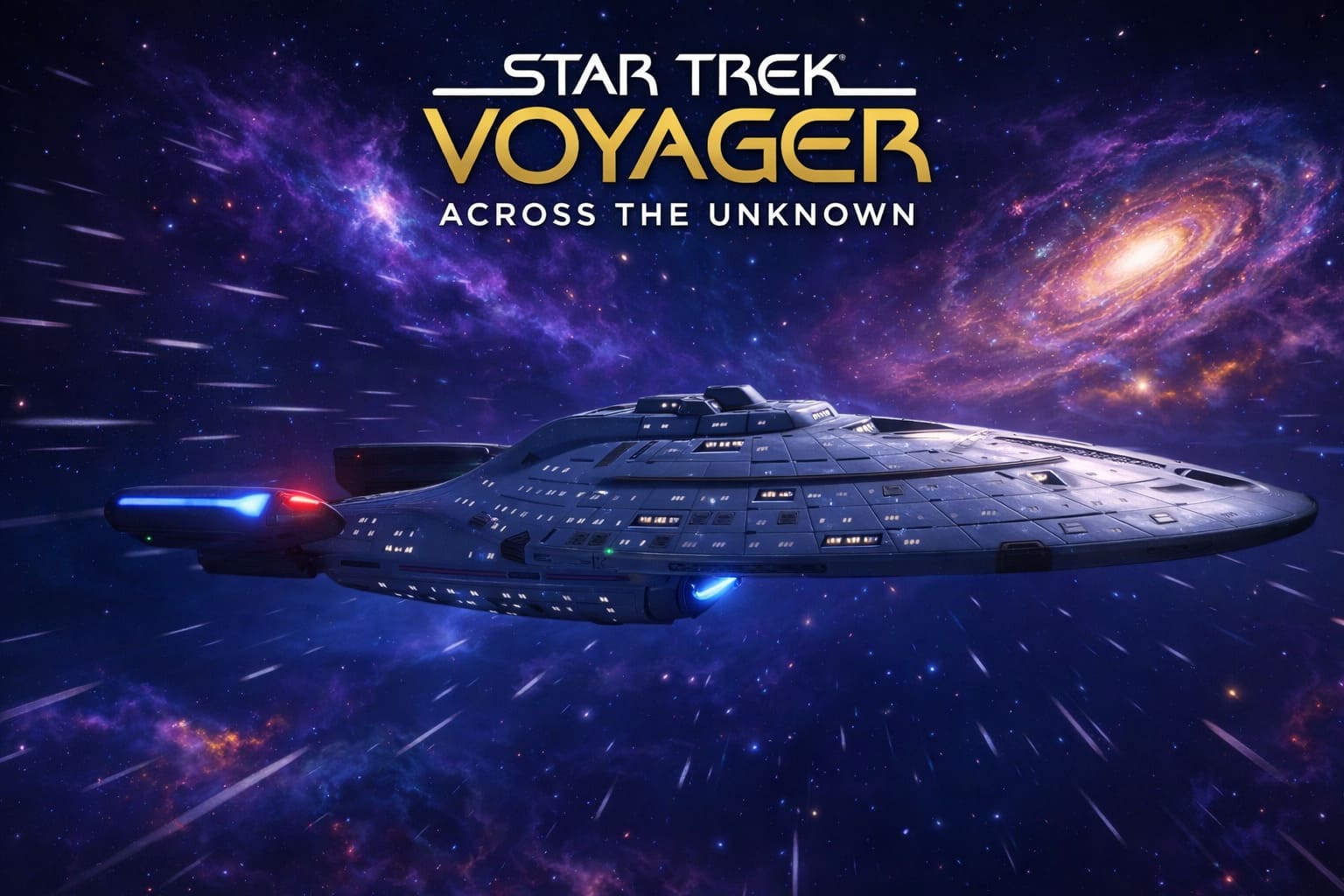
Star Trek Voyager: Across the Unknown Crashes on Startup? Here’s What Actually Worked for Me
So you boot up Star Trek Voyager: Across the Unknown, ready to dive back into the Delta Quadrant… and boom — black screen. Or worse: Unreal Engine Low Level Fatal Error. Or the classic Windows “Not Responding” before you even hear the menu music. Yeah. Been there.
As someone who’s spent way too many late nights troubleshooting PC launches and who genuinely loves strategy games, I went deep into Steam threads, Reddit discussions, and my own GPU settings to figure out what actually works. Below are the fixes that consistently helped real players get the game running.
1. Force the Game to Run in DirectX 11
The biggest and most reliable fix so far is switching from DirectX 12 to DirectX 11. DX12 appears unstable on certain hardware configurations and often triggers the Unreal Engine fatal error at launch.
To switch in Steam: Right-click the game in your Library, open Properties, find Launch Options under the General tab, and type -dx11 without quotes. Close the window and launch the game. For many players, this completely eliminates startup crashes.
2. Cap Your FPS to Prevent Crashes or Reboots
Some users experience crashes or even full system restarts during the intro cinematic. This is usually caused by the GPU rendering uncapped frames in menus, which can spike power usage.
Open your GPU control panel and set a Max Frame Rate specifically for the game. Setting it to 60 FPS is the safest option. After applying this limit, many players report stable performance during startup and cinematics.
3. Verify Integrity of Game Files
Corrupted downloads are more common than people think. If the game crashes at the splash screen or refuses to launch, verifying files can fix missing or damaged assets.
In Steam, right-click the game, select Properties, go to Installed Files, and click Verify Integrity of Game Files. Steam will automatically redownload any problematic files.
4. Fix Unreal Engine Fatal Errors
If you receive a Low Level Fatal Error popup, the issue may be related to missing Windows dependencies rather than the game itself.
Install the latest Visual C++ Redistributables covering 2015–2022 versions. Make sure Windows is fully updated. You can also navigate to the game’s installation folder, right-click the executable file, and select Run as Administrator to rule out permission issues.
5. Disable Overlays and Background Applications
Overlay software and monitoring tools can interfere with Unreal Engine games during startup. Before launching, close Discord overlay, MSI Afterburner, RivaTuner, and even disable the Steam Overlay in the game’s properties. Some players also reported crashes while TeamViewer was running in the background.
6. Ensure the Game Uses the Dedicated GPU
If you are playing on a laptop, Windows may default to integrated graphics instead of your dedicated GPU. Open Windows Graphics Settings, add the game executable manually, and set it to High Performance. Also confirm that your system meets the minimum VRAM and 64-bit OS requirements.
Quick Fix Overview
| Problem | Recommended Solution |
|---|---|
| Black screen at startup | Add -dx11 in Launch Options |
| PC restarts during intro | Cap FPS to 60 in GPU settings |
| Unreal Engine Fatal Error | Install Visual C++ runtimes and update Windows |
| Game will not open | Run executable as Administrator |
| Crash at logo | Disable overlays and background tools |
Final Thoughts
The Across the Unknown Low Level Fatal Error isn’t unbeatable — it just requires patience and systematic troubleshooting. Don’t reinstall Windows. Don’t panic. Start simple and work your way down the list. You’ll be back exploring in no time.
Star Trek Voyager: Across the Unknown has strong potential with its survival-strategy systems, but like many Unreal Engine launches, early technical issues are part of the journey. The good news is that most startup crashes are fixable with simple adjustments. Try the steps above methodically, and you’ll likely get Voyager out of spacedock and back into the Delta Quadrant where it belongs.