How to Fix Low FPS and Stuttering in Palworld 1.0 (2026 Performance Guide)
When I jumped back into Palworld 1.0, I expected new islands, better progression, and plenty of new Pals to catch. What I didn’t expect was my frame rate falling apart every time I entered a new biome or returned to my giant base.
The strange part? My PC wasn’t exactly outdated. I tested the game on multiple systems, talked with other players across gaming communities, compared settings, and spent way too many hours experimenting with different combinations. After all of that, I realized something important: lowering every graphics setting isn’t always the answer.
Palworld is one of those games where the CPU, GPU, memory, storage, and even your world design all influence performance. You can have an expensive graphics card and still experience ugly micro-stutters because the game is busy calculating dozens of AI workers or compiling shaders in the background.
If you’re tired of random freezes, unstable FPS, or massive frame drops during raids, these are the optimizations that made the biggest difference for me.
Why Palworld Still Stutters on Powerful PCs
One thing many players misunderstand is that average FPS isn’t the real problem.

You might see 120 FPS while standing still, then suddenly drop to 40 FPS the moment you rotate your camera. That’s usually caused by poor 1% lows, and those are what make the game feel inconsistent.
In my experience, Palworld’s biggest performance killers are:
- Shader compilation while exploring new areas
- Large AI calculations for worker Pals
- Heavy autosaving
- Huge player-built bases
- Memory usage increasing during long sessions
Instead of chasing the highest benchmark number, focus on making frame times consistent.
Don’t Put Every Setting on Low
This is probably the biggest mistake I see.
People assume lowering everything automatically improves performance, but in Palworld it often shifts extra work onto the processor.
A balanced setup usually performs much better.
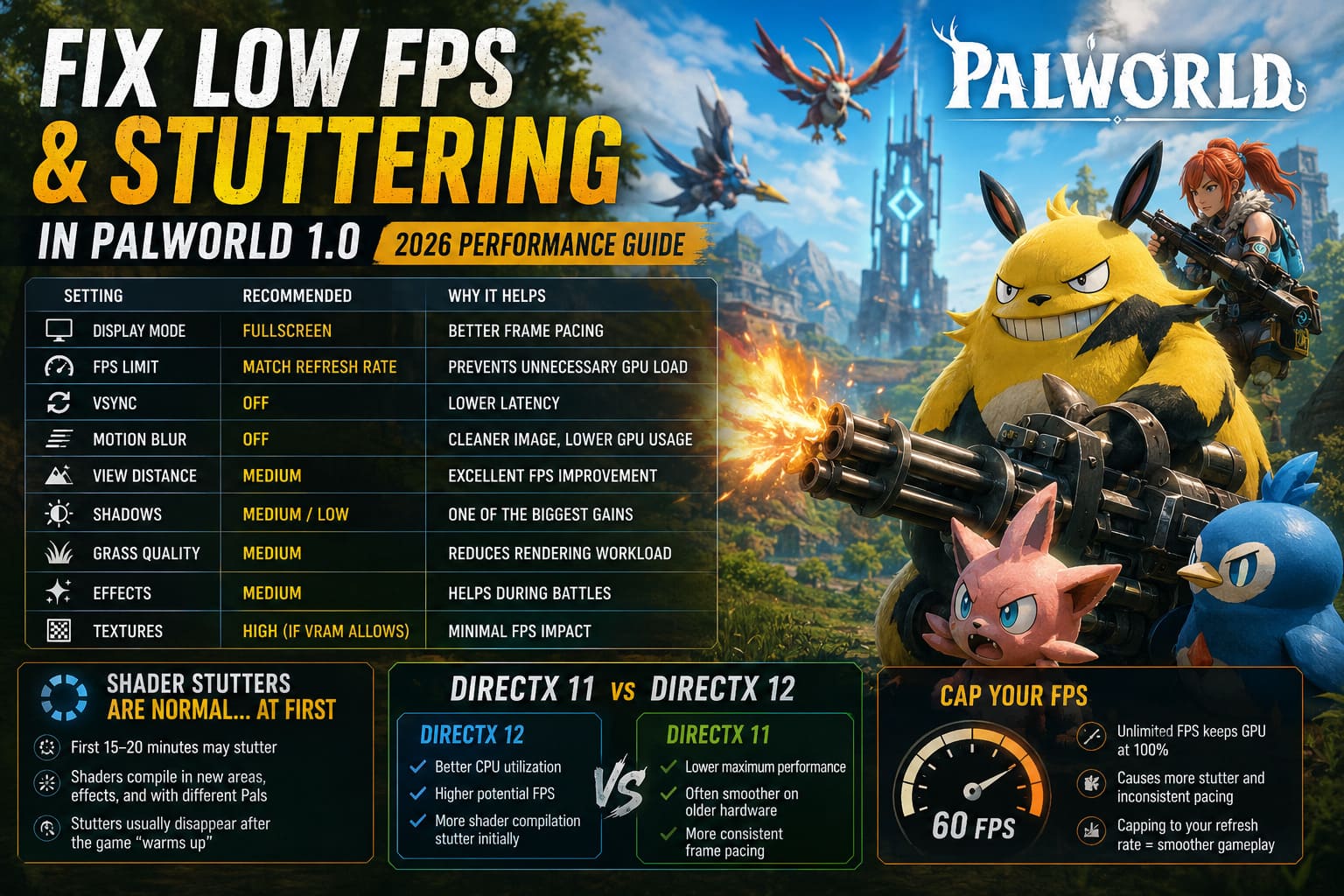
| Setting | Recommended Value | Why |
|---|---|---|
| Display Mode | Fullscreen | Better frame pacing |
| FPS Limit | Match monitor refresh rate | Prevents unnecessary GPU load |
| VSync | Off (unless tearing occurs) | Lower latency |
| Motion Blur | Off | Cleaner image and slightly lower GPU usage |
| View Distance | Medium | Excellent FPS improvement |
| Shadows | Medium or Low | One of the biggest performance gains |
| Grass Quality | Medium | Reduces rendering workload |
| Effects | Medium | Helps during battles |
| Textures | High if VRAM allows | Minimal FPS impact |
I actually gained smoother gameplay by raising texture quality while lowering shadows. Since my GPU had enough VRAM available, texture quality barely affected frame rate, while shadow quality had a noticeable impact.
That’s something benchmark videos don’t always mention.
Shader Stutters Are Normal… At First
The first 15–20 minutes after launching the game usually feel the worst.
Every new effect, biome, animation, and Pal may trigger shader compilation. That often causes tiny freezes that disappear later.
Many players assume something is broken and immediately start changing settings.
Personally, I recommend letting the game “warm up.”
Explore different areas for a while before deciding whether performance is actually bad.
If the stutters continue after extended gameplay, then it’s time to investigate other causes.
DirectX 11 vs DirectX 12
This is probably the most debated topic in the community.
From what I’ve tested:
- DirectX 12
- Better CPU utilization
- Higher potential FPS
- More shader compilation stutter initially
- DirectX 11
- Lower maximum performance
- Often smoother on older hardware
- More consistent frame pacing
If your system constantly freezes every few seconds under DirectX 12, trying DirectX 11 is absolutely worth it.
Sometimes stability matters far more than squeezing out another ten frames.
Cap Your FPS
Unlimited FPS sounds great in theory.
In reality, it often keeps the GPU pinned at 100% utilization.
When that happens, background rendering tasks, shader compilation, and CPU scheduling can become less consistent.
I found that limiting the game to my monitor’s refresh rate produced noticeably smoother gameplay than letting it run unrestricted.
The average FPS barely changed, but the experience felt dramatically more stable.
Your Base Might Be Destroying Performance
This surprised me more than anything else.
After comparing several saves, I realized my giant industrial base was causing larger FPS drops than any graphics setting.
Every worker Pal constantly performs calculations:
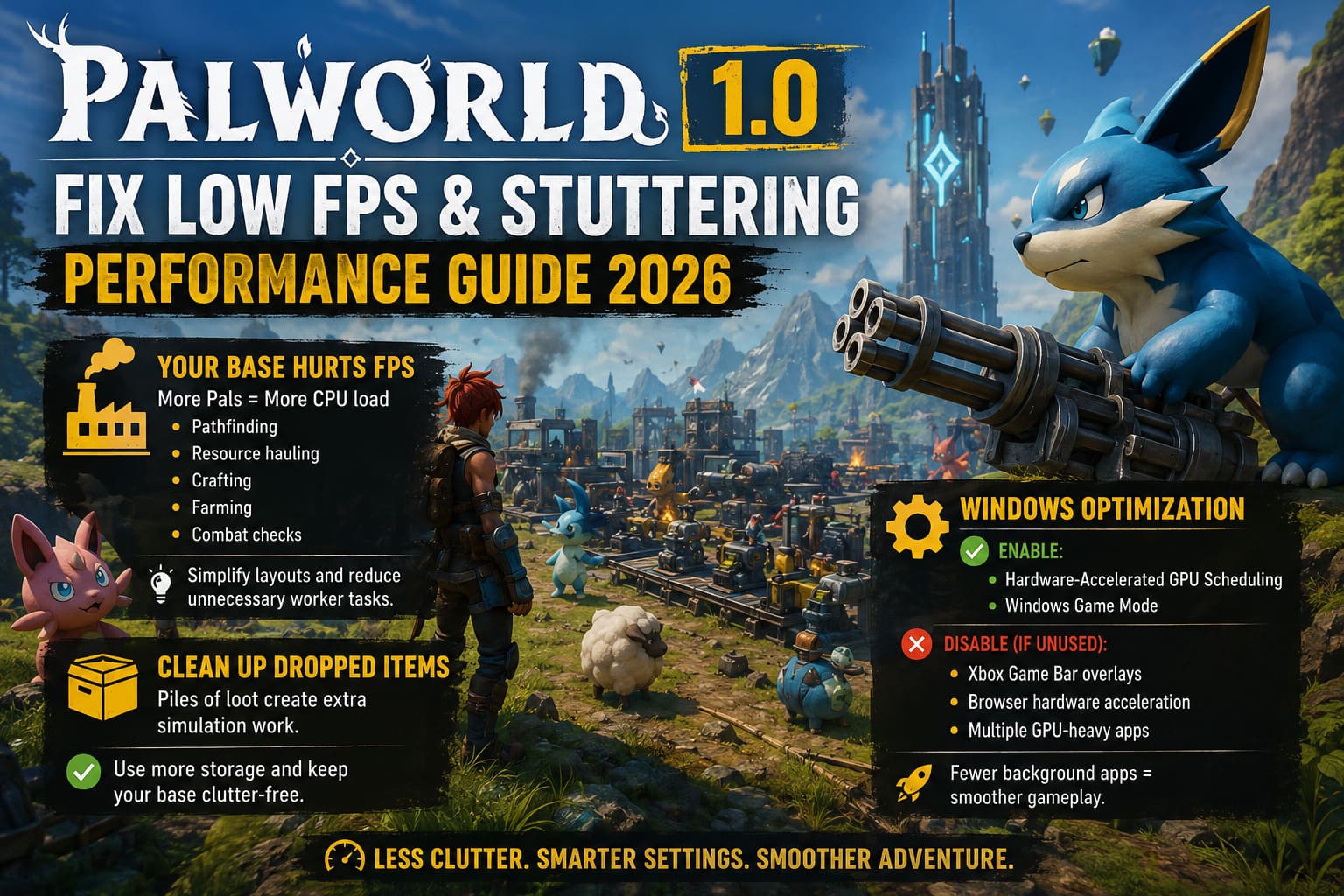
- Pathfinding
- Resource hauling
- Crafting
- Farming
- Combat checks
Multiply that by twenty or thirty workers across multiple bases, and CPU usage climbs rapidly.
After simplifying my layouts and reducing unnecessary worker activity, the game immediately became smoother.
The lesson?
Sometimes optimization starts inside the game world—not inside the graphics menu.
Clean Up Dropped Items
This sounds almost too simple.
But it works.
Large piles of stone, wood, ore, and other dropped materials continue existing in the world until they’re collected.
Over time they create unnecessary simulation work.
Whenever my mining operation became cluttered, performance gradually became worse.
Adding more storage nearby and keeping resource piles under control noticeably reduced slowdown around the base.
Windows Settings Worth Checking
I’m normally skeptical about “magic Windows tweaks.”
Most don’t do much.
However, there are a few settings that consistently helped.
Enable:
- Hardware-Accelerated GPU Scheduling
- Windows Game Mode
Disable if you don’t use them while gaming:
- Xbox Game Bar overlays
- Browser hardware acceleration
- Multiple GPU-heavy background applications
Leaving several Chromium-based applications open on a second monitor definitely had an impact on overall smoothness during longer sessions.
Long Play Sessions Can Become Less Stable
One pattern I kept noticing was that the game ran beautifully after launching.
Two hours later?
Not so much.
Memory usage slowly increased, and occasional stutters became more frequent.
Restarting the game restored performance almost immediately.
While adjusting Windows virtual memory can help prevent severe slowdowns or crashes, the simplest solution is often just restarting the game after an extended session.
It’s a surprisingly effective habit.
Storage Speed Still Matters
Palworld constantly streams world data.
If you’re still running the game from a traditional hard drive, loading new areas can become much rougher.
Moving the installation to an SSD won’t magically double your FPS, but it absolutely improves loading consistency and reduces pauses while traveling.
For open-world games built on Unreal Engine, fast storage makes a noticeable difference.
Don’t Ignore Driver Updates
Graphics drivers aren’t just about gaining a few extra frames.
Sometimes they contain game-specific optimizations that improve shader compilation, reduce crashes, or fix rendering issues introduced by major patches.
Whenever Palworld receives a significant update, it’s worth checking whether your GPU manufacturer has also released a newer driver.
Just don’t expect every driver update to transform performance overnight.
How to Transfer Old Save Files to Palworld 1.0 Cleanly: Complete 2026 Guide
The Settings That Gave Me the Biggest Improvement
If I had to rank the tweaks by real-world impact, this would be my personal list:
- Lower shadow quality.
- Keep view distance at Medium.
- Limit FPS to monitor refresh rate.
- Simplify oversized bases.
- Reduce unnecessary worker Pals.
- Let shader compilation finish naturally.
- Close hardware-accelerated background apps.
- Restart the game after very long sessions.
None of these changes alone doubled my FPS.
Together, though, they made Palworld feel like an entirely different game.
How to Fix Palworld 1.0 Crash on Launch on Windows 11 (2026 Guide)
Final Thoughts
Palworld 1.0 is far more ambitious than its early versions, and that ambition comes with a heavier hardware workload. The game simulates dozens of AI characters, streams massive environments, manages persistent world data, and constantly updates your growing bases. It’s no surprise that even modern gaming PCs can struggle under the wrong conditions.
The biggest takeaway from my testing is that optimization isn’t about chasing the highest FPS number. A stable frame rate with strong 1% lows feels infinitely better than huge benchmark numbers interrupted by constant hitching.
Instead of immediately setting every option to Low, spend a little time balancing your graphics settings, cleaning up oversized bases, limiting unnecessary background programs, and giving the engine a chance to build its shader cache. Those small adjustments often deliver a much smoother experience than dramatic configuration changes.
Palworld will probably continue receiving engine updates and performance improvements throughout its post-launch support, but until then, these practical tweaks have consistently delivered the best results for me. After applying them, the game finally felt the way I expected it to on launch day—smooth exploration, stable combat, and far fewer frustrating stutters while building, farming, or taking on challenging raids.