How to Fix The Division Resurgence Crashed to Desktop Kernel Error on PC
If you’ve spent enough time with Ubisoft games over the years, you’ve probably noticed one thing — they can be absolutely fantastic when everything works, and incredibly frustrating when technical issues get in the way. I’ve played everything from the classic Ghost Recon titles to multiple entries in The Division series, and one pattern has remained surprisingly consistent: random crashes can appear even on powerful gaming PCs.
The Division Resurgence brings the tactical, gritty shooter experience of the franchise to a new audience, but some PC players have been running into a frustrating problem. The game suddenly crashes to desktop, freezes completely, or triggers Windows Kernel-related errors during gameplay, loading screens, or intense firefights.
After testing different solutions myself and comparing results with what many players have reported, it became clear that these crashes usually are not caused by one single problem. In most cases, several small conflicts between drivers, system settings, background applications, or hardware stability create the perfect conditions for a crash.
Akatori Combat Guide: Master Parry Windows, Dodge Timings, and Air Combos
Why Does The Division Resurgence Crash on PC?
Many players immediately assume that the game itself is broken, but Windows Kernel errors are usually symptoms rather than the actual cause. The Kernel is responsible for communication between Windows, hardware components, and running applications, so problems at this level can come from many different sources.
The Division Resurgence can put heavy pressure on your GPU, CPU, and memory, especially during large battles or when loading new areas. If even one component becomes unstable, Windows may force the game to close in order to protect the system.
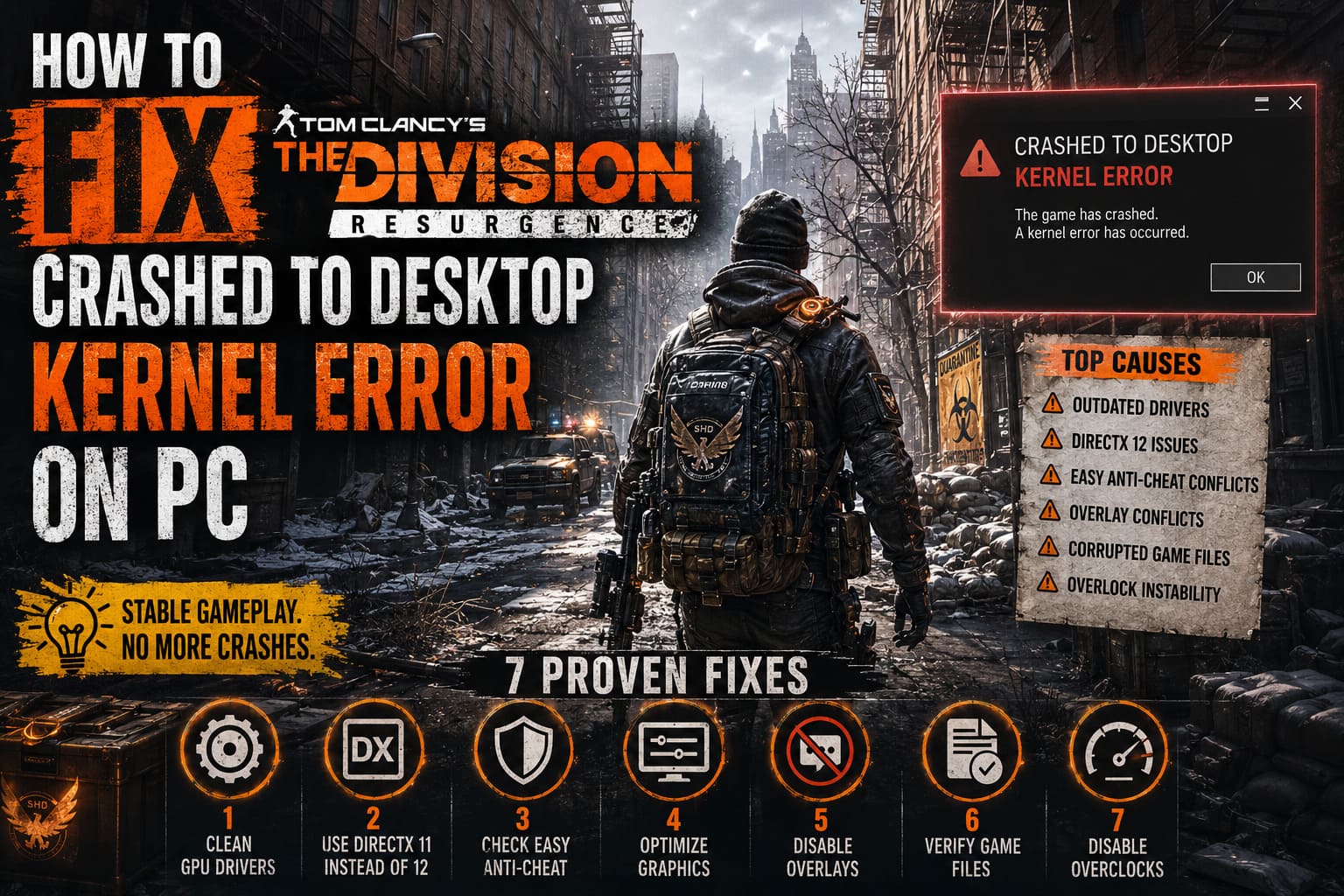
The most common reasons behind crashes include:
- Outdated or corrupted graphics drivers causing display failures.
- DirectX 12 compatibility problems affecting rendering stability.
- Easy Anti-Cheat conflicts interfering with system processes.
- CPU, GPU, or RAM overclock instability creating random crashes.
- Overlay applications injecting code into the game renderer.
- Corrupted game files causing loading and combat crashes.
From my experience with PC gaming, crashes like these are rarely solved by one magical fix. The best approach is checking every possible weak point until the system becomes stable again.
Common The Division Resurgence Crash Symptoms
| Issue | Typical Cause |
|---|---|
| Crash to desktop without warning | Graphics driver instability |
| Windows Kernel error | Hardware or software conflict |
| Freeze during loading screens | Damaged game files |
| Crash during combat | DirectX or GPU problems |
| Black screen before closing | Overlay or anti-cheat issues |
| Full PC restart | Power or overclock instability |
Fix 1: Install Graphics Drivers With a Clean Installation
The first thing I always recommend when dealing with kernel-related crashes is performing a completely clean GPU driver installation. Simply updating drivers over older versions does not always remove corrupted files or outdated profiles.
Graphics drivers can collect unnecessary settings over months or even years of updates. These leftover files may work fine in some games but completely break others, especially demanding Ubisoft titles.
For the cleanest installation:
- Download the latest graphics driver from NVIDIA, AMD, or Intel.
- Download Display Driver Uninstaller (DDU).
- Restart Windows into Safe Mode.
- Use DDU to remove old GPU drivers completely.
- Restart your computer.
- Install the newest driver using the clean installation option.
This process takes a few minutes but has fixed countless random crashes in many PC games.
Fix 2: Force DirectX 11 Instead of DirectX 12
DirectX 12 offers excellent performance, but it is not always the most stable option for every hardware configuration. Ubisoft games especially can behave differently depending on GPU models, drivers, and system settings.
In my own experience, switching from DirectX 12 to DirectX 11 has solved random crashes in several Ubisoft titles. You may lose a small amount of performance, but a stable game is always better than higher FPS followed by a desktop crash.
To try DirectX 11:
- Open Ubisoft Connect.
- Find The Division Resurgence in your library.
- Open the game properties.
- Add the launch command -dx11 or -force-dx11.
- Save the settings and restart the game.
If you can enter the graphics menu before crashing, disable DirectX 12 manually and restart the application.
Fix 3: Check Easy Anti-Cheat Conflicts
Anti-cheat software is necessary for online games, but because it operates deeply inside Windows, it can sometimes create unexpected compatibility problems.
When Easy Anti-Cheat fails to communicate correctly with the operating system, players may experience sudden crashes without any visible error message. The game simply disappears, leaving Windows to record the failure afterward.
Try checking the Easy Anti-Cheat service if crashes happen immediately after launching the game. Restarting related services or repairing the anti-cheat installation can sometimes restore stability.
Fix 4: Reduce Heavy Graphics Settings
One common mistake players make is lowering every graphics option to the minimum. Usually, that is unnecessary. Some settings have a much larger impact on system stability than others.
The most demanding options are often:
- Volumetric Fog
- Supersampling Quality
- Shadow Quality
- Ambient Occlusion
- Advanced Anti-Aliasing Options
Reducing these settings can significantly lower GPU stress while keeping the game looking good. I also recommend setting an FPS limit based on your monitor refresh rate instead of allowing your hardware to run at maximum power constantly.
Fix 5: Disable Third-Party Overlays
Modern gaming PCs often have several applications running overlays in the background. These tools are useful, but they can interfere with the way games communicate with graphics drivers.
Temporarily disable:
- Ubisoft Connect Overlay
- Discord Overlay
- NVIDIA Overlay
- MSI Afterburner
- RivaTuner Statistics Server
I usually disable everything first when troubleshooting crashes. If the game becomes stable, I enable each overlay one by one to find the application causing the conflict.
Fix 6: Verify The Division Resurgence Game Files
Broken or missing files are another common reason for crashes, especially after updates. A failed download or interrupted installation can leave damaged resources that cause problems during loading screens or specific missions.
Ubisoft Connect includes a simple verification tool that checks the installation and replaces damaged files automatically.
Open Ubisoft Connect, select the game, choose the file verification option, and allow the launcher to scan the installation folder. If anything is missing, the client will download the correct files again.
Fix 7: Disable Overclocking and Memory Profiles
This is one of the fixes many players ignore because their system appears stable in benchmarks. However, games often expose hardware problems that synthetic tests never find.
A CPU, GPU, or RAM overclock can work perfectly in stress tests but crash after thirty minutes of real gameplay. Ubisoft games are especially good at revealing small hardware instabilities.
If you continue seeing Kernel-Power errors, try disabling:
- CPU overclock settings
- GPU overclock profiles
- XMP memory profiles
- EXPO memory profiles
- Manual voltage adjustments
Return your hardware to factory settings and test the game again. If the crashes disappear, you have found the source of the problem.
Check Windows Event Viewer for More Details
Windows usually records information after a crash. While these logs are not always easy to understand, they can provide useful clues.
Open Event Viewer, go to Windows Logs → System, and check the entries created at the exact crash time.
Look for messages related to:
- Kernel-Power
- Display driver failures
- Application crashes
- Easy Anti-Cheat errors
This information can help identify whether the problem comes from software, drivers, or hardware.
My Final Thoughts
After years of playing and troubleshooting PC games, I have learned that crash problems are rarely fixed by one simple solution. There is usually a combination of small issues that slowly creates instability.
With The Division Resurgence, the most effective fixes are usually cleaning GPU drivers, switching graphics APIs, verifying game files, disabling unnecessary overlays, and making sure your hardware settings are truly stable.
The good news is that once these problems are removed, the game becomes much more enjoyable. The tactical combat, multiplayer experience, and exploration are worth the effort, and spending a little time fixing stability issues is far better than constantly returning to the desktop after every major fight.