Quarantine Zombies Prologue Crash on Startup Steam Fix: How to Stop Fatal Errors, Black Screen, and Freezing on PC
When I first installed Quarantine Zombies: Prologue, I expected a tense survival experience with document inspections, desperate civilians, and waves of infected trying to break through the checkpoint. Instead, my first enemy wasn’t a zombie—it was the desktop. The game crashed before I even reached the main menu, and after spending years reviewing PC releases, I immediately recognized the familiar signs of a rough launch.
I’ve seen this story play out countless times. Whether it’s an indie survival title or a massive AAA release, launch-week builds often suffer from driver conflicts, missing runtime libraries, or rendering issues that somehow only affect certain hardware combinations. The good news is that Quarantine Zombies: Prologue crashing on startup, freezing on a black screen, or throwing Fatal Error messages isn’t usually permanent. Most of these problems can be solved without waiting weeks for a patch.
After experimenting with different configurations and comparing solutions shared across the PC gaming community, I found several fixes that consistently improved stability. Here’s what I recommend trying before giving up on the game.
How to Fix Mistfall Hunter Crash on Launch and Black Screen Issues on PC (2026 Guide)
Why Quarantine Zombies: Prologue Crashes on PC
One thing I’ve learned over the years is that PC games rarely crash for just one reason. Every system is different, and a fix that works perfectly on one machine may do absolutely nothing on another.
In the case of Quarantine Zombies: Prologue, the most common causes appear to be:
- DirectX rendering conflicts
- Corrupted Steam installation files
- Missing Visual C++ components
- Outdated GPU drivers
- Windows compatibility problems
- Background overlays
- Slow storage devices
The encouraging part is that none of these are particularly unusual. They’re exactly the kinds of launch issues that many Unreal Engine-based games experience during their first few weeks.
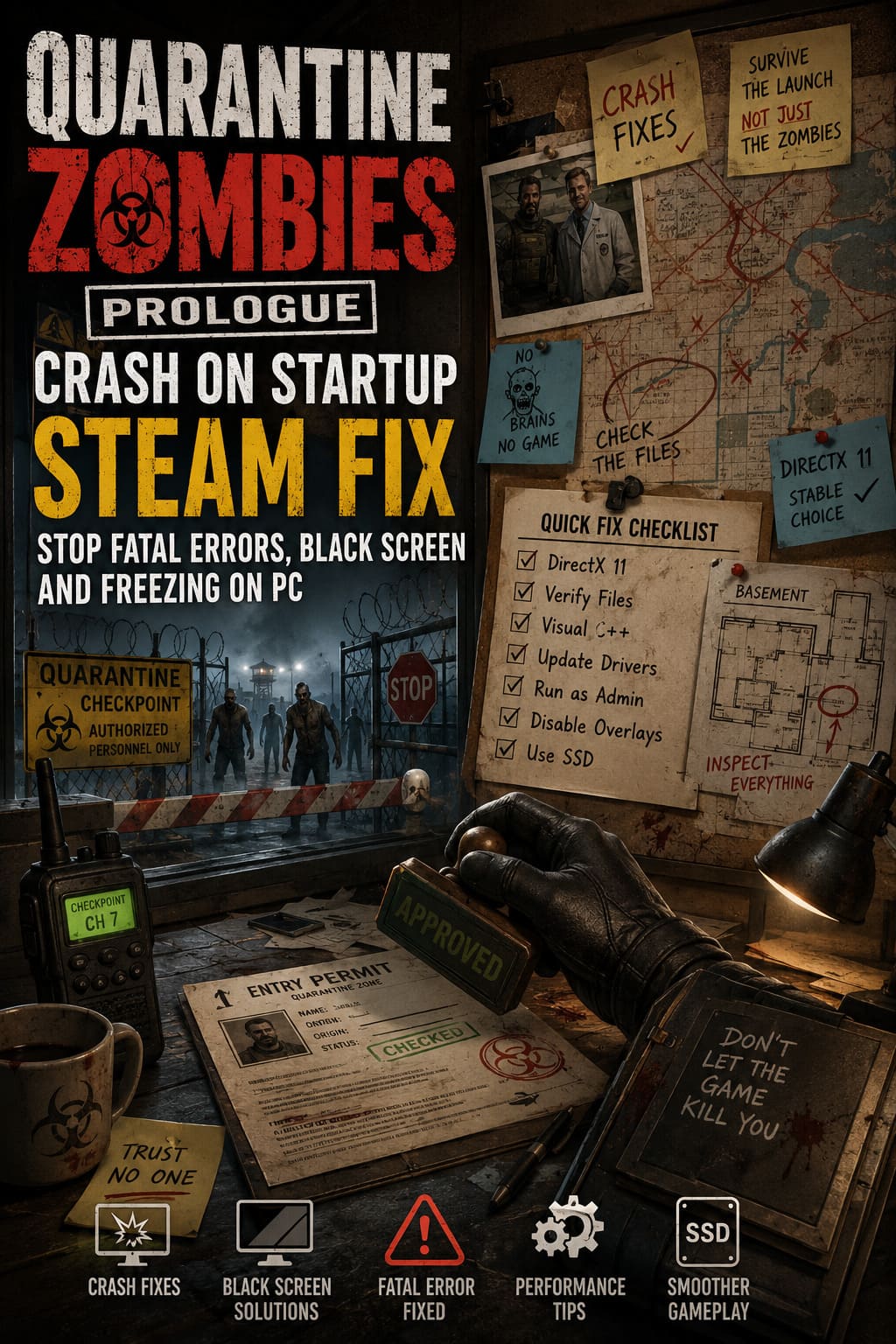
1. Try Running the Game with DirectX 11
This was the very first solution I tested, and surprisingly, it made the biggest difference.
Modern games generally default to DirectX 12, but DX12 isn’t always the most stable option. Certain graphics cards—especially older NVIDIA and AMD models—still behave better with DirectX 11.
To test this, open Steam, right-click Quarantine Zombies: Prologue, choose Properties, and under Launch Options enter the following command:
-dx11
Launch the game again and check whether the crash disappears. If performance becomes worse or nothing changes, simply remove the launch option or experiment with -dx12 instead.
Personal opinion: I’ve fixed dozens of launch-day crashes across different games using nothing more than this simple command. It remains one of the easiest troubleshooting steps available.
2. Verify the Steam Installation
It sounds almost too obvious, but incomplete downloads happen more often than people realize. Steam occasionally finishes downloading while one or two files become corrupted in the background. The game installs successfully, yet crashes immediately when it tries to access damaged assets.
To verify your installation, open your Steam Library, right-click the game, select Properties, open the Installed Files section, and click Verify integrity of game files. Steam will scan the installation and automatically replace any missing or corrupted files.
I’ve personally had this fix solve launch-week crashes in several recent PC releases without needing to reinstall the entire game.
3. Repair Microsoft Visual C++ Redistributables
Windows depends on Microsoft’s runtime libraries for a huge number of modern PC games. If those files become corrupted or outdated, the game may fail before the first splash screen even appears.
Download the latest Microsoft Visual C++ Redistributable (2015–2022) packages directly from Microsoft and install both the x64 and x86 versions. If they’re already installed, choose the Repair option instead of uninstalling them.
After restarting Windows, launch the game again. This solution doesn’t get much attention, but over the years I’ve seen it fix more mysterious startup crashes than most players would expect.
4. Perform a Clean Graphics Driver Installation
Graphics drivers are another frequent culprit behind Fatal Errors, random freezing, and black screen issues. Updating drivers through the normal installer is helpful, but sometimes leftover files from previous versions continue causing conflicts.
If you’re experiencing repeated crashes, perform a clean installation of the latest NVIDIA or AMD driver. While you’re updating, temporarily disable GPU features such as NVIDIA Overlay, ShadowPlay, AMD Anti-Lag, and Radeon Boost.
These technologies usually improve the gaming experience, but newly released games occasionally react poorly to them until developers release additional patches.
5. Run the Game as Administrator
This recommendation might sound old-fashioned, but it still works surprisingly often. Windows security can sometimes prevent games from creating temporary files or accessing required folders correctly.
Locate the game’s executable file, open its Properties, switch to the Compatibility tab, enable Run this program as administrator, and also enable Disable Full-Screen Optimizations.
Neither option will magically improve frame rates, but together they can eliminate startup crashes caused by Windows rather than the game itself.
6. Close Every Overlay You Don’t Need
If there’s one pattern I’ve noticed over the last few years, it’s that overlays create more compatibility headaches than almost anything else. Every overlay hooks itself into the rendering process, and while that’s usually harmless, it can become a problem with brand-new releases.
Before launching the game, temporarily close applications like Discord, OBS Studio, MSI Afterburner, RTSS, or other recording and monitoring software. If you want to keep Discord running, at least disable its in-game overlay.
Whenever I troubleshoot a fresh PC launch, I always perform one clean startup with every overlay disabled. It’s one of the fastest ways to determine whether background software is responsible for the crashes.
7. Install the Game on an SSD
Modern PC games constantly stream textures, audio, animations, and environmental assets while you’re playing. Because of that, storage performance matters much more than it did a few years ago.
If Quarantine Zombies: Prologue is installed on an older mechanical hard drive, Windows may interpret delayed asset loading as an application freeze. Moving the game to a fast SSD can improve startup times, reduce texture streaming issues, and prevent loading-related crashes.
Steam makes the process simple by allowing you to move an installed game between library locations without downloading everything again.
Additional Tips That Helped Me
There are also a few smaller adjustments worth trying if none of the major fixes solve the issue. Restart your PC after every significant change, especially after updating drivers or repairing runtime libraries, because Windows often requires a reboot before applying those changes correctly.
It’s also a good idea to avoid running unnecessary background applications. Browsers with dozens of open tabs, streaming software, or video editing programs can consume valuable system resources before the game even finishes loading.
Finally, don’t ignore Windows Update. Optional updates frequently include compatibility improvements that work alongside newer graphics drivers and can unexpectedly solve stability problems.
Quick Troubleshooting Checklist
| Problem | Recommended Fix |
|---|---|
| Crash immediately after pressing Play | Force DirectX 11 |
| Black screen with audio | Disable overlays and update GPU drivers |
| Fatal Error popup | Repair Visual C++ Redistributables and verify game files |
| Crash during gameplay | Perform a clean graphics driver installation |
| Long loading followed by freezing | Move the game to an SSD |
| Random instability | Run as Administrator and disable Full-Screen Optimizations |
Final Thoughts
Although Quarantine Zombies: Prologue launched with several frustrating technical problems, I don’t think those issues define the experience. Once I finally got everything running properly, I started appreciating the tension created by the quarantine checkpoint, the constant pressure of checking survivors, and the unpredictable zombie encounters. The core gameplay loop has enough originality to keep me interested, even if the launch hasn’t been perfect.
After spending years playing everything from ambitious indie projects to blockbuster releases, I’ve learned not to judge a game solely by its first week. Plenty of titles have gone from unstable messes to polished experiences after a handful of updates. I believe Quarantine Zombies: Prologue has the potential to follow that same path, and until new optimization patches arrive, the troubleshooting methods above should give you the best chance of getting into the game instead of staring at another crash report.