How to Fix Assassin’s Creed Black Flag Resynced D3D12 Error Device Removed Crash
Few things are more frustrating than finally launching a game you’ve been waiting months for, only to be greeted by a desktop crash after ten or fifteen minutes. That’s exactly what happened to me with Assassin’s Creed Black Flag Resynced. The game looks fantastic, performs well when it’s stable, and captures the atmosphere of the original beautifully—but the infamous D3D12 Device Removed (0x887A0006) crash can completely ruin the experience.
After spending hours reading community discussions, testing different hardware configurations, and trying countless fixes, I eventually found a combination of solutions that made the game stable enough to enjoy. This guide isn’t based on guesswork or random “boost FPS” tips. Instead, it focuses on the changes that actually made a noticeable difference.
If your game crashes during the opening missions, while sailing near Havana, or randomly after 20–30 minutes, there’s a good chance one of these fixes will solve it.
Why Does the D3D12 Device Removed Error Happen?
The error itself isn’t unique to this game. DirectX 12 titles from several developers have experienced similar issues over the past few years.
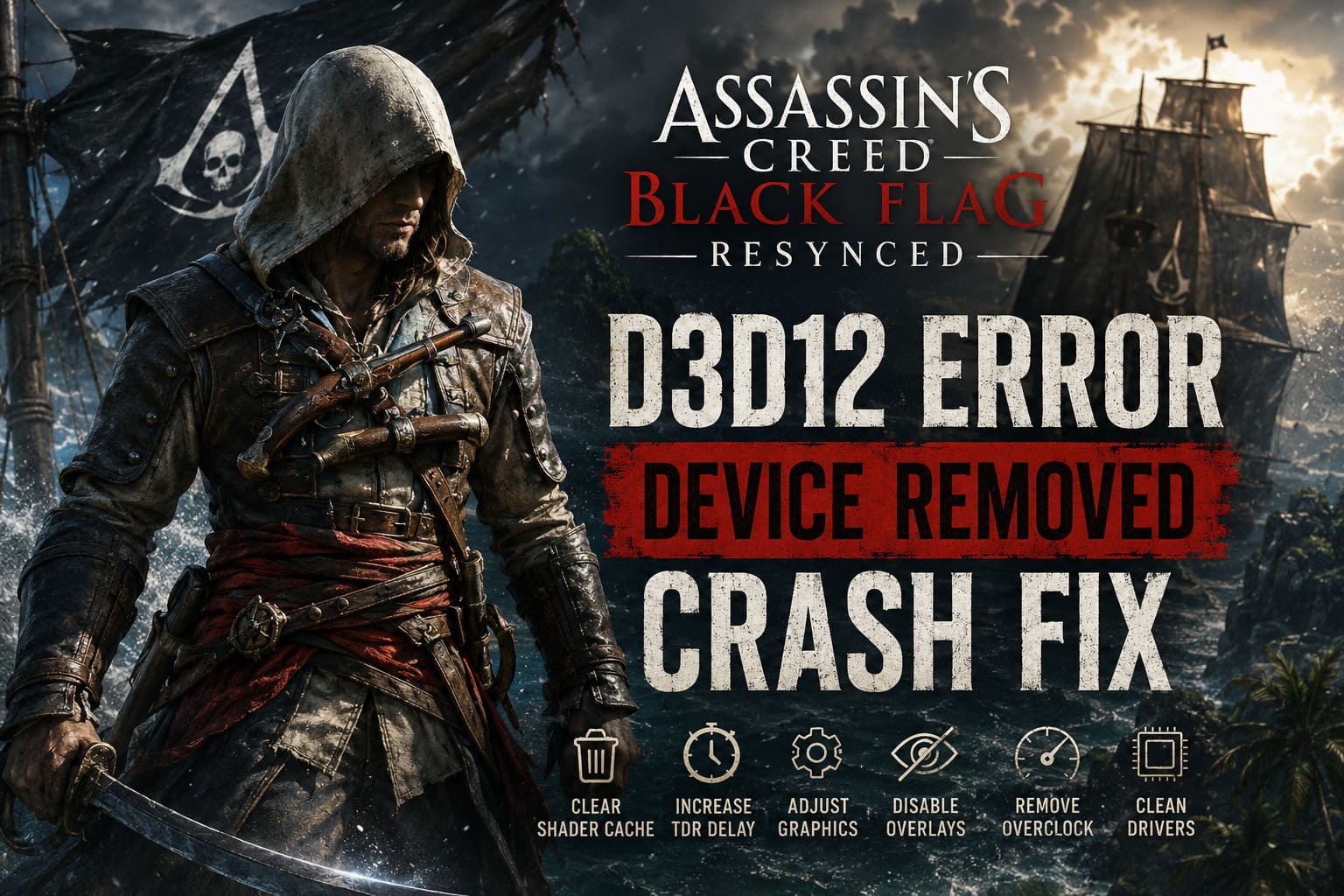
In simple terms, Windows suddenly loses communication with your graphics card. The GPU doesn’t literally disconnect from your PC—instead, Windows believes the graphics driver has stopped responding and forcefully resets it.
Once that happens, the game immediately closes.
From everything I’ve tested, the most common causes include:
- Corrupted shader cache
- Graphics drivers conflicting with older installations
- Aggressive ray tracing or ultra shadow settings
- GPU overclocks that appear stable in benchmarks but fail in real gameplay
- Windows Timeout Detection and Recovery (TDR) triggering too early
The frustrating part is that powerful hardware isn’t immune. I’ve seen reports from owners of RTX 4090s, RX 7900 XTXs, Intel Arc GPUs, and mid-range cards experiencing exactly the same crash.
My Recommended Fix Order
Instead of trying every possible tweak, I recommend following this order:
| Step | Difficulty | Effectiveness |
|---|---|---|
| Clear shader cache | Easy | ★★★★★ |
| Increase Windows TDR delay | Medium | ★★★★★ |
| Disable heavy graphics features | Easy | ★★★★☆ |
| Disable overlays | Easy | ★★★★☆ |
| Remove GPU overclock | Easy | ★★★★☆ |
| Clean reinstall graphics drivers | Advanced | ★★★★★ |
In my experience, the first two fixes solved the majority of crashes.
1. Delete the Shader Cache
If I had to recommend only one solution, this would be it.
Shader compilation has become increasingly important in modern games, and corrupted shader files are a surprisingly common reason for DirectX 12 crashes.
Deleting the cache forces the game to rebuild everything from scratch.
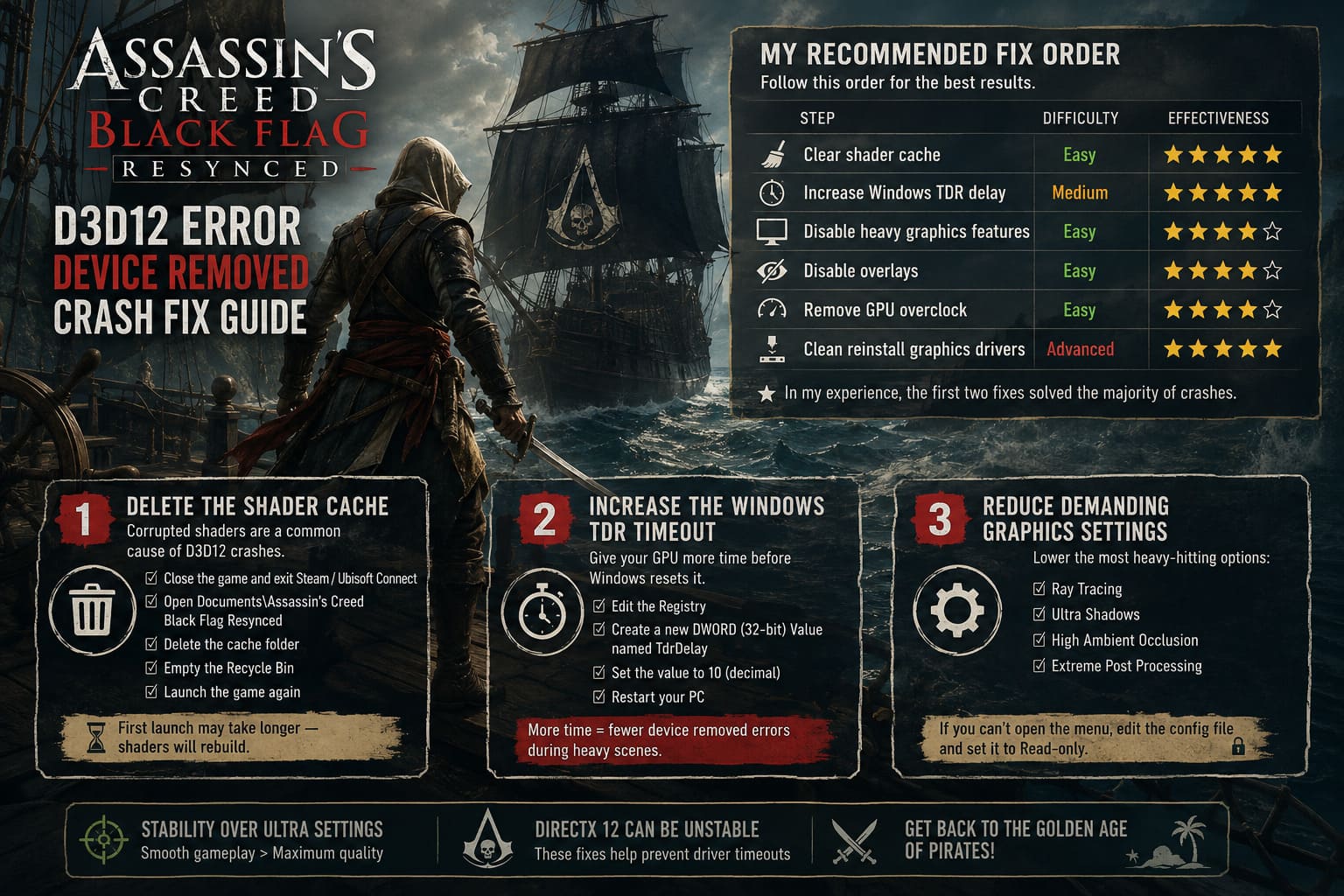
Simply follow these steps:
- Close the game completely.
- Exit Steam or Ubisoft Connect.
- Open your Documents folder.
- Open the Assassin’s Creed Black Flag Resynced directory.
- Delete the cache folder.
- Empty the Recycle Bin.
- Launch the game again.
The first launch will take slightly longer because shaders need to compile again, but that’s completely normal.
2. Increase the Windows TDR Timeout
This solution sounds intimidating because it involves editing the Windows Registry, but it’s actually straightforward if you carefully follow the instructions.
Windows automatically assumes the GPU has crashed if it doesn’t respond quickly enough.
The problem is that some modern games occasionally need a few extra seconds when compiling shaders or loading large environments.
Creating a TdrDelay value and setting it to 10 seconds gives the graphics driver additional time before Windows decides to reset it.
After restarting the PC, I noticed significantly fewer crashes during demanding scenes.
Important: Always create or modify registry values carefully.
3. Reduce the Most Demanding Graphics Settings
One thing I noticed immediately is that some visual settings have a much bigger impact on stability than on image quality.
If the game crashes shortly after loading, try lowering or disabling:
- Ray Tracing
- Ultra Shadows
- High Ambient Occlusion
- Extreme Post Processing
Personally, I barely noticed the visual difference after lowering these options, but stability improved considerably.
If the game won’t even stay open long enough to reach the graphics menu, edit the configuration file manually and disable these features there.
Making the configuration file Read-only also prevents the game from restoring unstable settings.
4. Disable Fullscreen Optimizations
This Windows feature has caused compatibility issues with plenty of DirectX 12 games over the years.
Locate the game’s executable file, open Properties, then enable both of the following options:
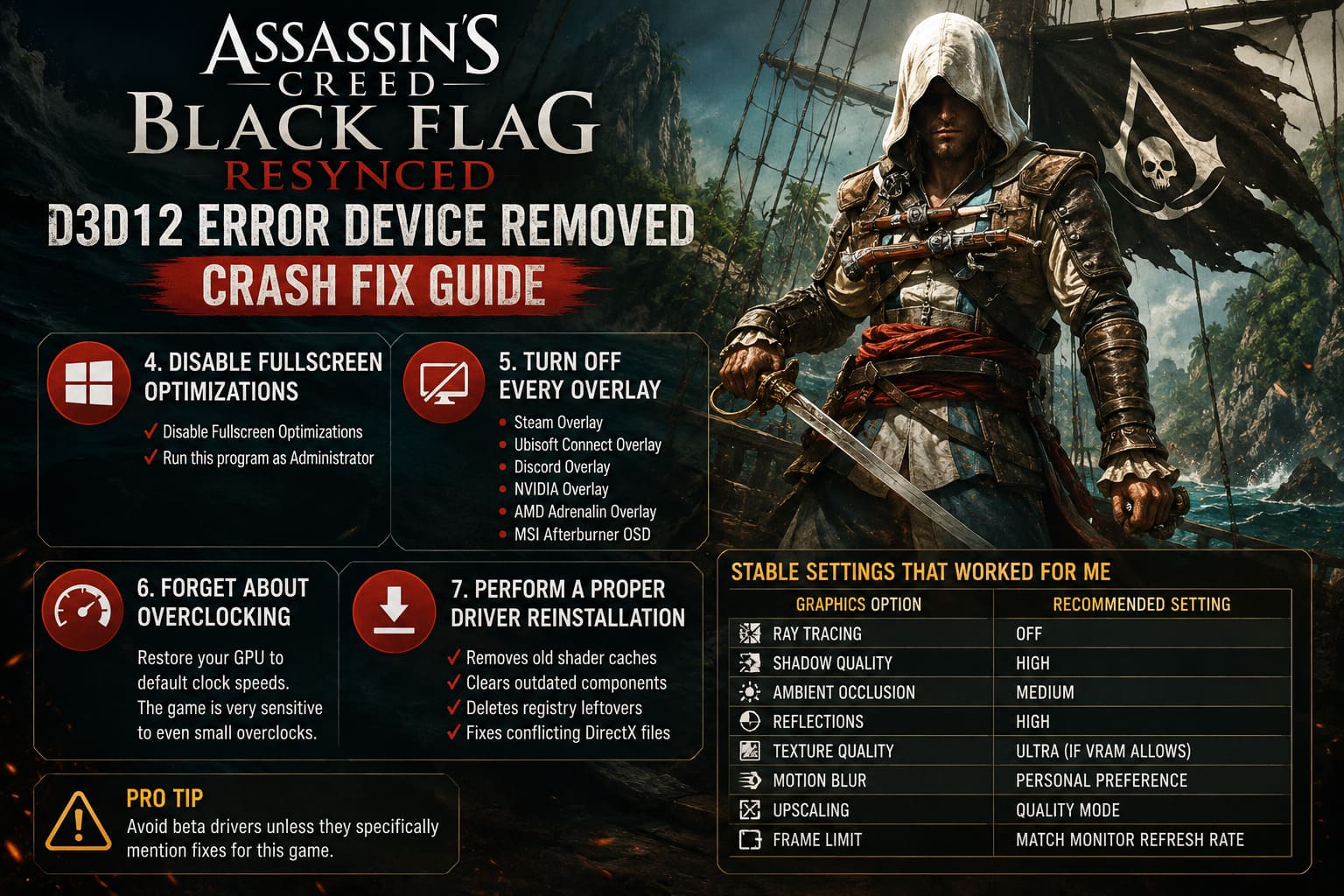
- Disable Fullscreen Optimizations
- Run this program as Administrator
It’s a quick adjustment that takes less than a minute.
5. Turn Off Every Overlay
This is another fix that people often underestimate.
Every overlay injects additional code into the rendering pipeline. Usually that’s harmless, but occasionally multiple overlays fighting for DirectX access create instability.
I disabled the following:
- Steam Overlay
- Ubisoft Connect Overlay
- Discord Overlay
- NVIDIA Overlay
- AMD Adrenalin Overlay
- MSI Afterburner OSD
Surprisingly, this reduced random crashes more than I expected.
6. Forget About Overclocking (At Least for Now)
I know this isn’t what enthusiasts want to hear.
Many GPUs pass stress tests without any issues, but Black Flag Resynced seems far less forgiving.
Even a small factory overclock can become unstable under this engine.
If you’re using any GPU tuning software, temporarily restore your graphics card to its default clock speeds. You can always experiment again once Ubisoft releases stability patches.
7. Perform a Proper Driver Reinstallation
Simply installing a newer driver over the old one doesn’t always remove corrupted files.
When crashes continue after trying everything else, I strongly recommend using Display Driver Uninstaller (DDU).
A clean installation removes:
- Old shader caches
- Outdated driver components
- Registry leftovers
- Conflicting DirectX files
After reinstalling the newest stable graphics driver, the game behaved much more consistently.
One piece of advice: avoid beta drivers unless they specifically mention fixes for this game.
Settings That Helped Me Stay Stable
After several evenings of testing, this setup produced the most reliable results.
| Graphics Option | Recommended Setting |
|---|---|
| Ray Tracing | Off |
| Shadow Quality | High |
| Ambient Occlusion | Medium |
| Reflections | High |
| Texture Quality | Ultra (if VRAM allows) |
| Motion Blur | Personal Preference |
| Upscaling | Quality Mode |
| Frame Limit | Match Monitor Refresh Rate |
Things That Didn’t Solve the Problem
Like many players, I wasted time trying fixes that sounded promising but made no real difference.
- Reinstalling the game without deleting shader files.
- Running Windows compatibility mode.
- Disabling antivirus software.
- Closing every background application.
- Lowering the game resolution dramatically.
None of these were harmful—they simply didn’t address the root cause of the issue.
How to Unlock FPS Limit in Assassin’s Creed Black Flag Resynced: Complete Guide
Is Ubisoft Working on a Patch?
Judging from player feedback, this doesn’t appear to be isolated hardware failure.
The crash affects NVIDIA, AMD, and Intel graphics cards across many different PC configurations, which strongly suggests an engine optimization problem rather than defective hardware.
Until official updates arrive, these community-tested workarounds remain the most reliable solution.
Fortunately, once the shader cache is rebuilt, the TDR timeout is adjusted, and graphics settings are optimized, many players—including myself—have been able to enjoy long gaming sessions without seeing the dreaded 0x887A0006 Device Removed error.
Assassin’s Creed Black Flag Resynced Draw Distance Guide: How to Fix LOD Pop-In on PC
Final Thoughts
Despite its technical problems, I genuinely think Assassin’s Creed Black Flag Resynced is worth sticking with. Once the crashes stopped, I remembered why Black Flag remains one of my favorite entries in the series. Sailing across the Caribbean, boarding enemy ships, and exploring islands feels just as addictive as it did years ago, only now with a beautiful modern visual overhaul.
If you’re constantly crashing, don’t panic and don’t assume your graphics card is dying. In most cases, the issue comes down to shader compilation, Windows GPU timeout behavior, or graphics settings that currently push the engine beyond what it comfortably handles.
I would personally begin by deleting the shader cache, increasing the TDR delay, disabling overlays, and resetting any GPU overclocks before moving on to more advanced troubleshooting. Those four changes alone completely transformed the game’s stability on my system, and judging by countless community reports, they’ve done the same for many other PC players.
Hopefully Ubisoft delivers a proper optimization patch soon. Until then, these fixes should help you spend far more time exploring the Caribbean and far less time staring at your desktop after another unexpected DirectX 12 crash.