Assassin’s Creed Black Flag Resynced Draw Distance Guide: How to Fix LOD Pop-In on PC
When I first started exploring the remastered Caribbean in Assassin’s Creed Black Flag Resynced, one thing immediately stood out—just how incredible the world looks when everything is working properly. Sailing across the ocean at sunrise, watching distant islands emerge from the fog, and climbing rooftops in Havana all feel far more cinematic than they did in the original release.
Unfortunately, I also noticed something that quickly broke the immersion: LOD pop-in.
Trees suddenly gained detail as I approached them, distant buildings swapped models, and ships sometimes appeared a little too late on the horizon. None of these issues make the game unplayable, but once you notice them, they’re difficult to ignore.
After experimenting with every graphics option, comparing results with other PC players, and testing different hardware configurations, I found that most draw distance problems can be greatly reduced without sacrificing a huge amount of performance.
If you’re trying to make Assassin’s Creed Black Flag Resynced look as stable and immersive as possible, here’s what actually made a difference for me.
Why LOD Pop-In Happens
The game uses an advanced version of Ubisoft’s Anvil Engine that renders significantly more detail than the 2013 original. Modern lighting, denser environments, higher quality textures, and improved geometry all demand considerably more from both your CPU and GPU.
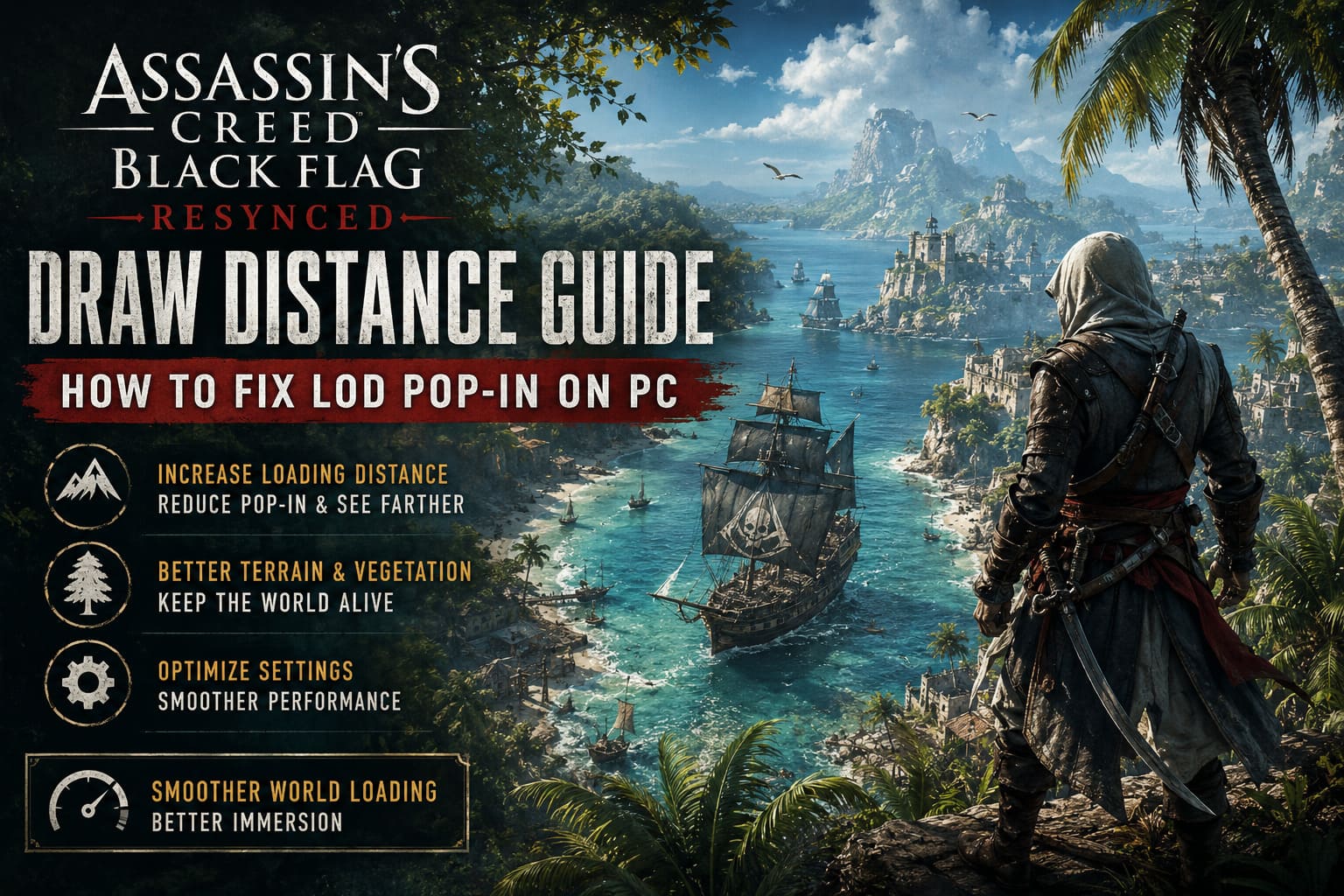
To maintain performance, the engine constantly decides how and when objects should appear, which model quality should be displayed, how detailed textures remain at distance, and how much world data stays loaded in memory.
If your hardware can’t keep up—or if the default settings are too conservative—you’ll notice objects changing quality much sooner than expected.
Fortunately, several graphics settings directly influence this behavior.
Start With the Graphics Menu
Before editing configuration files or installing mods, spend a few minutes inside the game’s graphics settings.
These options have the biggest impact on how far the world renders.

Increase Loading Distance
If I could recommend changing only one option, this would be it.
Loading Distance controls how aggressively the game streams distant scenery. Setting it to Very High or Ultra High keeps islands, ships, vegetation, and structures visible much farther away.
It also noticeably reduces obvious object spawning while sailing.
Raise Geometry Quality
Geometry Quality determines how detailed models remain before switching to lower-detail versions.
When this option is too low, you’ll often notice:
- Buildings changing shape.
- Cliffs becoming more detailed as you approach.
- Trees suddenly gaining branches.
- Ships appearing less detailed until they’re nearby.
Keeping this on High or above creates much smoother transitions.
Don’t Lower Micropolygon Rendering
This setting surprised me.
At first I assumed it only affected close-up surfaces, but lowering it also made distant terrain appear flatter and less consistent.
Using High or Very High preserves much more environmental detail across long distances.
If your GPU has enough headroom, it’s absolutely worth enabling.
Improve Terrain and Vegetation Quality
Grass and foliage are some of the first things players notice popping into existence.
Increasing Terrain Quality and Scatter Density helps vegetation remain visible farther away while reducing the distracting “growing grass” effect during exploration.
It also makes tropical islands feel much more alive.
Editing the Configuration File Can Help
After maximizing every in-game setting, I still noticed occasional object streaming issues.
That’s when I experimented with the configuration file.
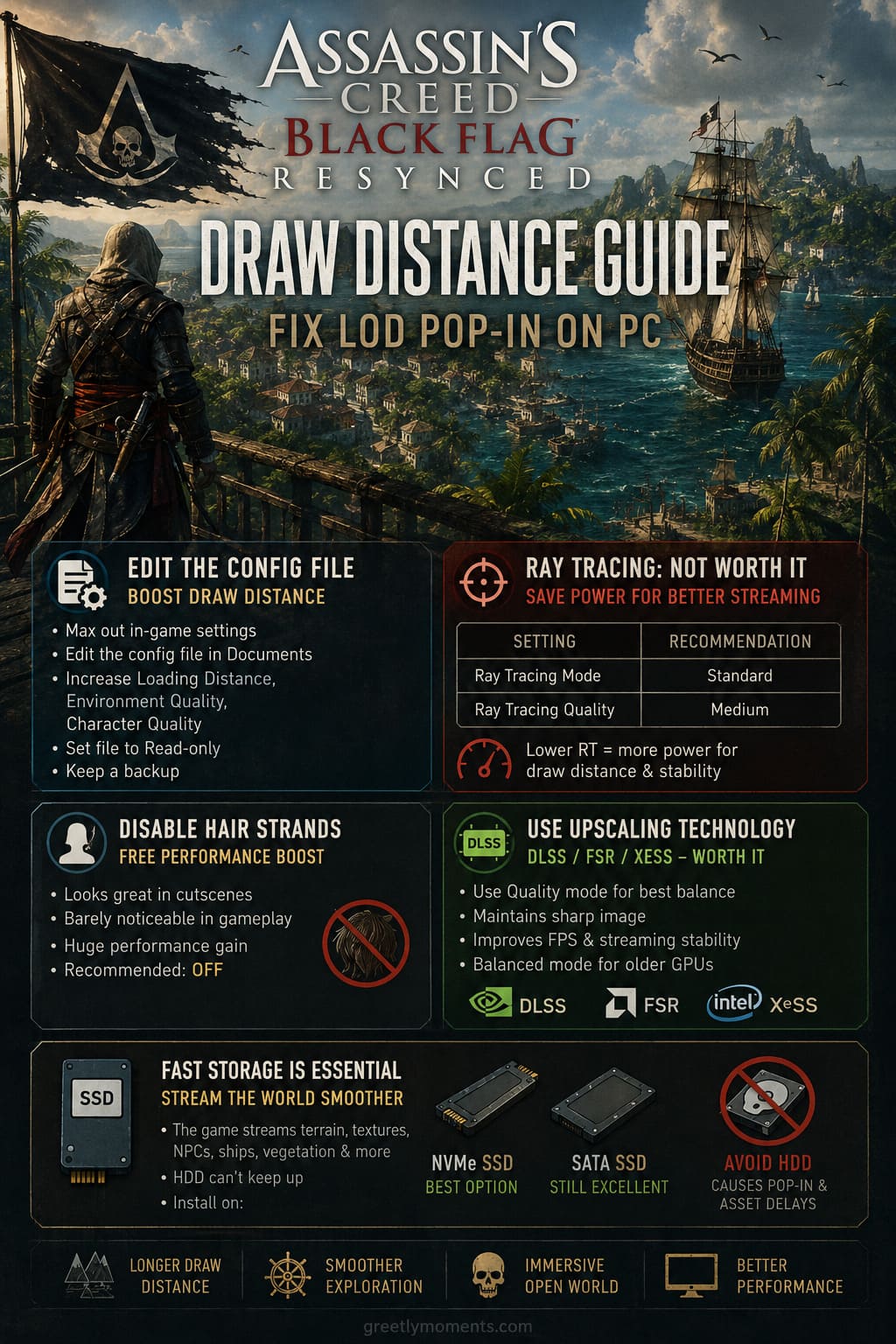
Before changing anything, follow these steps:
- Find the game’s configuration folder inside your Documents directory.
- Make a backup of the configuration file.
- Open it with a text editor.
Inside the graphics section, several values control how aggressively the engine streams assets.
Increasing values related to Loading Distance, Environment Quality, and Character Quality can push rendering beyond the limits exposed in the graphics menu.
After saving the changes, setting the configuration file to Read-only prevents the game from overwriting your custom settings after future launches.
Always keep your backup available in case an update changes compatibility.
Ray Tracing Isn’t Always Worth the Cost
This may be an unpopular opinion, but I don’t think Ultra ray tracing is the best choice if your goal is maximum draw distance.
Ray tracing consumes enormous amounts of GPU power and VRAM.
Those same resources could instead be used for larger streaming buffers, higher quality distant textures, longer object visibility, and smoother world loading.
I ended up using the following settings:
| Setting | Recommendation |
|---|---|
| Ray Tracing Mode | Standard |
| Ray Tracing Quality | Medium |
The visual difference during normal gameplay was surprisingly small, while streaming became noticeably smoother.
Disable Hair Strands
Hair simulation looks impressive during cutscenes.
While sailing the Caribbean, however, you’ll almost never notice it.
Turning Hair Strands off gave me a free performance boost without affecting exploration, naval combat, or parkour.
It’s one of those settings that costs much more performance than visual quality.
DLSS, FSR and XeSS Are Worth Using
Normally I prefer native resolution whenever possible.
However, this game benefits significantly from modern upscaling technologies.
Running DLSS Quality, FSR Quality, or XeSS Quality allowed me to maintain higher frame rates while keeping Loading Distance at much more aggressive settings.
Quality mode still produces a sharp image while reducing GPU workload enough to improve world streaming consistency.
Balanced mode is another good option for older graphics cards.
Storage Speed Matters More Than Many People Think
One lesson modern open-world games continue teaching us is that storage speed isn’t just about loading screens anymore.
The game constantly streams terrain, textures, NPCs, vegetation, ships, and environmental effects.
Running everything from an older mechanical HDD simply can’t keep pace.
If possible, install the game on one of the following storage devices:
- NVMe SSD (Best Option)
- SATA SSD (Still Excellent)
Using a hard drive often leads to delayed asset loading regardless of graphics settings.
Watch Your VRAM Usage
One mistake I made early on was maxing out every visual option.
Ultra textures, Ultra ray tracing, maximum shadows, and maximum draw distance all looked fantastic—until VRAM filled up.
Once that happens, the game begins moving assets into system memory, which dramatically slows streaming.
Common symptoms include:
- Blurry textures.
- Delayed object loading.
- Heavy stuttering.
- Aggressive pop-in.
Instead of lowering draw distance, I found better results by reducing Texture Quality from Ultra to High.
Honestly, I could barely tell the difference visually, but the streaming improvements were obvious.
Don’t Ignore GPU Driver Updates
Game Ready drivers exist for a reason.
Large releases frequently receive optimization patches that improve shader compilation, memory allocation, texture streaming, and frame pacing.
Even if the release notes don’t specifically mention Black Flag Resynced, newer drivers often include engine-level improvements that help recently released games.
It’s one of the simplest and most effective fixes available.
Settings That Worked Best For Me
After several evenings of experimenting, this combination gave me the best balance between image quality and smooth gameplay.
| Graphics Option | Recommended Setting |
|---|---|
| Loading Distance | Very High |
| Geometry Quality | High |
| Micropolygon Rendering | Very High |
| Terrain Quality | High |
| Scatter Density | High |
| Character Quality | High |
| Texture Quality | High |
| Hair Strands | Off |
| Ray Tracing Mode | Standard |
| Ray Tracing Quality | Medium |
| Upscaling | DLSS / FSR / XeSS Quality |
Final Thoughts
One thing I genuinely appreciate about Assassin’s Creed Black Flag Resynced is how much effort went into rebuilding the world. The improved lighting, dense vegetation, upgraded cities, and enhanced ocean rendering make revisiting Edward Kenway’s adventure feel fresh again.
That’s exactly why LOD pop-in stands out so much—it interrupts an otherwise beautiful experience.
The good news is that most of the problem isn’t permanent. With the right graphics settings, a sensible balance between ray tracing and draw distance, careful VRAM management, and a few configuration tweaks, the game becomes dramatically more consistent.
If I had to prioritize the biggest improvements, I’d focus on increasing Loading Distance, keeping Geometry Quality high, avoiding unnecessary VRAM overload, and installing the game on a fast SSD. Those changes alone made the Caribbean feel much more seamless on my system.
Like most modern PC releases, there’s no single magic setting that fixes everything. But after plenty of testing, these adjustments created a world that felt smoother, more immersive, and much closer to what I expected from a modern remake.