Ready or Not: Boiling Point Crashing on Startup? 10 Best Fixes to Launch the Game in 2026
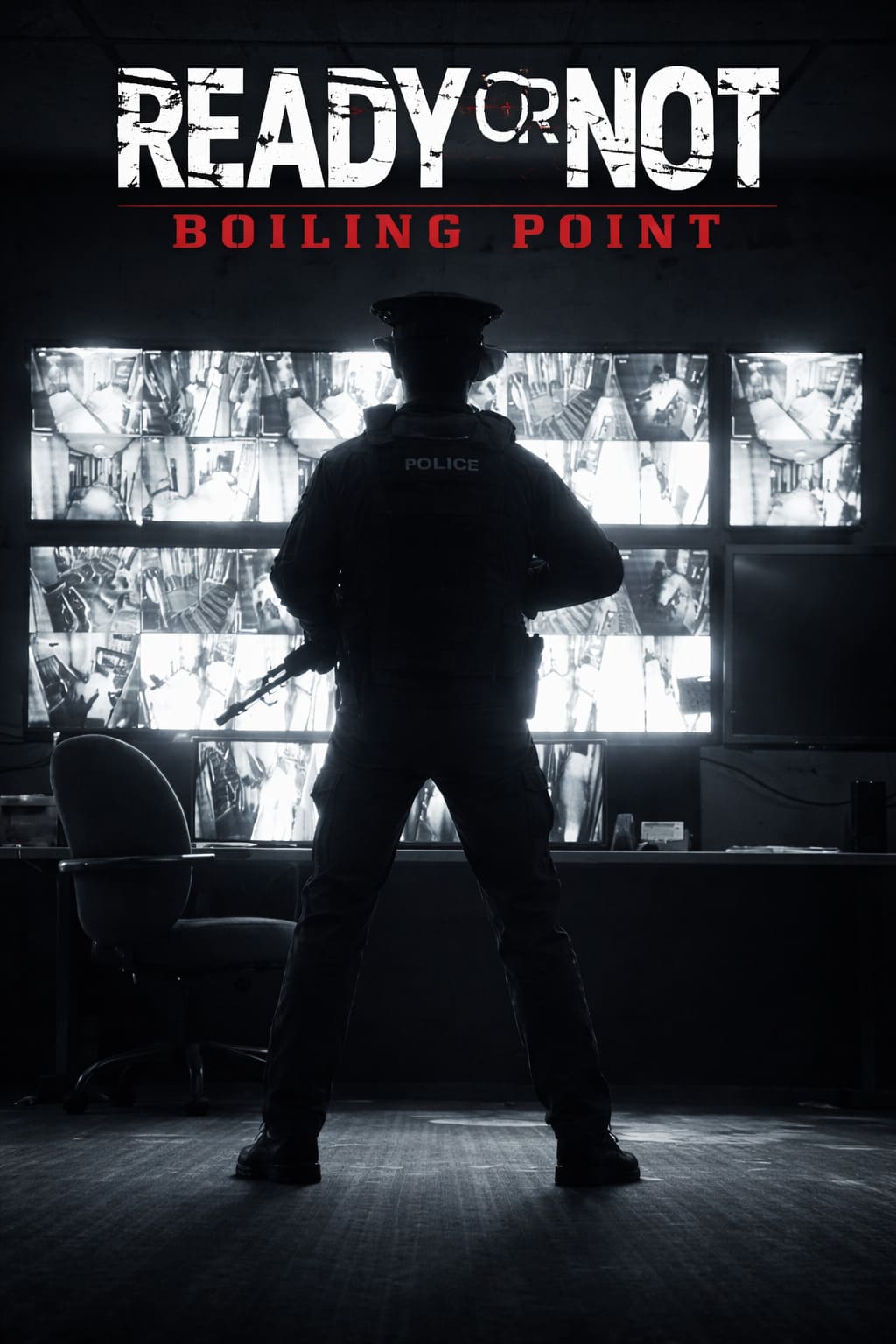
If you’re one of the many players eagerly diving into Ready or Not: Boiling Point—the latest DLC release for the game—you might have hit a frustrating roadblock. Whether it’s the game crashing on startup, freezing at the Void Interactive logo, or a “Crash to Desktop” (CTD), you’re not alone. Tons of players are reporting the same issue, with problems ranging from black screens to performance hiccups.
After the latest 2026 Boiling Point update, issues have become a serious headache for many players. But don’t worry, I’ve gathered all the fixes that actually work, and I’m here to help you get back to playing this intense tactical shooter.
I know how it feels when a highly anticipated DLC update hits and you can’t even get past the main screen. So, I’ve crafted a detailed guide to help you troubleshoot these issues and solve them once and for all. Let’s get into it!
1. Run the Game in Safe Mode (Bye, Mods!)
Why it works: Outdated mods are one of the top culprits behind crashes in Boiling Point. Even if you think mods are disabled, remnants of old mod files can still wreak havoc.
How to do it:
1. Right-click Ready or Not in your Steam Library.
2. Select Properties > General > Launch Options.
3. Add the command: -safe to launch in Safe Mode.
This bypasses all mods, so if the game launches successfully, you know a mod is causing the issue.
2. Switch Between DirectX Versions (11 vs. 12)
Some players have reported that the game crashes or has graphical glitches depending on which version of DirectX it’s using. If you’re stuck, try switching between DirectX 11 and DirectX 12 to see which works best for your system.
To switch DirectX versions:
1. Right-click the game in Steam > Properties > Launch Options.
2. Add either -dx11 or -dx12.
Pro Tip: If you were using DirectX 12 and having issues, try switching to DirectX 11, or vice versa. You might also want to delete the shader cache from your GPU settings.
Ready or Not Boiling Point: SWAT AI Commands Fix & Tactical Guide (2026)
3. Verify Game Files Integrity (A Must-Do!)
It’s not uncommon for large updates like Boiling Point to corrupt some game files. If you’re getting crashes or issues at startup, verifying the integrity of your game files is one of the easiest ways to make sure you’re not dealing with corrupted data.
Here’s how:
1. Go to your Steam Library.
2. Right-click on Ready or Not > Properties > Local Files.
3. Click Verify Integrity of Game Files.
Steam will automatically check for any missing or damaged files and re-download them if necessary.
4. Clear Out the AppData Folder (Reset Your Settings)
If you’re unable to even get past the logo or splash screen, your configuration files might have gone haywire during the update. You’ll want to delete the AppData folder, which stores all your settings, keybinds, and preferences.
How to do it:
1. Press Win + R to open the Run window.
2. Type %LocalAppData% and press Enter.
3. Find and delete the ReadyOrNot folder.
Warning: This will reset your settings, so be prepared to reconfigure things like keybindings and graphics settings. But many players have confirmed that this was the only way they could get the game running after the Boiling Point update.
Ready or Not: Boiling Point Guide — How to Equip Multiple Rail Attachments (2026 Update)
5. Fix the “pakchunk” File Issue
This one is a little more technical. Some leftover files from previous updates or mods (specifically the pakchunk files) can cause crashes during startup. The game is known to throw errors if these files are present.
To fix it:
1. Navigate to the game’s directory: SteamApps\common\Ready Or Not\ReadyOrNot\Content\Paks.
2. Look for any files that aren’t named pakchunk-windows.
3. If you spot a pakchunk20 file, delete it—this is a known problem file.
After doing this, restart the game and see if it works.
6. Update Your Graphics Drivers (Fresh Installation)
Outdated or corrupted graphics drivers are another reason for startup issues. With the complexity of Ready or Not‘s new features, old drivers can easily cause problems, especially after major updates.
What to do:
1. Download the latest Nvidia or AMD drivers (make sure they’re the latest 2026 versions).
2. Use a tool like Display Driver Uninstaller (DDU) to remove any remnants of previous driver versions.
3. Install the new driver cleanly.
A fresh driver install can resolve a range of performance issues.
7. Disable Overlays and Optimization Features
Steam, Discord, and even GeForce Experience overlays can sometimes cause issues with in-game rendering, particularly with new features added in Boiling Point.
How to disable overlays:
– Steam Overlay: Right-click Ready or Not > Properties > uncheck Enable Steam Overlay.
– Discord Overlay: In Discord settings, go to Overlay and toggle it off.
– Full-Screen Optimizations: Right-click ReadyOrNot.exe > Properties > Compatibility > check Disable Full-Screen Optimizations.
These simple tweaks might fix that annoying black screen or freezing issue.
8. Repair Easy Anti-Cheat (EAC) Service
If the game starts but then crashes after a few seconds, it could be related to the anti-cheat service. A quick fix is to repair the Easy Anti-Cheat service.
Steps to repair EAC:
1. Go to the game directory where Ready or Not is installed.
2. Open the EasyAntiCheat folder.
3. Run EasyAntiCheat_Setup.exe as an administrator.
4. Select Repair Service.
Afterward, try launching the game again.
9. Check Virtual Memory (Page File)
If your PC doesn’t have enough available RAM during startup, it can cause the game to crash with no warning. This is particularly important for a game like Ready or Not, which can be very demanding on your system.
Fix for low memory:
1. Open System Properties > Advanced System Settings > Settings (under Performance).
2. Go to Virtual Memory and ensure it’s set to System Managed.
3. Make sure there’s at least 16GB of free space on your SSD for shader compilation.
10. Reinstall Visual C++ Redistributables
Ready or Not: Boiling Point relies heavily on specific Windows libraries, and if you’re missing an important one, it can prevent the game from launching properly.
Fix:
1. Download the latest Microsoft Visual C++ Redistributables (both x86 and x64 versions) from Microsoft’s website.
2. Install them and restart your PC.
Final Thoughts: When All Else Fails, Reinstall the Game
If none of the above solutions work, it might be time for a full reinstall. This “nuclear” option means deleting the game via Steam, manually removing any leftover files in the installation directory, and then reinstalling it from scratch.
This can be a hassle, but it’s often the last resort when all else fails. Hopefully, this won’t be necessary, but it’s good to have a backup plan.