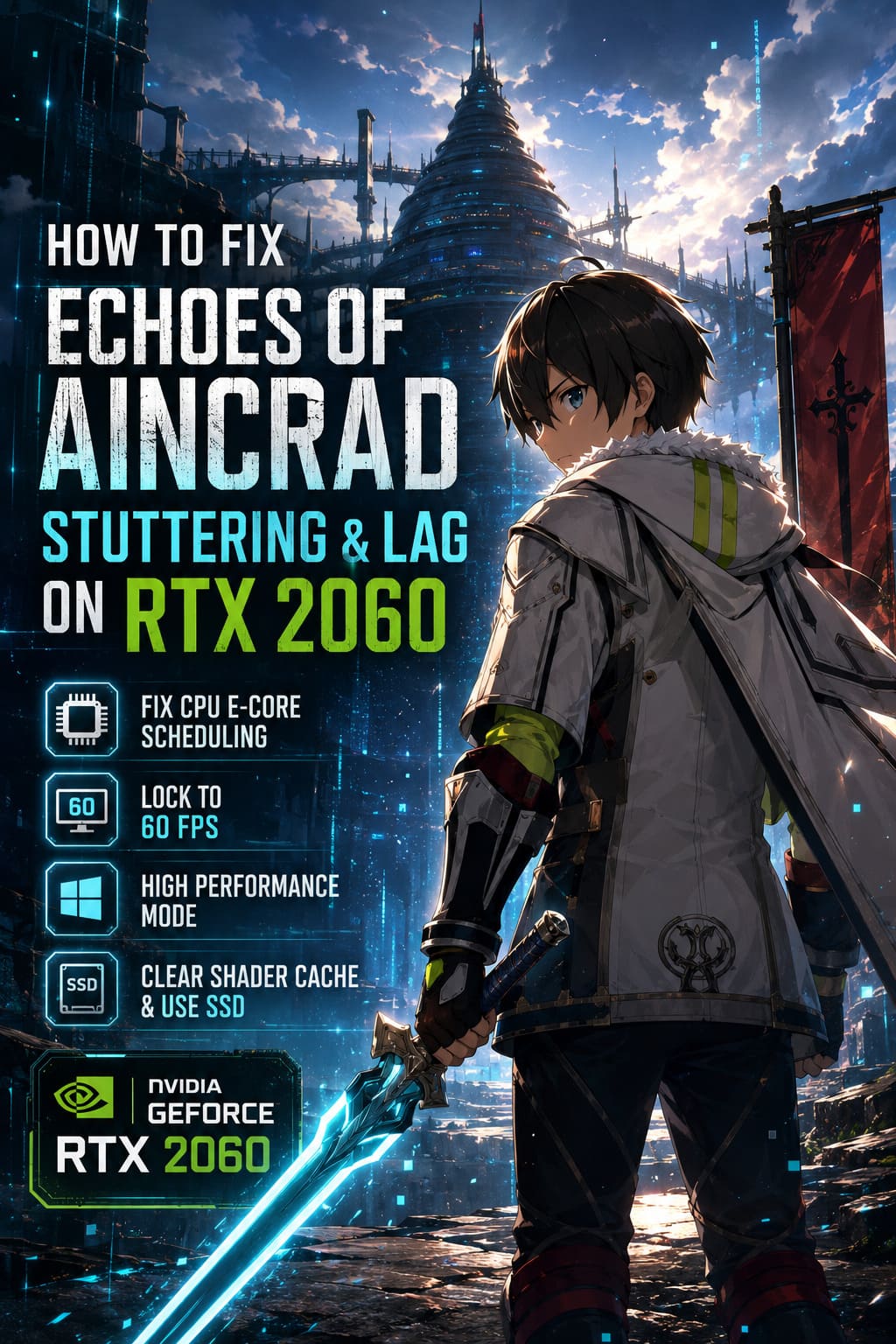
How to Fix Echoes of Aincrad Stuttering and Lag on RTX 2060
After spending years testing games on different PC builds, from budget machines to powerful gaming rigs, I have learned that poor optimization can make even good hardware feel outdated. Echoes of Aincrad is a perfect example of this situation. The game delivers an impressive recreation of the Sword Art Online universe with large environments, flashy combat effects, and detailed locations, but many players using the NVIDIA GeForce RTX 2060 are dealing with frustrating stutters, random FPS drops, and unstable performance.
The RTX 2060 is still a capable graphics card for 1080p gaming. I have tested this GPU with many modern releases, and when properly configured it can handle demanding games surprisingly well. Because of that, the performance problems in Echoes of Aincrad are usually not caused by a lack of GPU power. Instead, the main issues appear to come from engine optimization problems, shader compilation, CPU scheduling conflicts, and aggressive asset streaming.
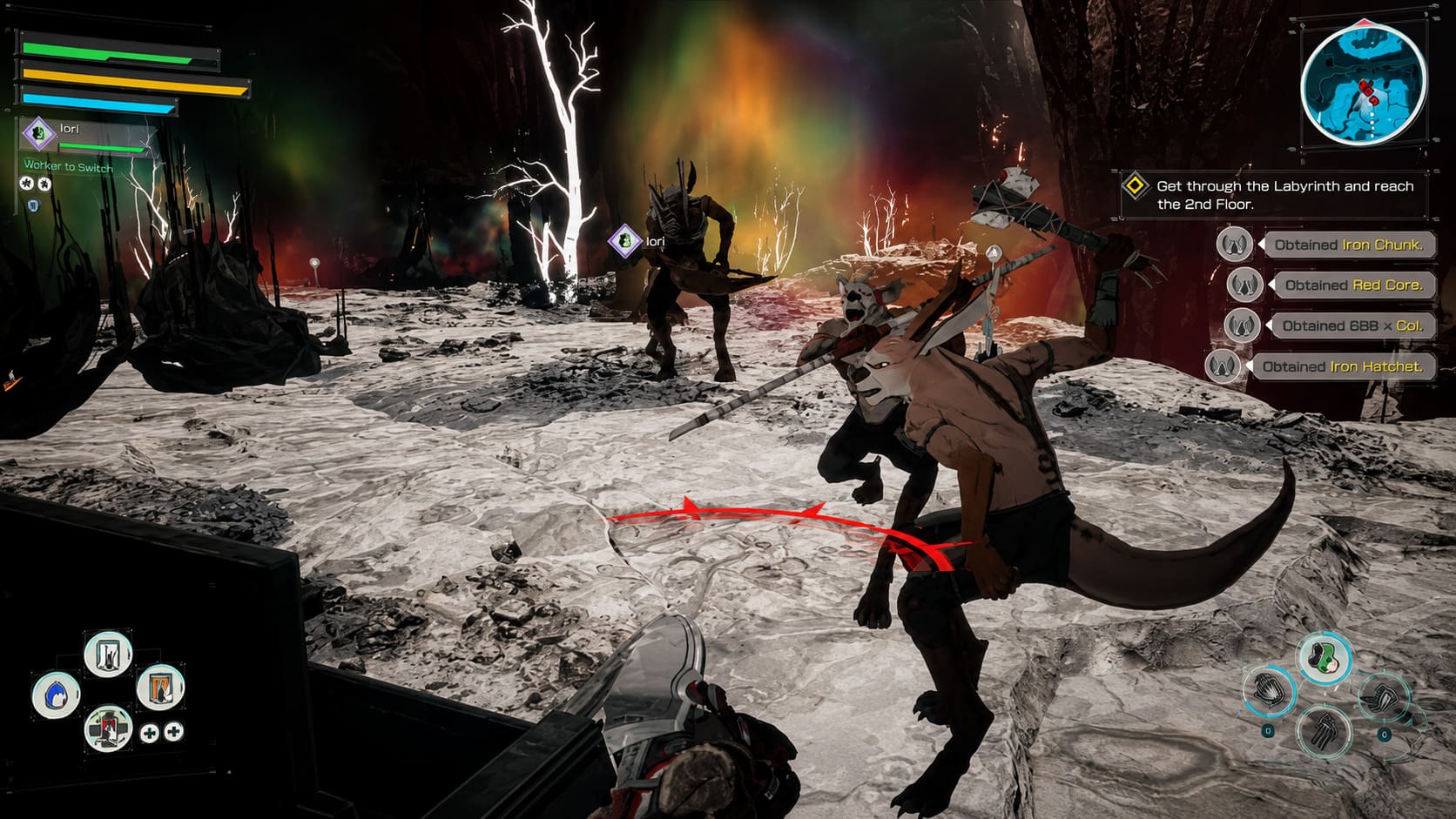
The biggest problem is not always low average FPS. A game can show 70 FPS on the counter but still feel terrible if the frame timing is inconsistent. Small freezes during combat, sudden drops while entering cities, and short loading pauses while exploring can completely ruin the experience.
This guide covers the most effective community-tested fixes for Echoes of Aincrad stuttering and lag on RTX 2060, focusing on changes that improve smoothness without destroying the visual quality of the game.
Echoes of Aincrad GTX 1060 Performance Guide: Best 1080p Settings for 60 FPS
Why Echoes of Aincrad Stutters on RTX 2060
Before changing settings, it is important to understand why the game struggles. The RTX 2060 uses NVIDIA’s Turing architecture and still offers enough performance for modern 1080p gaming. However, Echoes of Aincrad puts heavy pressure on both the graphics card and processor because of its large environments and constant background loading.
Many players report similar problems, especially during intense battles and when entering major locations such as the Town of Beginnings. These issues are usually connected with how the game engine manages hardware resources rather than the raw power of your system.
- Random frame-time spikes during exploration and combat sequences.
- GPU utilization drops even when the FPS becomes extremely low.
- Shader compilation stutters when entering new areas.
- CPU scheduling problems on newer Intel hybrid processors.
- Asset streaming delays when loading large environments.
From my experience with PC gaming, these symptoms usually indicate that something is blocking the GPU from working properly. When a graphics card sits at low usage while the game struggles, the problem is often somewhere else in the system.
1. Fix Intel CPU E-Core Scheduling Problems
One of the strangest performance problems in Echoes of Aincrad happens on computers using modern Intel hybrid processors. CPUs from the 12th, 13th, and 14th generations combine powerful Performance Cores (P-Cores) with Efficient Cores (E-Cores).
Windows normally handles thread distribution automatically, but some games do not work perfectly with this system. Echoes of Aincrad may sometimes place important game processes on slower E-Cores, causing the RTX 2060 to wait for CPU instructions. The result is poor GPU usage, unstable FPS, and severe drops in busy areas.
Some players have reported GPU usage falling close to 20 percent during these moments, creating situations where performance drops from normal gameplay levels to extremely low FPS.
How to Change Processor Affinity
| Step | Action |
|---|---|
| 1 | Launch Echoes of Aincrad and load your save file. |
| 2 | Press Ctrl + Shift + Esc to open Task Manager. |
| 3 | Open the Details tab. |
| 4 | Find EchoesofAincrad-Win64-Shipping.exe. |
| 5 | Right-click the process and select Set Affinity. |
| 6 | Disable E-Cores and keep high-performance cores active. |
This fix sounds unusual, but PC gaming has always had situations where manually controlling hardware behavior works better than relying on automatic settings. Depending on your processor model, you may need to experiment with different core combinations to find the smoothest result.
2. Lock Echoes of Aincrad to 60 FPS
Many players immediately try to push their systems as high as possible, but unlimited FPS is not always the best option. Echoes of Aincrad appears to have frame pacing problems when running without a limit, especially on mid-range GPUs like the RTX 2060.
For an action RPG, stable performance matters more than seeing a constantly changing FPS number. Personally, I would always choose a locked and smooth 60 FPS experience over a higher frame rate that constantly creates small interruptions during combat.

How to Set a 60 FPS Limit in NVIDIA Control Panel
- Open NVIDIA Control Panel or NVIDIA App.
- Go to Manage 3D Settings.
- Select the Program Settings tab.
- Add Echoes of Aincrad.
- Find the Max Frame Rate option.
- Set the limit to 60 FPS.
- Apply the changes.
A stable FPS limit reduces GPU load, prevents unnecessary power spikes, and creates much better frame pacing. The game feels more responsive because every action happens with consistent timing.
3. Force Windows to Use High Performance Graphics Mode
Windows includes power-saving features that can sometimes interfere with demanding games. These settings are useful for laptops and battery life, but they can cause unexpected performance drops when a game needs maximum hardware power.
You can manually tell Windows to prioritize Echoes of Aincrad by changing its graphics preference.
Enable High Performance Mode
- Open Windows Settings.
- Select System and then Display.
- Open Graphics settings.
- Add the Echoes of Aincrad executable file.
- Select Options.
- Choose High Performance.
- Save the changes.
Another useful adjustment is disabling fullscreen optimizations. Windows fullscreen behavior can sometimes create compatibility issues with certain game engines, leading to inconsistent frame delivery.
Disable Fullscreen Optimizations
- Locate EchoesofAincrad-Win64-Shipping.exe.
- Right-click the file and select Properties.
- Open the Compatibility tab.
- Enable Disable fullscreen optimizations.
- Click Apply.
4. Clear DirectX Shader Cache and Use an SSD
Shader compilation is one of the biggest causes of modern game stuttering. Many games create shaders while you are playing, and Echoes of Aincrad appears to experience similar problems during exploration.
When the game needs to compile shaders in real time, you may notice freezing when entering new areas, delayed textures, audio interruptions, or short FPS drops during combat.
| Problem | Possible Cause |
|---|---|
| Freezes when entering new locations | Shader compilation |
| Texture loading delays | Slow asset streaming |
| Audio interruptions | Storage performance issues |
| Combat stutters | Background processing spikes |
How to Clear DirectX Shader Cache
- Open Windows Search.
- Type Disk Cleanup.
- Select your main system drive.
- Enable DirectX Shader Cache.
- Confirm deletion.
After clearing the cache, launch the game and allow some time for shaders to rebuild. The first launch may take slightly longer, but future gameplay should become smoother.
Installing Echoes of Aincrad on an SSD is also extremely important. Modern games are designed around fast storage, and older mechanical HDD drives often cannot keep up with constant world streaming. If the game is installed on an HDD, eliminating all loading-related stutters may be impossible.
Best RTX 2060 Settings for Echoes of Aincrad
| Setting | Recommended Option |
|---|---|
| Resolution | 1920×1080 |
| FPS Limit | 60 FPS |
| Textures | High |
| Shadows | Medium |
| Effects | Medium or High |
| Motion Blur | Disabled |
I prefer reducing a few demanding settings while keeping gameplay smooth. A stable experience with consistent frame timing always feels better than maximum graphics settings interrupted by constant freezes.
Final Thoughts
Echoes of Aincrad should not struggle on an RTX 2060. This graphics card is still perfectly capable of delivering a great 1080p experience, but current optimization problems prevent many players from enjoying the game at its full potential.
The most effective solutions are adjusting CPU core usage, limiting FPS to a stable 60 frames, forcing Windows into high-performance mode, clearing shader cache, and making sure the game is installed on an SSD.
Until the developers release deeper optimization updates, these community fixes are the best way to improve performance. A fast-paced action RPG depends heavily on smooth combat timing, and removing stutters can completely change how Echoes of Aincrad feels during exploration and battles.