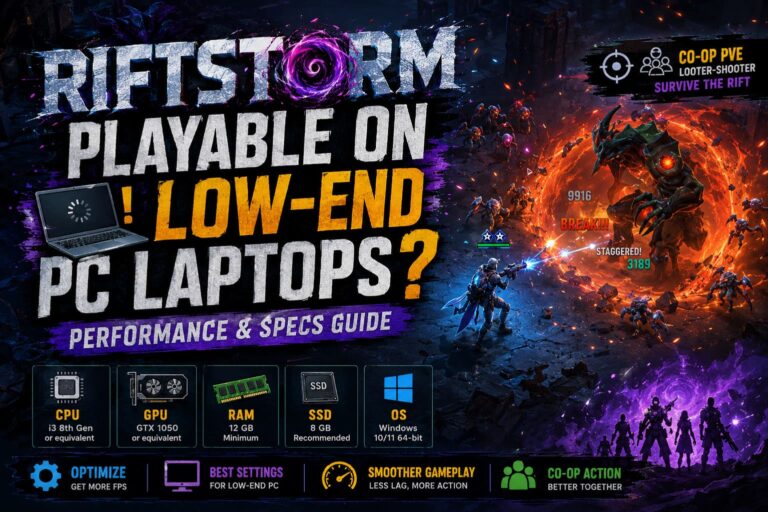
How to Fix Assassin’s Creed Black Flag Resynced Crash to Desktop After Prologue
There are few things more frustrating than finally getting through the opening hours of a new game only to have it crash at the exact moment the real adventure is about to begin. That is exactly what has been happening to many PC players in Assassin’s Creed Black Flag Resynced. The prologue finishes, the game prepares to transition into the open world, the screen fades… and suddenly you’re staring at your desktop without any error message.
I’ve seen this type of problem in plenty of PC releases over the years, and while every game has its own quirks, this one follows a familiar pattern. It usually isn’t a broken save or failing hardware. Instead, several small compatibility issues seem to collide during the first major loading sequence.
The good news is that this crash is often fixable without waiting for an official update. After looking through community reports, testing different solutions, and comparing what worked for other players, these are the methods that consistently solved the post-prologue crash.
Why Does the Crash Happen After the Prologue?
The first large transition in Black Flag Resynced is surprisingly demanding.
During those few seconds, the game isn’t simply loading another level. It performs multiple background tasks at once:
- Creates or updates autosave data.
- Loads the first large open-world environment.
- Initializes advanced lighting and shadow systems.
- Synchronizes achievements and cloud saves.
- Reloads textures and streaming assets.
If any of those processes run into a conflict—whether because of overlays, graphics settings, Windows permissions, or driver issues—the game may simply terminate without displaying an error.
One interesting thing I noticed is that many players can replay the prologue repeatedly without any instability. The crash only appears when entering the main world, which strongly suggests the issue is related to resource allocation rather than gameplay itself.
Quick Overview of the Most Effective Fixes
Before diving into the details, here’s a quick comparison of the solutions that have produced the highest success rate.
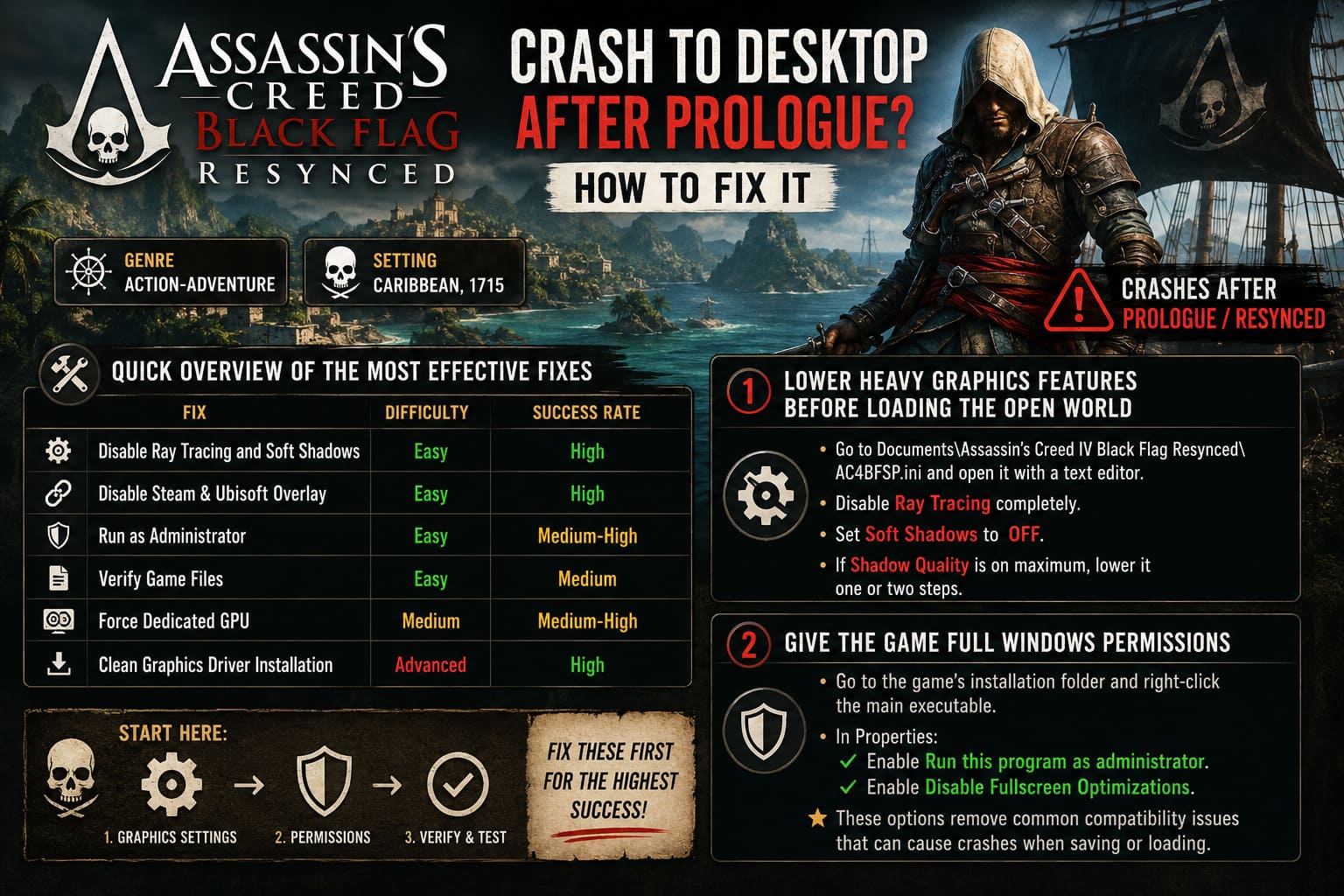
| Fix | Difficulty | Success Rate |
|---|---|---|
| Disable Ray Tracing and Soft Shadows | Easy | High |
| Disable Steam & Ubisoft Overlay | Easy | High |
| Run as Administrator | Easy | Medium-High |
| Verify Game Files | Easy | Medium |
| Force Dedicated GPU | Medium | Medium-High |
| Clean Graphics Driver Installation | Advanced | High |
If you’re short on time, I’d begin with the first three methods before touching your graphics drivers.
Lower Heavy Graphics Features Before Loading the Open World
One of the biggest troublemakers appears to be the combination of Ray Tracing, Soft Shadows, and other demanding lighting effects.
Normally I’d recommend tweaking settings from inside the game, but if the crash happens before you regain control, editing the configuration file is often the easiest solution.
Locate the game’s graphics configuration inside your Documents folder and open it with a text editor.
Look for options related to:
- Ray Tracing
- Soft Shadows
- Shadow Quality
Disable Ray Tracing entirely and switch Soft Shadows off. If Shadow Quality is set to its maximum level, lowering it one or two presets can also reduce memory usage during the first open-world load.
Personally, I almost always disable ray tracing first when troubleshooting a new PC release. Beautiful lighting isn’t worth much if the game never reaches the next chapter.
Give the Game Full Windows Permissions
Windows has become much stricter about how applications interact with protected folders.
During the first autosave, Black Flag Resynced needs permission to create save data and temporary files. If Windows blocks that operation—even briefly—the game may exit unexpectedly.
Open the game’s installation folder and locate the main executable.
Inside its Properties menu:
- Enable Run this program as administrator.
- Enable Disable Fullscreen Optimizations.
Neither option improves performance directly, but together they remove two common sources of compatibility problems.
I’ve had older Ubisoft games suddenly become stable after changing only these two settings, so they’re always among my first recommendations.
Turn Off Every Overlay You Can
PC gamers love overlays—until they become the reason a game crashes.
Steam, Ubisoft Connect, Discord, GeForce Experience, MSI Afterburner, and even monitoring software all inject themselves into the rendering pipeline.
Normally that’s harmless.
During large cinematic transitions, however, every additional hook increases the chances of something going wrong.
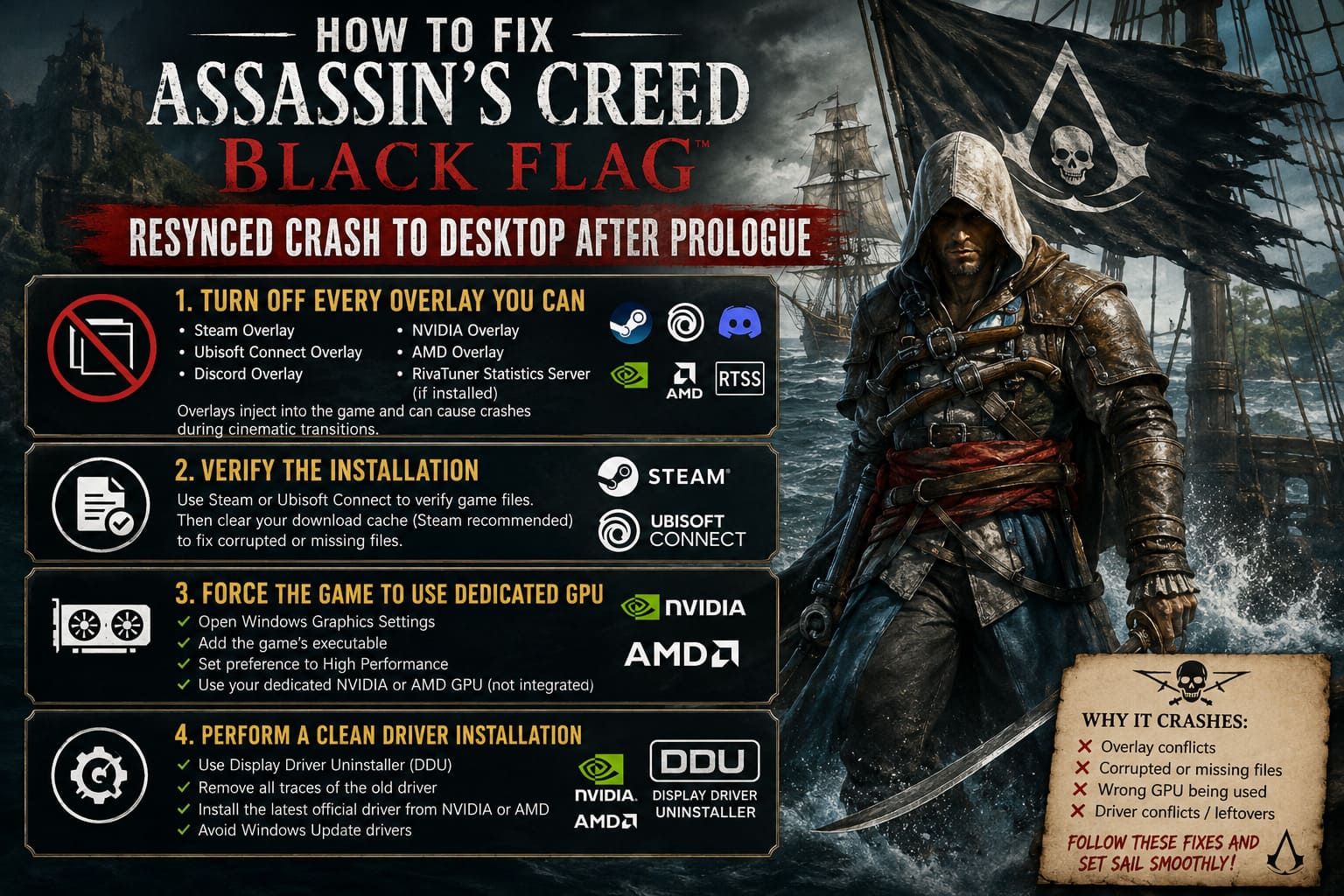
For troubleshooting, temporarily disable:
- Steam Overlay
- Ubisoft Connect Overlay
- Discord Overlay
- NVIDIA Overlay
- AMD Overlay
- RivaTuner Statistics Server (if installed)
Once you’ve confirmed the game loads correctly, you can re-enable them one by one to identify the culprit.
Verify the Installation Before Trying Anything Extreme
Corrupted files aren’t the most common cause of this crash, but they’re easy to rule out.
Both Steam and Ubisoft Connect include built-in file verification tools that compare your installation against the official version.
The process usually takes only a few minutes and automatically downloads any damaged or missing files.
If you’re using Steam, I also recommend clearing the download cache afterward. It sounds unrelated, but it has solved installation oddities for me more than once over the years.
Force the Game to Use Your Dedicated Graphics Card
Gaming laptops and hybrid desktop systems occasionally make poor decisions about GPU allocation.
Windows may briefly switch workloads during the large map transition, causing instability.
To prevent that:
- Open Graphics Settings in Windows.
- Add the game’s executable manually if it isn’t already listed.
- Change its graphics preference to High Performance, making sure your dedicated NVIDIA or AMD GPU is selected instead of integrated graphics.
This adjustment only takes a minute and eliminates another possible source of crashes.
A Clean Graphics Driver Installation Can Make a Huge Difference
Graphics drivers gradually accumulate leftover files from previous versions.
Most of the time that isn’t noticeable.
Occasionally, though, a newly released game exposes conflicts that have been sitting quietly in the driver installation for months.
If none of the earlier fixes work, performing a clean installation is worth considering.
Using Display Driver Uninstaller (DDU) removes every trace of the existing graphics driver before installing the newest version from scratch.
Yes, it takes longer than a standard update.
But in my experience, it’s one of the most effective fixes for mysterious crashes that don’t generate error messages.
If you decide to use DDU, remember to install the latest official driver directly from your GPU manufacturer afterward rather than relying on Windows Update.
Other Things Worth Checking
Sometimes the problem isn’t the game itself but the environment around it.
A few additional checks include:
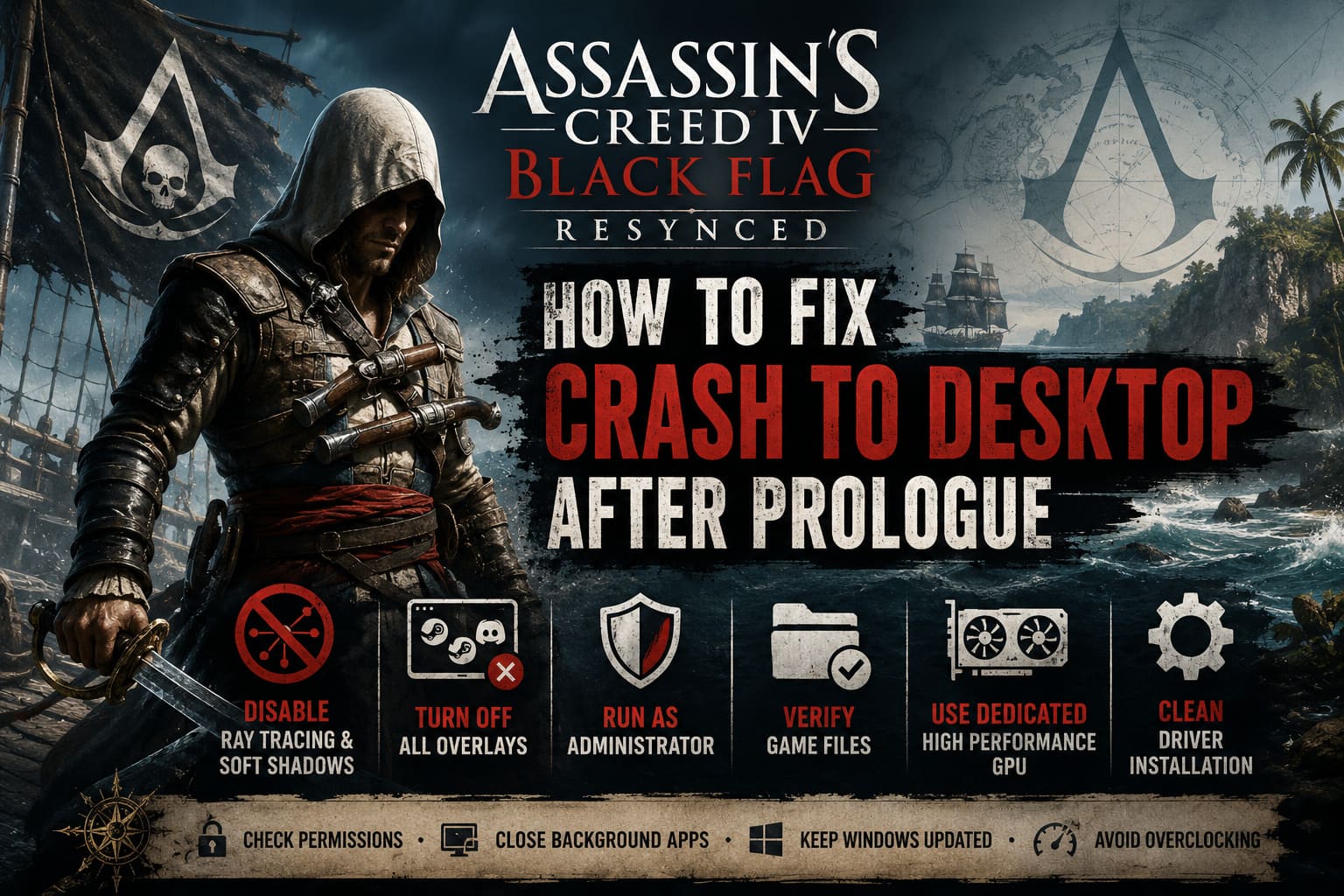
- Close unnecessary background applications.
- Disable third-party RGB control software temporarily.
- Make sure Windows is fully updated.
- Remove any launch options you’ve previously experimented with.
- Avoid aggressive CPU or GPU overclocks while testing.
- Restart the PC after changing multiple settings.
These may seem obvious, but I’ve seen surprisingly stubborn crashes disappear after nothing more than a clean reboot.
How to Fix Assassin’s Creed Black Flag Resynced Splash Screen Freeze on Startup
What I Would Try First
If I were troubleshooting this issue on my own PC from scratch, my order would be:
- Disable Ray Tracing and Soft Shadows.
- Turn off every overlay.
- Verify game files.
- Run the executable as administrator.
- Force High Performance GPU mode.
- Perform a clean graphics driver installation.
That sequence solves the problem in the majority of reported cases while avoiding unnecessary work.
Assassin’s Creed Black Flag Resynced: The Best Ways to Earn Reales Fast (2026 Pirate’s Money Guide)
Final Thoughts
Launch-day PC releases are rarely perfect, and Assassin’s Creed Black Flag Resynced is no exception. The crash after the prologue is frustrating because it appears just as the game is about to open up into its massive Caribbean world.
Fortunately, the issue doesn’t seem to indicate damaged hardware or a permanently broken save. In most cases it’s simply the result of several software components clashing during one of the game’s heaviest loading sequences.
What gives me confidence is that players who managed to get past this point generally report stable gameplay afterward. Once the first major transition completes successfully, the crashes often disappear entirely.
Until Ubisoft releases additional optimization patches, the fixes above remain the best practical ways to get past the post-prologue CTD and finally enjoy what Black Flag Resynced does best—exploring the open sea, hunting legendary ships, and losing yourself in one of the series’ most beloved pirate adventures.