How to Fix Assassin’s Creed Black Flag Resynced Splash Screen Freeze on Startup
When I first launched Assassin’s Creed Black Flag Resynced, I expected to spend the evening sailing across the Caribbean. Instead, I spent almost an hour staring at the splash screen, wondering if the game was loading or had simply given up. No error message, no crash report—just the logo sitting there forever.
After digging through community discussions, testing different solutions myself, and comparing what worked for other players, I noticed a pattern. The splash screen freeze usually isn’t caused by one major bug. It’s often a combination of launcher issues, Windows features, overlays, or hardware settings that don’t play nicely with the game’s startup sequence.
If your game refuses to move past the splash logo or immediately falls into a black screen after launching, don’t panic. Below are the fixes I would personally try, in the exact order I’d recommend them.
Why Does Black Flag Resynced Freeze Before Launching?
From what I’ve seen, this isn’t a problem with your save files or your PC being underpowered. Even players with high-end gaming rigs have reported the exact same behavior.
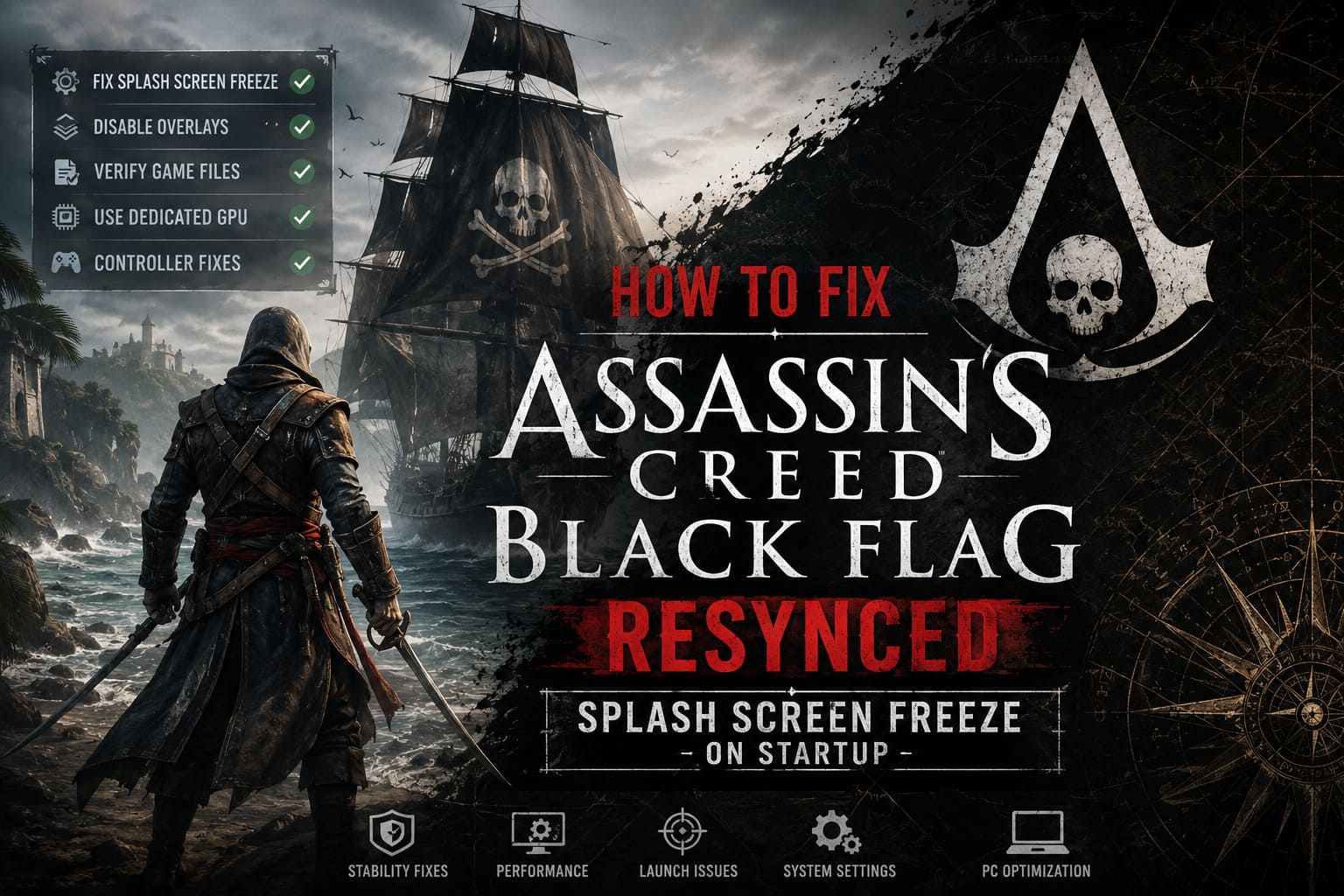
The most common causes include:
- Ubisoft Connect processes hanging in the background
- Overlay software interfering with initialization
- Windows display optimization conflicts
- Corrupted or incomplete game files
- Incorrect GPU selection on laptops
- Controller detection issues during startup
The good news is that nearly all of these problems can be solved without reinstalling Windows or replacing hardware.
1. Restart Ubisoft Connect Completely
If there’s one fix I’d recommend trying first, it’s this one.
Ubisoft Connect sometimes leaves background services running even after you close the launcher. Those leftover processes can prevent the game from initializing correctly.
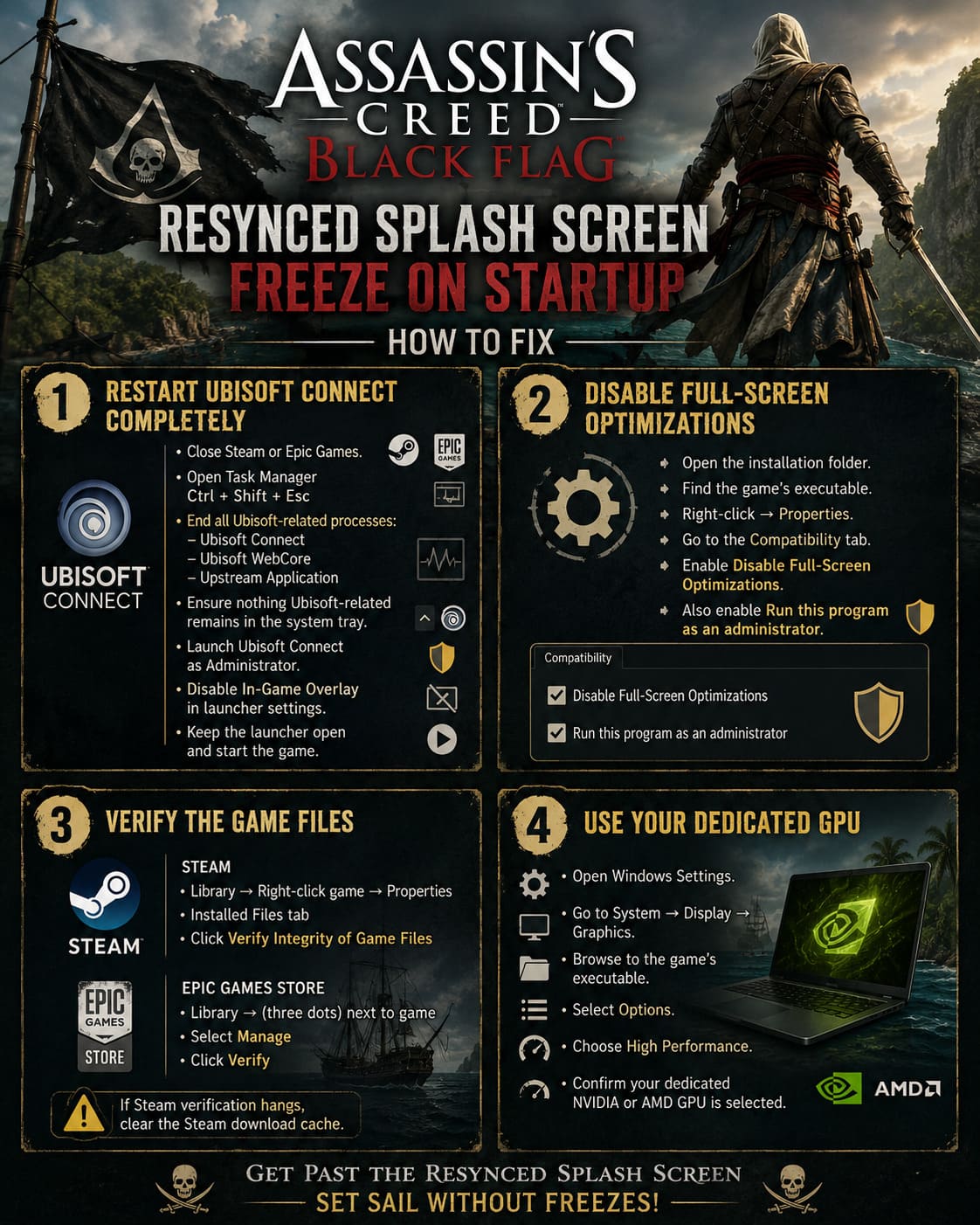
Here’s what I usually do:
- Close Steam or Epic Games completely.
- Open Task Manager using Ctrl + Shift + Esc.
- End every Ubisoft-related process you can find.
- Look for items like:
- Ubisoft Connect
- Ubisoft WebCore
- Upstream Application
- Make sure nothing Ubisoft-related remains in the system tray.
- Launch Ubisoft Connect as Administrator.
- Disable the In-Game Overlay inside launcher settings.
- Leave the launcher open and start the game.
This alone solved the splash screen issue for many players.
2. Disable Full-Screen Optimizations
Windows tries to “help” games with a feature called Full-Screen Optimizations.
Unfortunately, newer titles sometimes disagree with Microsoft’s idea of helpful.
I always disable this option whenever a game refuses to launch correctly.
Simply:
- Open the installation folder.
- Find the game’s executable.
- Open Properties.
- Go to the Compatibility tab.
- Enable Disable Full-Screen Optimizations.
- Also enable Run this program as an administrator.
It only takes a minute, and it removes one more variable that can interfere with startup.
3. Verify the Game Files
If the game downloaded incorrectly—or if a day-one update didn’t install perfectly—you may be trying to launch damaged files.
Fortunately, both Steam and Epic make this easy.
Steam
- Open your Library.
- Right-click the game.
- Select Properties.
- Open the Installed Files tab.
- Click Verify Integrity of Game Files.
Epic Games Store
- Open your Library.
- Click the three dots next to the game.
- Select Manage.
- Click Verify.
I generally let verification finish before trying anything more complicated.
If Steam verification repeatedly hangs, clearing the Steam download cache is also worth doing.
4. Make Sure Windows Uses Your Dedicated GPU
Gaming laptops are fantastic, but Windows occasionally decides your expensive RTX or Radeon GPU isn’t necessary.
Instead, it launches the game using integrated graphics.
That can lead to startup freezes before the engine even finishes loading.
To fix it:
- Open Windows Settings.
- Navigate to System → Display → Graphics.
- Browse to the game’s executable.
- Select Options.
- Choose High Performance.
- Confirm your dedicated NVIDIA or AMD GPU is selected.
I’ve seen this fix surprisingly often on gaming laptops.
5. Disconnect Controllers Before Launching
This one sounds strange until you actually experience it.
Some controllers constantly send input data while connected. During the game’s startup sequence, that can occasionally confuse the initialization process.
If you’re using any of the following devices, temporarily disconnect them before launching:
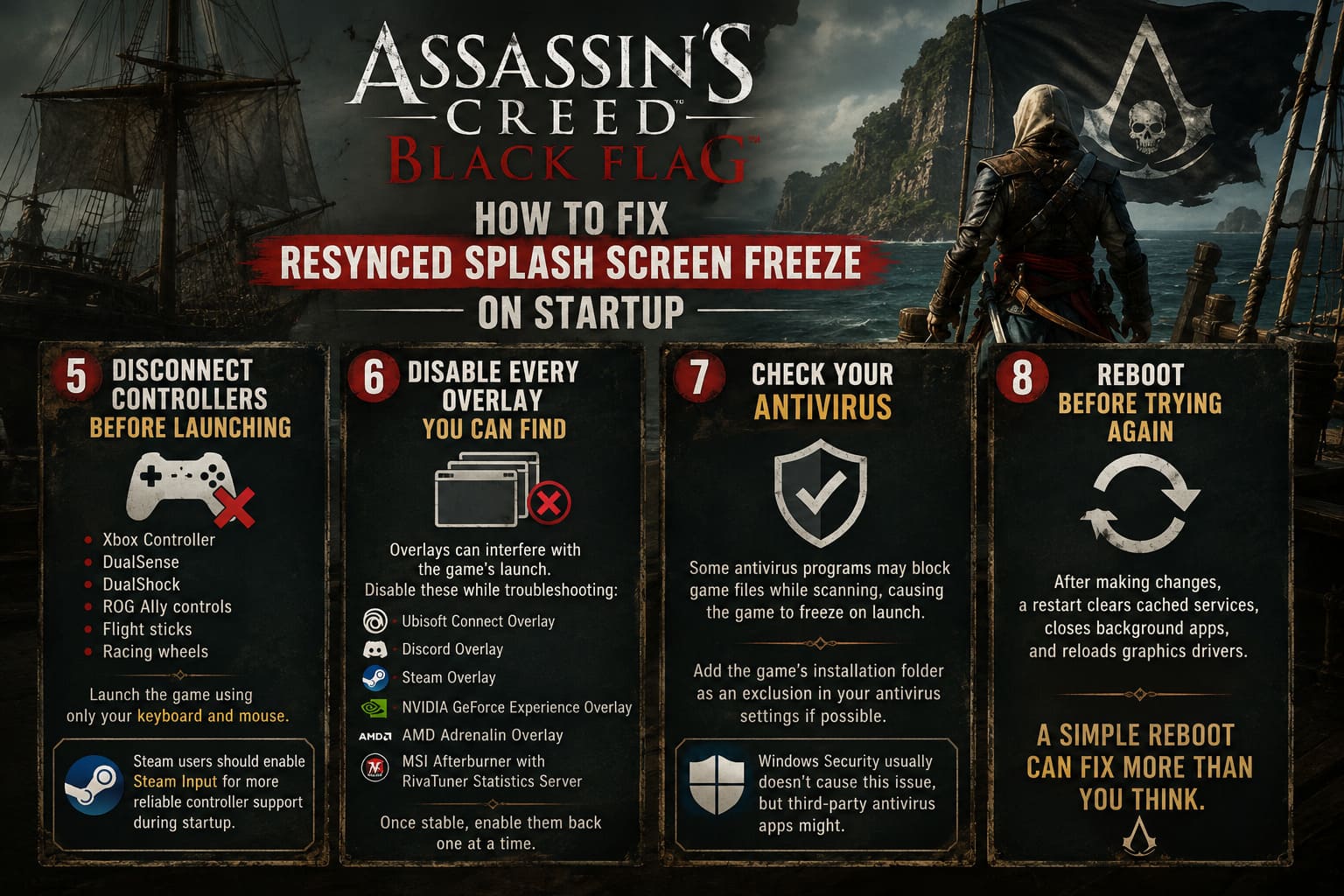
- Xbox Controller
- DualSense
- DualShock
- ROG Ally controls
- Flight sticks
- Racing wheels
Launch the game using only your keyboard and mouse.
If the game finally reaches the main menu, you’ve identified the culprit.
Steam users should also enable Steam Input, which often handles controller communication much more reliably during startup.
6. Disable Every Overlay You Can Find
Overlays are incredibly convenient—until they aren’t.
Every overlay injects itself into the game’s rendering pipeline, and launch problems frequently happen before the engine has fully initialized.
I usually disable all of these while troubleshooting:
- Ubisoft Connect Overlay
- Discord Overlay
- Steam Overlay
- NVIDIA GeForce Experience Overlay
- AMD Adrenalin Overlay
- MSI Afterburner with RivaTuner Statistics Server
Once the game works consistently, you can always turn them back on one at a time.
7. Check Your Antivirus
This doesn’t happen often, but it’s worth mentioning.
Some antivirus suites aggressively monitor newly released games.
During launch, they may temporarily block executable files while scanning them, causing the game to appear frozen.
Rather than disabling your antivirus entirely, add the game’s installation folder as an exclusion if your security software supports it.
Windows Security users generally don’t encounter this issue, but third-party antivirus applications occasionally do.
8. Reboot Before Trying Again
It sounds almost too simple.
Yet after making several configuration changes, restarting Windows clears cached services, closes stuck background applications, and reloads graphics drivers.
I’ve lost count of how many PC gaming problems disappeared after a clean reboot.
Sometimes that’s genuinely all it takes.
Quick Troubleshooting Table
| Problem | Most Likely Cause | Recommended Fix |
|---|---|---|
| Splash screen never disappears | Ubisoft Connect processes | End background tasks and restart the launcher |
| Black screen after logo | Display optimization conflict | Disable Full-Screen Optimizations |
| Launch instantly closes | Damaged installation | Verify game files |
| Laptop won’t start the game | Wrong GPU selected | Force High Performance GPU mode |
| Freeze only with controller connected | Input conflict | Disconnect the controller or enable Steam Input |
| Random startup failures | Overlay conflict | Disable all overlays temporarily |
Assassin’s Creed Black Flag Resynced: The Best Ways to Earn Reales Fast (2026 Pirate’s Money Guide)
My Recommended Order
If I were helping a friend over Discord, I’d recommend following these steps instead of trying random fixes.
- Restart Ubisoft Connect completely.
- Disable every overlay.
- Verify the game files.
- Run the game as Administrator.
- Disable Full-Screen Optimizations.
- Force the dedicated GPU.
- Disconnect all controllers.
- Restart Windows.
- Launch the game again.
Following this order saves time because you’re addressing the issues that appear most frequently first.
Assassin’s Creed Black Flag Resynced Weapon Guide: Rapier vs Cutlass vs Pistol-Sword
Final Thoughts
PC game launches are rarely perfect these days, and Assassin’s Creed Black Flag Resynced is no exception. From my perspective, the frustrating part isn’t that the splash screen bug exists—it’s that it can have several different causes, making it feel random when you’re trying to fix it.
The encouraging news is that most players don’t need to reinstall the game or perform any drastic system changes. In many cases, the solution ends up being something surprisingly simple, like restarting Ubisoft Connect properly, disabling an overlay, or forcing Windows to use the correct graphics card.
If you’ve worked through the fixes above in order, there’s a very good chance you’ll get past the frozen splash screen and finally start your adventure without further interruptions. Once everything is working, I’d avoid changing multiple settings at once. If you want to re-enable overlays or reconnect your controller, do it one step at a time so you’ll immediately know if a specific feature causes the issue to return.
Hopefully, your next view of the Caribbean is from the deck of the Jackdaw—not from a splash screen that refuses to disappear.