Zenless Zone Zero Steam Download Stuck? 8 Ways to Fix 0 Bytes & Frozen Installation Loop
I’ve been playing HoYoverse games for years, and if there’s one thing I’ve learned, it’s that launchers and large updates sometimes create problems that have nothing to do with your actual internet speed. Recently, while helping friends install Zenless Zone Zero through Steam, I ran into multiple download issues myself. Some downloads stopped at 99%, others sat at 0 bytes per second for ages, and a few seemed completely frozen.
The good news is that in most cases the game isn’t actually broken. Steam, Windows, storage drives, and HoYoverse’s own asset verification systems can create conflicts that make the installation look dead when it’s still trying to process files in the background.
If your Zenless Zone Zero download refuses to finish, these are the solutions that worked for me and many other players.
Why Zenless Zone Zero Downloads Get Stuck
Before trying random fixes, it’s worth understanding what causes the problem.
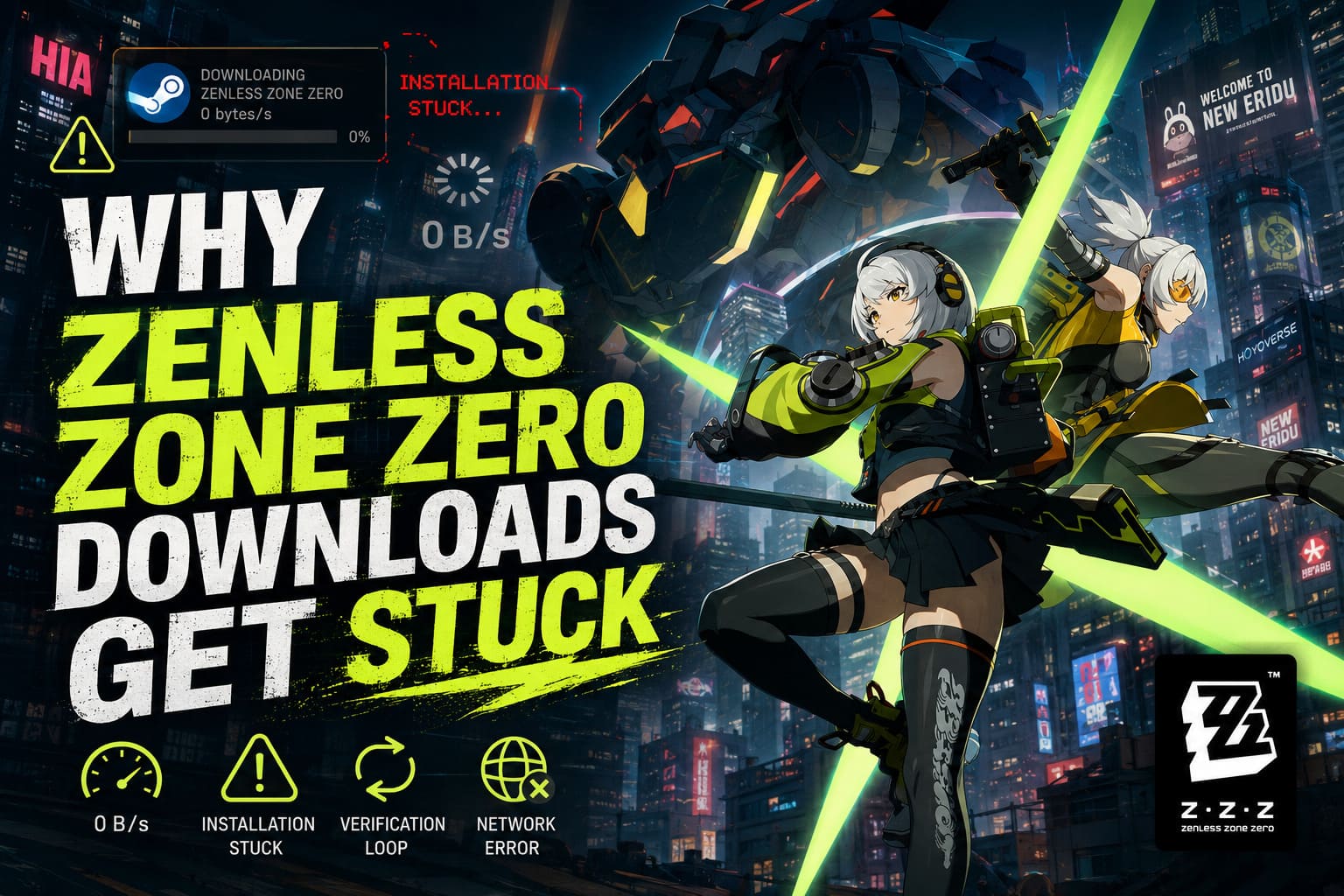
In my experience, one of these issues is usually responsible:
| Problem | Typical Symptom |
|---|---|
| Corrupted Steam Cache | Download stops at a specific percentage |
| Busy Download Servers | Speed drops to 0 B/s randomly |
| Windows Security Restrictions | Disk write errors appear |
| SSD/HDD Bottlenecks | Network speed hits zero while disk usage spikes |
| Asset Verification Loops | Download reaches 100% but never finishes |
| Network Configuration Issues | Failed download or endless retry messages |
The exact cause varies from system to system, but the fixes below cover nearly every scenario I’ve encountered.
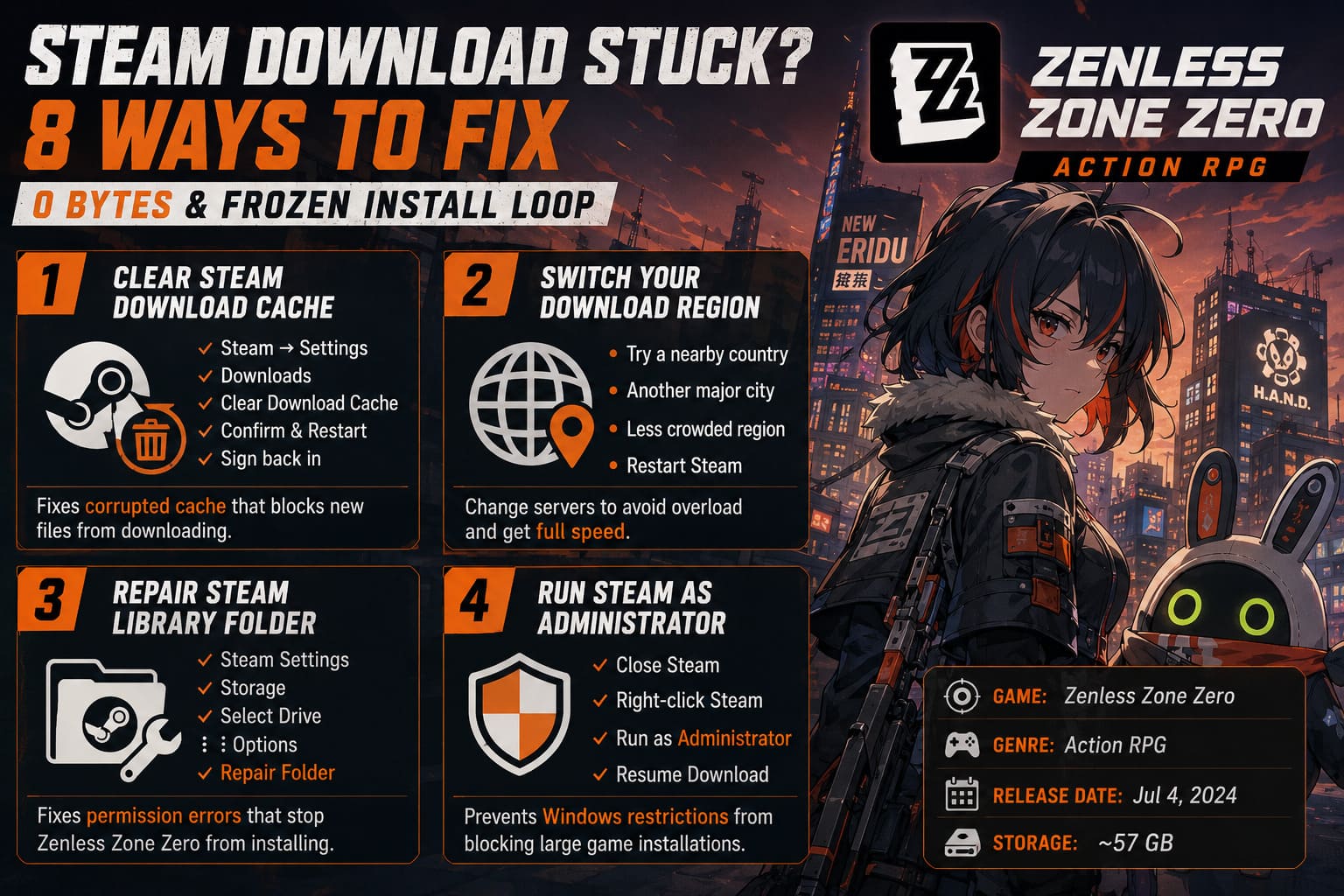
1. Clear the Steam Download Cache First
This is always my first recommendation because it solves an incredible number of Steam-related download issues.
Over time, Steam stores temporary download data. When that data becomes corrupted, the client may stop requesting new files even though the download appears active.
Steps
- Open Steam
- Go to Steam → Settings
- Select Downloads
- Click Clear Download Cache
- Confirm the action
- Sign back into Steam
After restarting, resume the Zenless Zone Zero installation and see if the stuck percentage disappears.
In my testing, this solved multiple cases where the download was permanently stuck above 90%.
2. Switch Your Download Region
Many players overlook this option.
Steam uses regional content delivery servers, and some regions become overloaded whenever a major patch launches.
I’ve personally seen download speeds jump from almost nothing to full bandwidth simply by changing regions.
Recommended Approach
Instead of choosing the closest location, try:
- A neighboring country
- Another major city
- A less populated region
For example, players using heavily loaded East Coast servers often get better performance from Midwest or Canadian nodes.
After changing regions, restart Steam completely before testing again.
3. Repair Your Steam Library Folder
Sometimes the download isn’t failing because of the network at all.
Steam may lose permission to write files correctly inside its library directory.
Quick Fix
- Open Steam Settings
- Go to Storage
- Select your installation drive
- Open the options menu
- Choose Repair Folder
The process only takes a few moments and can fix hidden permission issues that prevent Zenless Zone Zero from completing installation.
4. Run Steam as Administrator
Windows security has become increasingly aggressive over the years.
Large game installs that constantly unpack and rewrite files can trigger restrictions, especially on the system drive.
What I Usually Do
- Exit Steam completely
- Right-click Steam
- Select Run as Administrator
- Resume the download
It’s a simple fix, but I’ve seen it resolve several stubborn disk-write errors immediately.
5. Check Windows Defender and Antivirus Software
One of the more frustrating problems occurs when security software mistakes game assets for suspicious behavior.
Zenless Zone Zero performs extensive file verification during installation, and antivirus programs occasionally interfere with that process.
Add These Exceptions
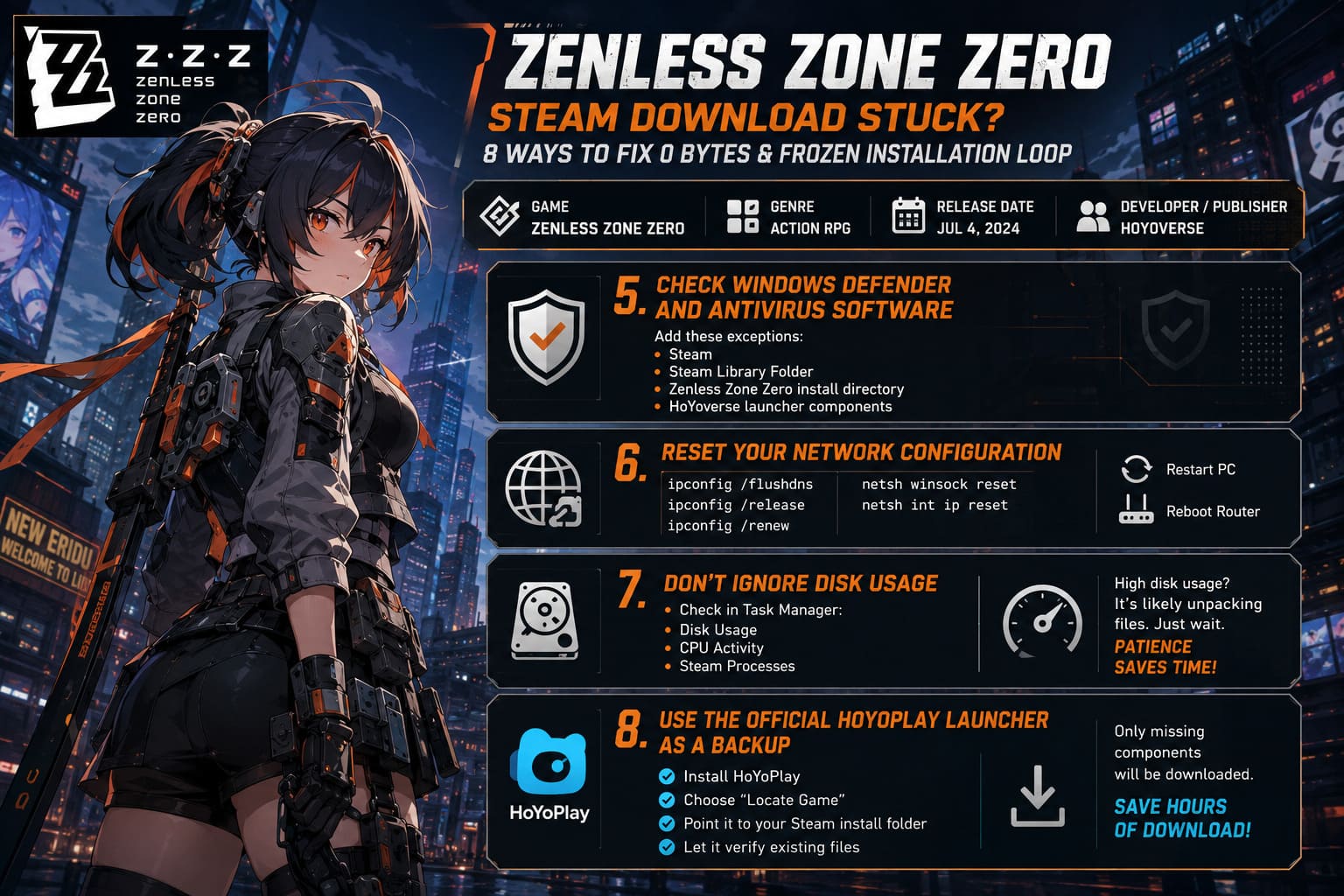
Allow the following through your security software:
- Steam
- Steam Library Folder
- Zenless Zone Zero installation directory
- HoYoverse launcher components (if installed)
If you’re using third-party antivirus tools, temporarily disabling real-time scanning during installation can also help identify whether security software is the culprit.
Just remember to enable protection again afterward.
6. Reset Your Network Configuration
If the download repeatedly fails with network-related errors, I recommend resetting Windows networking.
Cached DNS records and corrupted network settings can cause failed connections even when your internet appears perfectly fine.
Open Command Prompt as Administrator and run:
- ipconfig /flushdns
- ipconfig /release
- ipconfig /renew
- netsh winsock reset
- netsh int ip reset
Once complete:
- Restart your PC
- Reboot your router
- Launch Steam again
This method has helped many players who reached 100% verification only to receive a network failure message.
7. Don’t Ignore Disk Usage
This is probably the most misunderstood issue.
Many players assume the download is frozen because Steam shows 0 B/s.
However, when I checked Task Manager during one installation, the SSD was running at nearly 100% usage while Steam appeared inactive.
The launcher wasn’t downloading anything because it was busy unpacking massive compressed archives.
How to Verify
Open Task Manager and monitor:
- Disk Usage
- CPU Activity
- Steam Processes
If the drive is heavily active, simply wait.
I’ve seen Zenless Zone Zero appear frozen for over ten minutes before suddenly continuing normally.
Patience can save you from restarting the entire installation.
8. Use the Official HoYoPlay Launcher as a Backup
When Steam absolutely refuses to cooperate, there’s still a workaround.
One thing I appreciate about HoYoverse is that the game files can often be recognized by the standalone launcher.
How It Works
- Install HoYoPlay
- Choose the locate game option
- Point it toward your Steam installation folder
- Allow the launcher to verify existing files
Instead of downloading everything again, HoYoPlay typically scans what already exists and downloads only missing components.
For players with slower internet connections, this can save hours.
Zenless Zone Zero Master Copy Tapes & Crafting Guide: Maximize Your Drive Discs
My Personal Recommendation
After helping several friends solve this issue, I would follow this order:
- Clear Steam cache
- Change download region
- Repair Steam library folder
- Run Steam as administrator
- Check antivirus settings
- Reset networking
- Monitor disk activity
- Use HoYoPlay as a fallback
Most installations are fixed within the first three steps.
The biggest mistake players make is assuming the download is frozen when Steam is actually unpacking files in the background. Before canceling anything, always check Task Manager and give the installer some time to work.
Zenless Zone Zero Norma Signature W-Engine Pull Value & Build Guide (Version 3.0)
Final Thoughts
Zenless Zone Zero is one of the most stylish action RPGs currently available, but like many modern games, its installation process can occasionally be more complicated than expected. Fortunately, the problem is rarely permanent.
Whether your download is stuck at 0 bytes, frozen at 99%, endlessly verifying files, or refusing to finish after a major update, one of these solutions will usually get things moving again.
I’ve encountered nearly every Steam download issue imaginable over the years, and in the vast majority of cases the fix ends up being surprisingly simple. Take a systematic approach, avoid repeatedly restarting the installation, and you’ll likely be exploring New Eridu much sooner than you think.