How to Fix 1666: Amsterdam Crashing on Launch, Black Screen, and Desktop Crashes on PC (Windows 10/11)
There is nothing quite as annoying as finally getting a new game installed, hitting Play, and watching Windows throw you straight back to the desktop.
That is exactly the kind of frustration some players can run into with 1666: Amsterdam, especially during Early Access. The game has plenty going for it on paper: a dark historical setting, supernatural elements, a mysterious story, and a seventeenth-century Amsterdam that looks like a perfect playground for a grim action-adventure. But getting through the front door is sometimes the hardest part.
If 1666: Amsterdam crashes on startup, hangs on a black screen, freezes before reaching the main menu, or suddenly closes to the desktop, don’t immediately assume your PC is broken. I’ve seen this sort of behavior with plenty of new PC releases. Early Access games can be especially temperamental because developers are still ironing out compatibility issues, rendering problems, and hardware-specific bugs.
The good news is that most launch problems have fairly boring causes. Missing files, bad configuration data, graphics drivers, overlays, Windows permissions, or runtime components can all stop a game before it has even had a chance to show you its opening scene.
Here are the fixes I’d try, starting with the quickest ones.
Why Is 1666: Amsterdam Crashing on PC?
Before changing half of Windows, it helps to understand what may actually be going wrong.
A launch crash can be caused by:
- Corrupted or incomplete game files
- Broken configuration or cache data
- Outdated GPU drivers
- Missing Microsoft Visual C++ components
- DirectX compatibility problems
- Steam, Discord, or GPU overlays
- Antivirus or Windows Security interference
- Permission problems
- Slow or problematic storage drives
Not every fix will work for every player. That’s normal. My advice is to go through them in order instead of changing ten things at once. That way, if the game suddenly starts working, you’ll know what actually fixed it.
1. Verify the Game Files First
This is the boring fix, but honestly, it’s the one I would try first.
A failed download or damaged file can be enough to prevent a game from starting. You don’t need to reinstall the entire game immediately. Let your launcher check the installation.
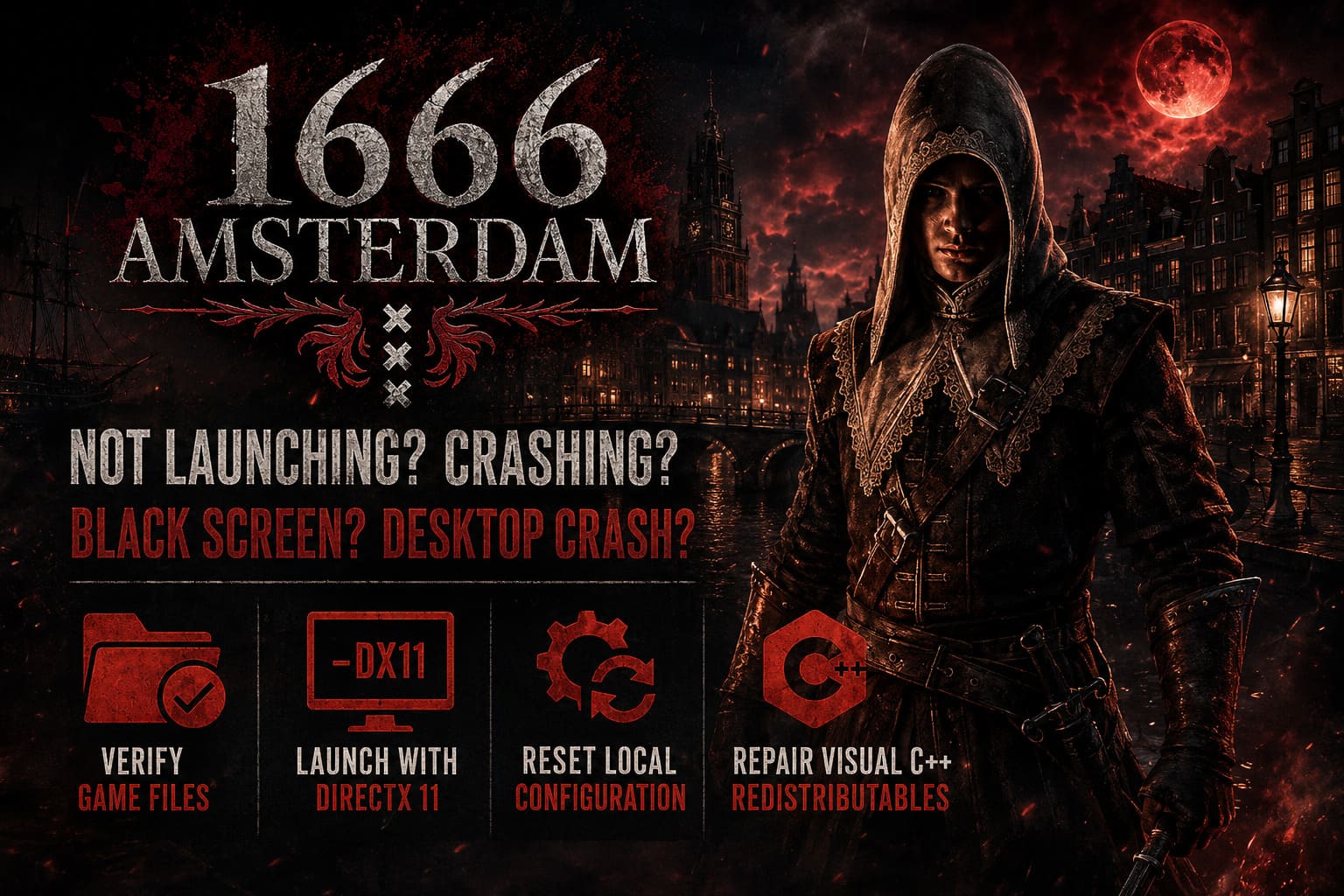
Steam
Open Steam and go to your Library. Find 1666: Amsterdam, right-click it, and select Properties.
Go to Installed Files and choose Verify integrity of game files.
Steam will compare your local installation against the files it expects to find. If something is missing or corrupted, it should download a replacement.
Epic Games Store
For an Epic installation, open your Library and locate the game. Click the three dots next to it, choose Manage, and then select Verify.
It’s a simple step, but don’t skip it. I’ve had games mysteriously stop crashing after nothing more than a file verification.
2. Try Launching 1666: Amsterdam With DirectX 11
If you’re getting a black screen followed by a crash, rendering API problems are worth investigating.
Modern games frequently default to DirectX 12, and while DX12 can provide excellent performance and visual features, it can also expose compatibility issues on certain combinations of GPUs, drivers, and Windows installations.
If the game supports the DirectX 11 launch parameter, try it.
On Steam, open Properties > General > Launch Options and enter:
-dx11
Then launch the game again.
If this suddenly gets you past the black screen, you may have found a rendering compatibility issue rather than a problem with the installation itself.
3. Reset the Local Configuration Files
This is one of my favorite troubleshooting tricks when a game worked once and then suddenly refuses to start.
Sometimes the problem isn’t the game installation at all. A damaged configuration file, shader cache, or local setting can cause the engine to crash before the main menu appears.
Press Windows + R, type:
%localappdata%
and press Enter.
Look for the folder associated with 1666: Amsterdam or its local game data. Before deleting anything, make a backup. I strongly recommend renaming the folder rather than permanently deleting it.
For example:
Amsterdam_OLD
Then launch the game.
If the game starts normally, Windows and the game will create a fresh configuration. You may have to set your graphics and display options again, but that’s a small price to pay for getting past a startup crash.
Don’t delete your save files blindly. If you’re unsure which folder contains saves, back up the entire directory first.
4. Repair Microsoft Visual C++ Redistributables
This is another classic PC gaming problem.
A game can appear to launch, briefly show up in Task Manager, and then disappear without giving you a useful error message. Missing or damaged Microsoft Visual C++ runtime components can be responsible for this behavior.
Install or repair the current Microsoft Visual C++ Redistributable packages from Microsoft. If both x64 and x86 versions are available for your system, install both.
If the installer says the package is already installed, choose Repair when that option is available.
Afterward, restart Windows.
It sounds painfully basic, but runtime libraries are one of those things you don’t notice until a game suddenly refuses to cooperate.
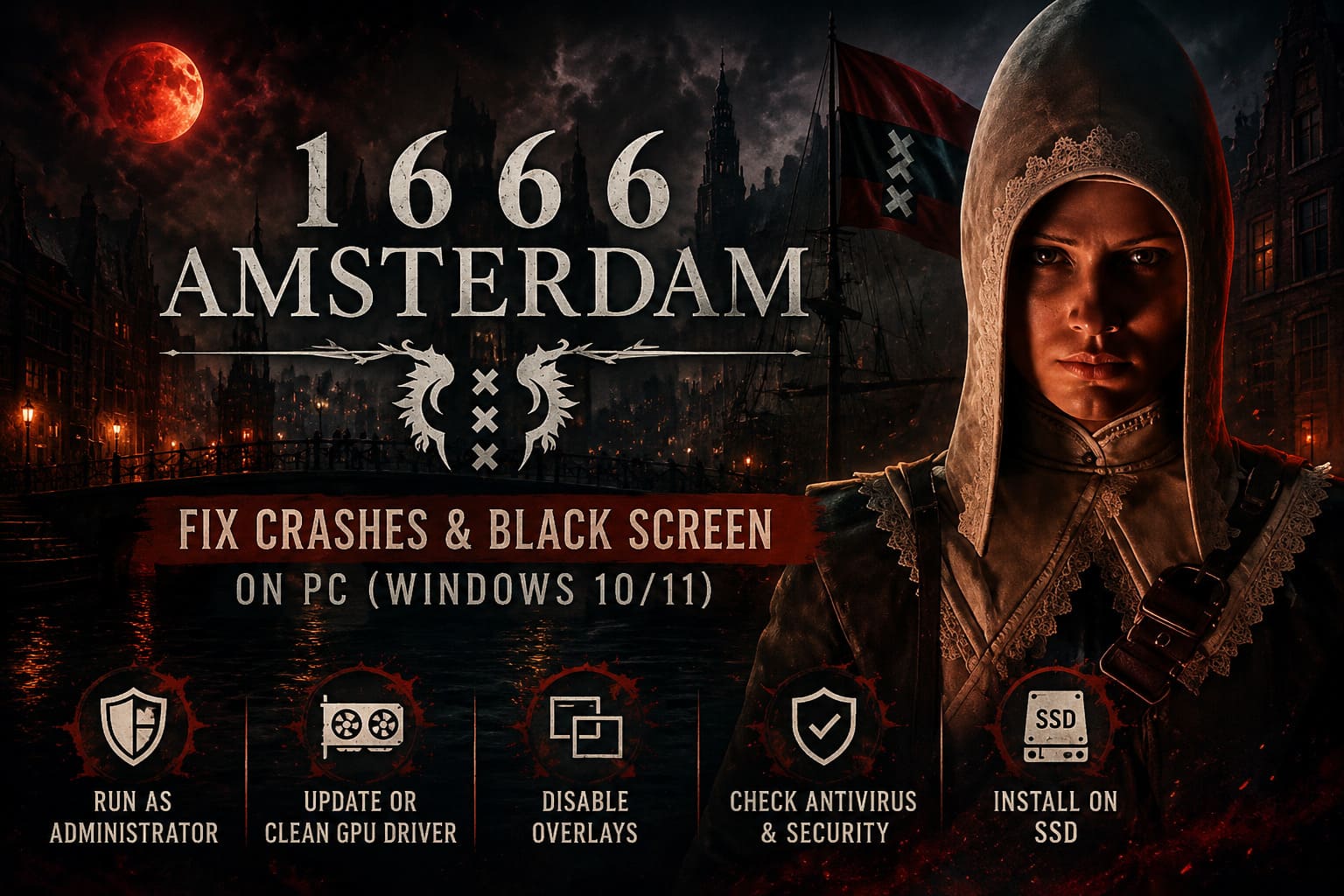
5. Run the Game as Administrator
Windows permissions can occasionally get in the way of a game trying to create or modify configuration files.
From your launcher, browse to the game’s installation directory and locate its main executable.
Right-click the .exe file, select Properties, and open the Compatibility tab.
You can test:
- Run this program as an administrator
- Disable full-screen optimizations
Apply the settings and launch the game again.
I wouldn’t immediately start stacking compatibility modes on top of everything else. Test the administrator option first. If you’re still having trouble on Windows 11, compatibility settings can be tested afterward.
6. Clean Install Your Graphics Driver
If 1666: Amsterdam crashes during the splash screen, opening cinematic, or the moment 3D graphics are initialized, your GPU driver deserves attention.
Don’t rely exclusively on Windows Update for gaming drivers. Check the official support software or website for your GPU manufacturer and install the latest stable driver available for your graphics card.
If you’ve recently upgraded your GPU or have been experiencing crashes across several games, a clean driver installation is even more worthwhile.
For NVIDIA and AMD users, use the manufacturer’s official driver installer and follow its clean-installation options when available.
After installation, reboot the PC.
One extra tip: if the game started crashing immediately after you installed a brand-new driver, don’t automatically assume newer means better. Occasionally a rollback to a previous stable driver is the smarter move.
7. Disable Overlays Before Launching
PC gamers love overlays because they’re convenient. Games sometimes hate them.
If you’re dealing with random crashes or a black screen, temporarily disable:
- Steam Overlay
- Discord Overlay
- NVIDIA/AMD in-game overlay
- MSI Afterburner
- RivaTuner Statistics Server
- Other performance monitoring or recording software
For Steam, open its settings and find the In-Game section, then disable the Steam Overlay.
For Discord, turn off its in-game overlay from the Activity/Game Overlay settings.
Also close monitoring applications completely rather than simply minimizing them.
This is especially useful if the game crashes as soon as it switches from the desktop into fullscreen rendering.
8. Check Windows Security and Antivirus Software
Security software occasionally gets a little too enthusiastic.
A newly released game may contain executable files or modified engine components that antivirus software doesn’t immediately recognize. If something has been quarantined or blocked, the game can fail to launch properly.
Open Windows Security > Virus & threat protection and check your protection history.
If you discover that the game executable or one of its legitimate files has been blocked, investigate that specific detection before creating an exclusion.
You can add a trusted game folder as an exclusion if necessary, but I would not recommend blindly disabling antivirus protection just to get a game running.
The same goes for Controlled Folder Access and other ransomware protection features. Check whether Windows is blocking the game from accessing a required folder.
9. Move the Game to an SSD
If you’re running 1666: Amsterdam from an old mechanical HDD, moving it to an SSD is worth trying.
Modern games constantly stream textures, shaders, models, audio, and other assets. An HDD isn’t automatically incompatible, but slow storage can make loading dramatically less pleasant and can expose streaming-related problems in some games.
If you have an internal SSD with enough free space, install the game there and test it again.
I wouldn’t buy a new SSD solely because one game crashes, but if your gaming library still lives on an aging HDD, this is a worthwhile upgrade for the overall PC experience anyway.
How to Fix 1666: Amsterdam Not Loading, Crashing on Startup, and Black Screen Issues on PC
Quick 1666: Amsterdam Crash-Fix Checklist
| Problem | Fix I’d Try First |
|---|---|
| Crashes immediately after pressing Play | Verify game files |
| Black screen before menu | Try -dx11 |
| Game worked before but now crashes | Reset local configuration |
| EXE appears briefly and disappears | Repair Visual C++ Redistributables |
| Crashes when switching to fullscreen | Disable overlays and fullscreen optimizations |
| Crashes during opening scenes | Update or clean-install GPU drivers |
| Windows blocks the executable | Check Windows Security |
| Very long loading followed by a crash | Move installation to an SSD |
What If Nothing Here Works?
If you’ve worked through all nine fixes and 1666: Amsterdam still crashes on launch, don’t start randomly deleting Windows folders or changing registry values. That’s where troubleshooting can quickly turn into making the original problem much worse.
At that point, check whether other games are crashing too.
If every game is unstable, the issue could be related to your GPU driver, Windows installation, overheating, RAM, overclocking, or another system-level problem. If only 1666: Amsterdam refuses to start, the problem is more likely to be specific to the game or its current Early Access build.
Also pay attention to the exact error message if one appears. A screenshot or crash log can be much more useful than simply knowing that the game “doesn’t work.”
Is 1666 Amsterdam Coming to PS5 and Xbox Series X in 2026? Release Date and Console Details
Final Thoughts
I’ll be honest: launch-day PC troubleshooting is one of the least exciting parts of being a PC gamer. You install a game because you want to play it, not because you want to spend an evening investigating DirectX, redistributables, and Windows permissions.
Still, most startup crashes aren’t permanent.
For 1666: Amsterdam crashing on Windows 10 or Windows 11, I’d personally start with file verification, then test DirectX 11, reset the game’s local configuration, repair Visual C++, and check your GPU driver. After that, I’d move on to overlays, Windows Security, and storage.
Don’t change everything simultaneously. Test one fix at a time.
And if the game finally launches after all that? At least you can get back to what you actually installed it for: exploring a creepy version of Amsterdam instead of staring at the Windows desktop.