How to Fix Shift At Midnight Low FPS and Neon Lights Lag in 2026
When I first launched Shift At Midnight, I immediately understood why so many horror fans were talking about it. The atmosphere is incredible, the gas station feels genuinely unsettling, and the doppelganger mechanic keeps you constantly second-guessing every customer that walks through the door.
Unfortunately, there was one thing that kept ruining the experience for me: massive FPS drops whenever I looked toward the bright neon signs outside the station.
At first I assumed my graphics driver was acting up, but after testing different settings, comparing notes with other PC players, and experimenting with Unreal Engine 5 options, it became obvious that the problem wasn’t my hardware alone. The game’s lighting system can become surprisingly demanding, especially during scenes filled with glowing reflections, wet pavement, and volumetric lighting.
If you’re dealing with sudden stuttering, unstable frame pacing, or huge FPS losses, this guide covers the changes that made the biggest difference for me without making the game look terrible.
Why Shift At Midnight Loses FPS Around Neon Lights
One thing I noticed almost immediately was that performance stayed perfectly fine inside many interior areas. The problems usually started whenever I stepped outside or turned the camera toward multiple neon signs reflecting off windows and wet surfaces.
That’s not really surprising.
The game is built with Unreal Engine 5, and it makes heavy use of modern rendering features including:
- Dynamic lighting
- Screen-space reflections
- Volumetric fog
- Emissive materials
- Post-processing effects
Individually these effects aren’t necessarily a problem, but when several of them overlap in the same scene, GPU usage can spike dramatically.
In my testing, average FPS wasn’t always the biggest issue. Instead, the game suffered from poor 1% lows, making camera movement feel choppy even when the FPS counter looked acceptable.
My First Fix: Lower Reflection Quality
If I could recommend only one setting to change, it would be this one.
Reflections appear to be the biggest performance killer in Shift At Midnight.
Open the graphics settings and reduce Reflection Quality from High or Epic down to Medium.
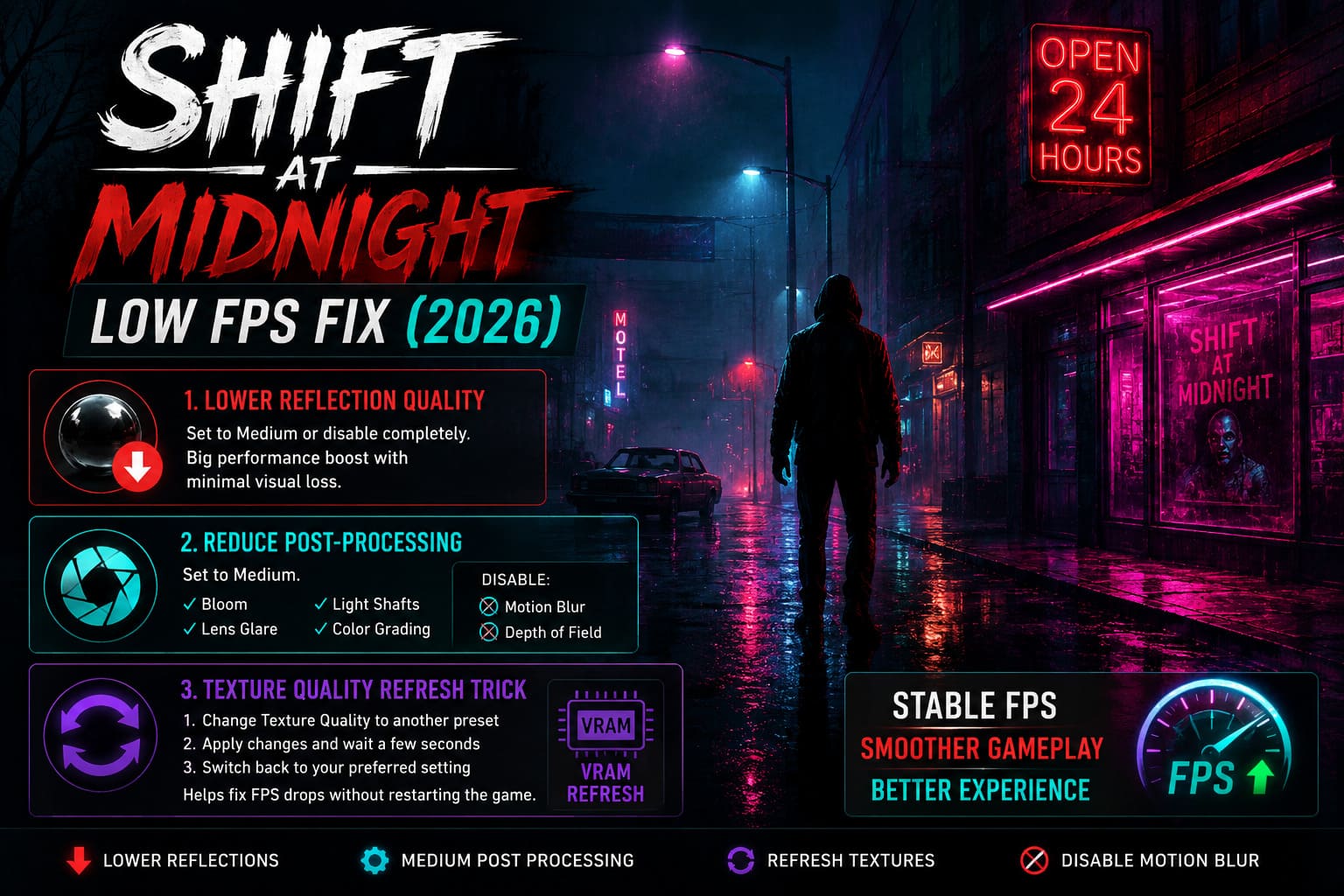
If you’re using an older GPU, simply disable reflections completely.
Visually, the difference is much smaller than I expected.
Performance, however, improved dramatically.
The glowing storefronts still look atmospheric, but the GPU no longer has to constantly update every reflective surface every frame.
Reduce Heavy Post-Processing
The game uses quite a lot of cinematic visual effects.
While they certainly help create tension, they also consume GPU resources that many players would rather spend on stable frame rates.
I recommend lowering Post Processing to Medium.
You’ll still keep the horror atmosphere, but effects like:
- Bloom
- Lens glare
- Light shafts
- Excessive color grading
become much lighter on your graphics card.
I also disabled:
- Motion Blur
- Depth of Field
Personally, I never enjoy motion blur in first-person horror games anyway, and turning it off made the image cleaner while recovering a few extra frames.
The Texture Quality Trick That Surprisingly Worked
This was probably the strangest fix I tested.
After playing several shifts, performance gradually became worse until restarting the game restored normal FPS.
Instead of restarting every time, I tried changing the Texture Quality setting.
Here’s exactly what worked.
- Open Video Settings.
- Change Texture Quality to another preset.
- Apply the changes.
- Wait a few seconds.
- Switch back to your preferred setting.
For whatever reason, this appears to refresh the game’s VRAM allocation.
Every time I tried it after noticing performance degradation, frame rates recovered almost instantly.
Whether it’s a memory leak or simply a caching issue, it’s definitely worth trying before restarting the game.
Disable Cinematic Effects
Shift At Midnight includes several visual filters designed to imitate classic horror movies.
They look interesting, but they’re not essential.
If your graphics menu includes options like:
- Stop Motion
- Cinematic Effects
- Film Style
turn them off.
Besides improving FPS, gameplay actually feels much smoother because frame pacing becomes far more consistent during tense encounters.
Advanced Unreal Engine Tweaks
Players comfortable editing configuration files can squeeze out even more performance.
After closing the game:
%localappdata%\ShiftAtMidnight\Saved\Config\WindowsNoEditorOpen either:
- GameUserSettings.ini
- Scalability.ini
If necessary, add these commands:
r.SSR.Quality=0
r.VolumetricFog=0
These commands disable two of the engine’s heavier rendering features.
I wouldn’t recommend this if visual quality is your top priority, but if your goal is maintaining a locked frame rate, it’s an effective solution.
After saving the file, setting it to Read-only prevents the game from replacing your custom settings.
Windows Optimizations Worth Trying
Not every performance issue comes directly from the game.
Windows itself can sometimes interfere with demanding Unreal Engine 5 titles.
The biggest improvements came from these adjustments:
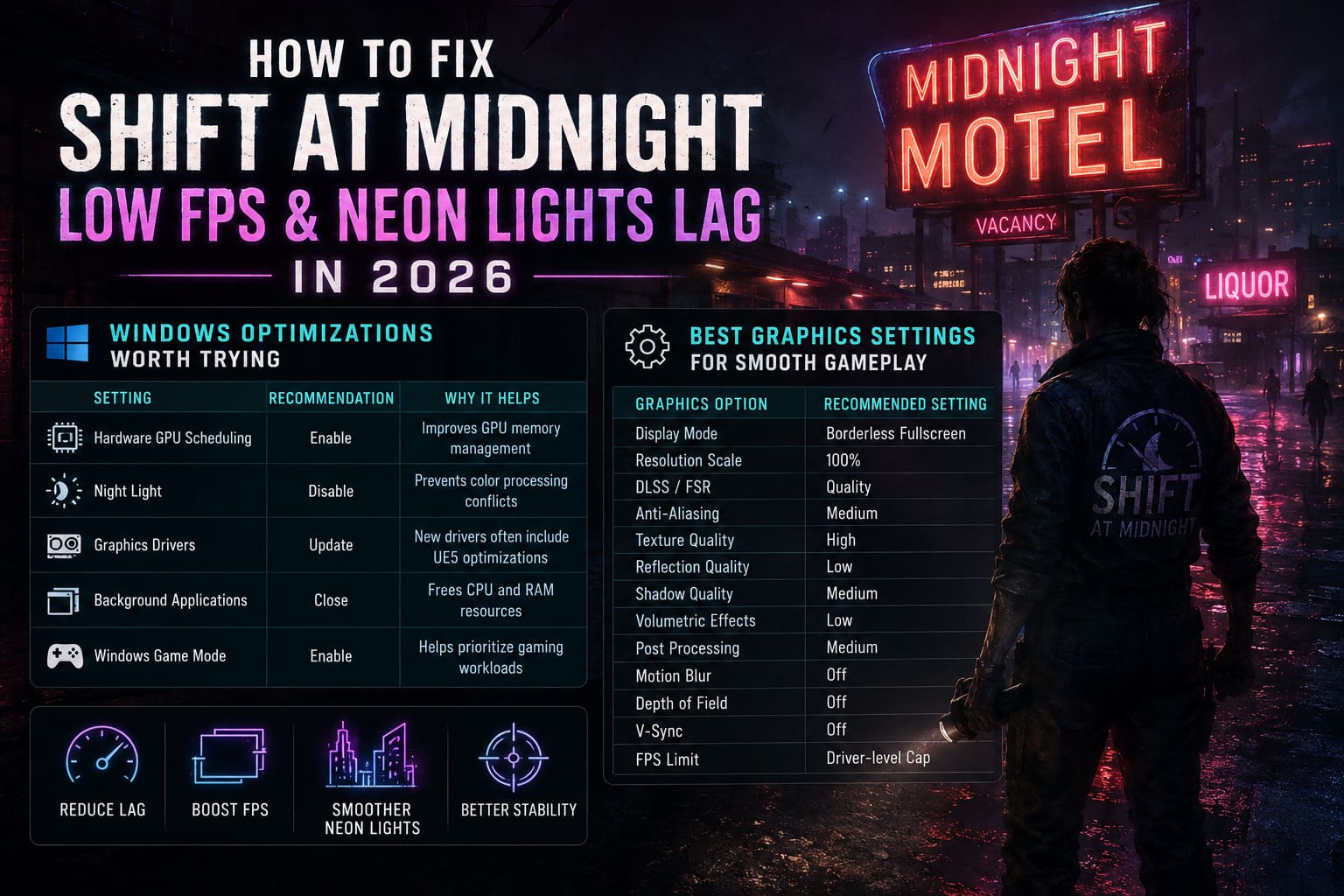
| Setting | Recommendation | Why It Helps |
|---|---|---|
| Hardware GPU Scheduling | Enable | Improves GPU memory management |
| Night Light | Disable | Prevents potential color processing conflicts |
| Graphics Drivers | Update | New drivers often include UE5 optimizations |
| Background Applications | Close | Frees CPU and RAM resources |
| Windows Game Mode | Enable | Helps prioritize gaming workloads |
None of these changes are miracle fixes by themselves, but together they noticeably improved overall stability.
Best Graphics Settings for Smooth Gameplay
After experimenting for several hours, this setup gave me the best balance between image quality and performance.
| Graphics Option | Recommended Setting |
|---|---|
| Display Mode | Borderless Fullscreen |
| Resolution Scale | 100% |
| DLSS / FSR | Quality |
| Anti-Aliasing | Medium |
| Texture Quality | High |
| Reflection Quality | Low |
| Shadow Quality | Medium |
| Volumetric Effects | Low |
| Post Processing | Medium |
| Motion Blur | Off |
| Depth of Field | Off |
| V-Sync | Off |
| FPS Limit | Driver-level Cap |
With these settings the game still looked fantastic while eliminating almost all of the heavy stuttering I experienced during outdoor scenes.
Don’t Ignore VRAM Usage
One thing I kept monitoring while testing was VRAM consumption.
If you’re using a graphics card with:
- 6 GB VRAM
- 8 GB VRAM
it’s worth watching GPU memory usage through MSI Afterburner or your preferred monitoring software.
As VRAM fills up, Shift At Midnight seems much more likely to develop hitching during camera movement.
If that happens, lowering only Reflection Quality is usually enough to stabilize memory usage without sacrificing overall image quality.
Should You Use DLSS or FSR?
Absolutely.
If your hardware supports either technology, they’re among the easiest ways to gain additional performance.
I generally recommend:
- DLSS Quality for NVIDIA RTX cards.
- FSR Quality for AMD GPUs.
- Balanced mode only if you’re already struggling to stay above 60 FPS.
Ultra Performance mode increases FPS considerably, but the visual softness becomes much more noticeable, especially when reading objects around the gas station.
How to Fix Shift At Midnight Crash on Launch, Black Screen, and Freezing on Steam (2026 PC Guide)
Is This Likely to Be Fixed?
I think so.
The performance problems don’t feel like they’re caused by poor optimization across the entire game.
Instead, they appear heavily concentrated around specific lighting scenarios involving neon reflections, emissive materials, and volumetric effects.
That usually means developers can optimize those areas without completely redesigning the rendering pipeline.
Until then, lowering a few graphics options produces surprisingly large improvements while keeping the game’s distinctive visual style intact.
Shift At Midnight Post-Launch Roadmap 2026: New DLC, Game Pass Updates, and Endless Mode Content
Final Thoughts
Despite its technical issues, Shift At Midnight has quickly become one of my favorite indie horror games this year. Few games manage to create this much tension from something as simple as working a lonely overnight shift.
The neon lighting certainly gives the game its unique identity, but right now it’s also responsible for many of the frame rate problems players are reporting.
Fortunately, you don’t need a brand-new graphics card to enjoy the experience. Lowering reflection quality, reducing post-processing, refreshing texture allocation when performance begins to drop, and making a few Windows optimizations were enough to transform the game for me.
If you’re still struggling after trying these fixes, keep an eye on future game updates. Performance patches for Unreal Engine 5 titles often bring meaningful improvements, especially when developers identify specific rendering bottlenecks.
Until then, these tweaks should help you spend less time fighting stutter and more time trying to survive another unsettling night shift.