Pizza House Simulator Black Screen on Launch: 7 Ways to Fix the Startup Error
If you fired up Pizza House Simulator on Steam expecting to spend the evening running a chaotic little pizza business, only to get a completely black screen, I know the feeling. Nothing kills the mood faster than watching a game refuse to show anything except darkness while your PC sits there apparently doing absolutely nothing.
I ran into this kind of problem myself with games that use video intros, fullscreen initialization, and modern graphics APIs, and the annoying part is that a black screen doesn’t always tell you what is actually broken. Sometimes the game is running perfectly in the background and simply fails to display an image. Other times, a damaged configuration file, GPU driver problem, Windows media component, or overlay is enough to stop the game before you ever reach the main menu.
The good news is that Pizza House Simulator black screen errors are usually fixable without reinstalling Windows or doing anything ridiculous. I would start with the easy solutions first and only move toward the more aggressive fixes if the simpler ones don’t work.
Here are the seven things I’d try.
First, Figure Out What Kind of Black Screen You Have
Before changing ten different settings at once, pay attention to what the game is actually doing.
If you get a black screen but can still hear music or menu sounds, that’s an important clue. The game may have successfully launched but failed somewhere in the display or video-rendering process.
If the game immediately disappears and returns you to the desktop, you’re probably dealing with a crash rather than a simple display problem.
If everything freezes and Windows becomes sluggish, I’d look more closely at your graphics driver, fullscreen mode, or an overlay conflict.
This quick distinction can save a lot of unnecessary troubleshooting.
| What You See | Most Likely Area To Check |
|---|---|
| Black screen with music | Resolution, fullscreen mode, video playback |
| Black screen with no audio | Game files, drivers, configuration |
| Crash to desktop | Drivers, corrupted files, overlays |
| Works in windowed mode | Fullscreen or resolution conflict |
| Started after a GPU update | Driver/profile issue |
| Started after an update | Configuration or damaged game files |
Now, here’s where I’d start.
1. Force Pizza House Simulator Into Windowed Mode
This is the first fix I’d try.
Fullscreen problems are incredibly common, especially if you’re using two monitors, an ultrawide display, a TV, or a desktop resolution that doesn’t perfectly match what the game expects.
A game can technically launch while failing to establish a proper fullscreen presentation. The result is the classic black screen while everything else appears to be working.
Steam gives you an easy way around that.
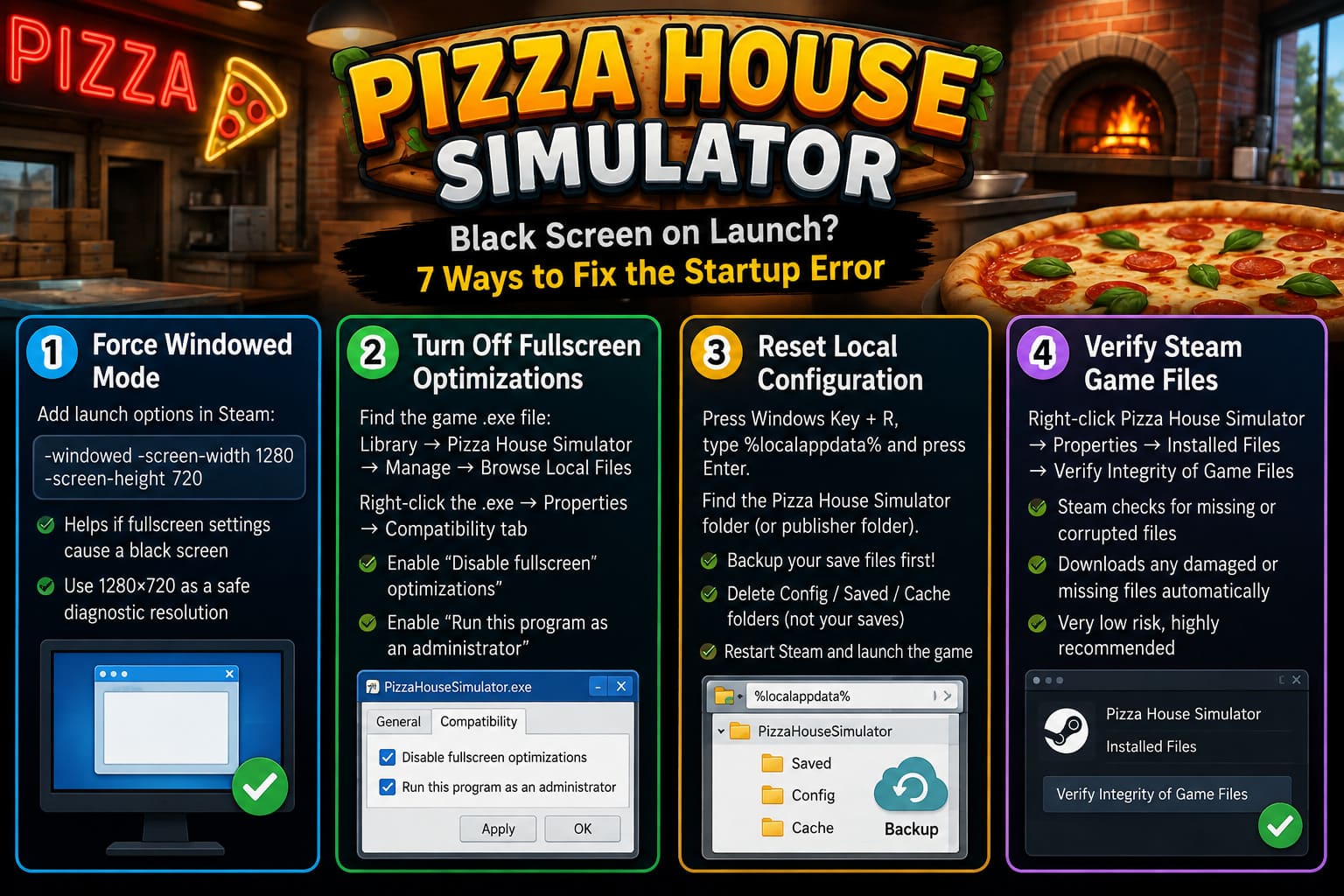
Open your Steam Library, right-click Pizza House Simulator, select Properties, and stay on the General tab. Look for the Launch Options field.
Enter:
-windowed -screen-width 1280 -screen-height 720
Then close the Properties window and launch the game again.
Yes, 1280×720 isn’t exactly how I’d want to play a modern PC game either. That’s not the point. We’re using it as a safe diagnostic resolution.
If the game suddenly appears, you’ve learned something important: the game itself can run, but its previous display configuration was causing trouble.
Once you’re inside the game, change the resolution to your monitor’s native setting and try borderless fullscreen. If everything behaves normally, remove the launch arguments afterward.
Personally, I’d test this before touching drivers or deleting anything. It’s fast, harmless, and surprisingly effective.
2. Turn Off Fullscreen Optimizations
If forcing windowed mode gets you into the game, there’s a good chance Windows fullscreen handling is involved.
Find the game’s executable through Steam:
Library → Pizza House Simulator → Manage → Browse Local Files
Look for the main .exe file. The exact filename can vary depending on the build, so don’t get hung up on whether it’s called PizzaHouseSimulator.exe.
Right-click the executable and select Properties.
Open the Compatibility tab and enable:
- Disable fullscreen optimizations
- Run this program as an administrator
Click Apply and then OK.
I’d especially test the first option before assuming administrator privileges are necessary. Windows’ fullscreen behavior can occasionally interfere with games that don’t play nicely with newer desktop presentation features.
If the game starts normally afterward, you can leave the setting enabled.
3. Reset the Game’s Local Configuration
This is one of those fixes that doesn’t look impressive but has saved me more than once.
A game can keep perfectly legitimate settings that have nevertheless become unusable. Maybe you changed resolution, switched monitors, updated your graphics card, or the game crashed while writing its configuration file.
The next launch then loads the same broken settings and crashes or displays a black screen again.
Press Windows Key + R, type:
%localappdata%
and press Enter.
Look for a folder associated with Pizza House Simulator or its publisher/developer. Depending on how the game stores its files, you may find folders such as Saved, Config, or cache-related directories.
Before deleting anything, make a backup of your save files.
That’s the part I wouldn’t skip.
Once your saves are safely copied somewhere else, remove the temporary configuration/cache files rather than blindly deleting every file you can find.
Restart Steam and launch the game.
The goal here is simple: make Pizza House Simulator behave like it has never been launched before.
If it starts, you’ll need to configure your graphics settings again, but that’s a much better problem to have than staring at a black screen.
4. Verify the Steam Game Files
Before downloading drivers or messing with Windows, let Steam check whether the installation itself is broken.
Right-click the game in your Steam Library and open:
Properties → Installed Files → Verify Integrity of Game Files
Steam will compare your local installation with the current game manifest.
This matters because a black screen can be caused by something as boring as one missing or corrupted file. An interrupted update, storage error, antivirus interference, or failed download can potentially leave the installation in a bad state.
Let Steam finish the entire verification process.
If it finds something wrong, it should download the missing or damaged files automatically.
I always recommend this step because there’s almost no downside. You’re not rebuilding your Windows installation or deleting your save directory; you’re simply checking whether Steam’s copy of the game is complete.
5. Clean-Install Your Graphics Driver
If the black screen appeared after a graphics driver update, or if other games have recently started behaving strangely, I’d move the GPU driver higher up your troubleshooting list.
Normally, installing the newest NVIDIA, AMD, or Intel driver over the existing one is enough. But occasionally driver profiles and old files don’t play nicely together.
That’s where a clean driver installation can help.
For advanced troubleshooting, tools such as Display Driver Uninstaller (DDU) can remove existing graphics driver components before you install a fresh driver package.
The general process is:
- Download the correct current driver for your GPU.
- Download DDU from a reputable source.
- Restart Windows into Safe Mode.
- Run DDU and select the appropriate GPU manufacturer.
- Use the clean-and-restart option.
- Boot normally into Windows.
- Install the fresh graphics driver.
- Restart once more and test Pizza House Simulator.
I’d consider this a later-stage fix, not the first thing to try.
If every other game works perfectly and Pizza House Simulator suddenly shows a black screen after you changed a resolution setting, reinstalling your entire GPU driver stack is probably overkill.
But if you’re seeing graphical glitches, crashes, black screens, and rendering problems across several games, it becomes much more reasonable.
6. Check Windows Media Components and DirectX
Here’s a fix that’s easy to overlook.
Some games use Windows media components for intro videos, logos, cutscenes, or other video playback. If those components aren’t available or aren’t functioning properly, the game can potentially get stuck before the main menu.
This is particularly relevant if you’re running a special Windows edition such as Windows N, where certain media technologies aren’t included by default.
Open Windows Settings and search for Optional Features.
Look for the option to add an optional feature and search for Media Feature Pack.
If your Windows edition requires it and the component isn’t installed, install it and restart your PC.
I’d also make sure Windows itself is properly updated.
If the issue looks more like a general DirectX problem, Microsoft’s DirectX runtime components are another area worth checking.
The important thing here is not to randomly download DLL files from questionable websites. Don’t fix a black screen by replacing individual DirectX DLLs from some mystery download site. That’s a great way to turn a gaming problem into a security problem.
7. Kill Every Overlay You Don’t Need
This is probably my favorite “why didn’t I think of that?” troubleshooting category.
Modern PC gaming involves a ridiculous number of programs trying to put something on top of your game.
Steam Overlay.
Discord Overlay.
MSI Afterburner.
RivaTuner Statistics Server.
GPU recording software.
Streaming applications.
Xbox Game Bar.
Various performance monitors.
Most of the time they coexist without a problem. But when one of them hooks into a game’s rendering pipeline at exactly the wrong moment, you can end up with a black screen, crash, frozen frame, or bizarre graphical behavior.
I’d temporarily disable the Steam Overlay first.
Then disable Discord’s game overlay if you use it.
Close MSI Afterburner and RivaTuner completely rather than merely minimizing them.
Also shut down recording and streaming software before testing the game.
Then launch Pizza House Simulator with as little running in the background as possible.
If the game suddenly works, turn those programs back on one at a time until you identify the offender.
Don’t immediately blame the game. Sometimes it’s the software sitting on top of the game that’s causing the fight.
My Recommended Order of Attack
If I were sitting at my own PC with Pizza House Simulator refusing to launch, I wouldn’t randomly try all seven fixes.
I’d go in this order:
- Force windowed mode with a basic 1280×720 resolution.
- Disable fullscreen optimizations.
- Disable overlays and background capture tools.
- Verify Steam game files.
- Reset the game’s local configuration after backing up saves.
- Check Windows Media Feature Pack and system components.
- Clean-install the GPU driver if the problem still refuses to disappear.
That order starts with the least invasive fixes and gradually moves toward more involved troubleshooting.
What If Nothing Here Works?
If you’ve gone through everything and Pizza House Simulator still produces a black screen, don’t immediately assume your PC isn’t powerful enough.
A black screen is usually not a simple performance problem.
A system can have enough GPU horsepower to run the game and still fail during initialization because of a bad configuration, driver conflict, unsupported display mode, missing Windows component, or overlay hook.
I’d also test the game with every unnecessary background application closed and, if possible, with only one monitor connected. Multi-monitor setups can introduce another variable that makes diagnosing display initialization much harder.
Pay attention to when the problem started. If the game worked yesterday and stopped after an update, that’s useful information. If it has never launched successfully, resolution, drivers, missing dependencies, and corrupted installation files become more likely suspects.
And if none of these solutions changes anything, check the game’s current Steam community discussions and developer announcements for a known issue. Sometimes the problem really is on the game’s side, and no amount of reinstalling drivers is going to fix a bug that needs a patch.
Final Thoughts
A Pizza House Simulator black screen on launch is frustrating because the game gives you almost no useful information. You don’t know whether it’s loading, frozen, rendering somewhere else, or quietly crashing behind that blank display.
The good news is that you don’t need to throw every possible fix at your computer at once.
Start with the simple stuff. Force windowed mode, reset the display configuration, verify the Steam files, and shut down overlays. Those are the fixes I’d personally test first because they take minutes rather than hours.
If the problem survives all of that, move on to Windows media components and finally a clean GPU driver installation.
For me, the biggest lesson with PC gaming troubleshooting is pretty simple: change one thing at a time. If you alter twelve settings simultaneously and the game suddenly works, you have no idea what actually fixed it.
And if Pizza House Simulator finally boots after staring at that black screen for what feels like an eternity, there is only one thing left to do: get back to making pizzas and pretend the entire troubleshooting session never happened.