How to Fix Cat Mail Co Infinite Loading Screen Loop: 2026 Guide
Few cozy games have surprised me this year as much as Cat Mail Co. On paper, it looks like a relaxing postal management game with adorable cats, colorful islands, and wholesome vibes. In reality, I somehow ended up spending hours optimizing mail routes, decorating my little post office, and convincing friends to jump into co-op sessions with me.
Then came the one thing nobody enjoys in any game: an infinite loading screen.
Instead of delivering packages across the island, the game freezes before you even reach the main menu. Sometimes the loading bar never moves. Sometimes it reaches a certain percentage and refuses to continue. Other players report getting trapped inside a black loading window forever.
After digging through Steam discussions, Reddit threads, Discord conversations, community bug reports, and trying multiple fixes myself, I gathered every solution that consistently helps players escape the loading loop. If Cat Mail Co. refuses to launch properly, this guide should save you plenty of frustration.
Why Does Cat Mail Co. Keep Loading Forever?
One thing quickly became obvious after reading hundreds of community reports: there isn’t one universal cause.
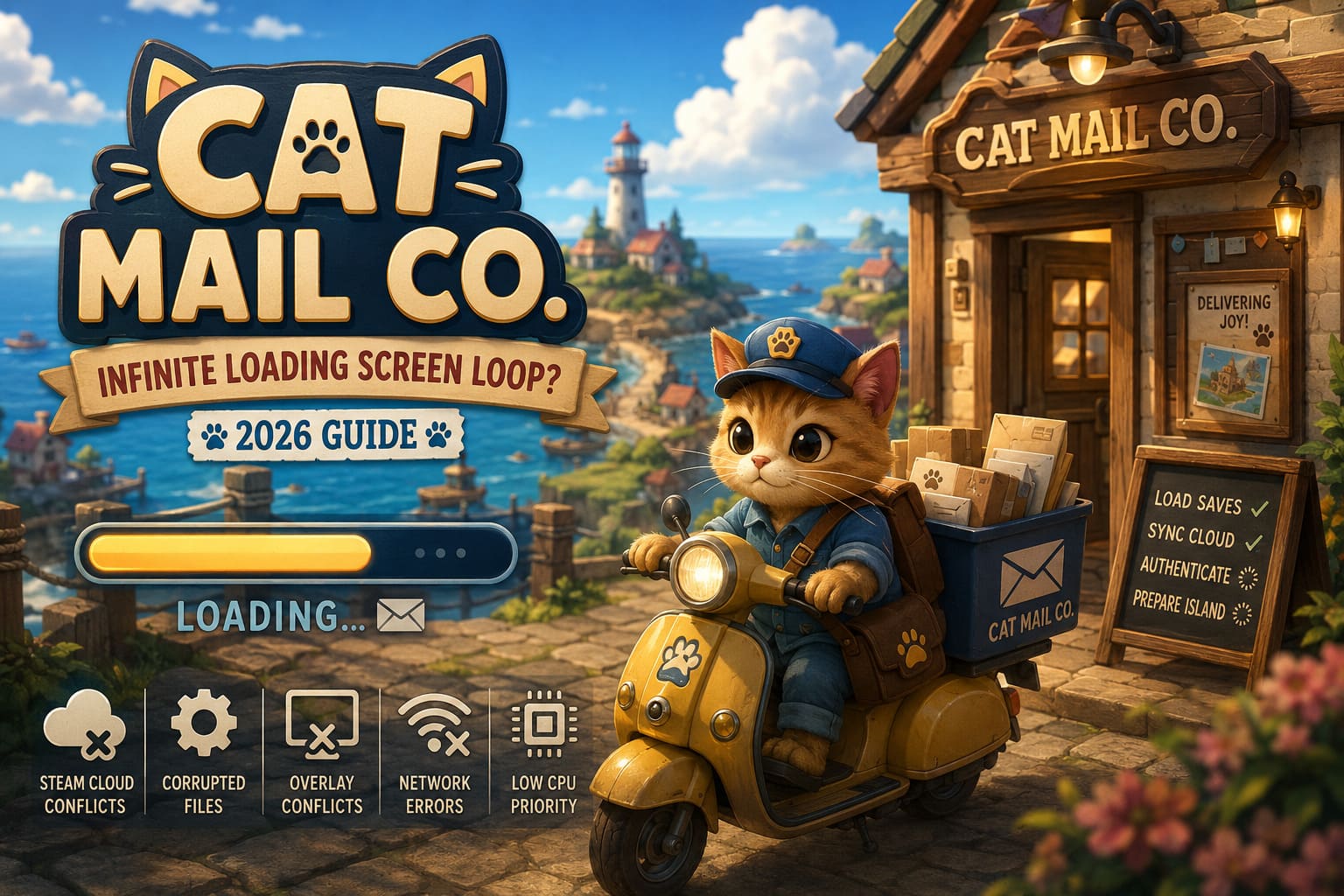
Cat Mail Co. constantly works with several systems during startup. It loads local saves, synchronizes Steam Cloud data, initializes graphical assets, checks multiplayer services, and prepares procedural island data before gameplay even begins.
If any one of those steps fails, the loading process can stall indefinitely.
The most common causes include:
- Corrupted local configuration files
- Damaged save cache after an unexpected shutdown
- Steam Cloud synchronization conflicts
- Graphics driver problems
- Overlay software interfering with rendering
- Network authentication failures
- Windows permission restrictions
The good news is that the issue usually isn’t permanent. Most players manage to fix it without losing their save.
Start With the Simple Fixes
Before diving into Windows folders or reinstalling drivers, try the easy solutions first. They’re surprisingly effective.
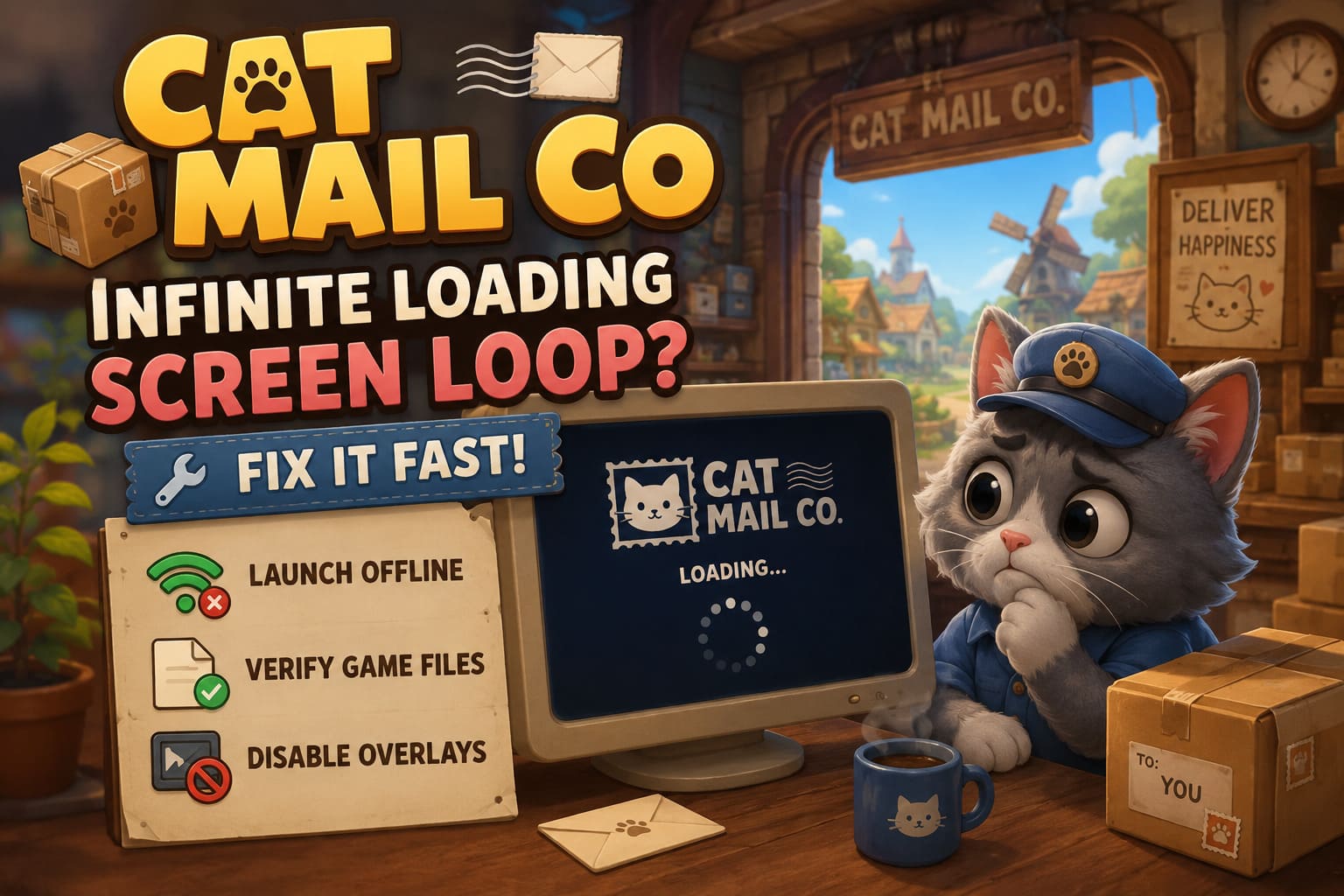
1. Launch the Game Offline
One of the strangest discoveries from the community is that multiplayer authentication sometimes causes the loading sequence to hang.
Several players reported that the game launched instantly after disconnecting from the internet.
Try the following:
- Exit Cat Mail Co.
- Close Steam.
- Disconnect your internet connection.
- Launch Steam in Offline Mode.
- Start the game.
If everything loads normally, reconnect to the internet after reaching the main menu.
This trick won’t solve every case, but it’s one of the fastest things worth testing.
2. Verify the Game Files
Game installations occasionally miss a file during updates.
Steam can automatically replace anything that’s damaged.
- Open your Steam Library.
- Right-click Cat Mail Co.
- Select Properties.
- Open the Installed Files tab.
- Click Verify integrity of game files.
Steam scans the installation and downloads missing or damaged files automatically.
It only takes a few minutes and has fixed loading issues in countless PC games.
3. Disable Overlay Applications
This solution sounds too simple, but overlay software has caused startup problems in games for years.
Close applications such as:
- Discord Overlay
- NVIDIA GeForce Experience
- MSI Afterburner
- RivaTuner Statistics Server
- OBS Studio
- Xbox Game Bar
After closing unnecessary background software, launch Cat Mail Co. again. Many players have reported that the loading screen immediately disappeared once overlays were disabled.
Delete the Corrupted Configuration Folder
If none of the basic fixes worked, corrupted configuration files are probably preventing the game from starting correctly.
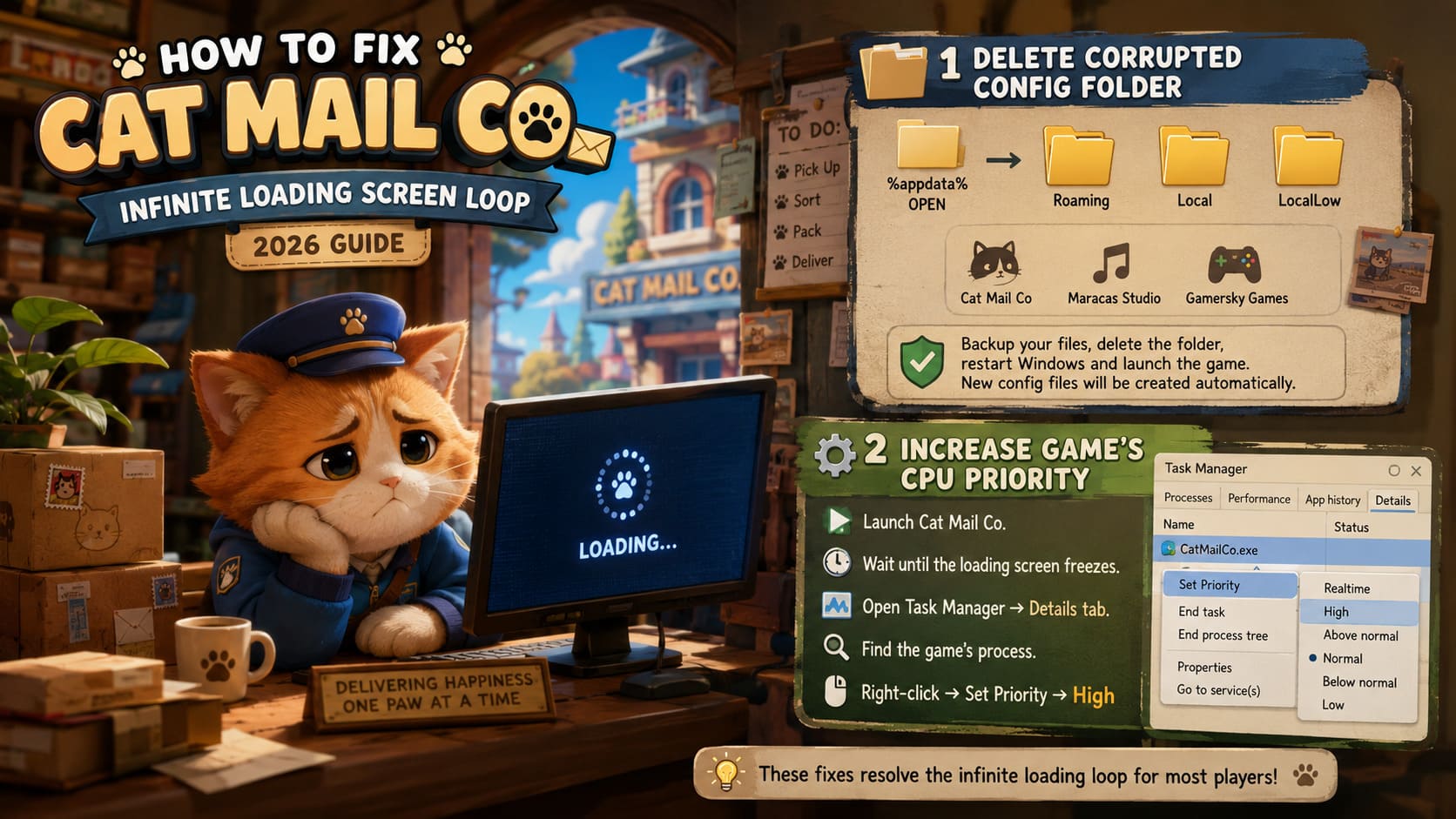
Step 1
Press Windows + R.
Type:
%appdata%
Press Enter.
Step 2
Check the following folders:
- Roaming
- Local
- LocalLow
Look for folders named:
- Cat Mail Co
- Maracas Studio
- Gamersky Games
Depending on your game version or publisher, folder names may differ slightly.
Step 3
Create a backup before deleting anything.
Copy the entire folder onto your desktop or another safe location. If your save files are stored there, you’ll be able to restore them later if necessary.
Step 4
Delete the original configuration folder.
Restart Windows.
Launch Cat Mail Co. again.
The game will automatically generate brand-new configuration files during startup, eliminating damaged settings that frequently cause the endless loading loop.
For many players, this alone permanently fixes the issue.
Increase the Game’s CPU Priority
Windows occasionally gives lightweight indie games lower processing priority than background applications.
If Cat Mail Co. isn’t receiving enough CPU resources during startup, increasing its priority can help.
- Launch Cat Mail Co.
- Wait until the loading screen freezes.
- Open Task Manager.
- Go to the Details tab.
- Find the game’s executable process.
- Right-click it.
- Select Set Priority → High.
Avoid selecting Realtime, since that can reduce overall system stability.
If Windows scheduling was slowing the startup process, the game may finish loading almost immediately after changing the priority.
Reset Your Network Configuration
Because Cat Mail Co. communicates with Steam services during startup, outdated networking information stored by Windows can occasionally interfere with authentication.
Open Command Prompt as Administrator.
Run:
ipconfig /flushdns
After that, execute:
netsh winsock reset
Restart your computer.
These commands safely clear cached networking information and reset Windows network sockets, resolving strange connection problems that can leave games stuck while loading online services.
Perform a Clean Graphics Driver Installation
Simply installing the newest graphics driver isn’t always enough.
Old driver files can remain on the system and create conflicts that only appear in certain games.
For the cleanest installation:
- Download the latest driver directly from NVIDIA, AMD, or Intel.
- Use Display Driver Uninstaller (DDU) in Safe Mode to remove the existing driver completely.
- Restart Windows.
- Install the freshly downloaded driver using the clean installation option if available.
- Launch Cat Mail Co. again.
Although this process takes longer than other fixes, it has solved startup freezes for many PC gamers experiencing persistent loading problems.
Check Windows Permissions and Security Software
Windows security settings can sometimes prevent the game from accessing files it needs during startup.
Try launching both Steam and Cat Mail Co. as Administrator.
If the game is installed inside a protected folder, elevated permissions may allow it to initialize normally.
Some antivirus programs also quarantine updated game executables or block file access while scanning.
Temporarily disable real-time protection or add the game folder as an exception, launch the game, and remember to re-enable your antivirus afterward.
The Last Resort: Completely Reinstall the Game
If every other solution has failed, a true clean reinstall is the next logical step.
Don’t simply uninstall and reinstall immediately. Leftover files often survive the uninstall process.
- Confirm Steam Cloud synchronization is enabled.
- Uninstall Cat Mail Co.
- Navigate to your Steam installation folder.
- Delete any remaining Cat Mail Co folders.
- Remove leftover AppData configuration folders.
- Restart your PC.
- Download the game again.
- Launch the game and allow Steam Cloud to restore your save.
Many players who skipped deleting leftover folders discovered that the same corrupted configuration files remained, causing the loading loop to return immediately.
Quick Troubleshooting Reference
| Problem | Most Likely Cause | Recommended Fix |
|---|---|---|
| Black loading screen | Corrupted configuration files | Delete the AppData folder |
| Loading bar never starts | Steam synchronization issue | Launch in Offline Mode |
| Game freezes during startup | Overlay software conflict | Disable overlays |
| Loading reaches 70–90% | Damaged game files | Verify Steam files |
| Startup crash | Graphics driver corruption | Perform a clean driver installation |
| Infinite loading after an update | Corrupted cache | Delete local configuration files |
Cat Mail Co Crash on Launch: How to Fix Steam Startup Issues on PC (2026 Guide)
How to Avoid the Loading Screen Bug in the Future
Once you’ve fixed the issue, a few simple habits can reduce the chances of it returning after future updates.
- Always exit the game normally instead of force-closing it.
- Keep Steam Cloud synchronization enabled.
- Update graphics drivers regularly.
- Avoid shutting down Windows while the game is saving.
- Disable unnecessary overlays before playing.
- Verify game files after major updates.
None of these steps guarantees that you’ll never encounter another loading issue, but they’re solid PC gaming practices that help prevent file corruption and startup conflicts.
Cat Mail Co. Progression Guide: Best Abilities and Tools to Unlock Early
Final Thoughts
Infinite loading screens are among the most frustrating bugs because they rarely explain what actually went wrong. Thankfully, Cat Mail Co.’s loading loop usually isn’t caused by permanent save corruption or failing hardware.
Most cases come down to damaged configuration files, Steam synchronization hiccups, networking conflicts, graphics driver issues, or background software interfering with the game’s startup process. Working through each solution methodically gives you a much better chance of fixing the problem than immediately reinstalling Windows or assuming your save is gone forever.
The developers at Maracas Studio continue improving stability with updates, and the community has already uncovered several reliable workarounds while official patches continue rolling out. Until the loading bug is completely eliminated, the fixes above remain the most effective methods available.
Hopefully, after spending a few minutes troubleshooting instead of staring at an endless loading animation, you’ll be back delivering letters, organizing your adorable post office, exploring the island, and enjoying one of the coziest indie games of the year.