How to Fix Sandcastle Game Blurry Textures (2026 Ultimate Graphics Guide)
I’ve played enough sandbox games over the years to know that beautiful physics don’t automatically mean beautiful graphics. Some games simulate incredible worlds but stumble when it comes to texture streaming, while others look fantastic until something in the engine decides every surface should resemble wet cardboard. Sandcastle unfortunately falls into that second category for some PC players.
The game absolutely deserves the attention it has received. Watching the tide slowly erase your carefully crafted castle while every grain of sand reacts naturally is surprisingly satisfying. But that immersion disappears fast when the shoreline turns blurry, the sand looks like it belongs to a game from fifteen years ago, or textures keep popping in long after you’ve already started building.
The good news is that this isn’t usually a hardware problem. After experimenting with different settings, reading community discussions, and comparing results across several systems, I found that the issue almost always comes down to how the game handles texture streaming and memory allocation rather than raw GPU performance.
Sandcastle Game Nvidia Control Panel Best Settings: Ultimate FPS Boost Guide
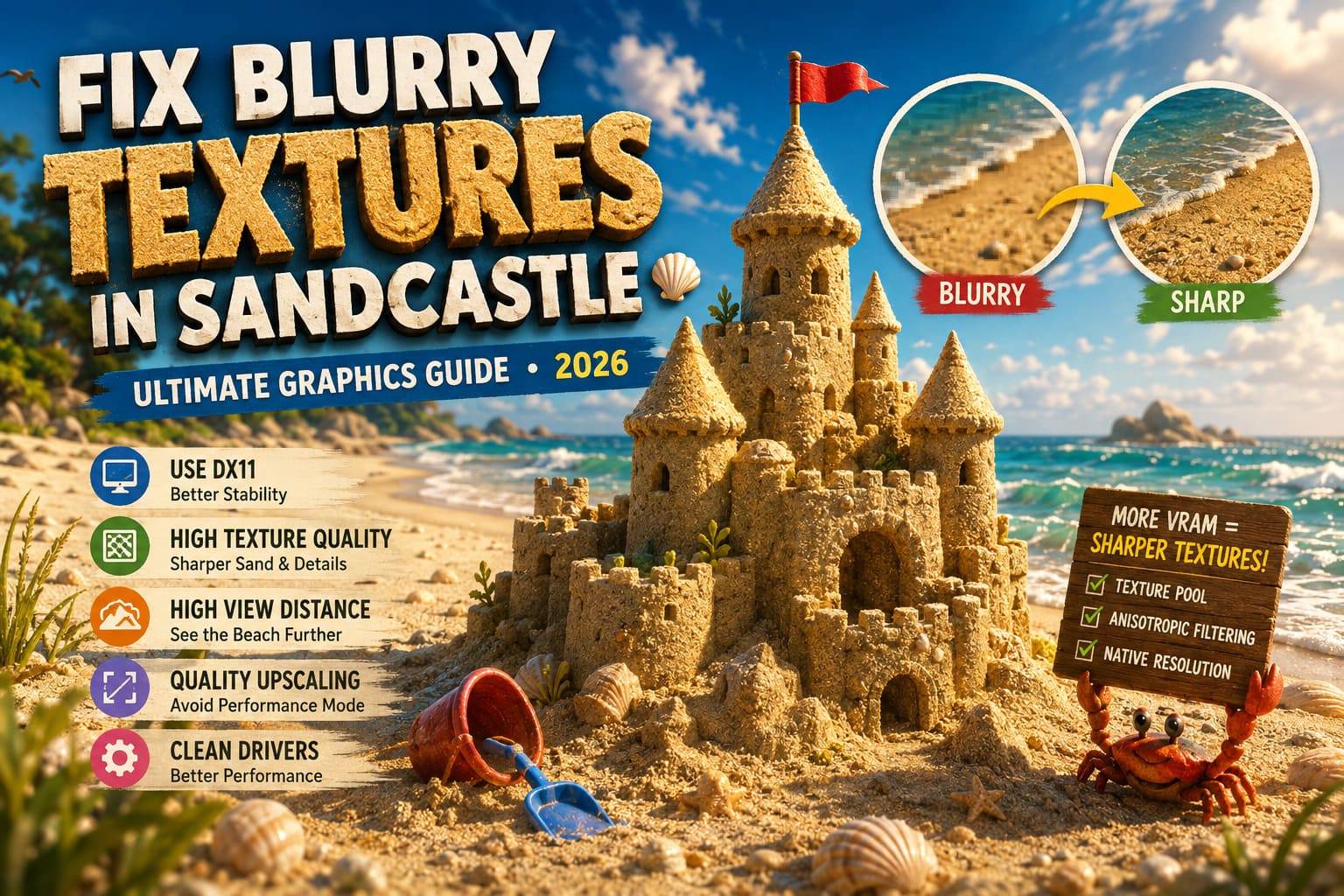
Why Sandcastle Looks Blurry on Some PCs
At first I assumed my graphics driver was acting up. Then I noticed something interesting.
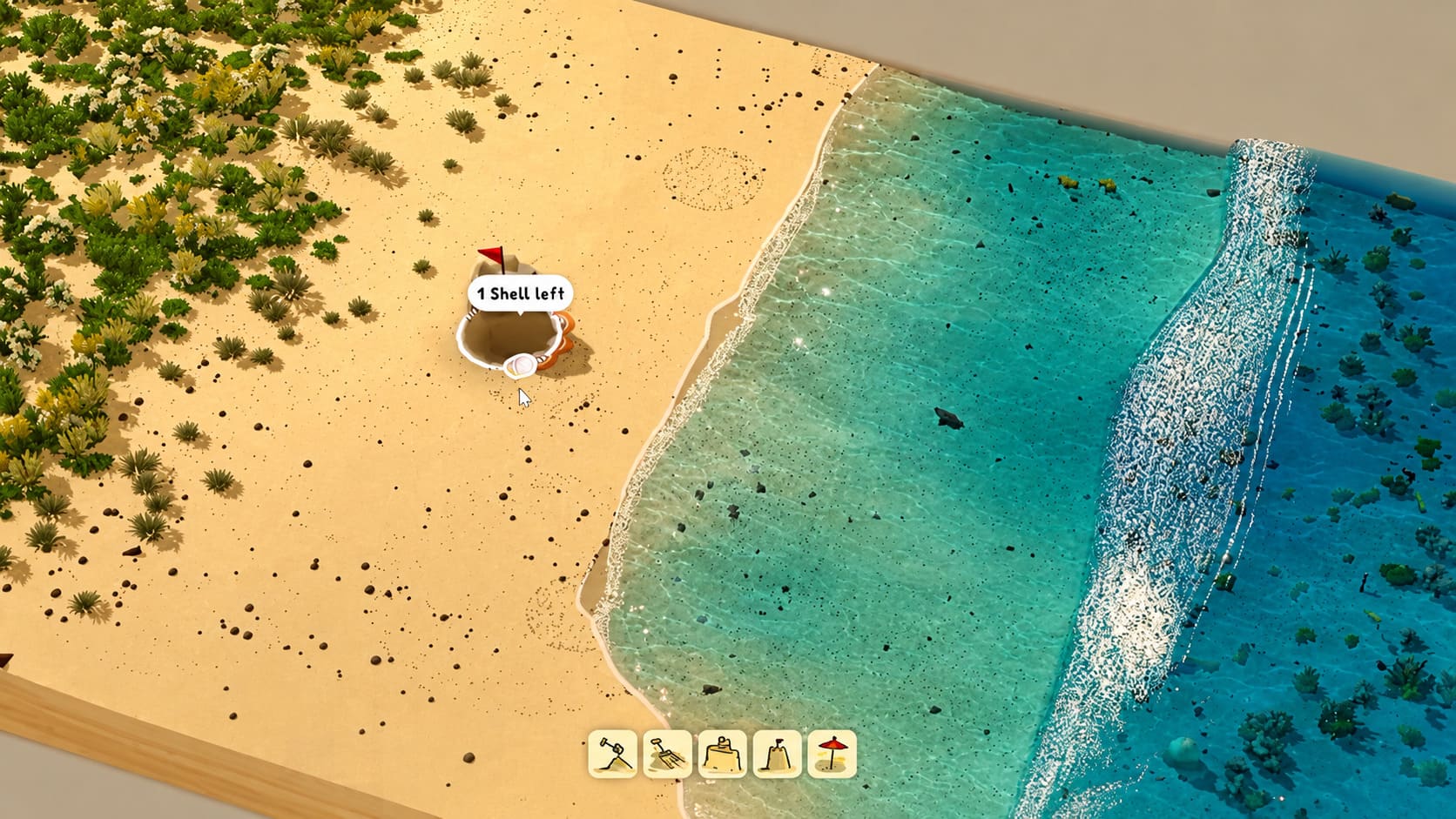
The game often starts looking perfectly sharp. After several minutes of building, rotating the camera, and exploring different parts of the beach, textures slowly become softer. Sand loses its detail, rocks appear muddy, and even objects nearby refuse to load in their highest quality.
That behavior usually points toward VRAM management instead of damaged game files.
Unlike many cozy games, Sandcastle performs constant calculations behind the scenes. The terrain changes in real time, moisture affects the sand, and the engine continuously updates the environment. All of that consumes GPU memory, and once available VRAM starts getting tight, the engine appears to reduce texture quality to maintain stable performance.
If you’re playing above 1080p, the situation becomes even more noticeable.
Before Changing Anything, Check Your Hardware
You don’t need an expensive gaming PC to enjoy Sandcastle, but your hardware still matters.
| Component | Recommended Experience |
|---|---|
| Operating System | Windows 10 or Windows 11 (64-bit) |
| Processor | Intel Core i5 or AMD Ryzen equivalent |
| Memory | 8 GB RAM or higher |
| Graphics Card | GTX 950 / Radeon RX 560 or better |
| Storage | SSD preferred |
| Resolution | 1080p for lower VRAM GPUs |
One thing I learned after testing several systems is that VRAM matters more than raw GPU horsepower.
For example:
- 4 GB VRAM works, but struggles at higher resolutions.
- 6 GB performs much better at 1080p.
- 8 GB or more gives the engine enough room to keep high-resolution assets loaded consistently.
If you’re trying to play in 1440p or even 4K with a card that only has 4 GB of VRAM, blurry textures shouldn’t be surprising.
Try Running the Game in DirectX 11
This was the biggest improvement on one of my systems.
While newer APIs usually promise better performance, indie games don’t always behave the same way across every graphics card. Sandcastle seems noticeably more stable for many players when forced into DirectX 11.
Open Steam, right-click the game, choose Properties, and add this launch option:
-dx11
Restart the game afterward.
It isn’t a magical FPS boost, but it often prevents textures from randomly dropping to lower-quality versions after longer play sessions.
If you’ve been wondering why everything looks great for the first ten minutes and then suddenly becomes blurry, this is one of the first things I’d test.
Disable Effects That Hide Fine Detail
Modern graphics settings sometimes work against image clarity.
Developers love cinematic effects, but games built around tiny environmental details don’t always benefit from them.
I usually disable the following immediately:
- Motion Blur
- Film Grain
- Excessive Sharpening Filters (if enabled)
These effects can make the sand appear softer than it actually is.
Instead, increase:
- Texture Quality
- View Distance
- Anisotropic Filtering
Those settings have a much larger impact on overall image quality than cosmetic post-processing.
Upscaling Isn’t Always Your Friend
DLSS, FSR, and XeSS are fantastic technologies when used correctly.
However, I constantly see people leaving them in Performance Mode without realizing they’re rendering the game internally at a much lower resolution.
That works reasonably well in shooters where you’re focused on movement.
In Sandcastle?
Not so much.
The entire game revolves around tiny details:
- individual sand formations
- shoreline edges
- wet surfaces
- castle walls
- carved trenches
Running aggressive upscaling makes those details noticeably softer.
If your GPU can handle it, switch to:
- Quality
- Native AA
- Native Resolution
Double-Check Your Resolution
This sounds obvious, yet it’s surprisingly common.
I’ve helped friends troubleshoot games only to discover Windows was running a completely different resolution than the game itself.
For the sharpest image:
- Use your monitor’s native resolution.
- Avoid scaling a 1080p image onto a 4K display.
- Keep Windows display scaling reasonable if possible.
Poor scaling creates blurry UI elements, fuzzy menus, and soft environmental textures even when the graphics settings are maxed out.
Give Texture Streaming More Room
This step isn’t available in every game, but it’s worth checking.
Some sandbox titles expose configuration files where you can increase the texture streaming pool.
If Sandcastle includes editable configuration files, look for settings related to:
- Texture Pool
- Streaming Budget
- Pool Size
- Texture Cache
Players with larger GPUs can often benefit from allowing the engine to reserve more VRAM for texture storage instead of constantly unloading and reloading assets.
Obviously don’t assign every gigabyte your graphics card has available, but giving the engine additional breathing room can eliminate constant texture swapping.
Windows DPI Scaling Can Cause Unexpected Problems
This one surprised me.
High-resolution monitors sometimes let Windows scale applications automatically.
Normally that’s harmless.
Occasionally, though, Windows interferes with how games display text and interface elements.
To test it:
- Browse to the game’s installation folder.
- Open the executable’s Properties.
- Select Compatibility.
- Open High DPI Settings.
- Enable Override High DPI Scaling Behavior.
- Choose Application.
After restarting Windows, menus and text often appear noticeably sharper.
It’s a small tweak that costs nothing to try.
Don’t Ignore Driver Maintenance
Whenever textures behave strangely across multiple games, I stop blaming the game first.
Graphics drivers accumulate old shader data over time, especially after major Windows updates.
A clean graphics driver installation followed by clearing the DirectX shader cache has solved countless visual glitches for me over the years.
The process is simple:
- Install the latest GPU driver using the clean installation option.
- Remove the DirectX Shader Cache from Windows temporary files.
- Reboot the PC.
- Launch Sandcastle and let it rebuild shaders naturally.
The first launch may take slightly longer, but future sessions are often much smoother.
My Recommended Settings
After experimenting with several hardware configurations, this combination consistently produced the sharpest image without sacrificing smooth gameplay.
| Setting | Recommendation |
|---|---|
| DirectX Mode | DX11 |
| Texture Quality | High |
| View Distance | High |
| Motion Blur | Off |
| Film Grain | Off |
| Upscaling | Quality or Native |
| Resolution | Native Monitor Resolution |
| GPU Driver | Latest Clean Installation |
These settings won’t magically fix every issue, but they dramatically reduce the chances of blurry textures appearing during longer sessions.
Final Thoughts
I’ve spent hundreds of hours in building games, survival sandboxes, and physics-driven simulations, and Sandcastle genuinely stands out because of how relaxing it feels once everything is working correctly. Watching waves slowly reshape the beach while your latest creation fights against the tide never really gets old.
That’s why blurry textures are so disappointing—they take away one of the game’s biggest strengths. Fortunately, most cases aren’t caused by weak hardware at all. A few graphics adjustments, a cleaner VRAM workload, and making sure the game isn’t fighting Windows or your GPU driver can completely change how the beach looks.
If your castles currently resemble blurry piles of sand instead of detailed works of art, don’t assume your PC can’t handle the game. Spend a few minutes tweaking the settings above. In my experience, the visual improvement is worth every second, and Sandcastle becomes the kind of relaxing sandbox it was clearly meant to be.