Palworld Console Freezing After Update Fix: How to Stop Xbox and PS5 Lag
Palworld’s massive 1.0 update was supposed to be a celebration for survival fans. The update added new content, improved systems, expanded gameplay mechanics, and gave players more reasons to return to the Palpagos Islands. But after spending countless hours in survival games, I know one thing: big updates often bring unexpected technical problems, and Palworld is no exception.
Many Xbox Series X, Xbox Series S, and PlayStation 5 players started reporting a frustrating issue after the update — long freezes, random stutters, loading screen hangs, and even complete crashes. The problem is especially annoying because Palworld is the type of game where you can spend hours building a perfect base, collecting rare Pals, and preparing for difficult encounters. Losing progress or getting interrupted by a freeze destroys the experience.
Community reports across Reddit, Discord discussions, and social media show that these freezes usually happen during specific actions: fast traveling, entering dungeons, loading sealed realms, opening the Pal Deck menu, or moving between large areas with heavy activity. Some players experience short 5-second freezes, while others deal with 20–30 second lockups or full console crashes.

After looking through player-tested solutions and common survival game troubleshooting methods, I collected the fixes that actually help reduce Palworld freezing on consoles. These are not magic solutions that will completely replace an official optimization patch, but they can make the game much smoother while waiting for Pocketpair to improve stability.
Best Palworld Steam Deck Settings: CryoUtilities & Performance Guide
Why Is Palworld Freezing After the 1.0 Update?
The biggest reason behind the freezing issue appears to be related to memory management, asset loading, and outdated cache files. Palworld is already a demanding survival game with large open areas, hundreds of possible Pal interactions, base structures, dropped items, and constant background systems.
When a major update changes how the game handles these features, old temporary files can sometimes conflict with the new version. The result is exactly what many players are seeing: delayed loading, sudden frame drops, and freezing when the game tries to load new assets.
The problem seems more noticeable on Xbox Series S because of its lower memory bandwidth compared to Series X and PS5. However, even stronger consoles are not completely immune, especially in large worlds with advanced bases and many active Pals.
| Problem | Possible Cause | Best Solution |
|---|---|---|
| Freeze after fast travel | Asset loading conflict | Enable Multiplayer setting |
| Random stutters | Old cache files | Perform a full console reset |
| Crash on startup | Save data issue | Restore cloud save |
| Lag near bases | Too many objects/entities | Reduce world settings |
| Performance drops during fights | Hardware memory pressure | Try cloud gaming |
Fix 1: Enable Multiplayer Mode to Remove Fast Travel Freezes
One of the strangest community discoveries is that simply changing a world option can reduce freezing after teleporting. Players who were experiencing 10–20 second freezes after fast travel discovered that enabling multiplayer mode changed how the game handled loading and caching.
Even if you prefer playing alone, this setting does not force you into online multiplayer. You can still enjoy a completely solo adventure while keeping the option enabled.
Follow these steps:
- Open the Palworld main menu.
- Select your saved world.
- Choose Change World Settings.
- Find the Multiplayer option.
- Switch it from OFF to ON.
- Save the settings and load your world.
After changing this option, test several fast travel points, enter a dungeon, and check whether the freezing has improved.
From my experience with survival games, this type of workaround makes sense. Games often use different loading systems depending on whether a world is treated as offline or multiplayer. A simple setting change can sometimes force the engine to rebuild how it manages background processes.
Fix 2: Clear Your Xbox or PS5 Cache With a Full Power Cycle
A normal restart is not always enough after a large game update. Consoles keep temporary files stored in cache memory, and sometimes those files can interfere with updated game versions.
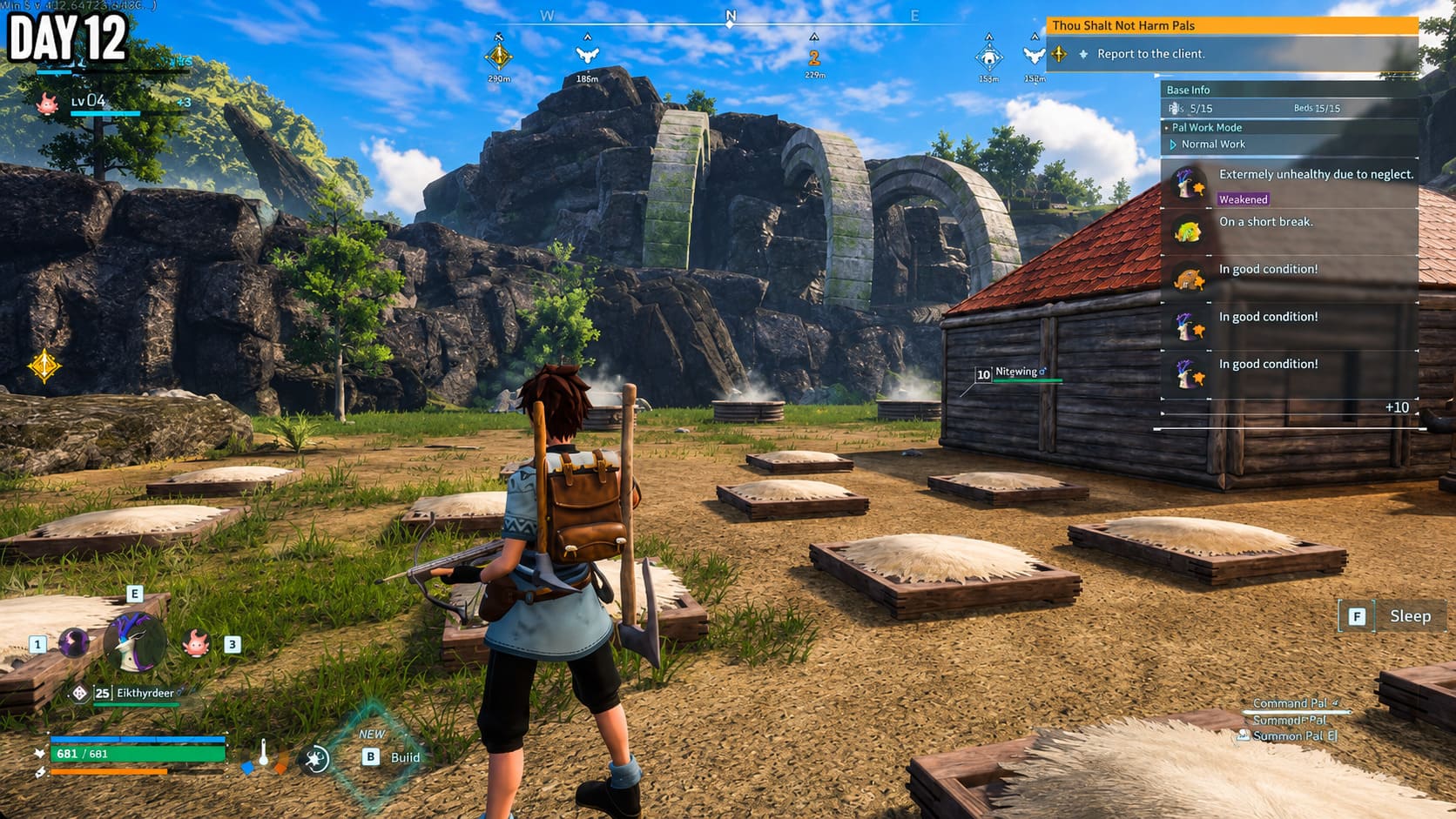
A proper hard reset clears this temporary data and gives Palworld a cleaner environment.
Xbox Series X/S Cache Reset
- Hold the Xbox power button for around 10 seconds until the console completely shuts down.
- Disconnect the power cable.
- Wait 2–5 minutes.
- Plug the console back in.
- Start Xbox and launch Palworld.
PlayStation 5 Cache Reset
- Completely shut down your PS5.
- Do not use Rest Mode.
- Wait until all lights stop flashing.
- Disconnect the power cable.
- Leave the console unplugged for around 3 minutes.
- Reconnect and restart.
This method is simple, but it solves many strange problems after major patches. I have seen similar issues happen in other large open-world games where outdated cache data creates performance problems after updates.
Fix 3: Repair Possible Save Data Problems
If Palworld freezes immediately on the loading screen or crashes your console before entering your world, the problem might not be performance-related. Your local save data could have become damaged during the update process.
Before deleting anything, make sure your cloud save is properly synced.
PS5 Save Data Recovery
- Open PS5 Settings.
- Go to Saved Data and Game/App Settings.
- Select Saved Data (PS5).
- Open Console Storage.
- Delete the local Palworld save data.
- Download your healthy save from PlayStation cloud storage.
Be careful: do not delete cloud backups unless you are absolutely sure they are damaged.
Xbox Save Data Recovery
- Press the Xbox button.
- Highlight Palworld.
- Press the Menu button.
- Select Manage Game and Add-ons.
- Open Saved Data.
- Choose your profile.
- Select Delete from console.
Do not choose “Delete everywhere.” The Xbox cloud system should automatically restore your saved world.
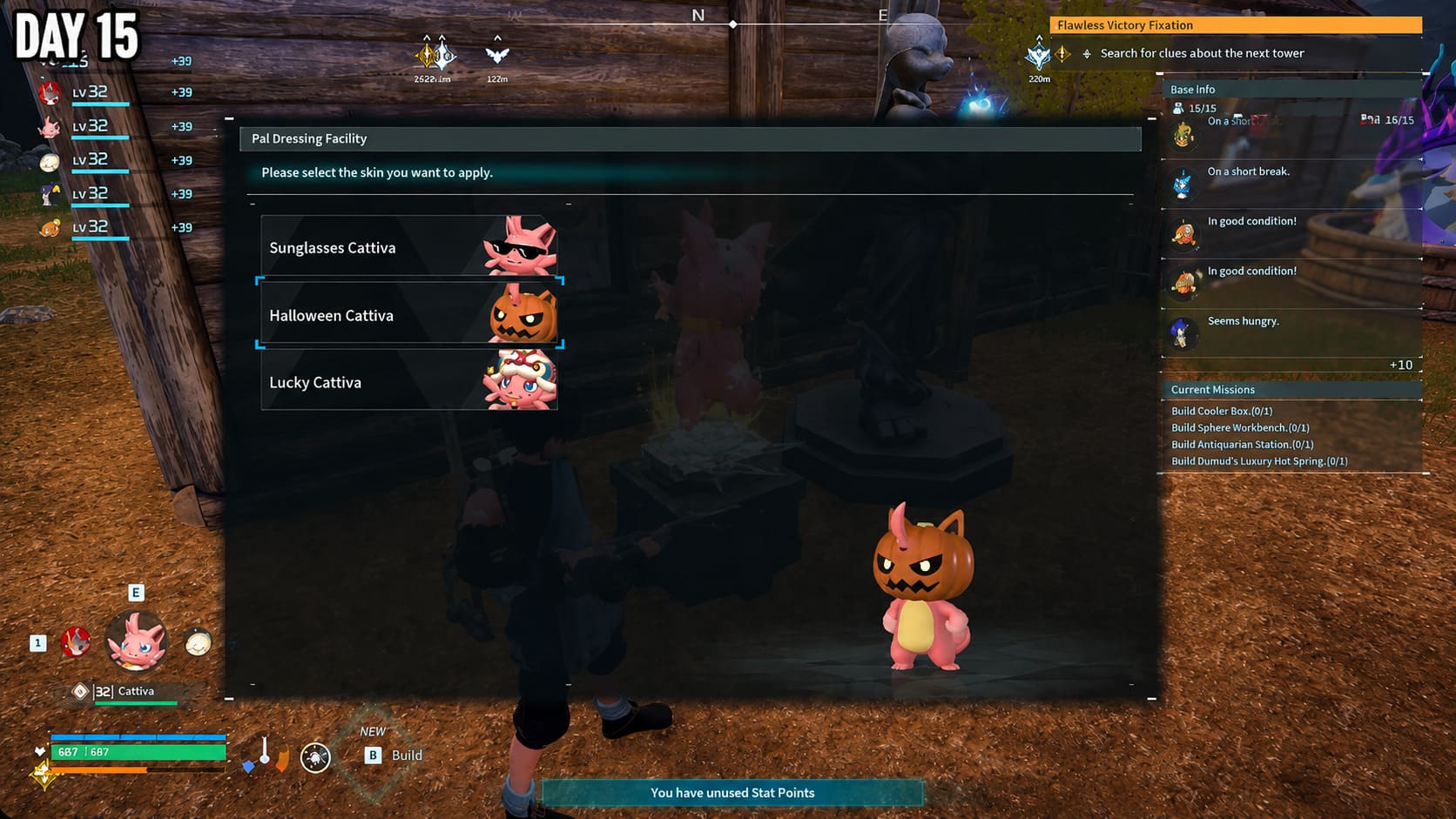
Fix 4: Reduce Heavy World Settings
Palworld worlds can become extremely demanding after dozens of hours. Large bases filled with structures, dropped materials, and dozens of active Pals can push console hardware harder than expected.
Try adjusting these settings:
- Lower Maximum Dropped Items: Reduce the limit to around 1,500–2,000. Thousands of items lying around the world create unnecessary rendering work.
- Increase Auto-Save Interval: If freezes happen every few minutes, especially during saving, increasing the interval may reduce interruptions.
- Reduce Pal Appearance Rate: Lowering the number of wild Pals can improve performance in busy areas.
This is especially useful for players with huge endgame bases. A beautiful base full of machines and workers looks impressive, but every active object requires processing power.
Fix 5: Try Xbox Cloud Gaming as a Temporary Solution
For Xbox players who continue experiencing freezing, especially on Xbox Series S, cloud gaming can be a surprisingly effective workaround.
Instead of running Palworld directly from your console hardware, Xbox Cloud Gaming runs the game on remote servers. This removes some of the memory pressure caused by large worlds, massive bases, and demanding encounters.
It is not the perfect solution because internet quality matters, but for players who simply want to continue their adventure while waiting for optimization updates, it can be a useful alternative.
Final Thoughts: How to Stop Palworld Console Freezing
The Palworld 1.0 update brought a huge amount of new content, but the technical issues have made the experience frustrating for many console players. The good news is that the community has already found several effective workarounds.
The fixes with the highest success rate are turning Multiplayer mode on, clearing your console cache, and reducing heavy world settings. These solutions will not replace a proper optimization patch from Pocketpair, but they can significantly reduce freezing and make your time on Palpagos much more enjoyable.
After playing many survival games over the years, I have learned that large worlds always come with performance challenges. Palworld has incredible potential, and once the technical problems are cleaned up, it can become one of the best creature-collection survival games available.