How to Fix Pax Autocratica Crash on Launch, Black Screen, and Freezing on PC (2026 Guide)
There is nothing quite as frustrating as finally sitting down to play a huge strategy game, only to watch it crash before you even reach the main menu.
That seems to be the situation for a number of Pax Autocratica players in 2026. The game has a lot going for it: massive systems, ambitious space simulation mechanics, and the kind of strategic depth that can easily swallow an entire weekend. But getting into the game can sometimes feel like a strategy game of its own.
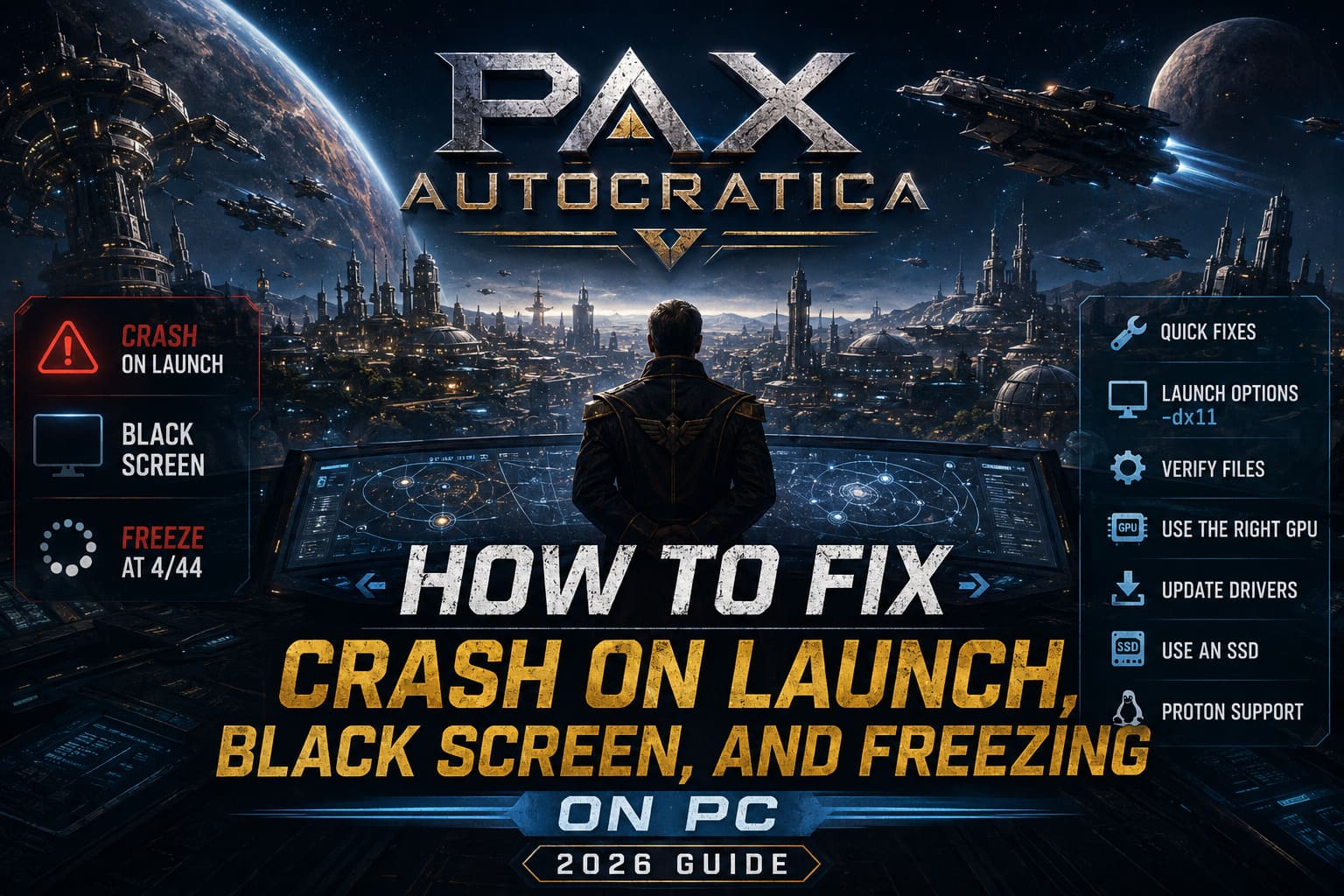
Players have reported everything from instant crashes on startup and permanent black screens to freezing during the initial loading process, including the infamous initialization loop around 4/44.
I’ve gone through the most useful community fixes and troubleshooting methods and narrowed them down to the things I’d personally try first. Some are extremely simple, while others require a little more digging into Windows and your hardware configuration.
The good news? A crash does not necessarily mean your installation is broken.
Here are the fixes I’d work through before considering a complete reinstall.
Quick Troubleshooting Checklist
Before getting into the more technical solutions, here is the order I’d personally recommend:
| Problem | First Thing I’d Try |
|---|---|
| Crash immediately after launch | Delete Screen.ini |
| Black screen | Delete configuration files and try -dx11 |
| Freeze around 4/44 | Verify game files |
| Game using wrong GPU | Set it to High Performance |
| Random crashes during gameplay | Update GPU drivers |
| Very long loading times | Move the game to an SSD |
| Linux/Steam Deck problems | Experiment with Proton versions |
| Nothing works | Collect logs and report the issue |
Don’t jump straight to reinstalling Windows or spending hours reinstalling the entire game. Start with the simple stuff.
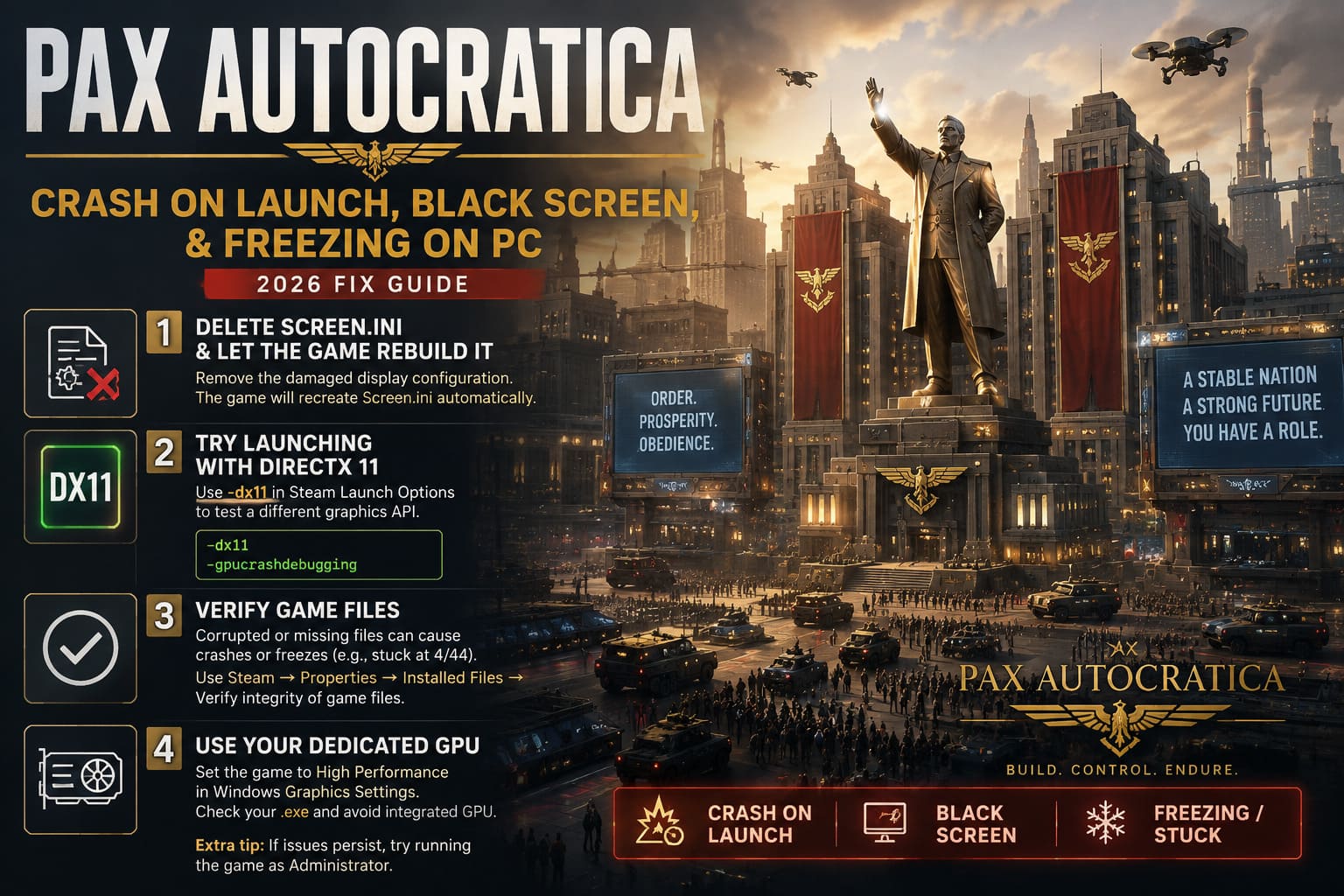
1. Delete Screen.ini and Let the Game Rebuild It
This is probably the first fix I’d try if Pax Autocratica crashes immediately or opens to a black screen.
A damaged display configuration can cause surprisingly serious problems. If the game is trying to launch using a resolution, refresh rate, or display configuration that doesn’t play nicely with your current Windows setup, the result can be a crash before you ever see the menu.
The nice part is that removing the configuration file shouldn’t delete your actual campaign saves.
Here’s what to do:
- Completely close Steam. If necessary, use Task Manager to make sure it isn’t still running in the background.
- Press Windows + R.
- Enter this location:
%appdata%/../locallow/Multiverse/Pax Autocratica
- Press Enter.
- Look for Screen.ini.
- Delete the file.
- Start Steam and launch the game again.
The game should recreate the configuration file automatically.
Personally, I’d always try this before reinstalling the game. It’s quick, harmless compared with a full reinstall, and directly targets one of the most common causes of startup display problems.
2. Try Launching With DirectX 11
If deleting the configuration doesn’t solve the problem, my next move would be experimenting with the game’s graphics API.
Modern games can occasionally have problems during the initial graphics handshake. This can be especially annoying because your hardware may be more than powerful enough to run the game, yet the game crashes before it can actually use that hardware properly.
Steam makes it easy to test another launch configuration.
Open:
Steam Library → Pax Autocratica → Properties → General → Launch Options
Then enter:
-dx11
Close the window and launch the game.
I wouldn’t assume DirectX 11 will magically fix every crash, but it’s a very useful compatibility test. If the game suddenly starts working, you’ve learned something important: the problem may be related to the default rendering path rather than your entire installation.
Another parameter mentioned by players is:
-gpucrashdebugging
I’d consider this more of a troubleshooting experiment than a permanent performance solution. If you’re experiencing graphics-driver crashes or instability during transitions and demanding scenes, it can be worth testing.
3. Verify the Game Files Before Doing Anything Extreme
This is the boring fix.
It’s also one of the fixes that works often enough that you shouldn’t ignore it.
A failed update, interrupted download, or corrupted file can leave a game in a strange state where it launches normally until it reaches one particular asset or system.
That’s especially relevant if Pax Autocratica freezes during its initialization sequence, such as when it gets stuck around 4/44.
To check the installation:
- Open your Steam Library.
- Right-click Pax Autocratica.
- Select Properties.
- Open Installed Files.
- Choose Verify integrity of game files.
Let Steam finish the process.
If it discovers damaged or missing files, Steam should replace them automatically.
I would absolutely do this before downloading the entire game again. There’s little reason to waste your time and bandwidth if Steam can repair the installation for you.
4. Make Sure Pax Autocratica Is Using Your Real GPU
This one is particularly important for gaming laptops and PCs with integrated and dedicated graphics.
Windows can occasionally assign a game to the wrong graphics processor. Instead of using your NVIDIA GeForce or AMD Radeon card, the game may end up running on integrated graphics.
That’s obviously not ideal for a demanding strategy and simulation title.
To check it, open Windows Graphics Settings and add the game’s executable manually if it isn’t already listed.
Find the Pax Autocratica .exe file in your Steam installation directory, add it to the graphics preferences, and select:
High Performance
Save the setting and try the game again.
I’d also be careful with the administrator workaround. If you’re experiencing strange permission-related startup failures, right-click the game’s executable, open Properties → Compatibility, and test Run this program as an administrator.
I wouldn’t automatically enable administrator mode for every game, but it’s a reasonable troubleshooting step when you’re dealing with unusual launch behavior.
5. Give Your GPU Drivers a Proper Refresh
Graphics drivers are one of those things that gamers tend to blame for everything—and sometimes they’re actually right.
A game can work perfectly for months and then suddenly become unstable after a Windows update, graphics driver update, or major game patch.
If Pax Autocratica started crashing after an update, I’d pay particular attention to your GPU driver.
Download the newest driver for your graphics card directly from the manufacturer’s official website. When possible, use the Custom/Advanced installation and select the clean-install option.
Also check Windows Update afterward.
There is another commonly overlooked dependency: Microsoft Visual C++ Redistributable packages. If important runtime components are missing or damaged, some games can fail before they even properly launch.
It’s not the most exciting part of PC gaming, but keeping your Windows components and graphics drivers healthy can save a lot of headaches.
6. Don’t Ignore Your Storage Drive
Here’s one that I think gets overlooked far too often.
If you’re running a modern game from an old mechanical HDD, you’re asking the game to constantly pull large amounts of data from hardware that was never designed for today’s workloads.
For a title like Pax Autocratica, with potentially large environments and complicated simulation systems, an SSD is strongly preferable.
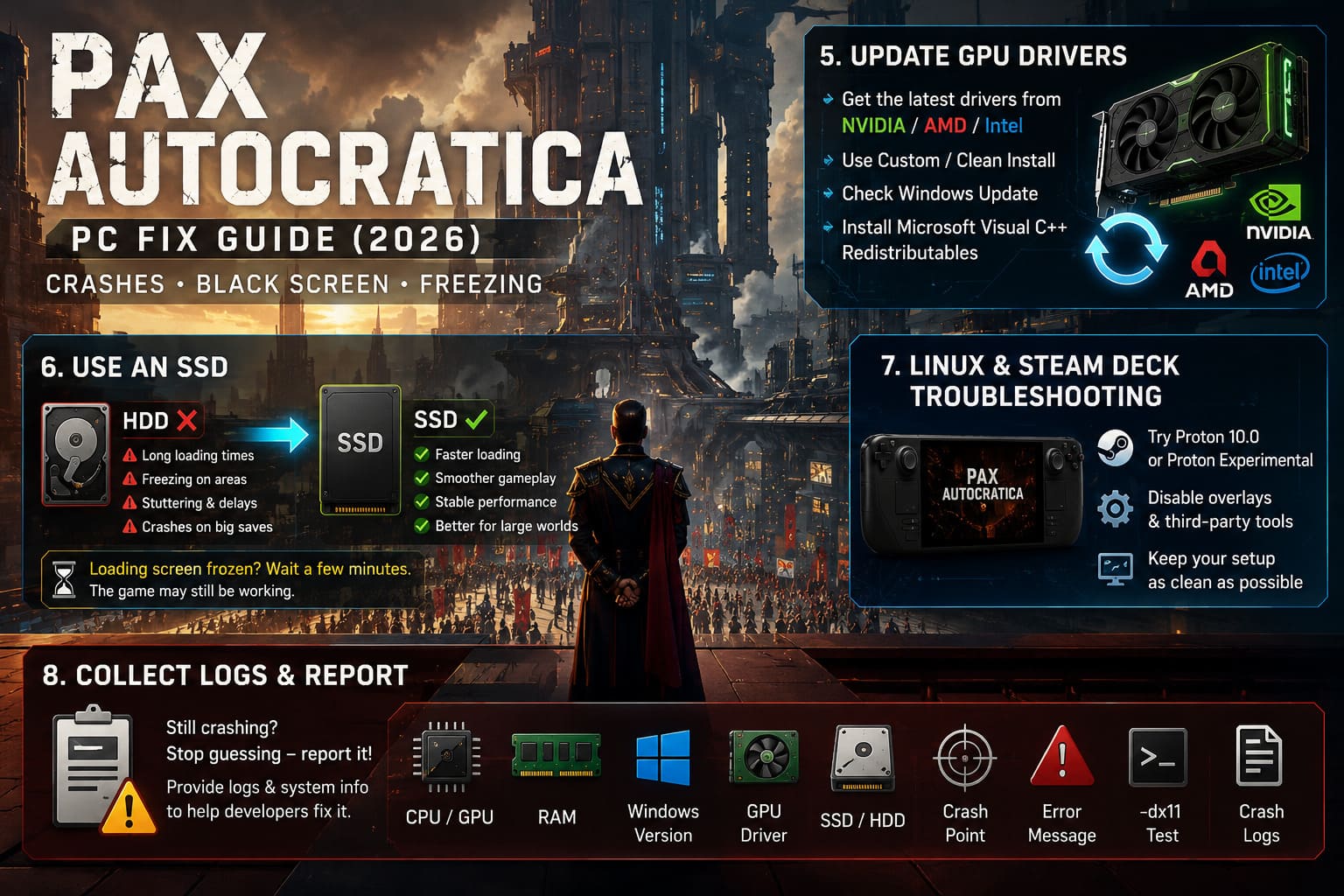
If you’re getting:
- Extremely long loading screens
- Freezing while entering a major area
- Stuttering during transitions
- Delayed asset loading
- Crashes when loading large saves
check where the game is installed.
If it’s sitting on an old HDD, moving it to an internal SSD could make a noticeable difference.
And one important piece of advice: don’t immediately kill the game when a loading screen appears to freeze.
If the system is still working and there are no obvious signs of a complete crash, give it several minutes. Heavy simulation and asset loading can occasionally look completely frozen while the game is still processing in the background.
I’d rather wait five minutes than lose a perfectly good save because I force-closed the game during a long operation.
7. Linux and Steam Deck Players Have Another Layer of Troubleshooting
If you’re playing Pax Autocratica through Linux, Steam Deck, or another Proton-based setup, things can become more complicated.
Windows is generally the environment you should consider first when troubleshooting problems that appear to be platform-specific. Compatibility layers introduce another variable between the game and your hardware.
If you’re getting crashes during launch, combat initialization, or planet-related transitions, experimenting with different Proton versions may be worthwhile.
I’d start by testing Proton 10.0 and Proton Experimental rather than assuming your current version is automatically the best one.
Third-party overlays are another thing I’d temporarily disable.
Performance overlays, monitoring tools, custom HUDs, and other injected software can occasionally interfere with games—particularly when you’re already dealing with graphics-driver or compatibility problems.
In other words, when troubleshooting, keep the setup as clean as possible.
8. When Nothing Works, Stop Guessing and Collect the Logs
There comes a point where repeatedly changing settings isn’t troubleshooting anymore. You’re just throwing random switches and hoping one works.
If you’ve tried the steps above and Pax Autocratica still refuses to launch, it’s probably time to report the problem.
If you can reach the game interface, use the game’s available reporting tools. If you can’t get that far, collect the relevant crash logs and system information and provide them through the game’s official support or community channels.
When reporting the issue, include useful information such as:
- Your CPU and GPU
- Amount of RAM
- Windows version
- GPU driver version
- Whether the game is installed on an SSD or HDD
- The exact point where the game crashes
- Any error message you receive
- Whether
-dx11changes the behavior - Your crash logs
A detailed report is far more useful to developers than simply saying, “Game doesn’t work.”
My Recommended Order of Attack
If I were sitting at my own PC and Pax Autocratica suddenly refused to launch, I wouldn’t try all eight fixes at once.
I’d work through them in this order:
- Delete
Screen.ini - Try
-dx11 - Verify Steam game files
- Check the dedicated GPU assignment
- Update or clean-install GPU drivers
- Check the game’s storage drive
- Disable overlays and experiment with Proton if you’re on Linux
- Gather logs and report the issue
This approach is much easier because you change one major variable at a time. If the game starts working after deleting Screen.ini, you’ll know exactly what fixed it.
Pax Autocratica Beginner Guide 2026: Tips, Strategies, and Colony Layouts
Final Thoughts
I really like the idea behind Pax Autocratica, and that’s probably why technical problems like these are so frustrating. When a game has the potential to become your next hundred-hour obsession, the last thing you want is to spend your evening staring at a black screen.
The important thing is not to panic and immediately reinstall everything.
Start with the configuration file. Test DirectX 11. Verify the Steam installation. Check which GPU Windows is using. Then move toward drivers, storage, and compatibility troubleshooting.
Most importantly, remember that a long loading screen isn’t automatically a dead game. Give it some time, especially when loading large saves or returning to complicated scenes.
PC gaming has always involved a little troubleshooting, particularly with ambitious strategy games. The difference is knowing when you’re dealing with a simple configuration problem and when the issue genuinely needs a developer’s attention.
If you’ve worked through the basic fixes and Pax Autocratica is still crashing at the same exact point, don’t keep randomly changing settings. Get the logs, document the behavior, and report it. That’s how an individual crash eventually becomes a fix in the next patch.
And hopefully, once the game finally reaches the main menu, you can get back to the important stuff: building your empire instead of fighting your graphics driver.