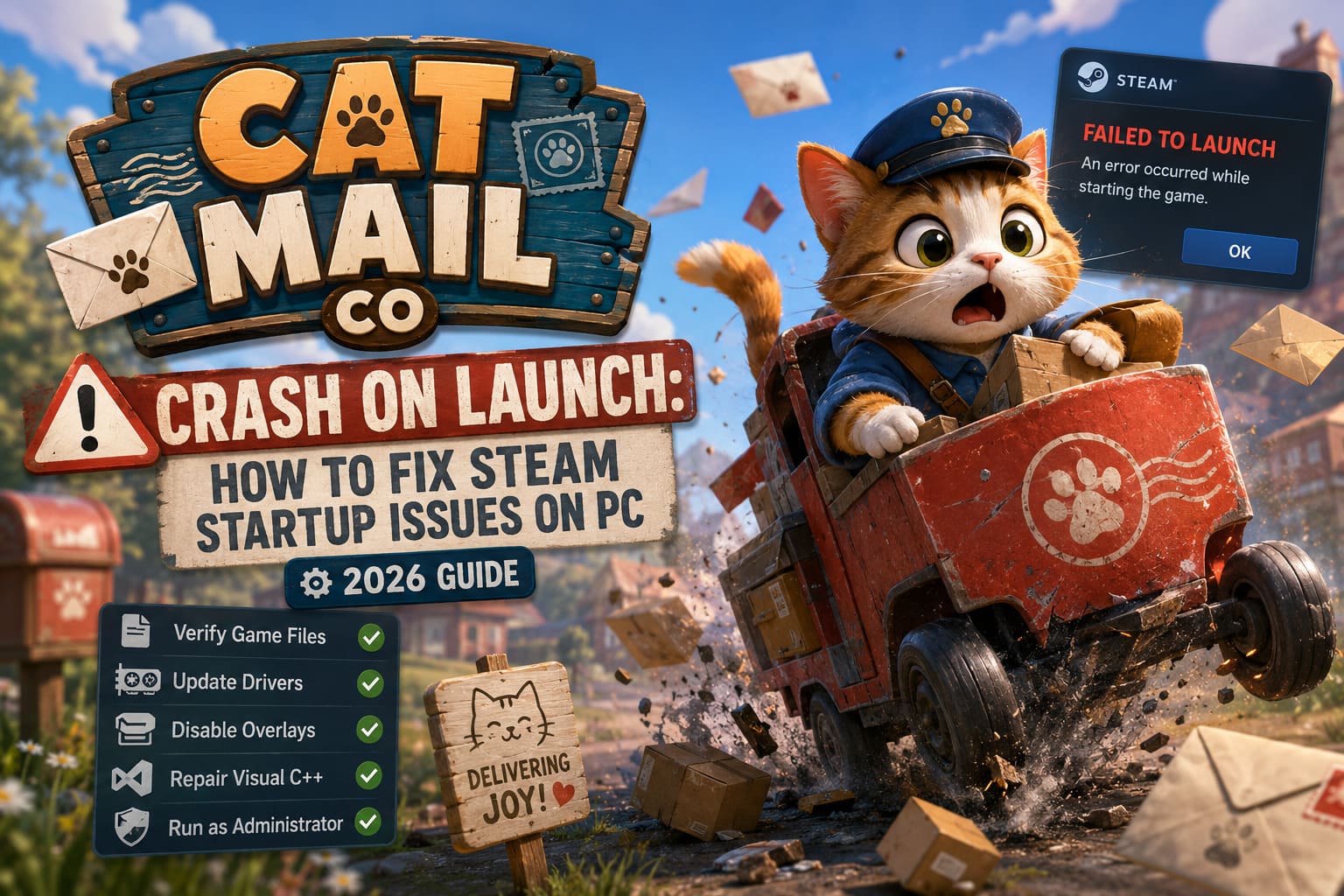
Cat Mail Co Crash on Launch: How to Fix Steam Startup Issues on PC (2026 Guide)
There is something incredibly charming about Cat Mail Co. The idea of running a tiny postal service staffed by adorable cats on a peaceful island is exactly the kind of game many of us buy after finishing another stressful competitive title. Unfortunately, for quite a few PC players, that relaxing experience ends before it even begins.
Instead of reaching the main menu, the game crashes instantly, closes without an error message, freezes on a black screen, or simply returns to the Steam Library after pressing Play.
I’ve seen this happen with plenty of indie releases over the years. Whether it’s a cozy farming simulator, a management game, or a pixel-art RPG, launch-week problems are almost expected nowadays. The good news is that Cat Mail Co crashing on startup is usually fixable, and in most cases, you don’t need advanced technical knowledge to solve it.
After digging through Steam discussions, Reddit threads, and my own experience troubleshooting PC games, here’s what I believe are the fixes actually worth trying.
Why Does Cat Mail Co Crash at Launch?
Most players immediately assume the game itself is broken, but that’s rarely the full story.
Modern PC gaming has become surprisingly complicated. Between Windows updates, GPU drivers, overlays, antivirus software, and Steam itself, there are dozens of things that happen before a game even reaches its main menu.
In my experience, launch crashes usually come down to one of these problems:
- Corrupted installation files.
- Graphics driver conflicts.
- Steam client issues.
- Missing Microsoft runtime components.
- Overlay software interfering with startup.
- Windows permission restrictions.
- Display configuration problems.
The important thing is not changing ten things at once. Work through the fixes one by one so you actually know what solved the problem.
1. Verify the Game Files First
This is always my starting point.
People often skip this because it sounds too simple, but Steam’s file verification tool has rescued countless game installs over the years.
A corrupted texture, missing executable, or damaged configuration file is enough to make a game close immediately during launch.
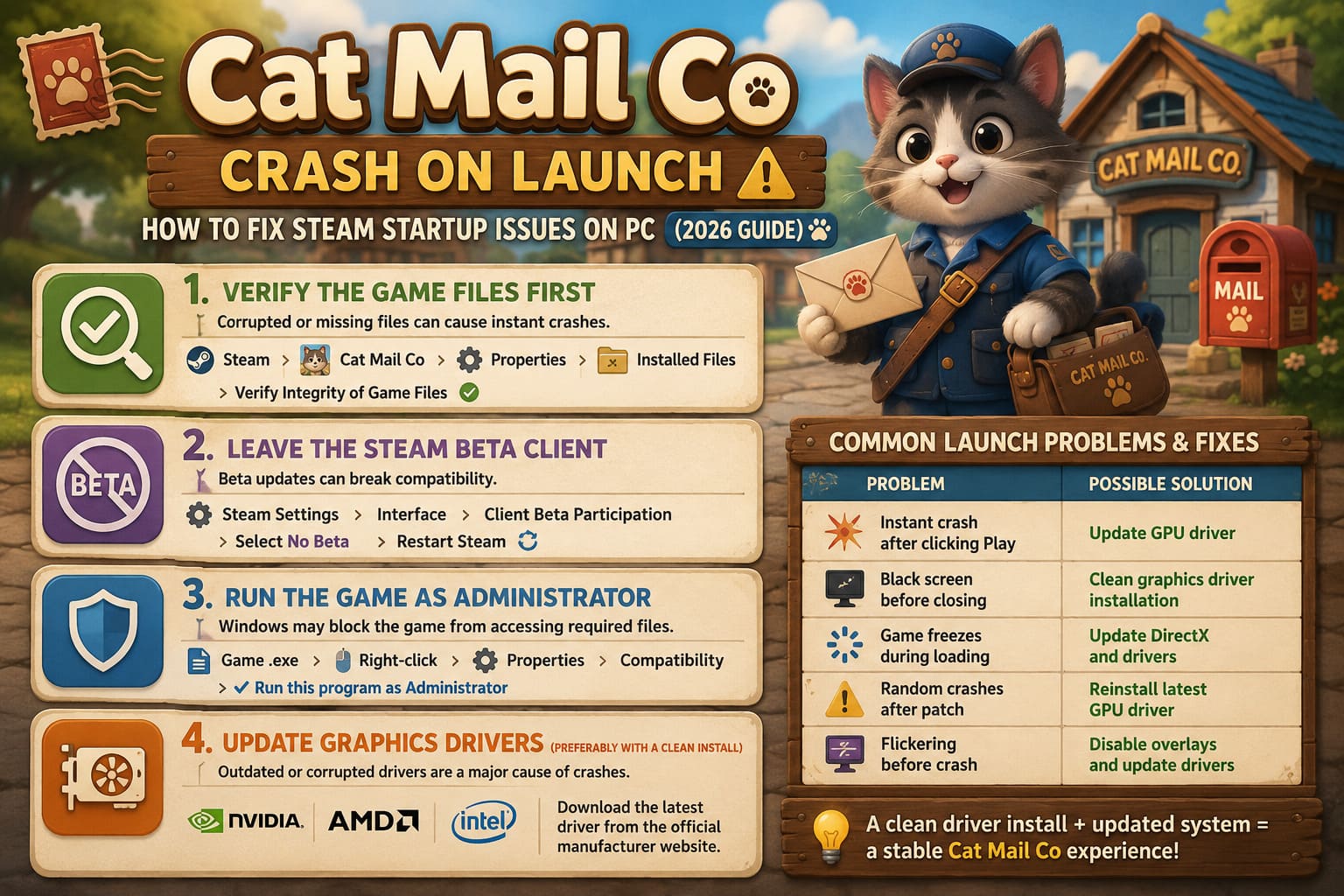
To verify your installation:
- Open Steam.
- Right-click Cat Mail Co.
- Open Properties.
- Select Installed Files.
- Click Verify Integrity of Game Files.
Steam compares every installed file with the official version and automatically downloads anything that’s damaged or missing.
It only takes a few minutes, and honestly, it’s one of the highest-success fixes available.
2. Leave the Steam Beta Client
This one surprises a lot of people.
The Steam Beta client introduces new features early, but it also changes backend systems that not every indie developer has tested against.
I’ve personally encountered games that refused to launch until I switched back to the stable Steam release.
Changing back is simple:
- Open Steam Settings.
- Find the Interface section.
- Locate Client Beta Participation.
- Select No Beta.
- Restart Steam.
If you’re running beta software without realizing it, this fix can completely eliminate startup crashes.
3. Run the Game as Administrator
Windows security has become stricter over the years.
Sometimes the game simply doesn’t receive permission to access files or initialize certain components during startup.
Locate the game’s executable inside its installation folder and:
- Right-click it.
- Open Properties.
- Select Compatibility.
- Enable Run this program as Administrator.
Older systems can also benefit from enabling Windows 10 compatibility mode, although I usually leave that as a last resort unless the game specifically recommends it.
4. Update Graphics Drivers (Preferably With a Clean Install)
Graphics drivers are another common source of launch failures.
One thing I always recommend is avoiding quick driver upgrades if you’ve had several driver versions installed over time.
A clean installation removes leftover settings that sometimes conflict with newer games.
Here’s a quick comparison.
| Problem | Possible Solution |
|---|---|
| Instant crash after clicking Play | Update GPU driver |
| Black screen before closing | Clean graphics driver installation |
| Game freezes during loading | Update DirectX and drivers |
| Random crashes after patch | Reinstall latest GPU driver |
| Flickering before crash | Disable overlays and update drivers |
Whether you’re using NVIDIA, AMD, or Intel graphics, downloading the newest driver directly from the manufacturer’s website is usually the safest approach.
5. Clear Steam’s Download Cache
This sounds unrelated, but I’ve seen it fix launch problems more times than I expected.
Steam stores temporary download data that occasionally becomes corrupted.
Clearing it forces Steam to rebuild important cache files.
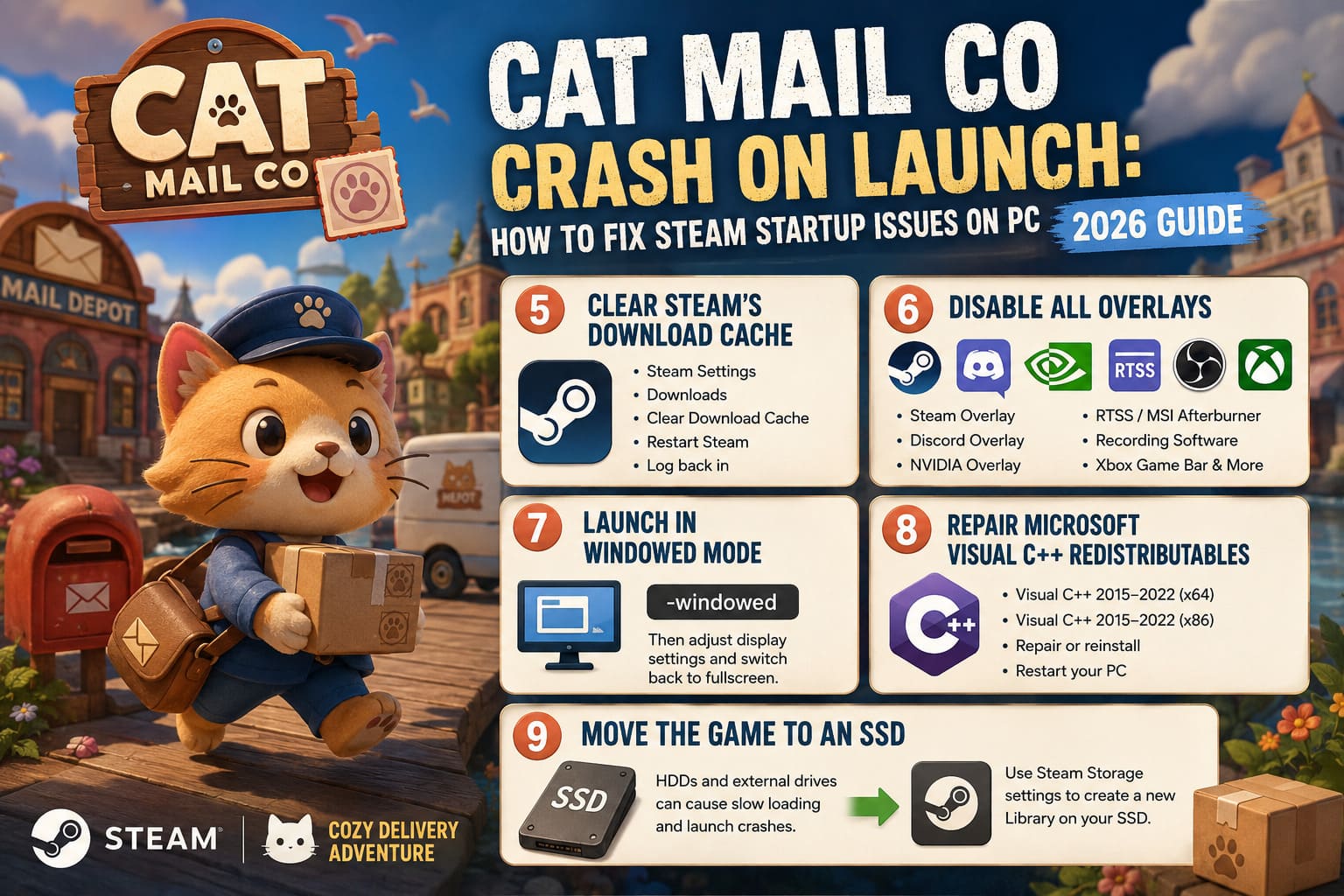
The process only takes a minute:
- Open Steam Settings.
- Go to Downloads.
- Click Clear Download Cache.
- Restart Steam.
- Log back into your account.
You’ll need your Steam password afterward, so make sure you remember it.
6. Disable Every Overlay You Can
If there is one category of software that constantly causes headaches in PC gaming, it’s overlays.
Steam Overlay.
Discord Overlay.
GeForce Experience.
RTSS.
OBS.
Xbox Game Bar.
The list keeps growing.
Every overlay hooks into the game before it launches, and while most work perfectly, sometimes one of them doesn’t.
If Cat Mail Co crashes immediately, try disabling all overlays temporarily.
Focus especially on:
- Steam Overlay
- Discord Game Overlay
- NVIDIA Overlay
- MSI Afterburner + RTSS
- Screen recording software
- Third-party antivirus monitoring
If the game suddenly launches, you can turn them back on one at a time to find the culprit.
7. Launch the Game in Windowed Mode
Display initialization errors are more common than many people realize.
Certain monitor combinations, refresh rates, ultrawide resolutions, or HDR configurations can cause games to fail before rendering their first frame.
Adding this launch option inside Steam often helps:
-windowedOnce the game opens successfully, switch to the graphics settings and adjust the display configuration before returning to fullscreen or borderless mode.
This trick has saved me with several indie games over the past few years.
8. Repair Microsoft Visual C++ Redistributables
This is one of those Windows components that nobody thinks about until something breaks.
Many games rely on Microsoft Visual C++ runtime libraries.
If those packages become damaged, games may crash instantly without displaying an error message.
Repair both versions if available:
- Visual C++ 2015–2022 (x64)
- Visual C++ 2015–2022 (x86)
If repairing doesn’t help, reinstalling the latest runtime package is usually worthwhile.
A quick reboot afterward is also recommended.
9. Move the Game to an SSD
Storage speed matters more than ever.
If you’re still running games from an aging mechanical hard drive—or especially from an external USB drive—moving Cat Mail Co to an internal SSD can solve startup issues related to slow asset loading.
Steam makes this surprisingly painless through its Storage settings.
Rather than simply reinstalling onto the same drive, create a new Steam Library on your SSD and install the game there.
Even if it doesn’t fix the crash, loading times improve noticeably.
My Personal Order of Troubleshooting
Whenever a new PC game refuses to launch, this is the order I follow.
- Verify game files.
- Disable overlays.
- Update graphics drivers.
- Leave Steam Beta.
- Run as Administrator.
- Repair Visual C++ packages.
- Force windowed mode.
- Clear Steam cache.
- Reinstall on another drive.
I like this approach because it starts with the quickest fixes before moving toward the more time-consuming ones.
Cat Mail Co. Progression Guide: Best Abilities and Tools to Unlock Early
A Few Extra Things Worth Checking
Sometimes the solution isn’t one of the obvious ones.
A few additional checks can save hours of frustration:
- Restart your PC before testing again.
- Close unnecessary background software.
- Make sure Windows is fully updated.
- Temporarily disable aggressive antivirus protection.
- Disconnect unusual USB devices if the game crashes immediately.
- Remove custom launch options you may have used for other games.
These aren’t guaranteed fixes, but they’re easy enough to test.
Cat Mail Co. Night Cycle Guide: How Moonlight Reveals Magical Package Secrets (2026)
Final Thoughts
As frustrating as launch-day crashes can be, I don’t think Cat Mail Co is uniquely problematic. This is something we’ve seen with countless indie releases over the years, especially games launching on a wide variety of PC hardware.
The encouraging part is that most startup crashes aren’t permanent bugs. More often than not, they’re caused by a small compatibility issue between Windows, Steam, your graphics drivers, or background software.
If I had to recommend only three fixes, I’d start with verifying the game files, turning off every overlay, and installing the latest GPU driver with a clean installation. Those three alone solve a surprising percentage of launch problems across PC games.
And finally, don’t forget that indie developers tend to move quickly. If the issue turns out to be game-specific rather than system-related, there’s a good chance an optimization patch or hotfix will arrive sooner rather than later.
Hopefully, after working through these steps, you’ll spend less time troubleshooting Steam and more time delivering letters across that cozy little island—exactly what Cat Mail Co. was meant for.