How to Fix Star Wars Zero Company Black Screen on Startup on Steam
There are few things more annoying than finally sitting down to play a new strategy game, starting it through Steam, and getting… absolutely nothing. Instead of the main menu, music, and that familiar Star Wars atmosphere, you are left staring at a black screen. Star Wars Zero Company black screen on startup is exactly the kind of PC issue that can turn an exciting launch into a troubleshooting session before you even get to command your first squad.
As someone who has played plenty of demanding PC games, I have learned that launch problems are often less mysterious than they initially appear. A black screen can come from corrupted files, graphics drivers, fullscreen settings, overlays, missing Windows components, or simply a game that needs its first few patches. With an Unreal Engine 5 title, there are also plenty of opportunities for the game and your particular hardware configuration to disagree with each other.
The good news is that you do not need to start reinstalling Windows or spend hours changing random settings. Work through the solutions below in order, starting with the simple fixes and moving toward more advanced troubleshooting. In my experience, the boring solutions are often the ones that actually work.
Star Wars Zero Company Low FPS Cinematic View Fix: Complete Performance Guide
Why Is Star Wars Zero Company Stuck on a Black Screen?
A black screen during startup usually means the game has launched but something has gone wrong before it can properly display the menu. Sometimes the application is still working in the background, while in other cases it has already crashed or become unresponsive.
The exact cause can vary from one PC to another. A damaged installation, outdated GPU driver, incompatible resolution, background overlay, Windows permission problem, or missing runtime component can all potentially interfere with the initial startup process.
That is why I would avoid jumping straight to complicated fixes. There is little point in editing configuration files if Steam simply needs to replace one corrupted game asset.
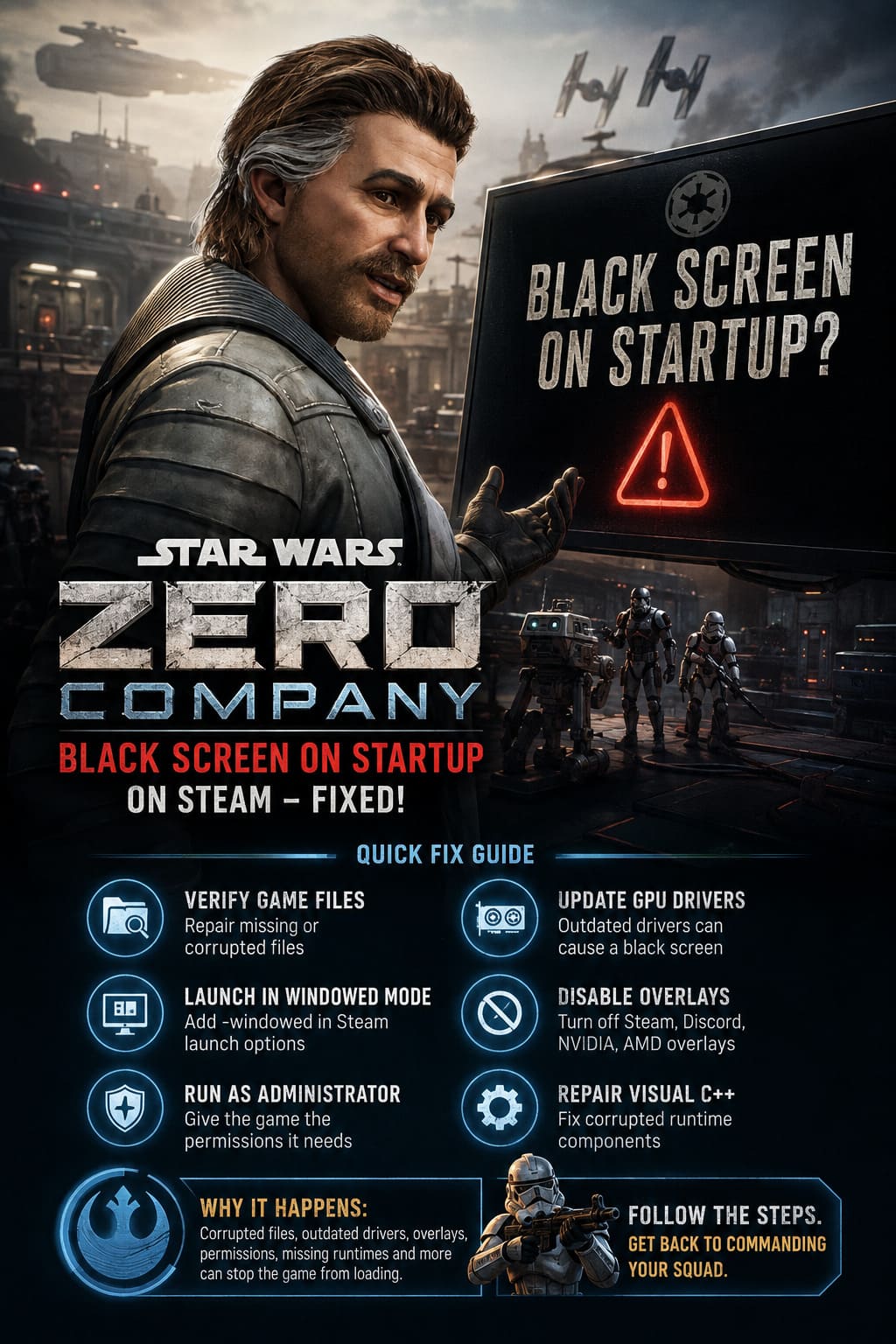
1. Verify the Game Files Through Steam
This should be your first stop. It takes only a few minutes and can fix a surprising number of launch problems, especially with a newly installed game.
Steam can compare the files on your PC with the expected installation and replace files that are missing or corrupted. If something went wrong during downloading, unpacking, or updating the game, this is one of the easiest ways to correct it.
Follow these steps:
- Close Star Wars Zero Company completely. If necessary, open Task Manager and end the game’s process.
- Open Steam and go to your Library.
- Right-click STAR WARS Zero Company.
- Select Properties.
- Open Installed Files.
- Click Verify integrity of game files.
- Wait for Steam to finish scanning and repairing the installation.
If Steam finds damaged files, it will download replacements automatically. After that, restart the game and see whether the black screen has disappeared.
2. Update Your Graphics Card Driver
This is another fix I would take seriously, particularly with a modern Unreal Engine 5 game. GPU drivers are constantly being updated to improve compatibility with new releases, rendering technologies, and graphics APIs.
If you have not updated your driver recently, do it before spending an hour experimenting with Windows settings. An old driver can cause crashes, rendering failures, strange flickering, or a black screen before the game reaches the main menu.
Depending on your hardware, check for the latest driver through your manufacturer’s official software:
- NVIDIA: GeForce Experience or the NVIDIA driver utility.
- AMD: AMD Software: Adrenalin Edition.
- Intel Arc: Intel Driver & Support Assistant.
If the installer gives you the option of performing a clean installation, it can be worth choosing when you suspect old driver components are causing conflicts. Once the installation is complete, restart your PC before testing the game again.
3. Try Launching the Game in Windowed Mode
Here is one of my favorite simple tricks when a PC game launches into a black screen. Sometimes the game is trying to use a resolution, refresh rate, or fullscreen configuration that your monitor does not handle correctly.
Forcing Star Wars Zero Company into windowed mode can bypass that problem and give you access to the graphics settings.
To try it:
- Open Steam.
- Go to your Library.
- Right-click STAR WARS Zero Company.
- Select Properties.
- Stay on the General tab.
- Find the Launch Options field.
- Enter
-windowed - Close the Properties window and launch the game.
If the game finally appears, go into its display settings and select the correct monitor resolution. I would generally try Borderless Windowed afterward because it offers a good compromise between fullscreen performance and compatibility.
Once everything works, remove -windowed from Steam’s Launch Options and test the normal startup again.
4. Run Steam or the Game as Administrator
Windows permissions can occasionally get in the way of games that need to create or modify configuration files, shaders, caches, or other temporary data during their first launch.
Running the game with administrator privileges is not something I recommend doing permanently without a reason, but it is a useful troubleshooting step when the game refuses to initialize correctly.
First, completely exit Steam. Then right-click your Steam shortcut and choose Run as administrator before launching Star Wars Zero Company.
You can also test the game executable itself:
- Right-click the game in Steam.
- Select Manage > Browse local files.
- Open the appropriate executable folder, usually somewhere under
Binaries\Win64. - Locate the main game
.exe. - Right-click it and choose Properties.
- Open the Compatibility tab.
- Enable Run this program as an administrator.
- Click Apply and OK.
Launch the game again and check whether anything changes.
5. Turn Off Steam and Other Overlays
Overlays are useful, but they can also create problems when they hook into a game’s rendering process. I have run into this sort of issue in plenty of PC games, particularly when several monitoring or communication applications are running simultaneously.
For troubleshooting, I recommend temporarily disabling Steam Overlay, Discord Overlay, NVIDIA’s in-game overlay, AMD’s overlay, and RivaTuner Statistics Server if you use them.
To disable the Steam Overlay:
- Open Steam.
- Go to Settings.
- Open the In Game section.
- Disable Enable the Steam Overlay while in-game.
- Restart Steam.
- Launch Star Wars Zero Company again.
If the game suddenly works, you have probably found a software conflict. You can then re-enable your overlays one at a time to identify which application was responsible.
6. Repair Microsoft Visual C++ Redistributables
This is one of those Windows fixes that is easy to overlook. Modern PC games rely on various Microsoft runtime components, and damaged or incomplete Visual C++ Redistributable installations can cause applications to fail before they display anything useful.
If the usual Steam and driver fixes have not helped, check your installed Microsoft Visual C++ Redistributable packages. The current Microsoft Visual C++ runtime packages are particularly important for modern games.
Download the appropriate redistributable packages from Microsoft’s official website and install them. If Windows reports that they are already installed, look for the Repair option instead of simply assuming everything is fine.
After repairing the components, restart Windows and try the game again. It is a small step, but when a game crashes before the main menu, small steps are often worth trying.
7. Check Windows Security and Firewall Settings
Security software can occasionally interfere with a brand-new game executable, especially shortly after release. Windows Defender or third-party antivirus software may incorrectly restrict access to files the game needs during startup.
Rather than permanently disabling your antivirus, check whether the game has been blocked or quarantined. If you trust the installation and understand the security implications, you can add the game’s installation folder or executable as an exclusion.
In Windows Security, look under Virus & threat protection and review the available protection history and exclusion settings. Also make sure the game is permitted through the Windows Firewall when necessary.
I would treat this as a troubleshooting step rather than something to leave broadly configured forever. Your security software exists for a reason, so avoid creating unnecessary exclusions for unrelated folders or applications.
8. Give the Game Time to Compile Shaders
This is a less obvious possibility, but it is worth remembering with demanding modern games. The first startup can sometimes take considerably longer than subsequent launches because the game may need to prepare shaders or other cached data.
If you launch the game and immediately assume the black screen means it has crashed, you might close it before the process has finished doing its work.
Give it a few minutes, particularly after a fresh installation or graphics driver update. Keep an eye on Task Manager to see whether the game is still consuming CPU, GPU, memory, or disk resources.
If the application is completely frozen for a long time with no meaningful system activity, that is different. But if the game is actively working, patience may be the easiest fix of all.
9. Restart the PC After Major Changes
It sounds almost too simple to include in a technical guide, but restarting Windows can matter after updating GPU drivers, repairing Visual C++ components, or installing a significant game update.
A proper restart clears temporary processes and allows newly installed system components to initialize correctly. It also eliminates background applications that may have been interfering with the game.
I would especially recommend a restart after a driver installation. Then launch Steam normally and test Star Wars Zero Company before opening a dozen other applications.
Which Fix Should You Try First?
If you do not want to work through the entire list immediately, this is the order I would personally use:
| Fix | Difficulty | Worth Trying First? |
|---|---|---|
| Verify Steam game files | Very Easy | Yes |
| Update GPU drivers | Easy | Yes |
Launch with -windowed | Very Easy | Yes |
| Disable overlays | Easy | Yes |
| Restart PC | Very Easy | Yes |
| Run as administrator | Easy | Try if needed |
| Repair Visual C++ | Moderate | Try if needed |
| Check antivirus/firewall | Moderate | Try if needed |
| Wait for shader compilation | Very Easy | Definitely worth testing |
The important thing is not to change ten things simultaneously. If you verify files, update drivers, disable overlays, change resolution, and modify Windows security settings all at once, you will never know which solution actually fixed the problem.
What If Star Wars Zero Company Still Shows a Black Screen?
If you have gone through all of these steps and the game still refuses to get past a black screen, there is a good chance the problem is not something you can solve locally. Newly released PC games can have hardware-specific bugs that only become obvious when thousands of different configurations start running them.
That is particularly true for games built around modern rendering technology. Two PCs with seemingly similar specifications can behave very differently because of driver versions, Windows builds, motherboard firmware, background software, monitor configurations, or other variables.
At that point, check for official patches, hotfixes, and developer announcements before going deeper into potentially risky system modifications. If the developers have acknowledged a startup problem, installing a random third-party fix from an unknown source is rarely worth the gamble.
My Recommended Approach
If I were sitting at my PC and Star Wars Zero Company opened to a black screen, I would not immediately start digging through configuration folders. I would first verify the Steam files, update the GPU driver, restart Windows, and try the game with -windowed.
If that failed, I would disable every overlay I could think of and test again. After that, I would move on to Visual C++ repairs, administrator permissions, and security software checks.
The biggest mistake is assuming that a black screen automatically means your PC is too weak. A game can run perfectly on a machine that meets its requirements and still fail because one driver, configuration file, overlay, or Windows component is misbehaving.
Final Thoughts
A Star Wars Zero Company black screen on startup is frustrating, especially when you have been waiting to jump into a new tactical campaign and instead spend your first evening staring at an empty display. Fortunately, most of the common causes are relatively straightforward to troubleshoot, and you can start with fixes that take only a few minutes.
From my perspective as someone who has spent a lot of time troubleshooting PC games, the best strategy is to work methodically. Start with Steam’s file verification and your graphics drivers, test windowed mode, disable overlays, and only then move toward deeper Windows-level solutions.
And if absolutely nothing works, do not assume you are doing something wrong. Sometimes the problem genuinely sits on the developer’s side, and the right solution is simply waiting for the next patch. With a new Unreal Engine 5 game, launch-week updates and driver releases can make a surprisingly big difference. Once the black screen is gone, you can finally get back to what matters: assembling your squad, making questionable tactical decisions, and finding out whether your carefully planned operation survives contact with the enemy.