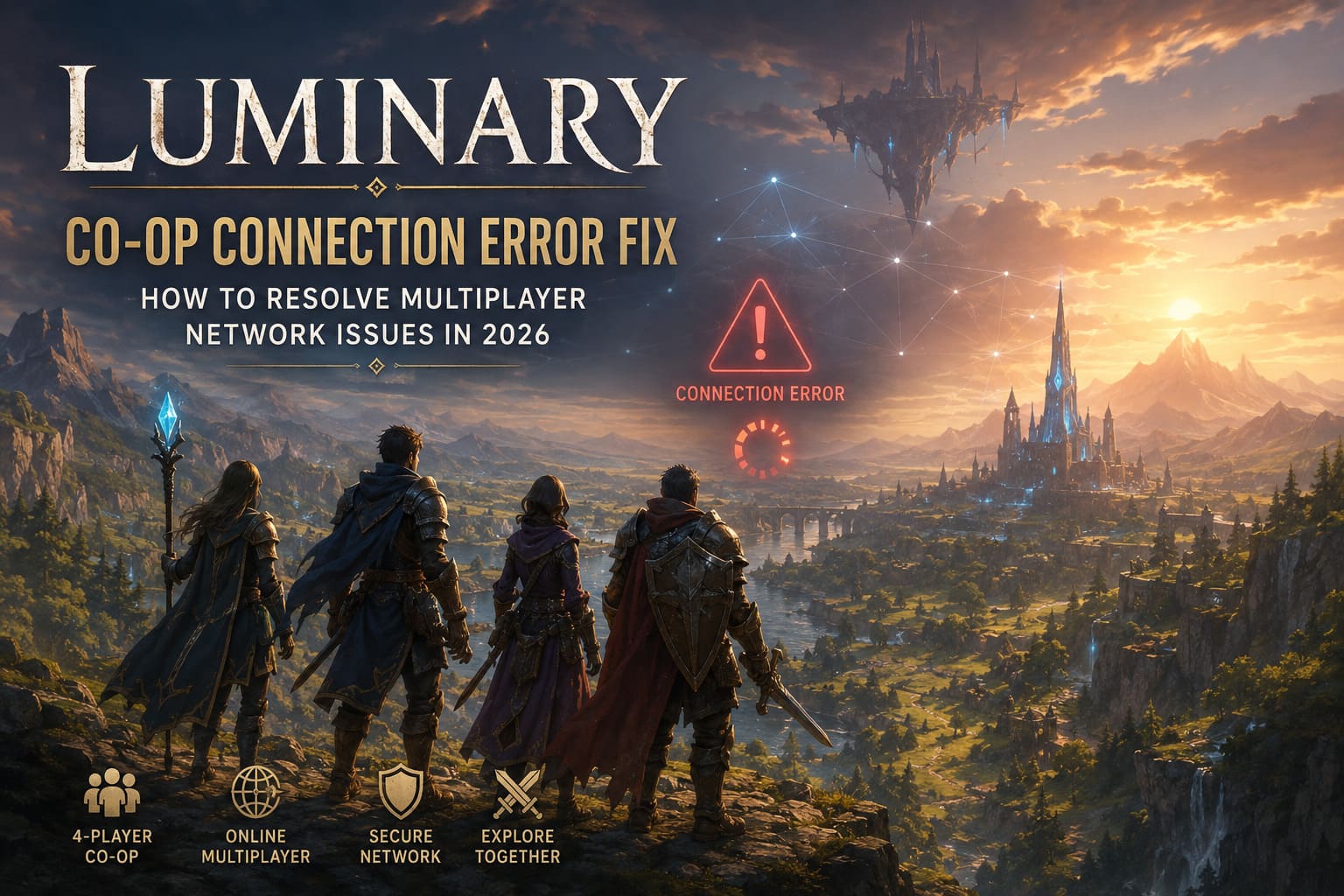
Luminary Co-Op Connection Error Fix: How to Resolve Multiplayer Network Issues in 2026
There are few things more annoying in a co-op RPG than finally getting your friends online, loading into the world, and then watching the game throw you straight back to the main menu.
That is exactly the kind of headache some Luminary players have been running into. Instead of exploring its handcrafted open zones with a party, you can end up staring at an endless loading spinner, getting kicked from an invitation, or watching the game fail during the multiplayer handshake.
And honestly, this is the sort of problem that can make a great evening of gaming fall apart in about thirty seconds.
The good news is that a Luminary co-op connection error isn’t necessarily a sign that your internet is broken. Multiplayer games have a ridiculous number of moving parts behind the scenes: Steam authentication, cloud services, matchmaking, firewall rules, DNS, local network configuration, game files, and sometimes even the graphics API involved during startup.
I’ve gone through the usual PC multiplayer troubleshooting rabbit hole here, and the fixes below are ordered from the quick stuff I’d try first to the more advanced network adjustments. You don’t need to change everything at once. Test the game after each major fix so you know what actually solved the problem.
Why Is Luminary Co-Op Not Working?
Before randomly changing Windows settings, it helps to understand what can actually break a multiplayer connection.
A co-op session has to successfully pass several checkpoints. Your game needs to authenticate, reach the relevant backend services, establish the lobby, communicate with the host or multiplayer infrastructure, and keep that connection alive while everyone is playing.
A failure at any point can look almost identical from the player’s perspective.
| Possible Cause | Typical Symptom | What To Try |
|---|---|---|
| Backend/API issue | Login or lobby failure | Check service access and DNS filtering |
| DirectX conflict | Crash or handshake failure | Launch with -dx11 |
| Firewall blocking traffic | Invite fails or lobby drops | Allow Luminary through Firewall |
| VPN/tunneling | Timeout or unstable co-op | Disable VPN and network boosters |
| Corrupted files | Version mismatch or crashes | Verify Steam files |
| Network configuration | Repeated connection timeout | Refresh DNS/Winsock and inspect MTU |
One important point: don’t assume every connection error is caused by the game servers. Local firewall rules, VPN software, ad-blocking DNS, and stale network settings can create exactly the same symptoms.
Fix #1: Launch Luminary With DirectX 11
This is the first workaround I’d personally test.
If Luminary is crashing during startup or failing around the point where it establishes its initial online connection, forcing the game to use DirectX 11 can be worth a shot. Some PC configurations simply don’t behave nicely with a particular DX12 setup.
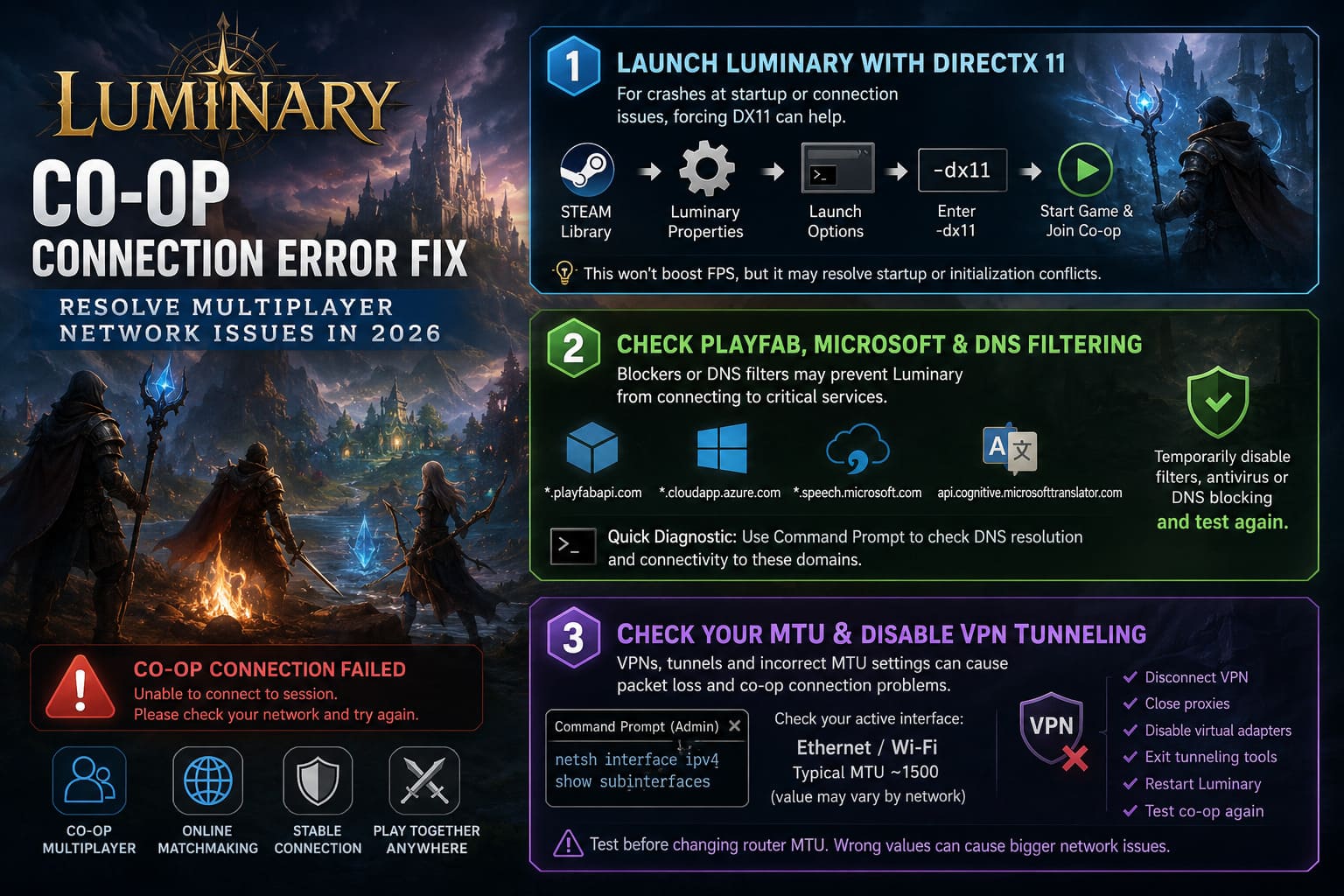
How to force DX11
- Completely close Luminary.
- Open Steam.
- Go to your Library.
- Right-click Luminary and select Properties.
- Stay on the General tab.
- Find the Launch Options field.
- Enter
-dx11. - Close the window.
- Launch Luminary again.
- Try joining your friend’s co-op session.
Don’t expect a magic FPS boost from this. That’s not really the point. You’re testing whether the alternative rendering path avoids a startup or initialization conflict.
If the game suddenly connects normally after adding -dx11, you’ve found a very useful clue.
Fix #2: Check PlayFab, Microsoft and DNS Filtering
This one is easy to overlook.
Modern multiplayer games rarely communicate with one single server. They often depend on several cloud services for authentication, player data, matchmaking, telemetry, and other backend functions.
If you’re running Pi-hole, AdGuard, custom DNS rules, an aggressive antivirus suite, router filtering, or a modified Windows hosts file, something that looks like an innocent tracking or advertising domain to your blocker could actually be required by the game.
The domains mentioned in community troubleshooting discussions include:
*.playfabapi.com*.cloudapp.azure.com*.speech.microsoft.comapi.cognitive.microsofttranslator.com
You don’t need to blindly whitelist everything forever. The smarter approach is to temporarily disable network-wide filtering and test Luminary again.
If co-op suddenly works, you’ve found the culprit.
That’s much better than spending an hour reinstalling the game when the actual problem was a DNS filter sitting quietly on your router.
A Quick Diagnostic
Open Command Prompt and test whether the relevant domains can be resolved and reached from your network.
Keep in mind that a normal ping failure does not automatically mean a service is down. Many cloud services simply don’t respond to ICMP ping requests. You’re mainly looking for obvious DNS resolution problems or filtering.
Fix #3: Check Your MTU and Disable VPN Tunneling
Now we’re getting into the more technical territory.
MTU — Maximum Transmission Unit — controls the maximum packet size your network interface sends without fragmentation. VPNs, tunneling protocols, unusual ISP configurations, and virtual adapters can change how packets travel across your connection.
That can become a problem for multiplayer games when packets are fragmented or dropped somewhere along the route.
I’ve seen plenty of PC multiplayer troubleshooting sessions where someone spends hours messing with graphics settings when the real villain is a VPN adapter quietly sitting in the background.
Check Your MTU
Open Command Prompt as Administrator and run:
netsh interface ipv4 show subinterfaces
You’ll see your network interfaces and their current MTU values.
Look for the interface you’re actually using, usually Ethernet or Wi-Fi.
A typical Ethernet connection commonly uses an MTU around 1500, while other network setups may legitimately use lower values. There isn’t one universal “correct” number for every connection, so don’t start randomly forcing values just because somebody on a forum posted one.
Before Changing Anything Manually
Try this instead:
- Disconnect your VPN.
- Close proxy applications.
- Disable virtual network adapters you don’t need.
- Exit tools such as Hamachi or similar tunneling software.
- Restart Luminary.
- Test co-op using your normal internet connection.
If the connection becomes stable, the tunnel was likely interfering with the game’s network traffic.
I strongly recommend testing before manually changing your router MTU. It’s very easy to turn a multiplayer problem into a much bigger networking problem if you start changing values without knowing why.
Fix #4: Allow Luminary Through Windows Firewall
Windows Firewall is another classic co-op troublemaker.
If Luminary can launch, load the single-player portion of the game, and generally behave normally but refuses to establish multiplayer connections, check your firewall before doing anything drastic.
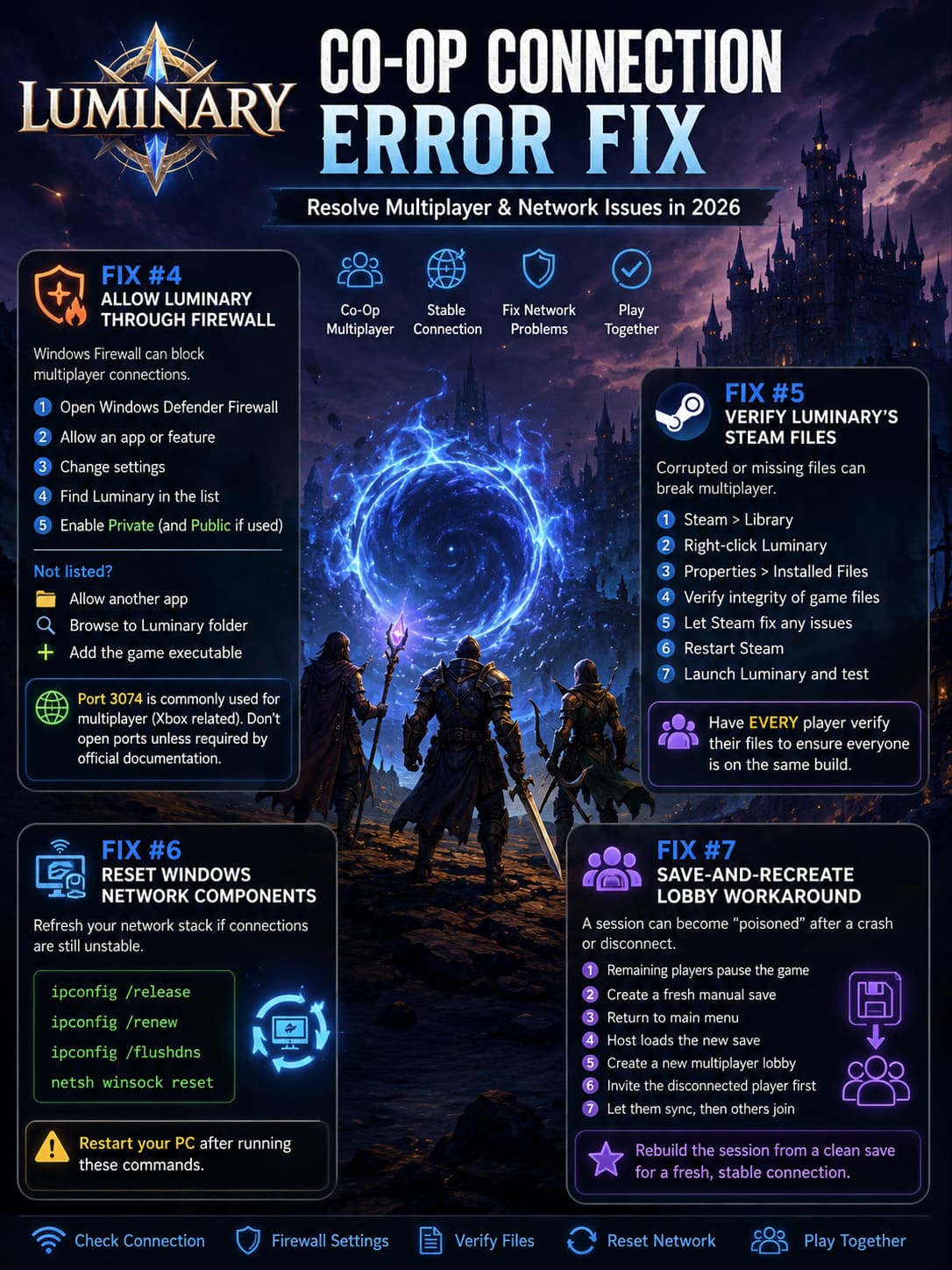
Allow Luminary Through Windows Defender Firewall
- Press the Windows key.
- Search for Windows Defender Firewall.
- Open it.
- Select Allow an app or feature through Windows Defender Firewall.
- Click Change settings.
- Find Luminary in the application list.
- Make sure the appropriate Private network permission is enabled.
- If you intentionally use Luminary on a Public network, check that profile as well.
If the game isn’t listed:
- Click Allow another app.
- Browse to your Luminary installation folder.
- Select the game’s executable.
- Add it to the allowed applications.
I’d also check your third-party antivirus firewall if you use one. Windows saying “allowed” doesn’t help much if another security suite is blocking the executable anyway.
What About Port 3074?
Port 3074 is widely associated with multiplayer networking, particularly in Xbox-related networking environments, and it can appear in troubleshooting discussions for games using similar infrastructure.
However, don’t treat port 3074 as a guaranteed universal Luminary requirement.
Before opening ports manually, test the simpler firewall and VPN fixes first. If Luminary’s official documentation specifically identifies a required port, follow that documentation. Randomly forwarding ports can create unnecessary security exposure and often doesn’t fix the actual problem.
Fix #5: Verify Luminary’s Steam Files
This is boring.
It’s also one of the fixes that works often enough that I never skip it.
A corrupted download, incomplete patch, or damaged local file can create strange multiplayer behavior. If the host and client aren’t running compatible versions, the connection can fail even though both players believe the game is fully updated.
Steam makes checking this ridiculously easy.
Verify the Installation
- Open Steam.
- Go to Library.
- Right-click Luminary.
- Select Properties.
- Open Installed Files.
- Click Verify integrity of game files.
- Wait for Steam to finish scanning.
- Let Steam replace anything it identifies as damaged or missing.
- Restart Steam.
- Launch Luminary and test co-op again.
I’d have every player in the party perform the verification, especially if one person can join while another consistently gets rejected.
If one player’s installation is sitting on a slightly different build, you’re wasting your time troubleshooting the router.
Fix #6: Reset Windows Network Components
If everything looks correct but Luminary still refuses to establish a stable connection, refresh Windows’ network configuration.
Open Command Prompt as Administrator and run these commands individually:
ipconfig /release
ipconfig /renew
ipconfig /flushdns
netsh winsock reset
The first commands refresh your IP configuration and DNS cache. The Winsock reset is more significant because it rebuilds Windows’ network socket configuration.
Restart your PC after running these commands.
That reboot matters. Don’t run netsh winsock reset, immediately launch the game, and wonder why nothing changed.
Fix #7: Use the Save-and-Recreate Lobby Workaround
Here’s the weird one.
Sometimes the problem isn’t the player’s internet connection at all. A multiplayer session can become effectively poisoned after one participant crashes or disconnects at an unfortunate moment.
This becomes especially annoying with larger groups.
Imagine three friends are playing. The fourth player crashes. They try to reconnect and suddenly receive something along the lines of “Game has started already” or “Game is full.”
At that point, repeatedly hammering the Join button isn’t going to accomplish much.
Try Rebuilding the Session
- Have the remaining players pause the game.
- Create a fresh manual save using the available world-save option.
- Return everyone to the main menu.
- Have the host load that newly created save.
- Create a new multiplayer lobby or invitation.
- Send the new invitation to the disconnected player first.
- Allow that player to complete their character/world synchronization.
- Have the remaining party members join afterward.
It’s not glamorous, but co-op games occasionally need this kind of nuclear option.
The key idea is to stop trying to resurrect a potentially broken session and instead create a clean lobby from a known-good save.
Luminary 3-Player Co-Op Guide: Multiplayer Strategy, Progression, and Town Upgrades (2026)
The Fastest Luminary Co-Op Troubleshooting Order
If you don’t want to spend your entire evening playing Windows Network Technician Simulator 2026, use this order.
First, restart Luminary and Steam.
Second, verify the game files.
Third, disable VPNs, proxies, Hamachi-style tunneling tools, and aggressive DNS filtering.
Fourth, try the -dx11 launch option.
Fifth, check Windows Firewall and your antivirus firewall.
Sixth, refresh Windows networking with the ipconfig and Winsock commands.
Seventh, investigate MTU and router configuration only if the simpler fixes don’t work.
Finally, if one player crashes and the existing lobby becomes impossible to rejoin, save the world and rebuild the multiplayer session from scratch.
That’s the order I’d use myself because it starts with fixes that are fast, reversible, and unlikely to create new problems.
Luminary Gameplay Walkthrough: Co-Op Fantasy ARPG Guide and Tips
Final Verdict: Fixing Luminary Multiplayer Connection Errors
A Luminary co-op connection error can look far more complicated than it actually is. The game may simply be running into a blocked backend request, a firewall rule, a VPN tunnel, corrupted files, or a broken multiplayer session.
The -dx11 launch option is worth testing when you’re dealing with startup crashes or suspicious handshake failures. If you’re running VPNs, custom DNS filtering, or virtual networking software, shut those down temporarily and test again. Verify everyone’s Steam installation before blaming the servers, and don’t underestimate Windows Firewall.
For the network-heavy fixes, be careful. MTU values aren’t something you should blindly change because a random guide claims one number is universally correct. The same goes for port forwarding. Troubleshooting is about isolating the problem, not changing twenty settings at once and hoping the game suddenly behaves.
And if your whole party gets trapped in a broken lobby after a crash? Save the world, rebuild the session, and move on.
The goal isn’t to become a networking expert. It’s to get back into Luminary with your friends as quickly as possible. Once you’ve eliminated the usual PC-side blockers, most of the remaining mystery comes down to the game’s backend or a temporary service-side issue—and that’s one thing you can’t fix by reinstalling DirectX for the fifth time.