How to Fix Cloud Save Conflict Star Wars Zero Company: Complete Troubleshooting Guide
There are few things more annoying in a strategy game than finishing a long mission, making several smart tactical decisions, and then discovering that your save data has somehow decided to start a civil war of its own. Star Wars Zero Company is built around careful planning, squad management, and meaningful campaign decisions, so losing progress because of a cloud synchronization problem can be especially frustrating. After playing plenty of tactical and turn-based games myself, I know that feeling of seeing a save conflict warning and immediately wondering which button is going to cost me hours of progress.
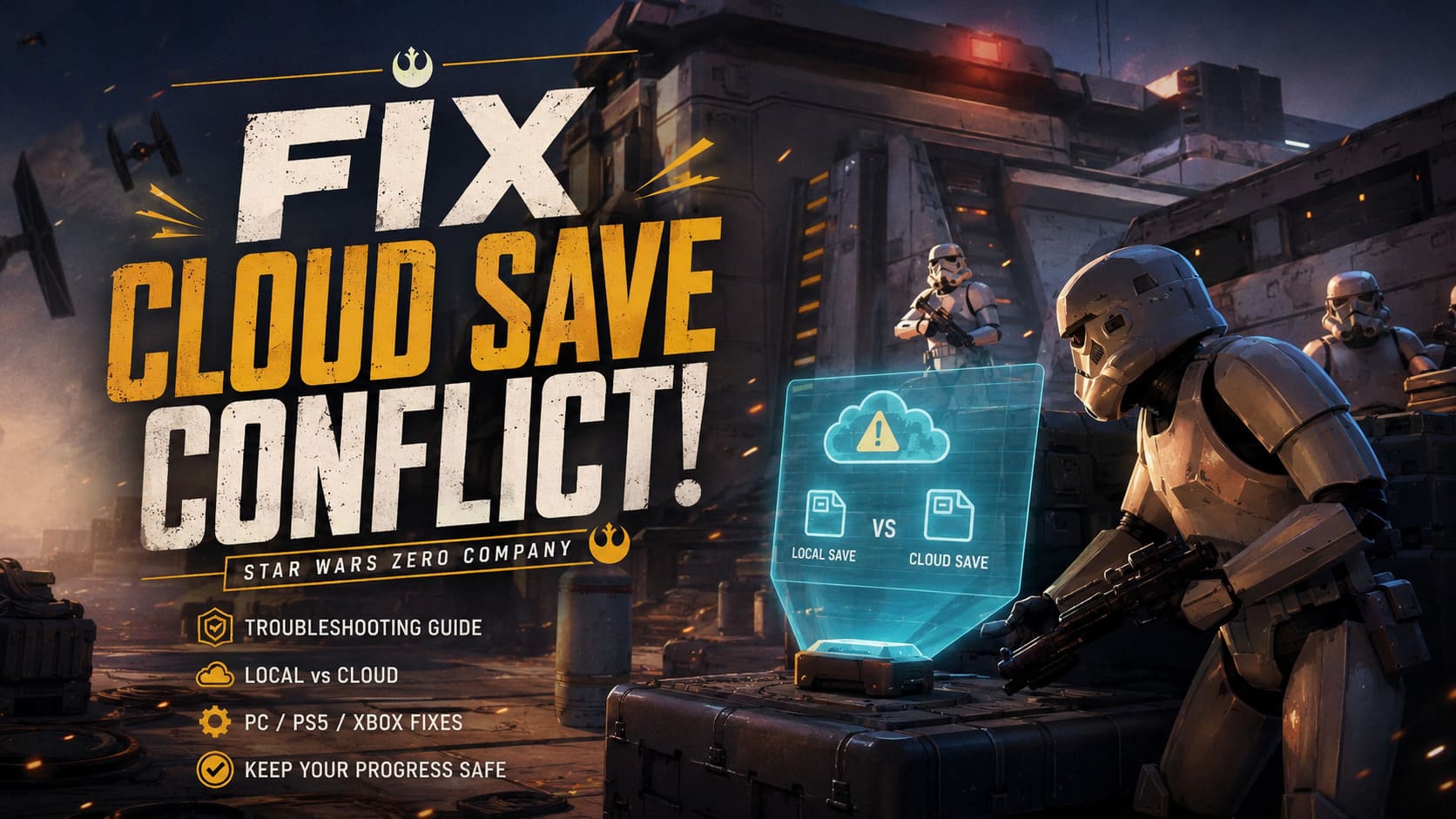
The good news is that a Star Wars Zero Company cloud save conflict does not automatically mean your campaign is gone. In most cases, the problem comes from two versions of your save existing at the same time: one stored locally on your PC or console and another stored remotely by your gaming platform. The important thing is not to rush through the warning screen. With a little patience, you can usually identify the correct version and get back to your campaign without sacrificing your latest progress.
How to Fix Star Wars Zero Company Black Screen on Startup on Steam
What Causes a Cloud Save Conflict?
A cloud save conflict happens when the game platform notices that your local save and cloud save do not match. Normally, the launcher quietly uploads your latest progress when you finish playing, but sometimes that process is interrupted or delayed. When the system cannot determine which version is newer, it asks you to choose rather than blindly replacing one file with another.
There are several common reasons this happens. Unstable internet connections can interrupt the upload process, while shutting down your PC or console immediately after leaving the game can stop synchronization before it finishes. Playing Star Wars Zero Company on multiple devices can also create conflicts, particularly if you switch from one machine to another before the previous session has successfully uploaded its saves.
Another possibility is a launcher problem. Steam, the EA App, Epic Games Launcher, PlayStation Network, and Xbox Network all handle cloud data slightly differently, and temporary server problems can make a perfectly healthy save look suspicious. In my experience with PC games, these synchronization problems are often less dramatic than they initially appear—the real danger is simply choosing the wrong version without checking what you are overwriting.
Local Save or Cloud Save: Which One Should You Choose?
This is the most important decision you will make when the conflict window appears. Do not simply choose the first option because you want to get into the game quickly. Take a moment to compare the dates and timestamps shown for the local and cloud versions.
If you played most recently on the device you are currently using, the local save may contain your newest campaign progress. For example, if you completed a major mission on your desktop and then immediately encountered a synchronization warning, the local version is potentially the one you want to preserve.
On the other hand, if you recently played on another computer, handheld PC, or console and are now returning to your main system, the cloud version may be newer. This is particularly important for players who regularly move between different gaming devices.
| Situation | Usually Check First | Why |
|---|---|---|
| You just finished playing on this device | Local Save | It may contain your latest unsynced progress |
| You recently played on another device | Cloud Save | The remote version may be newer |
| Both versions have similar timestamps | Inspect Carefully | Neither should be overwritten blindly |
| You are unsure which is newer | Make a Backup First | Protects you from accidental progress loss |
The timestamps are your best friend here. Think of the conflict window less like an error message and more like a choice between two snapshots of your campaign.
PC Fixes for Steam and EA App
PC players can encounter cloud conflicts more frequently because several applications may be involved in the process. Star Wars Zero Company may rely on both the game platform and additional EA services, creating more opportunities for synchronization to become stuck.
1. Back Up Your Local Saves First
Before changing cloud settings, clearing caches, or deleting anything, make a manual copy of your local save files. This is the single step I would recommend above everything else.
Press Windows Key + R to open the Run dialog and check common save locations such as %USERPROFILE%\Saved Games or %LOCALAPPDATA%. Look for folders associated with Star Wars Zero Company, Bit Reactor, or EA, then copy the relevant save folder to another safe location.
The exact folder can vary depending on the final installation and platform configuration, so do not delete files simply because the directory name looks unfamiliar. The goal at this stage is only to create a backup. If a later troubleshooting step goes wrong, having that copy can make the difference between a minor inconvenience and replaying an entire campaign.
2. Refresh Steam Cloud Synchronization
If you are playing through Steam, completely close Star Wars Zero Company first. Then open your Steam Library, right-click the game, and open Properties.
Under the General section, find the Steam Cloud setting. Temporarily disable cloud synchronization, wait a few seconds, and then enable it again. Afterward, restart Steam and launch the game normally.
This can help when Steam has become stuck between two synchronization states. It is not a magical fix for every cloud conflict, but it is a relatively simple thing to try before taking more aggressive measures.
3. Clear the Steam or EA App Cache
Sometimes the problem is not your actual save at all. A launcher can retain outdated or corrupted temporary information and repeatedly behave as though the same synchronization problem still exists.
For Steam, use the Clear Download Cache option under Steam’s download settings. Steam will restart and may require you to sign in again. Your installed games should remain intact.
For the EA App, open the application menu and navigate to Help > App Recovery > Clear Cache. This clears temporary launcher information without being intended to remove your installed games or campaign saves.
After clearing the cache, restart the launcher and check the cloud synchronization status again.
Clean Up Unnecessary Save Files
Turn-based tactical games tend to generate plenty of saves, checkpoints, and autosaves. Keeping dozens of old files may not normally be a problem, but if you have accumulated a huge collection of obsolete campaign saves, cleaning them up can make your save management much easier.
Open the in-game load menu and look through your older files. Do not delete anything until you are certain you have a backup. Once your backup is safely stored, remove old checkpoints or duplicate saves that you no longer need.
I personally prefer keeping several manual saves rather than relying entirely on autosaves. For a game like Star Wars Zero Company, where a single tactical decision can have consequences later, having a few fallback points is much more useful than maintaining a giant pile of nearly identical autosaves.
PlayStation 5 Cloud Save Troubleshooting
On PS5, save synchronization is handled through the PlayStation ecosystem rather than a traditional PC launcher. If your console reports a synchronization problem, first avoid immediately choosing an option that could overwrite the version you actually need.
Highlight Star Wars Zero Company on the PS5 home screen and check the available saved-data synchronization options. You can also access saved-data management through Settings > Saved Data and Game/App Settings.
If your console contains the correct and most recent campaign, the objective is to upload that version rather than replace it with an older cloud copy. Conversely, if the cloud version is newer because you recently played elsewhere, downloading the cloud version may be the safer option.
One simple habit can also prevent problems: give the console a little time after finishing a session. Instead of closing the game and immediately putting the PS5 into Rest Mode, return to the dashboard and wait for synchronization activity to finish.
Xbox Series X|S Cloud Save Troubleshooting
Xbox handles cloud saves fairly automatically, but synchronization can still become confused after crashes, freezes, interrupted connections, or unusual shutdowns.
If Star Wars Zero Company becomes stuck during synchronization, you can check its saved-data settings through Manage Game and Add-ons. If you need to clear the local copy, pay very close attention to the option you select.
The important distinction is between removing the local copy and choosing an option that deletes saved data everywhere. Never choose a ‘clear everywhere’ style option unless you are absolutely certain that you want the cloud version removed as well.
After restarting the console and launching the game again, Xbox may synchronize your profile and download the available cloud save. If the cloud copy was healthy, this can resolve a corrupted or mismatched local state.
What You Should Not Do During a Save Conflict
When people panic about lost progress, they sometimes make the situation worse by trying several fixes at once. I would avoid that approach. Troubleshooting becomes much safer when you make one change, check the result, and keep your backup untouched.
- Do not delete every save immediately.
- Do not repeatedly switch between local and cloud versions without checking timestamps.
- Do not use a ‘delete everywhere’ option unless you fully understand what it removes.
- Do not shut down your PC or console while synchronization is visibly running.
- Do not assume the cloud copy is automatically the newest copy.
A cloud save is only useful if it contains the version of the campaign you actually want. Newer does not always mean better if the newer file is an incomplete session or an old device’s outdated state.
How to Prevent Future Cloud Save Conflicts
Once you have fixed the problem, preventing another conflict is much easier than recovering from one. The most useful habit is simply giving your platform enough time to finish synchronization after every session.
Always exit Star Wars Zero Company normally rather than force-closing it while a save operation may still be running. On PC, avoid immediately shutting down Windows after quitting the game. On consoles, return to the dashboard and give the system a moment before putting it into Rest Mode or powering it down.
If you play across multiple devices, establish a simple routine: finish the game, wait for synchronization, and only then start it somewhere else. This may sound obvious, but it is surprisingly easy to forget when you are eager to continue a campaign.
It is also worth keeping your operating system, graphics drivers, Steam or EA App, and console software reasonably up to date. Updates will not magically eliminate every cloud problem, but outdated software can introduce additional compatibility and connectivity issues.
Final Thoughts
A Star Wars Zero Company cloud save conflict looks scary because the warning appears at exactly the moment you least want to think about file management. However, the conflict usually means the system has detected two different versions of your progress—not necessarily that your campaign has been destroyed.
The safest approach is simple: stop, check the timestamps, protect your local saves, and only then decide which version should win. For PC players, refreshing cloud synchronization and clearing launcher caches are sensible early troubleshooting steps, while PS5 and Xbox players should focus on their respective saved-data management systems.
As someone who enjoys tactical games, I would much rather spend ten minutes protecting a campaign than spend ten hours replaying missions because I clicked the wrong synchronization option. Star Wars Zero Company is the kind of game where your squad, decisions, and hard-earned progress deserve to be protected, so a little save-management discipline is absolutely worth it.