Gallipoli Game Engine Performance Guide RTX 4070: Best Optimization Settings
If there is one thing I have learned after spending far too many hours tweaking graphics settings in tactical shooters, it is that simply owning a powerful GPU does not guarantee a smooth experience. Gallipoli can look absolutely fantastic, but its large multiplayer battles, dense environments, smoke, weather effects, explosions, and constant player movement can expose weaknesses that never appear in ordinary single-player games. The GeForce RTX 4070 is more than capable of handling the game, especially at 1440p, but getting consistently good frame times requires a little more work than pushing every setting to Ultra.
After testing plenty of modern shooters, I would avoid chasing the highest possible average FPS. In a game like Gallipoli, stable 1% lows and consistent frame pacing matter much more, particularly when dozens of players are fighting over the same objective. A beautiful 140 FPS average means very little if the game suddenly drops into the 60s when artillery, smoke, foliage, and multiple players fill the screen.
This Gallipoli optimization guide focuses on the RTX 4070 and covers the settings I would actually use for competitive 1440p gaming, as well as a practical configuration for 4K.
Gallipoli Game Best Settings RTX 3060: Max FPS and Performance Optimization Guide
Is the RTX 4070 Good Enough for Gallipoli?
Absolutely. The RTX 4070 is still a very capable 1440p graphics card, and Gallipoli is not a game where you need to sacrifice image quality just to get playable performance. The card’s 12GB of VRAM gives it plenty of breathing room for high-quality textures, while DLSS can take care of the heavier rendering workload.
The interesting part is that GPU performance is not always the limiting factor. Large-scale multiplayer battles can become heavily CPU-dependent, especially when numerous players, AI entities, physics calculations, projectiles, environmental effects, and destruction events are happening simultaneously.
That is why I would not recommend blindly copying an ‘Ultra settings’ preset. Some settings barely improve the image while consuming a surprising amount of performance. Others, such as textures, can stay high because the RTX 4070 has enough VRAM to handle them comfortably.
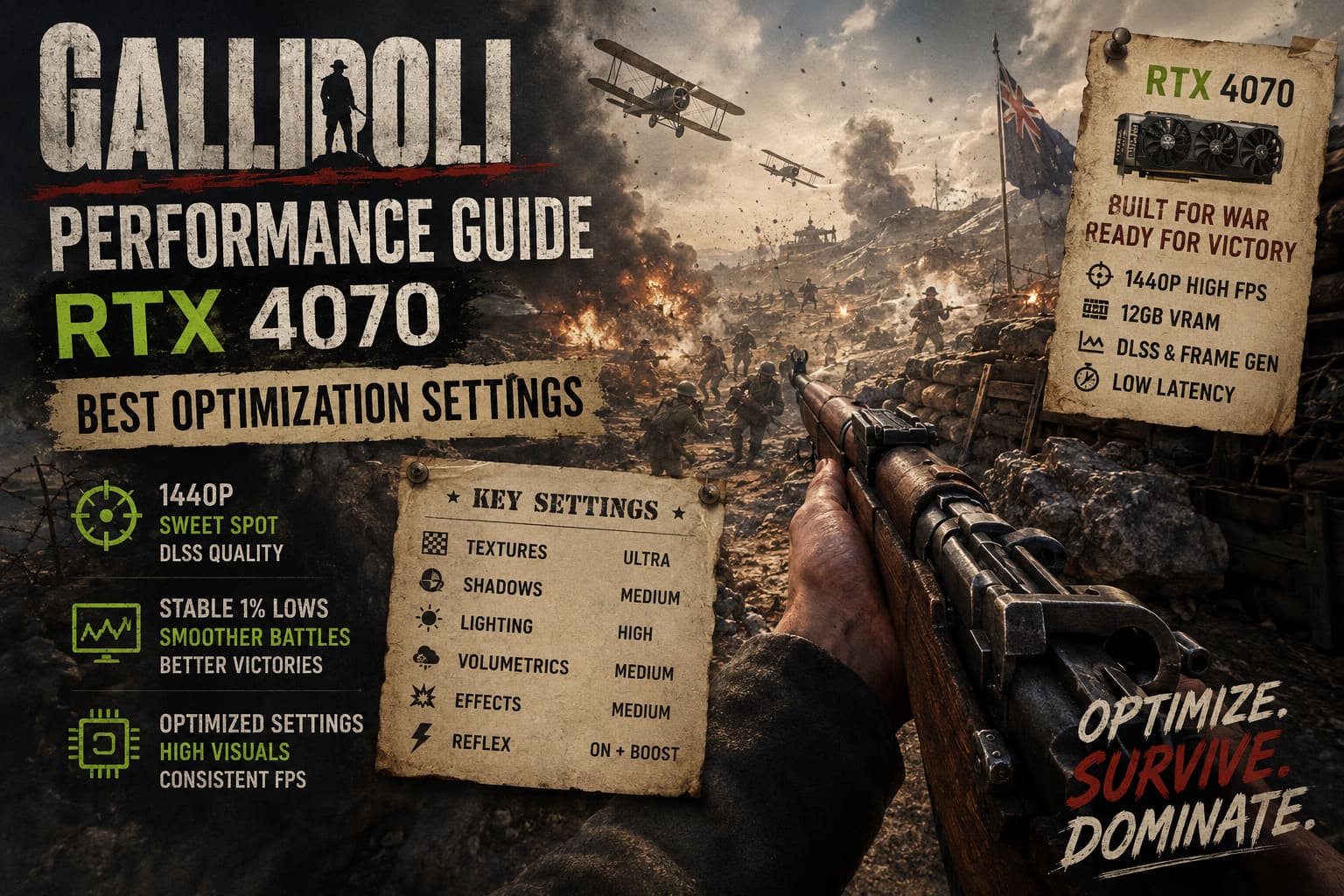
Quick RTX 4070 Settings Overview
| Setting | 1440p Recommendation | 4K Recommendation |
|---|---|---|
| Resolution | 2560×1440 | 3840×2160 |
| Display Mode | Fullscreen | Fullscreen |
| DLSS | Quality | Balanced |
| Frame Generation | Optional | On |
| NVIDIA Reflex | On + Boost | On + Boost |
| Texture Quality | Ultra | Ultra |
| Model Quality | High | High |
| Shadow Quality | Medium | Medium |
| Lighting Quality | High | High |
| Volumetric Effects | Medium | Medium |
| Foliage Density | Medium | Medium |
| Effects Quality | Medium | Medium |
| Post Processing | Low/Medium | Low/Medium |
| Motion Blur | Off | Off |
| Depth of Field | Off | Off |
| V-Sync | Off | Off |
Start With Windows and BIOS
Before changing anything in Gallipoli, I would check the system itself. It sounds boring, but this is where a lot of unexplained stuttering comes from, and there is little point spending an hour adjusting individual graphics settings if Windows or the motherboard configuration is holding the hardware back.
First, check your BIOS and make sure Resizable BAR is enabled. On a compatible platform, ReBAR allows the processor to access the GPU’s VRAM more efficiently and can improve frame consistency in some games. It is not a magical FPS button, but there is little reason to leave the feature disabled on a modern gaming PC.
You should also verify that your memory profile is enabled. Depending on the motherboard and platform, this will usually be XMP or EXPO. Running fast DDR5 at its default fallback speed can leave performance on the table, particularly in CPU-heavy multiplayer scenarios.
Windows should also be kept reasonably clean while playing. I would close unnecessary browser tabs, launchers, recording applications, and other programs that consume CPU resources or constantly access the SSD.
NVIDIA Control Panel Settings
The NVIDIA Control Panel is another place where a few sensible changes can help keep performance predictable.
For Gallipoli’s profile, I would start with Power Management Mode set to Prefer Maximum Performance. This can prevent aggressive clock behavior during demanding gameplay, although the actual benefit varies depending on the system.
Shader compilation is another potential source of stuttering. Modern games often have to prepare shaders for specific hardware and visual effects, and tactical shooters can make the problem particularly obvious when moving into a new area or encountering an effect that has not been cached yet.
If your driver provides a configurable shader cache size, giving Gallipoli plenty of SSD storage for cached shaders is sensible. I would not treat a huge cache as a guaranteed stutter fix, though. Shader stutter can also come from the game itself, CPU limitations, asset streaming, or poorly optimized effects.
Best Gallipoli Settings for RTX 4070 at 1440p
For most RTX 4070 owners, 1440p is the sweet spot. You get enough resolution to make distant enemies and environmental details clear without putting the same enormous workload on the GPU that native 4K does.
I recommend starting with NVIDIA DLSS on Quality. In my experience with modern shooters, this is usually the best compromise. You gain performance while retaining a sharp enough image for long-range combat.
Fullscreen mode is preferable if the game offers a properly implemented exclusive fullscreen option. Keep V-Sync disabled if you are using a variable-refresh display such as G-Sync or FreeSync.
Texture Quality: Ultra
This is one setting I would leave high.
The RTX 4070’s 12GB VRAM is sufficient for high-resolution textures, and dropping texture quality often produces a much more noticeable visual downgrade than the FPS improvement justifies.
Weapon surfaces, uniforms, buildings, sand, wood, and environmental details all benefit from higher texture quality. Unless you are running into VRAM-related problems, there is little reason to reduce it.
Model Quality: High
High model quality gives soldiers, defensive structures, weapons, and environmental objects a good amount of detail without wasting resources on extremely aggressive geometry settings.
For a competitive shooter, this is also useful because enemy silhouettes should remain visually distinct at medium and long distances.
Shadow Quality: Medium
This is one of my first cuts when optimizing a shooter.
Ultra shadows can look impressive when you stop and admire them, but during an actual firefight I rarely notice the difference. Shadows can also become expensive when there are many dynamic lights and objects on screen.
Medium is the setting I would use on an RTX 4070.
Lighting Quality: High
Lighting has a much bigger effect on the overall atmosphere, so I prefer leaving it at High.
Gallipoli’s environments depend heavily on strong sunlight, dust, smoke, and atmospheric contrast. Reducing lighting too aggressively can make the game look flat and lifeless.
Volumetric Fog and Clouds: Medium
This is another major performance lever.
Smoke, dust, fog, clouds, and other volumetric effects can become surprisingly expensive, especially during large battles. Medium keeps the atmosphere intact without allowing weather and battlefield smoke to dominate your GPU workload.
If you experience severe drops specifically during explosions or smoke-filled objectives, this is one of the first settings I would lower further.
Foliage Density: Medium
Ultra foliage is not necessarily your friend in a competitive FPS.
Dense grass and vegetation may make screenshots look fantastic, but they can obstruct visibility and add additional rendering work. Medium gives the environment enough detail without turning every bush into a potential hiding place.
Effects Quality: Medium
Explosions, sparks, smoke, debris, and other combat effects can become extremely demanding when multiple players are fighting in the same location.
Medium is a good compromise. You still get convincing battlefield effects, but the GPU has more room to maintain consistent frame times during chaotic moments.
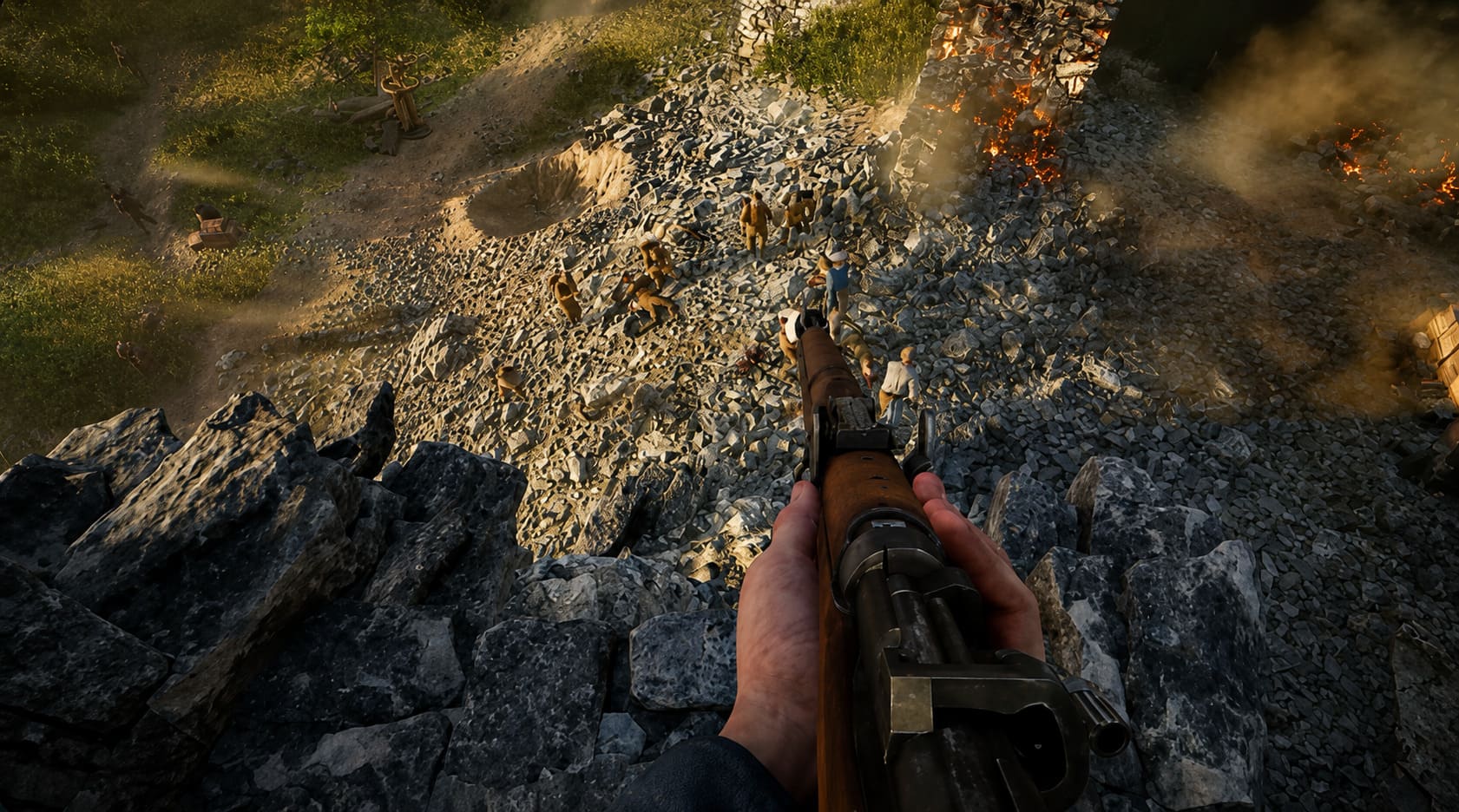
Turn Off Motion Blur and Depth of Field
This is one of those recommendations I make in almost every competitive shooter.
Motion Blur: Off.
Depth of Field: Off.
Neither setting helps you react faster to an enemy. Motion blur can make rapid camera movement look cinematic, but when someone appears at the edge of your screen, I want the image to remain as clear as possible.
Depth of field has a similar problem. It can produce attractive screenshots, but competitive gameplay benefits from clarity rather than cinematic presentation.
I would also consider reducing heavy post-processing effects. Film grain, chromatic aberration, and excessive sharpening can make the image look less clean, especially at longer viewing distances.
NVIDIA Reflex: On + Boost
If Gallipoli supports NVIDIA Reflex Low Latency, I would enable it.
Reflex is particularly useful in a competitive shooter because reducing system latency can make mouse input feel more immediate. This does not magically increase your FPS, but it can make the game feel more responsive.
If you are using DLSS Frame Generation, Reflex becomes even more important because maintaining a responsive input path is critical when generated frames are being added to the presentation.
RTX 4070 4K Optimization
Running Gallipoli at native 4K is considerably more demanding. The RTX 4070 can do it, but I would not insist on native rendering if the goal is a high-refresh experience.
For 4K, switch DLSS from Quality to Balanced. The higher output resolution gives the reconstruction algorithm more pixels to work with, and Balanced can provide a surprisingly clean image while reducing the GPU workload.
If available and appropriate for your target frame rate, DLSS Frame Generation can also be enabled.
Frame Generation is particularly useful when the underlying rendered frame rate is already reasonably strong. I would not use it as a bandage for extremely poor base performance. If the game is struggling badly because of a CPU bottleneck, generating additional frames does not solve the fundamental problem.
What to Do When FPS Drops During Huge Battles
This is where things get interesting.
If Gallipoli runs beautifully when you are alone but suddenly loses performance when dozens of players converge on one objective, the GPU may not be the real problem. The CPU has to process player movement, physics, networking, animations, AI behavior, and other simulation tasks.
In that situation, lowering every GPU setting may barely change the result.
Instead, look for settings related to simulation quality, view distance, physics, crowd density, or other CPU-heavy systems. If Gallipoli provides a Simulation Quality option, Medium is a sensible starting point.
The goal is to reduce the workload that actually affects the CPU rather than turning the entire game into a low-detail mess.
My Recommended RTX 4070 Configuration
If I were setting up Gallipoli on my own RTX 4070, I would start here:
- 1440p resolution
- DLSS Quality
- Textures Ultra
- Models High
- Shadows Medium
- Lighting High
- Volumetrics Medium
- Foliage Medium
- Effects Medium
- Motion Blur Off
- Depth of Field Off
- NVIDIA Reflex On + Boost
That configuration keeps the parts of the game I actually care about looking good while cutting back on the settings that tend to have a much lower visual payoff.
Don’t Optimize for Average FPS Alone
One of the biggest mistakes people make with PC performance guides is obsessing over the highest average FPS number.
I would much rather have a stable 110-120 FPS with good frame pacing than see a benchmark report 160 FPS followed by violent drops whenever an artillery barrage starts. In a multiplayer tactical shooter, those sudden drops are what you actually feel.
Use an FPS overlay and, if possible, monitor 1% lows and frametime consistency. Play on the maps and in the situations that normally cause problems rather than judging performance while staring at an empty section of the battlefield.
Gallipoli is at its best when the battlefield feels chaotic without the game itself becoming chaotic. The RTX 4070 has enough power to deliver that experience, but the best result comes from a balanced configuration rather than simply selecting Ultra and hoping for the best.
For 1440p, DLSS Quality with mostly High and Medium settings is my preferred setup. For 4K, DLSS Balanced combined with Frame Generation can make the experience much smoother, while CPU-heavy dips should be attacked through simulation-related settings rather than unnecessary reductions to texture quality.
If you spend a few minutes finding that balance, the RTX 4070 can turn Gallipoli into a sharp, responsive tactical shooter without forcing you to choose between good visuals and competitive performance.