Gothic 1 Remake PC Optimization Guide: Best Settings for 60 FPS on Mid-Range Hardware
When I first launched Gothic 1 Remake, my reaction was exactly what many long-time fans probably experienced: pure excitement followed by immediate concern for my GPU.
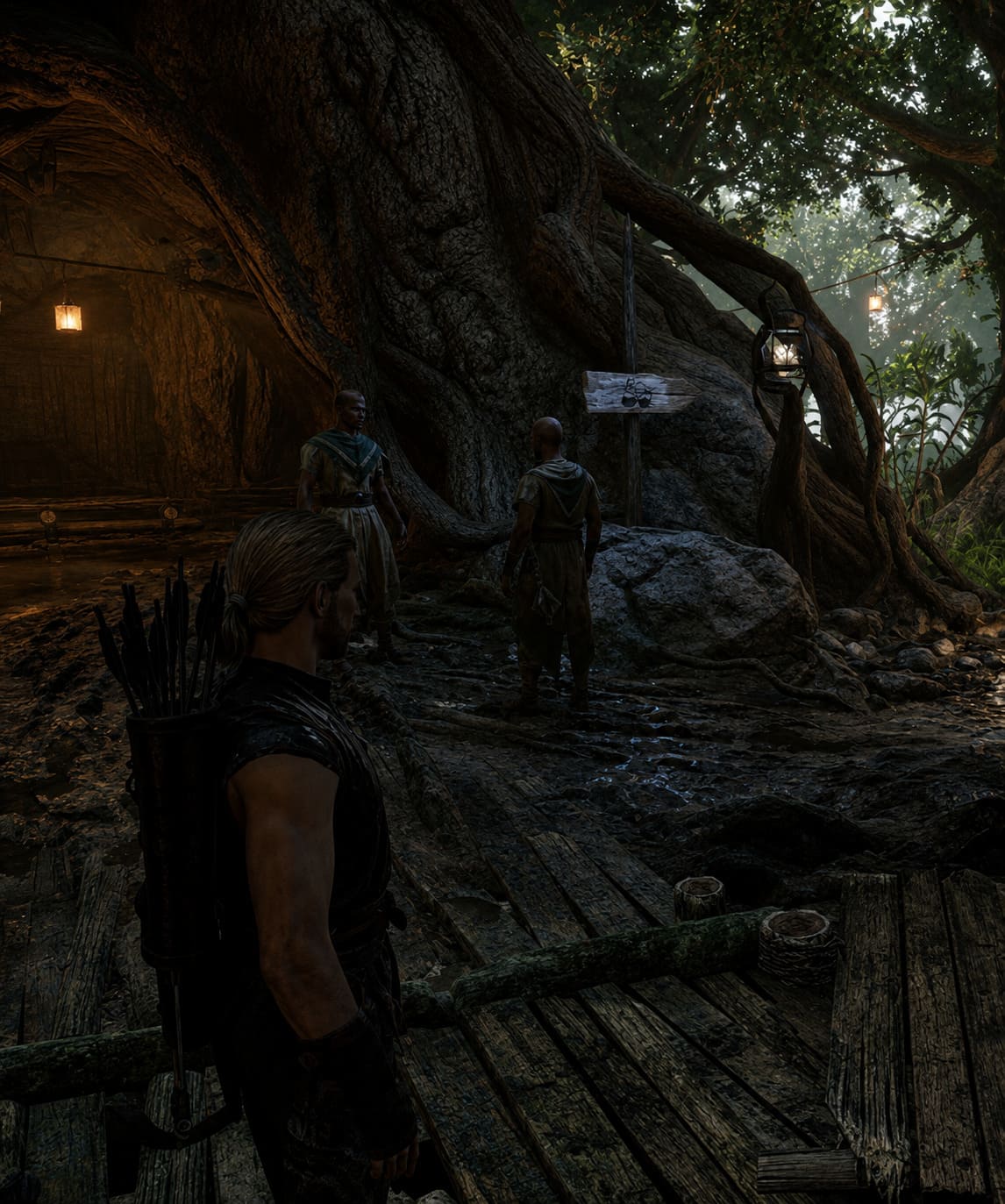
There is no denying that Alkimia Interactive has transformed the legendary RPG into something visually stunning. The world feels darker, richer, and far more alive than the original ever could. Campfires cast realistic shadows, forests look incredibly dense, and every corner of the colony feels handcrafted.
The problem?
Like many modern Unreal Engine 5 games, Gothic 1 Remake can be surprisingly demanding even on decent gaming PCs.
After spending several evenings experimenting with settings, comparing benchmark results, reading community discussions, and testing different hardware configurations, I found a setup that keeps the game looking fantastic while maintaining a much smoother frame rate on mid-range systems.
If you’re using something like an RTX 3060, RTX 4060, RX 7600, or similar hardware, these adjustments can make a noticeable difference without turning the game into a blurry mess.
Why Gothic 1 Remake Is So Demanding
The biggest reason behind the performance requirements is simple: Unreal Engine 5.
The remake uses several modern rendering technologies that look incredible but can heavily stress both your graphics card and processor.
Some of the most demanding systems include:

- Dynamic global illumination
- High-density vegetation rendering
- Advanced shadow calculations
- Massive environmental detail
- Real-time NPC simulation systems
- Complex asset streaming
Unlike many modern games that rely heavily on static environments, Gothic’s world is constantly active. NPCs move around, follow schedules, react to events, and populate large settlements simultaneously.
The result is an immersive world—but also one that can push hardware surprisingly hard.
Hardware Tier Expectations
From my own testing and what many players have reported online, here’s roughly what you can expect.
| Hardware Tier | Resolution | Recommended Target |
|---|---|---|
| RTX 3060 / RX 6600 XT | 1080p | 60 FPS |
| RTX 4060 / RX 7600 | 1080p-1440p | 60 FPS |
| RTX 4070 / RX 7800 XT | 1440p | 60-90 FPS |
| RTX 4080 and Above | 1440p-4K | High Refresh Rate |
One thing that shouldn’t be ignored is storage.
Installing Gothic 1 Remake on an SSD is practically mandatory. Fast storage dramatically reduces streaming stutters and texture-loading delays.
The Settings That Hurt Performance the Most
After experimenting with nearly every graphical option, I noticed four settings that consistently had the largest impact on frame rates.
1. Global Illumination
This is the first setting I would lower.
The visual difference between High and Medium is surprisingly small during normal gameplay, but the performance gain can be substantial.
Recommendation: Medium
2. Shadow Quality
Shadow rendering becomes particularly expensive inside forests and populated camps.
Ultra shadows look great in screenshots, but during actual gameplay they rarely justify the performance loss.
Recommendation: Medium
3. View Distance
Many players automatically max this setting, but Gothic’s world already has impressive visibility.
Reducing view distance slightly often improves CPU performance without noticeably affecting immersion.
Recommendation: High or Medium
4. Foliage Density
This setting can quietly destroy performance in certain areas.
Dense vegetation looks beautiful, but medium foliage still preserves the atmosphere while preventing major drops in heavily wooded regions.
Recommendation: Medium
My Personal 60 FPS Configuration
After multiple hours of testing, this became my preferred setup.

Display Settings
| Setting | Value |
|---|---|
| Display Mode | Fullscreen |
| Resolution | Native Resolution |
| VSync | Off |
| Frame Limit | 60 FPS |
| Gamma | Default |
| FOV | 70-75 |
A lower FOV may not sound exciting, but it slightly reduces the amount of world geometry rendered at any given moment.
Graphics Settings
| Setting | Recommended |
|---|---|
| Quality Preset | Custom |
| Upscaling | Quality Mode |
| Frame Generation | If Supported |
| View Distance | High |
| Anti-Aliasing | High |
| Shadows | Medium |
| Global Illumination | Medium |
| Reflections | Medium |
| Post Processing | Low |
| Foliage | Medium |
| Motion Blur | Off |
| Depth of Field | Personal Preference |
| Ambient Occlusion | Medium-High |
| Sharpening | Around 40 |
This configuration maintained the visual identity of the remake while avoiding most major performance spikes.
DLSS, FSR and XeSS Are Almost Mandatory
I know some PC gamers still dislike image upscaling technologies.
A few years ago, I would have agreed.
Today, however, modern Unreal Engine 5 games are increasingly designed around them.
In Gothic 1 Remake, enabling:
- DLSS Quality (NVIDIA)
- FSR Quality (AMD)
- XeSS Quality (Intel)
provides one of the largest performance boosts available.
In motion, the visual difference is often difficult to notice, while the frame-rate improvement can be dramatic.
For most mid-range hardware, this should be the very first optimization step.
Should You Use Frame Generation?
This is where opinions tend to split.
Personally, I think frame generation works surprisingly well in Gothic 1 Remake.
Exploration feels smoother, camera movement becomes more fluid, and overall responsiveness remains acceptable.
That said, I would only recommend it if:
- Your base frame rate is already above 45 FPS
- You own supported RTX 40-series, RTX 50-series, or compatible AMD hardware
- You primarily play with a controller or are focused on exploration
Players who are highly sensitive to latency may still prefer native rendering.
Extra Tweaks Outside the Game
Several improvements can be made before even launching Gothic 1 Remake.
Update GPU Drivers
This sounds obvious, but it matters.
Both NVIDIA and AMD frequently release game-specific optimizations for major launches.
Many players have reported smoother shader compilation after installing the latest drivers.
Enable Hardware Accelerated GPU Scheduling
Windows includes a feature called HAGS that can improve frame pacing in certain titles.
To enable it:
- Open Windows Settings
- Navigate to Graphics Settings
- Enable Hardware Accelerated GPU Scheduling
- Restart the PC
The improvement isn’t guaranteed, but it’s worth testing.
Monitor Temperatures
One issue that often gets overlooked is thermal throttling.
If your GPU reaches high temperatures during extended sessions, clock speeds may begin dropping automatically.
Programs like MSI Afterburner can help verify whether your hardware is maintaining its intended boost frequencies.
Close Background Applications
Modern browsers, overlays, recording software, and RGB utilities can consume more resources than many players realize.
Before launching Gothic 1 Remake, I usually close:
- Multiple browser tabs
- Unused launchers
- Recording software
- Hardware monitoring tools I don’t need
The gains aren’t huge, but every bit helps.
Areas Where Performance Drops Are Normal
Even with optimized settings, there are a few locations where frame rates may still fluctuate.
The most demanding areas I’ve encountered include:
- The Old Camp marketplace
- Dense forest paths
- Large nighttime scenes with multiple light sources
- Crowded NPC gatherings
- Swamp Camp interiors
These locations stress both CPU and GPU resources simultaneously.
Small drops in these areas are normal and don’t necessarily indicate a problem with your system.
Gothic 1 Remake: How to Join the New Camp (Full Walkthrough & Faction Guide)
Final Thoughts
As a fan of the original Gothic, I genuinely believe the remake captures the atmosphere that made the classic unforgettable. The world feels dangerous, oppressive, and alive in ways few RPGs manage to achieve today.
Unfortunately, that visual leap comes with a noticeable hardware cost.
The good news is that you don’t need an ultra-expensive gaming PC to enjoy the experience. By focusing on the settings that matter most—global illumination, shadows, foliage, and view distance—you can recover a surprising amount of performance while preserving the visual quality that makes the remake special.
For most mid-range gamers, pairing medium-level graphics settings with DLSS, FSR, or XeSS will provide the best overall balance. After several hours of testing, that combination delivered the smoothest experience without sacrificing the gritty atmosphere that defines Gothic.
And honestly, once you’re standing inside the Old Camp watching the colony come to life around you, you probably won’t miss those Ultra settings anyway.