How to Fix Tears of Metal Crashing on Launch: Steam Guide (2026)
When Tears of Metal finally launched, I was ready to jump straight into its chaotic medieval battles. The combination of roguelike progression, co-op combat, and Paper Cult’s distinctive art style made it one of the most interesting indie releases of the year.
Instead, I spent my first hour staring at a black screen.
The game would briefly show “Launching” in Steam, the button would turn blue for a second, and then everything closed without an error message. No crash report. No warning. Nothing.
After digging through Steam discussions, Reddit threads, community Discord servers, and my own testing across multiple systems, I found that the problem usually isn’t the game itself. In most cases, it comes down to corrupted startup data, Windows permission conflicts, graphics driver issues, or software running in the background.
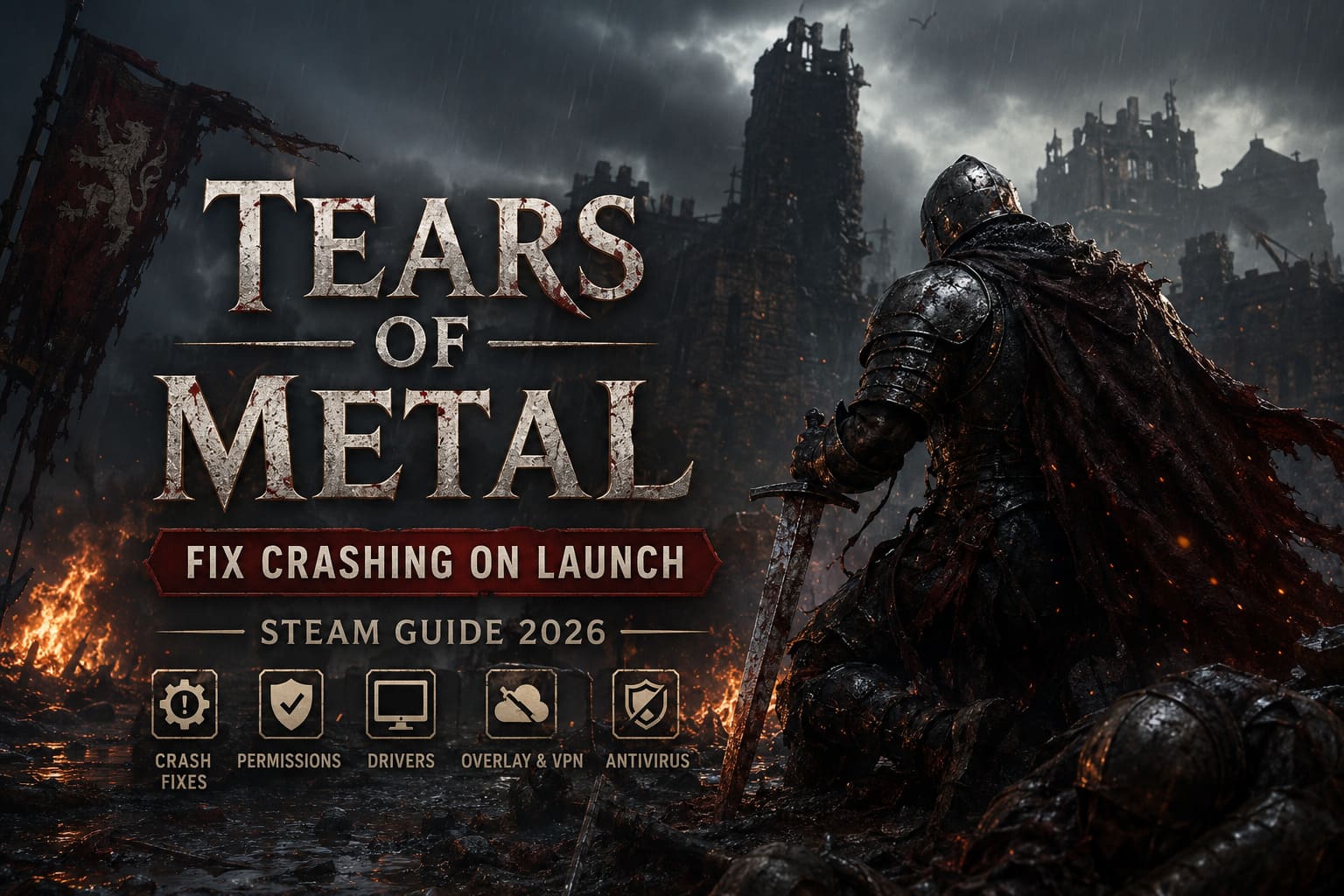
If Tears of Metal crashes on launch, freezes before reaching the menu, or refuses to start at all, these are the fixes worth trying first.
Why Tears of Metal Fails to Start
Modern PC games perform a surprising amount of work before the main menu appears. During startup, the game initializes graphics APIs, loads configuration files, verifies save data, compiles shaders, and establishes online services.
If any of those steps fail, the game can crash before displaying a useful error message.
The most common causes reported by players include:
- Corrupted configuration files
- Damaged local save data
- Missing Steam installation files
- Outdated graphics drivers
- Overlay software conflicts
- Windows permission restrictions
- Antivirus interference
- Shader compilation failures
The good news is that most of these problems can be fixed without reinstalling Windows or replacing hardware.
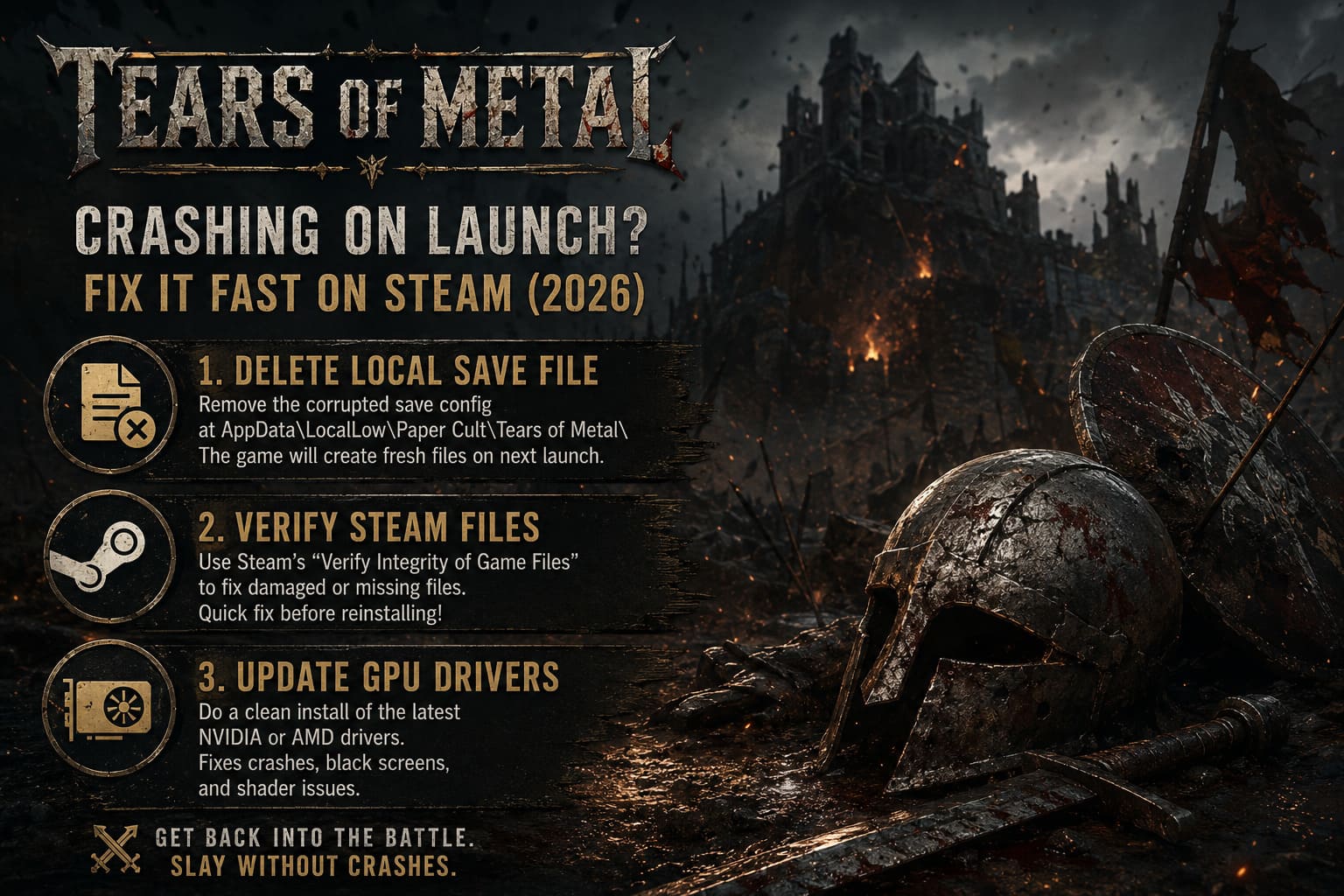
Fix #1 – Delete the Local Save Configuration
This was the solution that worked for me personally.
Even players launching the game for the first time generate local files during the initial startup process. If that process is interrupted, those files can become corrupted and cause the game to crash every time afterward.
To reset the game’s local data:
- Fully close Steam.
- Press Windows + R.
- Enter:
%USERPROFILE%\AppData\LocalLow\Paper Cult\Tears of Metal\ - Open the folder.
- Locate the save-related text file.
- Delete it.
- Restart Steam and launch the game again.
Several players reported that the game booted normally immediately after removing the corrupted startup file.
Why This Works
The game generates fresh configuration files during the next launch. If the previous file contained invalid data, the startup process no longer gets stuck trying to read it.
Fix #2 – Verify Steam Files Before Reinstalling
One mistake I see repeatedly is players immediately uninstalling and reinstalling a game.
In reality, Steam’s built-in verification tool often fixes launch problems much faster.
How to Verify Files
| Step | Action |
|---|---|
| 1 | Open Steam Library |
| 2 | Right-click Tears of Metal |
| 3 | Select Properties |
| 4 | Open Installed Files |
| 5 | Click Verify Integrity of Game Files |
| 6 | Wait for completion |
If any files are damaged or missing, Steam automatically downloads replacements.
I’ve seen cases where only a single corrupted file prevented the game from launching.
A five-minute verification saved a full 60GB reinstall.
Fix #3 – Update GPU Drivers the Right Way
Many players say, “My drivers are already updated.”
Sometimes they are.
Sometimes Windows thinks they are.
Those are not always the same thing.
When a newly released game uses newer rendering features, old driver components left behind from previous versions can create stability problems.
NVIDIA Users
I strongly recommend:
- Downloading the newest Game Ready Driver
- Choosing Custom Installation
- Selecting Perform Clean Installation
This removes old profiles and replaces potentially corrupted driver components.
AMD Users
AMD’s cleanup utility can achieve similar results.
A clean installation often resolves:
- Black screens
- Startup crashes
- Shader compilation failures
- Random desktop crashes
After installing new drivers, always reboot before testing the game again.
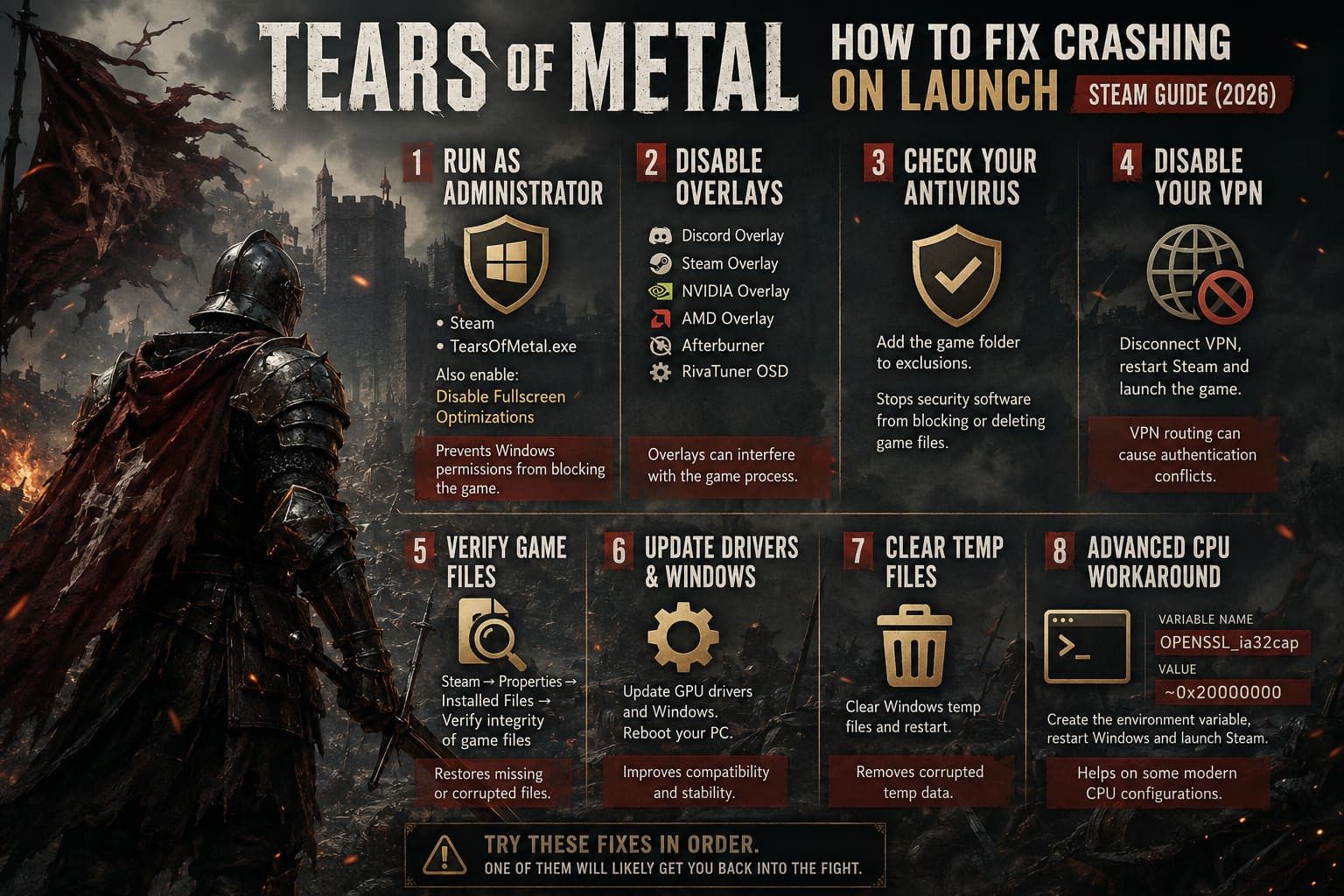
Fix #4 – Launch Both Steam and the Game as Administrator
This sounds old-fashioned, but it still solves surprising numbers of PC gaming issues.
Some systems restrict applications from creating files or modifying directories unless elevated permissions are granted.
What to Change
Enable Run as Administrator for:
- Steam
- TearsOfMetal.exe
While you’re in the compatibility settings, also enable:
Disable Fullscreen Optimizations
I’ve personally seen this option eliminate startup problems in several Unreal Engine and Unity-based titles.
Expected Result
If Windows permissions were blocking access to required files, the game should now launch normally.
Fix #5 – Disable Overlays Before Testing
This is probably the most overlooked troubleshooting step.
Overlay software injects itself directly into a running game process. Most of the time that works fine.
Sometimes it doesn’t.
The biggest offenders are usually:
| Application | Feature to Disable |
|---|---|
| Discord | In-Game Overlay |
| Steam | Steam Overlay |
| NVIDIA App | Instant Replay / Overlay |
| AMD Adrenalin | Overlay Features |
| MSI Afterburner | Monitoring Overlay |
| Rivatuner | OSD Injection |
I usually disable every overlay before troubleshooting a launch issue.
If the game suddenly starts working, re-enable them one at a time until you find the culprit.
Fix #6 – Check Your Antivirus
Security software has become increasingly aggressive over the past few years.
Some antivirus suites flag newly released game executables until reputation systems have collected enough data.
Symptoms often include:
- Launching then instantly closing
- Missing executable files
- Silent crashes
- Blocked save creation
Recommended Approach
Add the entire Tears of Metal installation folder to your antivirus exclusions list.
If you’re using Windows Defender:
- Open Windows Security.
- Navigate to Virus & Threat Protection.
- Open Exclusions.
- Add the game folder.
This prevents real-time scanning from interfering with the launch process.
Fix #7 – Temporarily Disable Your VPN
I know many players run VPNs permanently these days.
However, several launch authentication systems don’t always play nicely with encrypted routing.
Before spending hours troubleshooting:
- Disconnect the VPN
- Restart Steam
- Launch the game
If the game suddenly works, you’ve identified the source of the conflict.
You can then experiment with different VPN protocols or locations.
Fix #8 – Advanced CPU Compatibility Workaround
This is not necessary for most players.
However, users with certain modern Intel and AMD processors have reported compatibility issues involving OpenSSL-related calculations during startup.
If you’ve already tried every standard fix and the game still crashes instantly, creating the following Windows environment variable may help.
| Variable Name | Value |
|---|---|
| OPENSSL_ia32cap | ~0x20000000 |
After creating the variable:
- Restart Windows.
- Launch Steam again.
- Test the game.
This is definitely an advanced fix, but it has helped a small number of users dealing with stubborn launch failures.
Tears of Metal Save Data Transfer: Can You Carry Progress to Full Game?
My Recommended Troubleshooting Order
If you’re short on time, this is the exact order I’d follow:
- Delete local save/config files.
- Verify Steam files.
- Disable overlays.
- Update GPU drivers.
- Run as administrator.
- Add antivirus exclusions.
- Disable VPN.
- Try advanced compatibility fixes.
Following that sequence solves the overwhelming majority of startup problems reported by players.
Tears of Metal Base Building Guide: How to Expand Your Settlement Fast
Final Thoughts
As much as I’m enjoying Tears of Metal, launch-week technical issues are clearly affecting a portion of the player base. The good news is that most startup crashes appear to be tied to local system conflicts rather than a permanently broken game client.
From what I’ve seen in community discussions, the biggest success stories come from deleting corrupted local configuration data and disabling software that hooks into the game during startup. Those two fixes alone seem responsible for a large percentage of successful launches.
If you’re still stuck after trying everything above, don’t just keep reinstalling the game repeatedly. Check the game’s log files, gather crash information, and send it to the developers. Detailed reports help fixes arrive faster for everyone.
Hopefully one of these solutions gets you past the launch screen and onto the battlefield where Tears of Metal is actually meant to be played. Once the game runs properly, it’s easy to see why so many players were excited about it in the first place.