SpiritVale Crash on Launch: How to Fix Startup Freezes, Black Screen, and Server Disconnection in Early Access (2026 Guide)
When SpiritVale finally arrived in Steam Early Access on July 15, 2026, I expected crowded zones, chaotic grinding parties, and plenty of nostalgic Ragnarok-style gameplay. What I didn’t expect was spending my first hour troubleshooting startup crashes instead of leveling.
The game has attracted a huge number of players thanks to its old-school MMORPG design, class-focused progression, and permanent servers. Unfortunately, launch day has also been rough for a noticeable number of PC users. Some players can’t get past the splash screen, others freeze during loading, while many simply crash back to desktop before reaching the login menu.
After reading community discussions, comparing different hardware configurations, and testing several solutions myself, I noticed something interesting: there isn’t one universal fix. Different systems fail for different reasons. The good news is that most startup problems can be solved without reinstalling Windows or replacing drivers.
If SpiritVale keeps crashing on launch, freezing at startup, showing a black screen, or disconnecting before entering the game world, these are the fixes worth trying first.
Why SpiritVale Is Having Startup Problems
Early Access launches are rarely perfect, especially for online games with thousands of players joining simultaneously.
SpiritVale isn’t suffering from one massive bug. Instead, several smaller issues combine into frustrating launch failures.
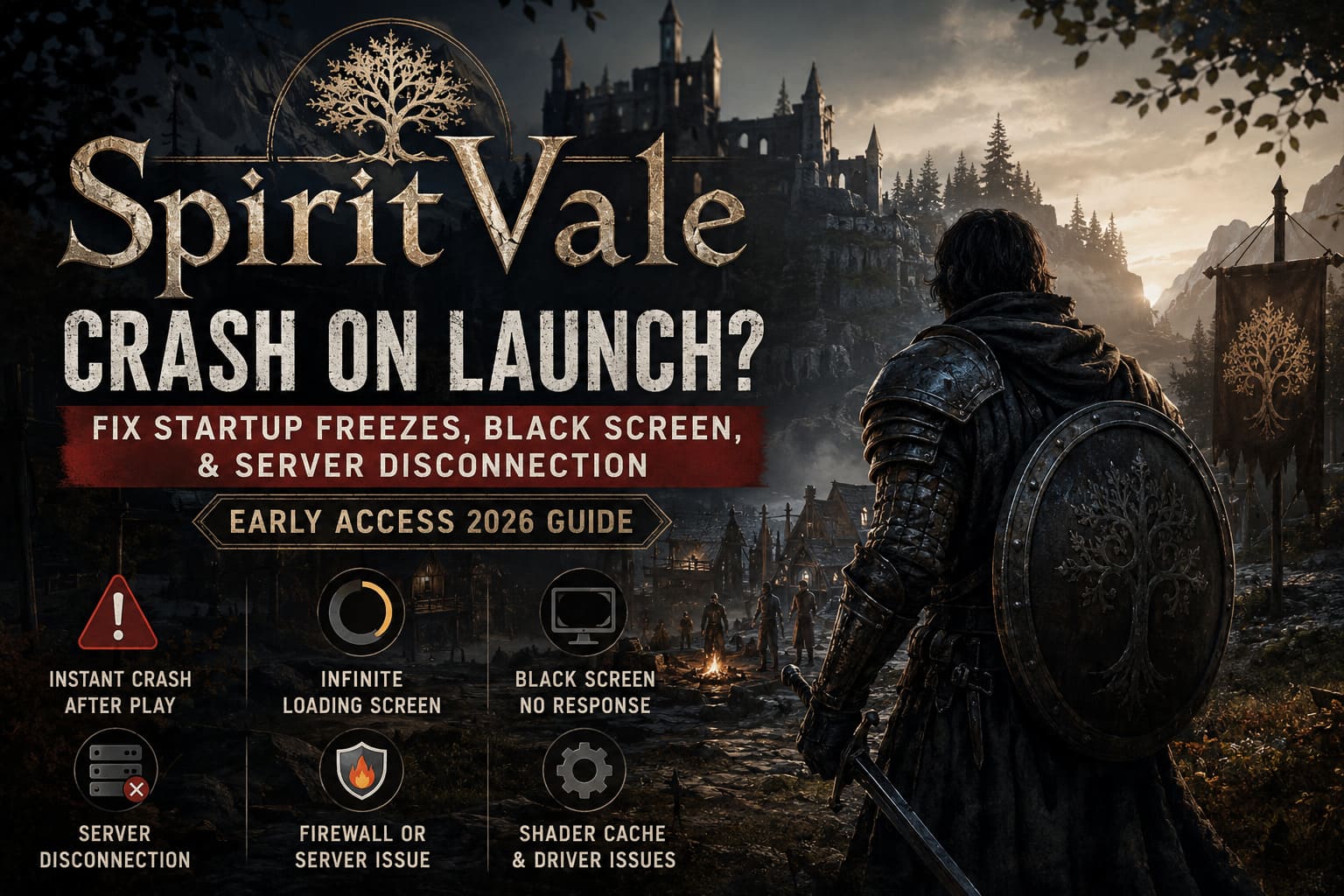
The most common causes include:
- corrupted local configuration files
- graphics API compatibility problems
- shader cache conflicts
- overlay software interfering with fullscreen initialization
- temporary server synchronization issues
- damaged Steam installation files
The important thing to remember is that your character data is stored online. In most situations, deleting local files only resets your settings—not your progression.
Symptoms Players Are Reporting
Although every PC is different, most complaints fall into the same categories.
| Problem | Most Likely Cause | Difficulty to Fix |
|---|---|---|
| Instant crash after clicking Play | Graphics initialization | Easy |
| Yellow loading circle never finishes | Corrupted local cache | Easy |
| Black screen with no response | Overlay conflict | Medium |
| Infinite loading screen | Server synchronization | Easy |
| Disconnect before character selection | Firewall or server issue | Medium |
| Crash after intro logos | Shader cache or graphics drivers | Medium |
Fortunately, almost every one of these has at least one reliable workaround.
Fix #1 — Delete the Local Configuration Folder
This is the first solution I recommend because it’s both quick and surprisingly effective.
Several players who participated in previous demos or testing periods discovered that old configuration files continued causing problems after the Early Access release.
Deleting the local folder forces SpiritVale to rebuild everything from scratch.
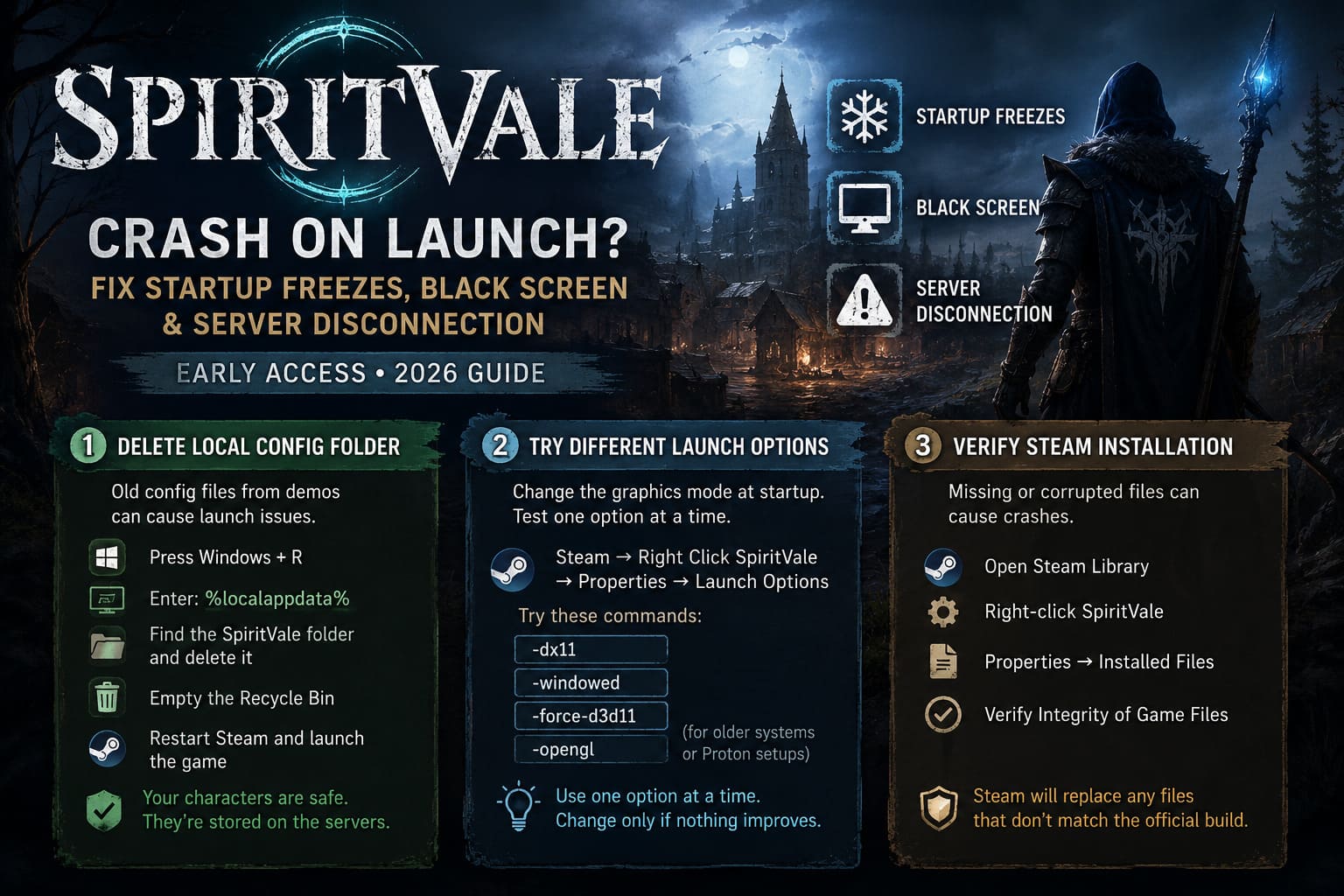
Steps:
- Press Windows + R
- Enter:
%localappdata% - Find the SpiritVale folder.
- Delete it.
- Empty the Recycle Bin.
- Restart Steam.
- Launch the game again.
Your online characters remain safe because they’re stored on the game’s servers.
Fix #2 — Try Different Launch Options
Graphics initialization appears to be one of the biggest launch-day headaches.
If the default renderer crashes immediately, forcing another startup mode can sometimes bypass the issue completely.
Inside Steam:
Library → Right Click SpiritVale → Properties
Under Launch Options, test one command at a time.
Possible launch parameters include:
- -dx11
- -windowed
- -force-d3d11
- -opengl (mainly worth testing on older systems or Proton environments)
Don’t stack every option together immediately. Try one, launch the game, and only change it if nothing improves.
Fix #3 — Verify the Steam Installation
Large Early Access launches always generate heavy download traffic.
Interrupted downloads can leave missing or corrupted game files without Steam clearly warning you.
Verifying the installation takes only a few minutes.
Steps
- Open Steam Library
- Right-click SpiritVale
- Select Properties
- Open Installed Files
- Click Verify Integrity of Game Files
Steam will automatically replace anything that doesn’t match the official build.
Fix #4 — Run the Game with Administrator Rights
Modern Windows security sometimes blocks new games from accessing folders they need during the first launch.
Running the executable as Administrator solved repeated startup crashes for several players.
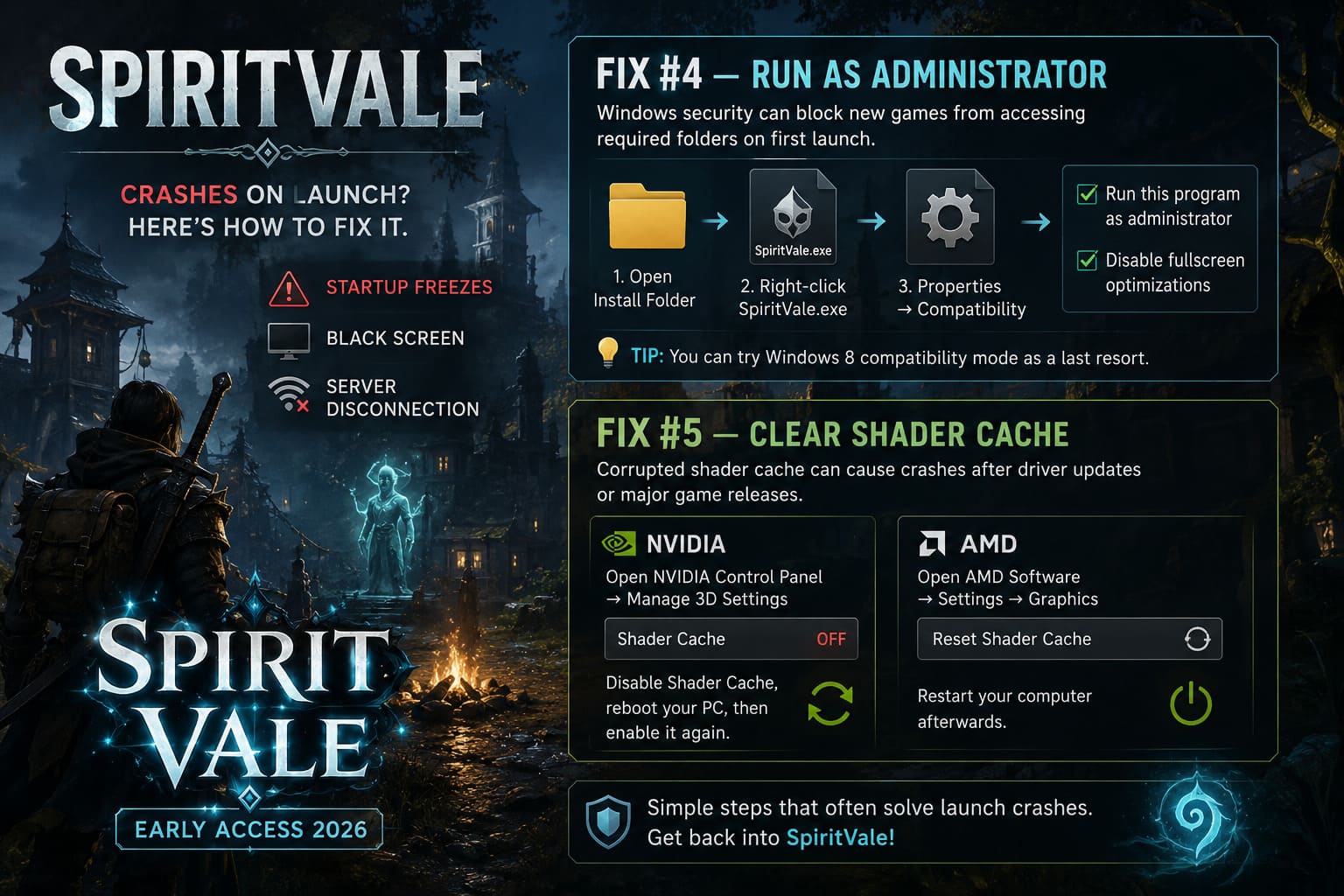
Navigate to the installation folder.
Find:
SpiritVale.exe Open Properties → Compatibility
Enable:
- Run this program as administrator
- Disable fullscreen optimizations
If nothing changes, you can also experiment with Windows 8 compatibility mode, although I would leave this as a last resort rather than the first thing to try.
Fix #5 — Clear Your Shader Cache
This one doesn’t get mentioned enough.
Graphics drivers store compiled shaders to reduce loading times, but those cached files occasionally become incompatible after driver updates or major game releases.
Instead of rebuilding them automatically, some games simply crash.
NVIDIA
Open NVIDIA Control Panel.
Locate:
Manage 3D Settings
Temporarily disable Shader Cache, reboot your PC, then enable it again.
This forces the cache to rebuild.
AMD
Inside AMD Software:
Settings → Graphics → Reset Shader Cache
Restart your computer afterward.
It’s a simple step, but one that’s fixed launch crashes for me in several Unreal and Unity titles over the past few years.
Don’t Ignore Overlay Software
This has become one of the most common causes of mysterious PC game crashes.
Every overlay hooks into the rendering pipeline differently.
Even if each application works perfectly on its own, combining multiple overlays can create conflicts.
I’d recommend temporarily disabling:
- Steam Overlay
- Discord Overlay
- NVIDIA GeForce Experience Overlay
- MSI Afterburner
- RivaTuner Statistics Server
- Xbox Game Bar
If the game launches successfully afterward, you can re-enable them one at a time until you discover which one is causing problems.
Infinite Loading Screen? It Might Not Be Your PC
One mistake many players make is assuming every loading problem originates from their hardware.
During the first few hours of Early Access, server infrastructure changes constantly.
Developers restart services.
Authentication servers refresh.
Login queues rebuild.
If you’re stuck on an endless loading spinner immediately after maintenance, patience can actually be the correct solution.
What worked for many players was:
- close the game completely
- end any remaining SpiritVale processes in Task Manager
- wait around 10 minutes
- restart Steam
- log in again
It sounds almost too simple, but server synchronization often needs a few minutes after updates.
Firewall and Antivirus Can Interrupt Login
Another issue worth checking is Windows security.
Because SpiritVale communicates continuously with online servers, aggressive firewall rules can interrupt authentication before character selection.
If you’re using:
- Windows Defender
- Malwarebytes
- Avast
- Bitdefender
- Norton
make sure SpiritVale.exe is allowed through both the firewall and antivirus protection.
Sometimes security software doesn’t fully block the application—it simply interrupts one network request, leaving the client endlessly loading.
Unexpected Background Programs
One trend I noticed across community discussions is that hardware utility software appears surprisingly often in crash reports.
Applications designed to monitor RGB lighting, motherboard temperatures, or audio enhancements sometimes inject services directly into games.
If SpiritVale refuses to start, temporarily close utilities such as:
- ASUS Armoury Crate
- MSI Center
- Sonic Studio
- Nahimic Audio
- RGB controller software
They’re useful programs, but they’re also frequent suspects whenever a new PC game launches.
SpiritVale Leveling Guide 2026: Fast Power Grinding Zones & XP Meta
My Suggested Troubleshooting Order
Instead of randomly trying dozens of fixes, I’d work through them in this order.
| Priority | Fix | Success Rate |
|---|---|---|
| 1 | Delete Local AppData | Very High |
| 2 | Verify Steam Files | High |
| 3 | Disable Overlays | High |
| 4 | Change Launch Options | Medium |
| 5 | Clear Shader Cache | Medium |
| 6 | Administrator Mode | Medium |
| 7 | Firewall Exceptions | Medium |
| 8 | Wait After Server Maintenance | Situational |
SpiritVale Gear Customization Guide: Card System & Refining Tutorial
A Few Final Thoughts
One thing I’ve learned after years of jumping into MMO launches is that Early Access day rarely reflects the long-term quality of a game.
SpiritVale clearly has a passionate vision behind it. The old-school progression, cooperative grinding, and sandbox design are exactly the kind of experience many MMORPG fans have been missing for years. That said, launch-day technical hiccups are part of the reality when a small development team suddenly has thousands of players connecting at once.
If your game refuses to start today, don’t immediately assume your PC is the problem. In many cases, it’s simply a combination of fresh game builds, driver quirks, cached files, or temporary server instability. Work through the fixes methodically instead of changing everything at once—you’ll have a much easier time identifying what actually solved the issue.
With each hotfix, SpiritVale is likely to become more stable, but until then, clearing old configuration files, verifying your installation, disabling unnecessary background software, and keeping your graphics drivers up to date remain the best ways to get back into the game.
Hopefully, the next time you click Play, you’ll be spending your evening hunting monsters and farming gear instead of staring at a frozen loading screen.