How to Fix EA App Launch Error for EA SPORTS College Football 27 on Steam (Complete Guide)
There are few things more frustrating than buying a game you’ve been waiting months for, clicking Play on Steam, watching the EA App appear for a split second… and then absolutely nothing happens.
That was my first experience with EA SPORTS College Football 27 on PC.
Instead of jumping into Dynasty Mode, I spent nearly an hour fighting launcher errors, anti-cheat issues, and the infamous message saying that “An error on our end caused your launch to fail.” Judging by Reddit discussions, Steam Community posts, and EA forum threads, I quickly realized I wasn’t the only one.
The good news is that, unlike many launch-day problems, this one usually isn’t caused by broken hardware or even a damaged game installation. In most cases, it’s simply the EA App refusing to cooperate with Steam.
After trying numerous community fixes, I found several solutions that consistently work. Some solved the issue immediately, while others helped after a game update broke everything again.
If you’re stuck at the launcher instead of the kickoff, here’s everything worth trying.
Why EA SPORTS College Football 27 Refuses to Launch
The biggest misconception is that the game itself is crashing.
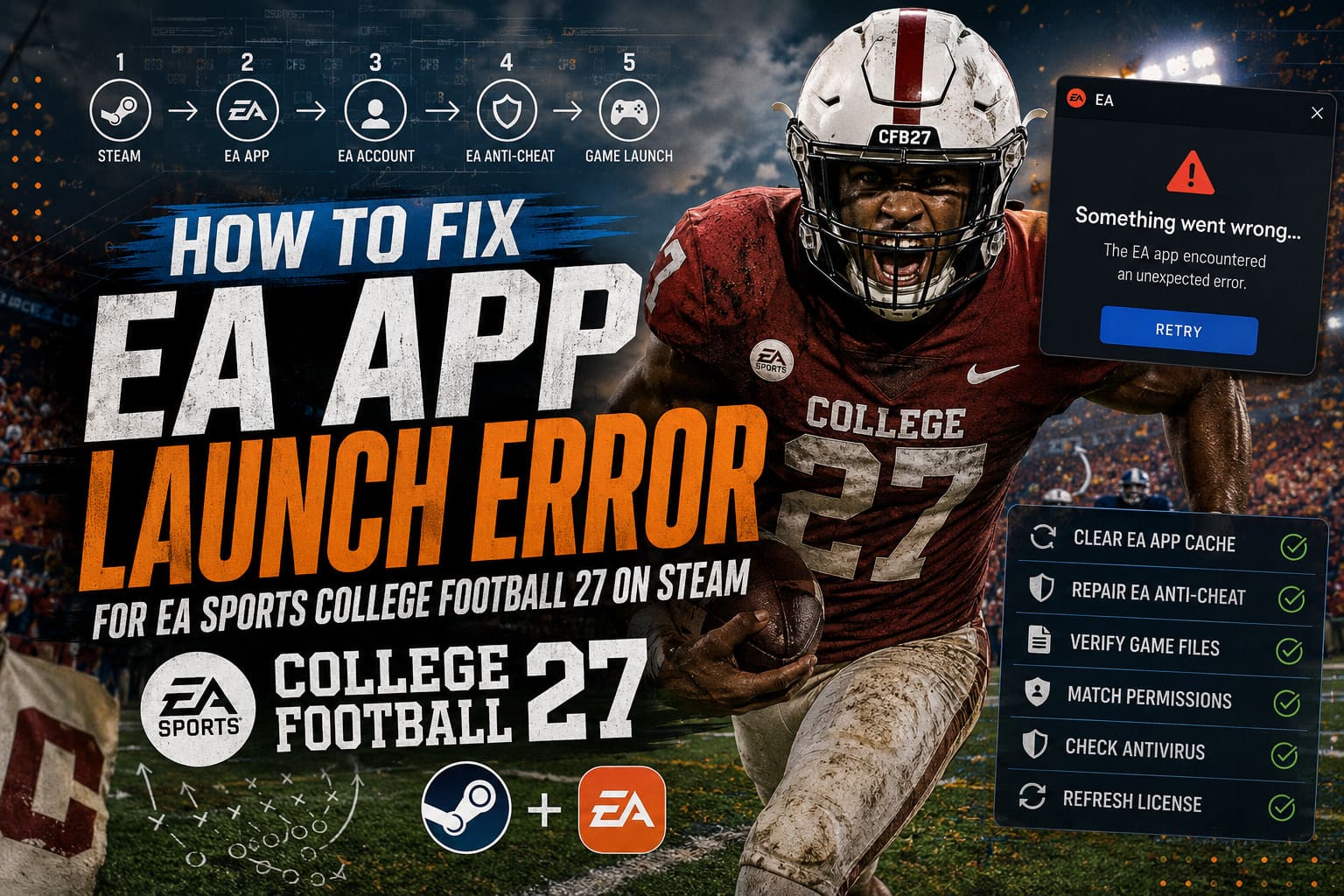
Most of the time, the game never actually starts.
Before College Football 27 launches, several things have to happen in sequence:
| Step | What Happens |
|---|---|
| 1 | Steam verifies ownership. |
| 2 | Steam opens the EA App. |
| 3 | EA App verifies your EA account. |
| 4 | EA Anti-Cheat starts. |
| 5 | The game executable finally launches. |
If even one of these steps fails, Steam simply returns to its normal state as if you never clicked Play.
That’s why reinstalling the entire game often doesn’t solve anything—the problem usually exists before the game itself is even running.
Fix #1 — Clear the EA App Cache (This Solved It for Me)
If I had to recommend only one solution, this would be it.
The EA App stores temporary login files and cached authentication data. After updates, these files occasionally become corrupted, confusing the launcher.
Thankfully, EA built a recovery tool directly into the application.
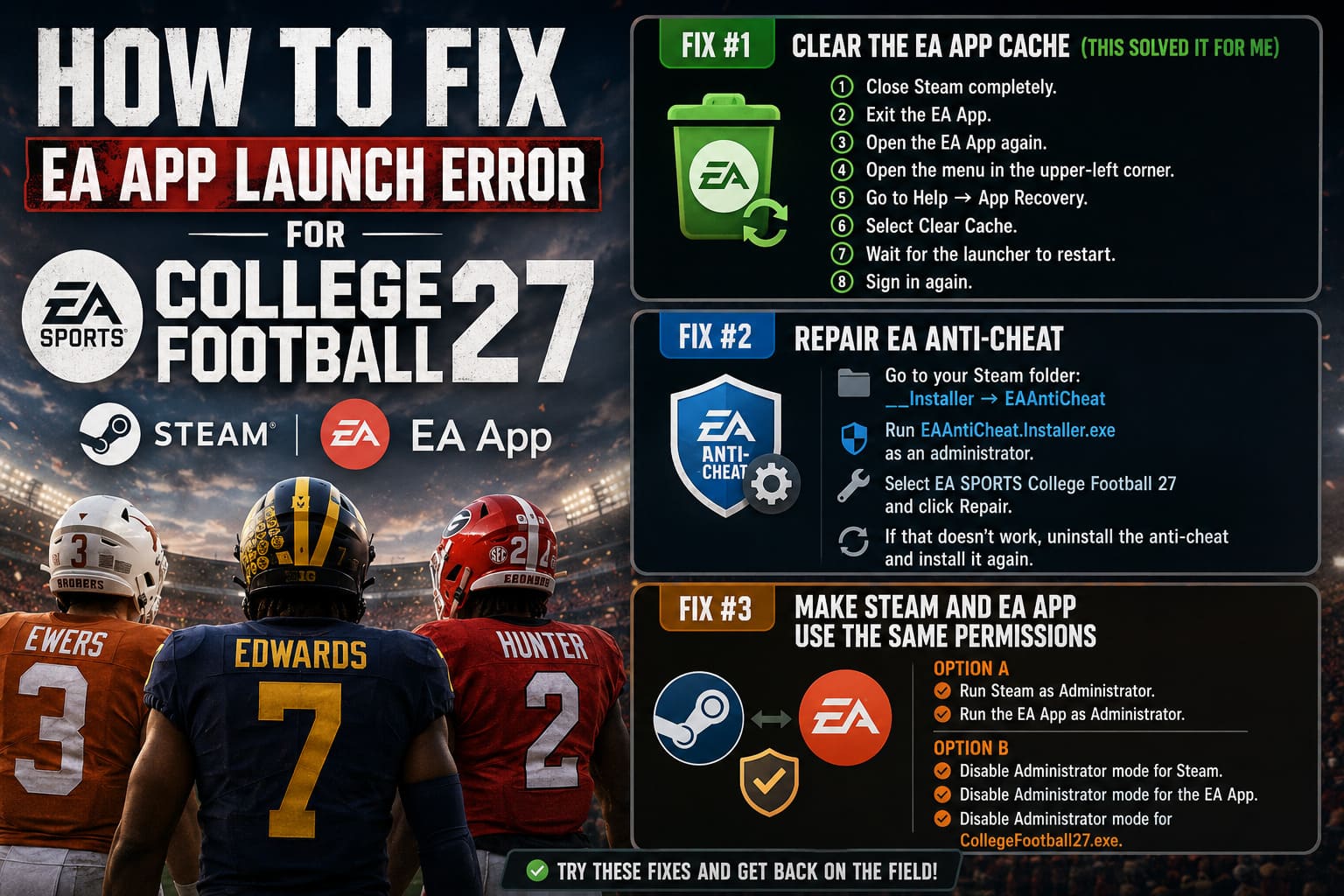
Simply follow these steps:
- Close Steam completely.
- Exit the EA App.
- Open the EA App again.
- Open the menu in the upper-left corner.
- Go to Help → App Recovery.
- Select Clear Cache.
- Wait for the launcher to restart.
- Sign in again.
It sounds almost too simple, but after doing this, the launcher behaved normally again.
Fix #2 — Repair EA Anti-Cheat
One thing I’ve noticed with recent EA releases is that EA Anti-Cheat is incredibly sensitive.
If Windows blocks even part of the service, the game often closes instantly without displaying any meaningful error.
Instead of reinstalling the whole game, repair the anti-cheat installation directly.
Navigate to your Steam installation folder and open the following directory:
__Installer → EAAntiCheat
Run EAAntiCheat.Installer.exe as an administrator.
Inside the installer, choose EA SPORTS College Football 27 and click Repair.
If that doesn’t solve the problem, open the installer again, uninstall the anti-cheat, and then install it once more.
The entire process usually takes only a few minutes.
Fix #3 — Make Steam and EA App Use the Same Permissions
This one genuinely surprised me.
For years, PC gamers have recommended running everything as Administrator.
Sometimes that’s the right solution.
Sometimes it actually creates the issue.
The important thing is consistency.
If Steam launches normally while the EA App uses administrator privileges—or vice versa—the authentication process may fail.
Try both of these configurations before moving on.
Option A
- Run Steam as Administrator.
- Run the EA App as Administrator.
If that doesn’t work, try the opposite approach.
Option B
- Disable Administrator mode for Steam.
- Disable Administrator mode for the EA App.
- Disable Administrator mode for CollegeFootball27.exe.
I’ve personally seen both setups solve the launcher issue depending on the Windows installation.
Fix #4 — Force the EA App to Refresh Online
This feels like one of those strange internet tricks that shouldn’t work.
Yet surprisingly, it often does.
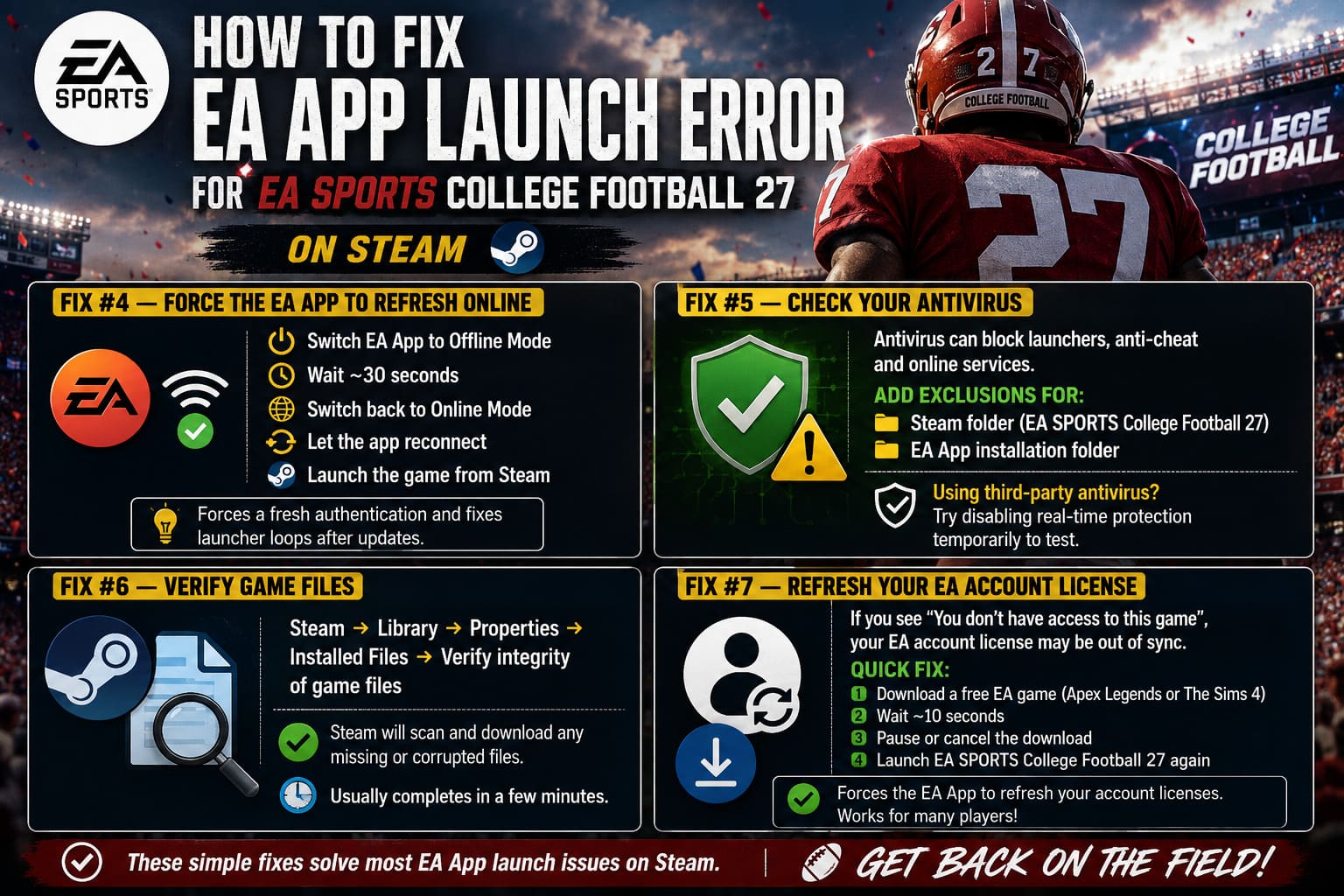
Inside the EA App:
- Switch the launcher to Offline Mode.
- Wait around thirty seconds.
- Return to Online Mode.
- Allow the launcher to reconnect.
- Launch the game from Steam.
It appears to force a fresh authentication request instead of relying on an outdated session.
Many players reported that this fixed endless launcher loops after recent updates.
Fix #5 — Check Your Antivirus
Modern antivirus software loves blocking newly released games.
Unfortunately, launchers, anti-cheat software, and online authentication services often look suspicious to security applications.
If Windows Defender or another antivirus quarantines even one important launcher component, the game may never start.
Add exclusions for the following folders:
- Your Steam installation folder containing EA SPORTS College Football 27.
- The EA App installation directory.
If you’re using third-party antivirus software, temporarily disable real-time protection long enough to see whether it is causing the conflict.
If the game launches afterward, you’ve found the source of the problem.
Fix #6 — Verify Game Files
This is one of the oldest troubleshooting methods, but it’s still worth trying.
Large day-one patches occasionally leave behind incomplete or corrupted files.
Open the following menu inside Steam:
Library → Properties → Installed Files → Verify integrity of game files
The verification process usually finishes within several minutes depending on your storage device.
If Steam detects damaged files, it will automatically download only the missing or corrupted data instead of reinstalling the entire game.
Fix #7 — Refresh Your EA Account License
This workaround sounded ridiculous when I first heard about it.
Then I saw dozens of players reporting exactly the same result.
If you’re receiving the message stating “You don’t have access to this game”, your EA account license may simply be out of sync.
Downloading another free EA game forces the launcher to refresh your account licenses.
Good options include:
- Apex Legends
- The Sims 4
Start downloading one of them.
Wait around ten seconds.
Pause or cancel the download.
Then return to EA SPORTS College Football 27 and launch it again.
If your account synchronization was stuck, this simple trick often fixes it immediately.
A Few Extra Things Worth Trying
These aren’t guaranteed fixes, but they can eliminate smaller compatibility issues that occasionally interfere with the launcher.
Disable Overlays
Running multiple overlays at the same time can interfere with launcher initialization.
Try disabling:
- Steam Overlay
- Discord Overlay
- NVIDIA Overlay
- AMD Overlay
Launch the game afterward to determine whether one of them was responsible.
Install the Game on an SSD
I’ve seen players running the game from older mechanical hard drives experience noticeably longer anti-cheat initialization times.
While the game technically supports HDDs, installing it on an SSD provides faster loading and smoother authentication.
Keep Windows Updated
It sounds boring, but outdated Windows components occasionally create problems for launcher-based games.
Installing pending Windows updates also refreshes important system libraries and security components that the EA App depends on.
How to Fix EA App Crashes Back to Library When Launching EA SPORTS College Football 27
My Recommended Troubleshooting Order
Instead of trying every possible solution randomly, I’d recommend following this order.
| Priority | Fix | Difficulty |
|---|---|---|
| 1 | Clear EA App Cache | Very Easy |
| 2 | Repair EA Anti-Cheat | Easy |
| 3 | Verify Steam Files | Easy |
| 4 | Match Administrator Permissions | Medium |
| 5 | Toggle Offline Mode | Very Easy |
| 6 | Add Antivirus Exceptions | Medium |
| 7 | Refresh EA License with a Free Game | Easy |
Starting with the easiest fixes saves a lot of unnecessary reinstallations and wasted time.
EA SPORTS College Football 27 Team Skill Points Allocation Tips: Dominate the Gridiron in CUT 27
Final Thoughts
Launch-day issues are never fun, especially when they happen before you even reach the main menu. The frustrating part about EA SPORTS College Football 27 isn’t that the game itself is unstable—it’s that the connection between Steam, the EA App, and EA Anti-Cheat can break for surprisingly small reasons.
After helping a few friends troubleshoot their installations, one pattern became clear: most successful fixes don’t involve reinstalling the entire game. In fact, the majority of launch problems come down to clearing corrupted cache files, repairing the anti-cheat service, or getting Steam and the EA App synchronized again.
If you’re still running into launcher errors after trying every solution above, keep an eye out for updates from both Steam and the EA App. During launch week, small background patches often resolve authentication problems without requiring a full game update.
Hopefully one of these methods gets you past the launcher and onto the field. Building a championship dynasty is a far better way to spend your time than staring at another frustrating error message.