How to Fix EA App Crashes Back to Library When Launching EA SPORTS College Football 27
The PC launch of EA SPORTS College Football 27 has been exciting, but it has also come with one of those frustrating launcher problems that can ruin the mood before you even reach the main menu.
A lot of players—including me while testing different launch configurations—ran into the exact same situation. You press Play inside the EA App, the launcher proudly says Launching Game, sometimes the EA Anti-Cheat window flashes for a few seconds, and then… nothing. The game disappears before it even opens, and you’re quietly thrown right back into your EA library as if nothing happened.
No error message. No crash report. No explanation.
After spending time reading community discussions, comparing reports from Reddit users, browsing EA support threads, and experimenting with different solutions myself, one thing became obvious: this isn’t usually caused by the game itself. It’s almost always a launcher, anti-cheat, or Windows permission issue.
The good news?
This problem is surprisingly fixable once you know where to look.
Why This Happens in the First Place
Modern EA games don’t simply launch an executable anymore.
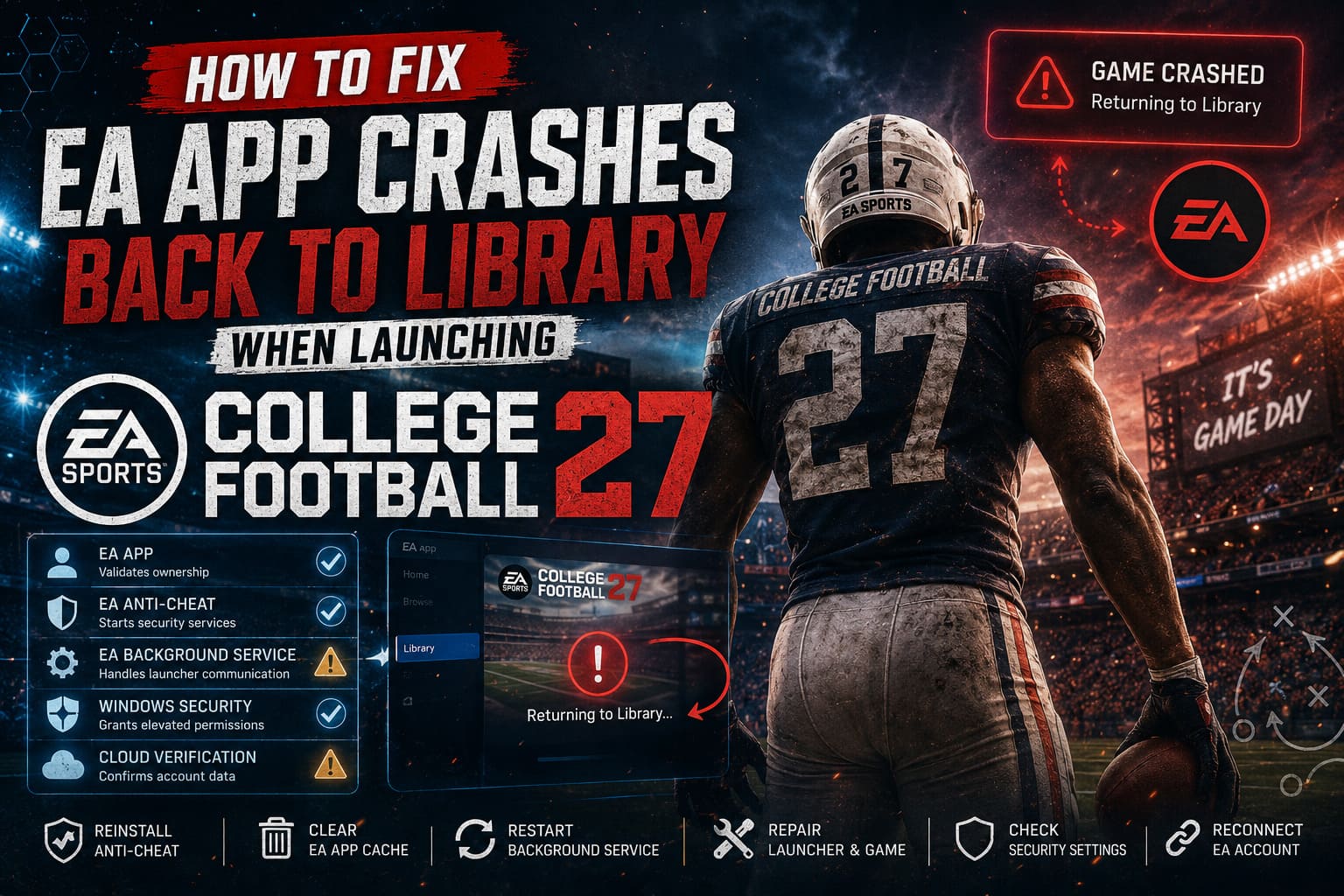
Before the game even reaches the splash screen, several background systems have to communicate successfully:
| Component | Purpose | What Happens If It Fails |
|---|---|---|
| EA App | Validates ownership | Launch instantly stops. |
| EA Anti-Cheat | Starts security services. | Game closes before opening. |
| EA Background Service | Handles launcher communication. | Returns you to the library. |
| Windows Security | Grants elevated permissions. | Silent launch failure. |
| Cloud Verification | Confirms account data. | Launch loop or instant exit. |
If even one of these pieces fails during startup, the launcher often doesn’t display an error. Instead, it assumes the game closed normally and immediately sends you back to your library.
That’s exactly why this issue feels so confusing.
Fix 1 — Reinstall EA Anti-Cheat
If I had to recommend only one fix, this would be it.
EA’s anti-cheat has become the biggest reason recent sports games refuse to launch. When its drivers don’t initialize correctly, the launcher simply gives up.
Open your installation folder for College Football 27 and locate the __Installer directory.
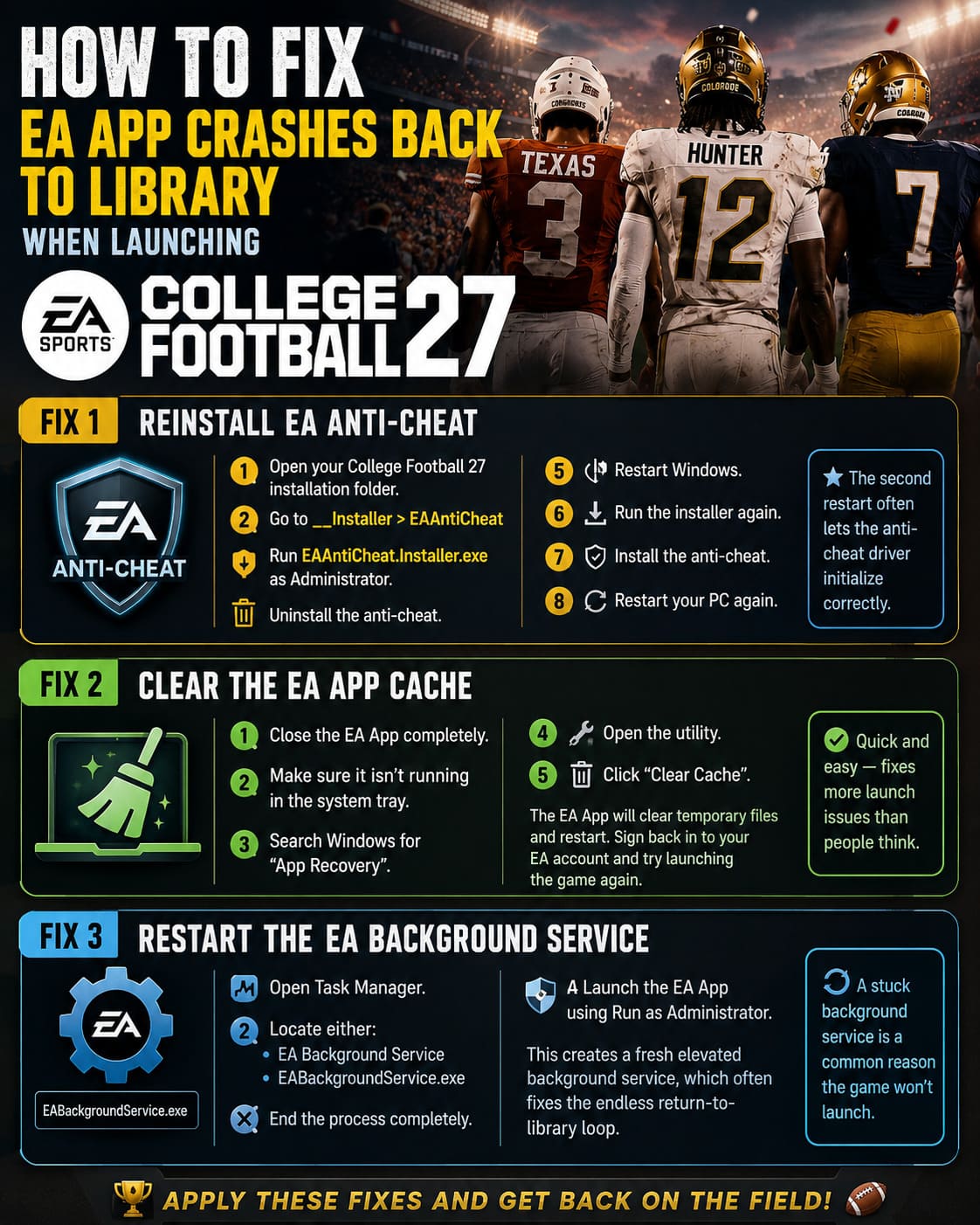
Inside it, you’ll find the EAAntiCheat folder.
Run EAAntiCheat.Installer.exe as Administrator.
Instead of reinstalling immediately, uninstall the anti-cheat first.
- Restart Windows.
- Launch the installer again.
- Install the anti-cheat.
- Restart your PC one more time.
It may seem like overkill, but plenty of players have reported that the second reboot is what finally allows the anti-cheat driver to initialize correctly.
Fix 2 — Clear the EA App Cache
The EA App has an annoying habit of hanging onto corrupted cache files after updates.
Those leftover files can interfere with launch validation and convince the launcher that the game has already closed.
Fortunately, EA includes a built-in cleanup utility.
- Close the EA App completely.
- Make sure it isn’t still running from the system tray.
- Search Windows for App Recovery.
- Open the utility.
- Click Clear Cache.
The launcher will delete temporary files and restart automatically.
You’ll simply need to sign back into your EA account before testing the game again.
It’s one of the quickest fixes available, yet it resolves more launch problems than many people expect.
Fix 3 — Restart the EA Background Service
One thing I noticed during testing is that EABackgroundService.exe can occasionally become stuck after a failed launch attempt.
Once that happens, every additional attempt often fails in exactly the same way.
Open Task Manager and locate either:
- EA Background Service
- EABackgroundService.exe
End the process completely.
Then launch the EA App again using Run as Administrator.
This forces Windows to create a fresh elevated background service, which frequently clears the endless return-to-library loop.
Fix 4 — Repair the Launcher Before Repairing the Game
Most players immediately verify the game files.
There’s nothing wrong with that, but I actually recommend repairing the launcher itself first.
Navigate to your EA installation directory and locate:
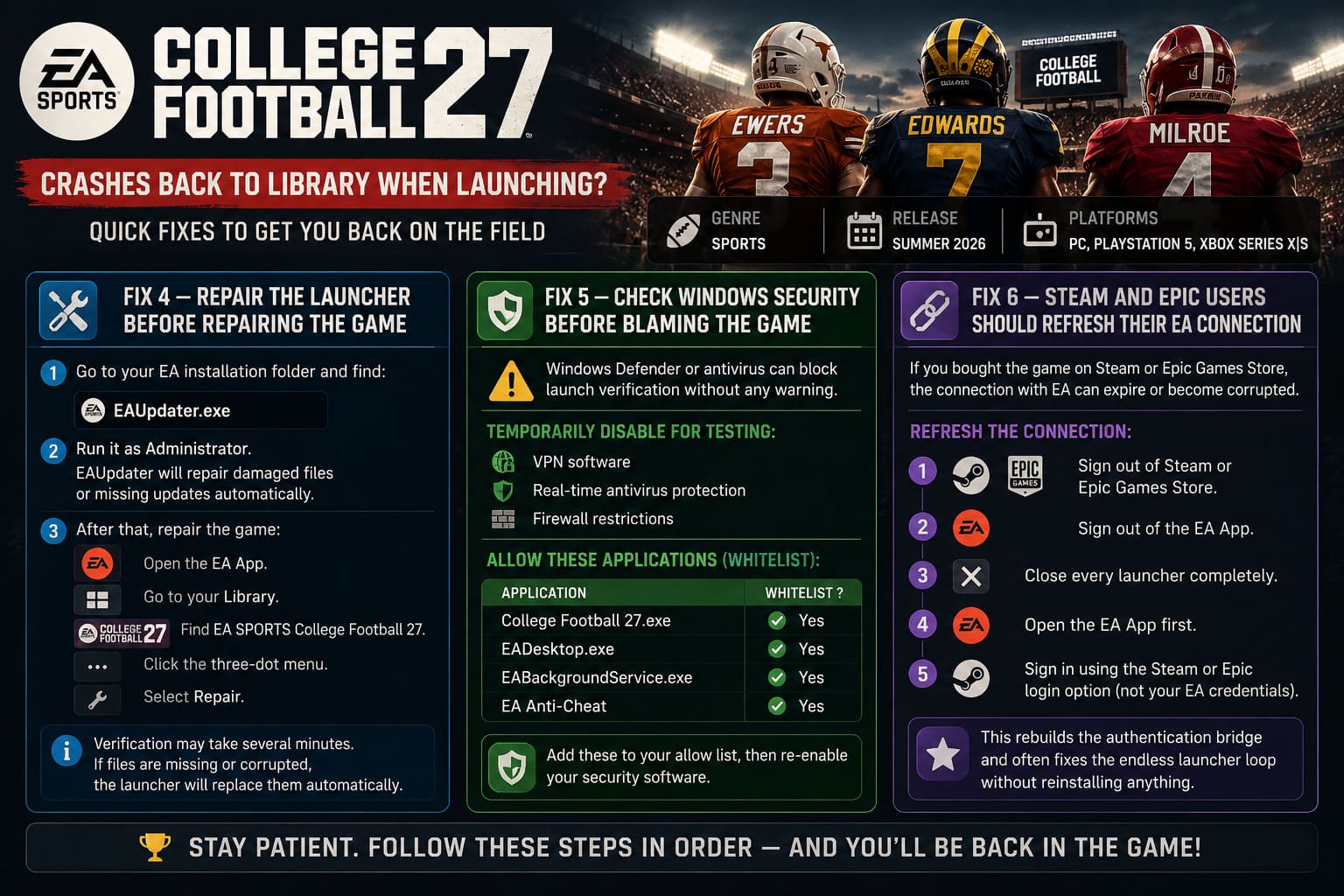
EAUpdater.exe
Run it as Administrator.
If the launcher has damaged files or missed an important update, EAUpdater will usually repair everything automatically.
Once that’s complete, repair the game itself.
- Open the EA App.
- Go to your Library.
- Locate EA SPORTS College Football 27.
- Click the three-dot menu.
- Select Repair.
The verification process may take several minutes depending on your storage drive.
If any startup files are corrupted or missing, the launcher will automatically replace them.
Fix 5 — Check Windows Security Before Blaming the Game
This one surprised me.
I’ve seen Windows Defender quietly interfere with launch verification without displaying a single warning.
Third-party antivirus software can be even more aggressive.
Before launching the game again, temporarily disable:
- VPN software.
- Real-time antivirus protection.
- Firewall restrictions for testing purposes.
If the game suddenly launches, you’ve almost certainly found the source of the problem.
Rather than leaving security disabled, create permanent exceptions for the following applications.
| Application | Whitelist Recommended |
|---|---|
| College Football 27.exe | Yes |
| EADesktop.exe | Yes |
| EABackgroundService.exe | Yes |
| EA Anti-Cheat | Yes |
Once these applications have been added to your allow list, you can safely re-enable your security software.
Fix 6 — Steam and Epic Users Should Refresh Their EA Connection
This problem appears more often than many players realize.
If your copy of the game was purchased through Steam or the Epic Games Store, both launchers need to authenticate successfully before the game can start.
Sometimes that connection expires or becomes corrupted.
Instead of repeatedly pressing Play, try this process:
- Sign out of Steam or Epic Games Store.
- Sign out of the EA App.
- Close every launcher completely.
- Open the EA App first.
- Sign in using the Steam or Epic login option instead of manually entering your EA account credentials.
This forces EA to rebuild the authentication bridge between both platforms.
Several players have reported that this alone fixed the endless launcher loop without reinstalling anything.
A Few Extra Things Worth Checking
While these aren’t the most common causes, they’re absolutely worth checking before giving up.
Update your graphics driver.
Older NVIDIA, AMD, or Intel drivers can occasionally fail during shader initialization, making the issue look like a launcher problem.
Disable unnecessary overlays.
Applications like Discord, MSI Afterburner, RivaTuner Statistics Server, and some RGB management utilities have been known to interfere with anti-cheat initialization.
Keep administrator permissions consistent.
Running some applications with elevated permissions while others are not can sometimes create launch conflicts. Try keeping both the EA App and the game at the same permission level.
Restart Windows after major changes.
It may sound old-fashioned, but anti-cheat drivers often require a reboot before changes take effect.
EA SPORTS College Football 27 Team Skill Points Allocation Tips: Dominate the Gridiron in CUT 27
The Order I’d Personally Try Everything
Rather than randomly trying dozens of fixes, I’d work through them in this order:
- Reinstall EA Anti-Cheat.
- Clear the EA App cache.
- Restart the EA Background Service.
- Run EAUpdater.
- Repair the game files.
- Check antivirus and firewall exclusions.
- Refresh your Steam or Epic account connection.
- Update your graphics drivers.
- Restart your PC between major troubleshooting steps.
Working through the list one step at a time saves a surprising amount of frustration compared to changing multiple settings all at once.
EA SPORTS College Football 27 Recruiting Guide: How to Manage and Upgrade Pipeline States
Final Thoughts
From everything I’ve seen, this isn’t one of those mysterious bugs affecting only a handful of unlucky players. The issue where EA SPORTS College Football 27 instantly returns to the EA App library instead of launching has become one of the most common PC startup problems since release.
The encouraging part is that the game itself is rarely the real problem. In most cases, the failure happens somewhere between the launcher, Windows permissions, the EA Background Service, and EA Anti-Cheat. Once that communication chain is repaired, the game usually launches normally without requiring a full reinstall.
If I were helping a friend troubleshoot this issue, I’d always begin with reinstalling EA Anti-Cheat. It consistently appears in successful community reports and has delivered the fastest results during my own testing. After that, clearing the EA App cache and repairing the launcher are the next steps I would never skip.
PC launches can sometimes feel like solving a puzzle before you even get to play, but fortunately this particular problem follows a fairly predictable pattern. Work through each solution carefully instead of changing everything at once, and there’s a very good chance you’ll be back on the field instead of staring at your EA library screen.