Assassin’s Creed Black Flag Resynced Handheld Performance Guide: How to Achieve 60 FPS on Steam Deck, ROG Ally, and Legion Go
When I first launched Assassin’s Creed Black Flag Resynced, I knew Ubisoft wasn’t joking about its new version of the Anvil engine. The Caribbean has never looked this alive. The lighting constantly changes as storms roll in, dense jungles cast realistic shadows, and every port feels packed with far more detail than the original game ever dreamed of.
Unfortunately, all of that visual beauty comes with one major downside for handheld players.
Even powerful portable PCs struggle if you simply launch the game and accept the default settings. Steam Deck users quickly discover that the official preset aims for image quality rather than responsiveness, while ROG Ally and Legion Go owners often waste performance because several graphics options barely improve visuals but consume an enormous amount of GPU power.
After spending plenty of time experimenting, reading community benchmarks, and comparing different handheld configurations, I found that 60 FPS (or at least a very convincing 60 FPS experience) is much more achievable than many people expect.
Here’s the setup I would actually recommend if someone handed me their device today.
Why Black Flag Resynced Pushes Handhelds So Hard
Unlike previous Assassin’s Creed releases, this remake doesn’t simply increase texture resolution.
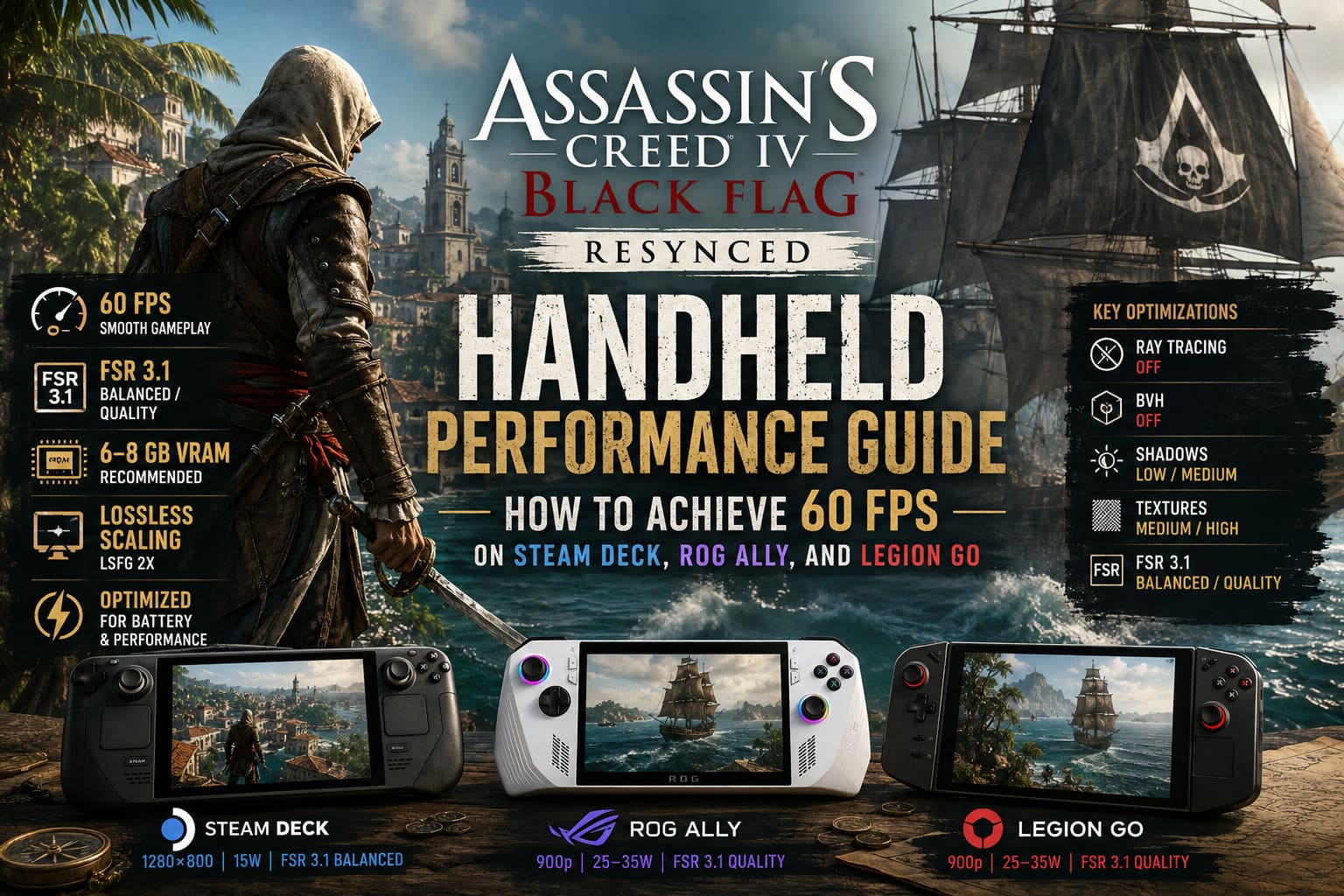
The new Anvil engine introduces several technologies that constantly stress portable hardware:
- Ray-Traced Global Illumination
- Virtualized micro-polygon rendering
- Advanced weather simulation
- High-density vegetation
- Improved water rendering
- Hair simulation
- Nearly seamless world streaming
Individually these features aren’t terrible.
Together, they create a workload that can overwhelm smaller AMD APUs, especially during naval combat where explosions, waves, smoke, weather, reflections, and dozens of NPCs all appear simultaneously.
The biggest mistake I see people making is trying to keep every modern feature enabled.
Honestly, most of them are barely noticeable on a 7-8 inch handheld display.
Steam Deck: Forget the Default Preset
The official handheld profile certainly works.
But after only a few minutes I immediately noticed something I wasn’t happy with.
The automatic scaling constantly changes image quality. One second everything looks surprisingly sharp, then you enter Havana and the picture suddenly becomes muddy as the engine aggressively lowers the internal resolution.
I prefer controlling that behavior myself.
My Recommended Steam Deck Settings
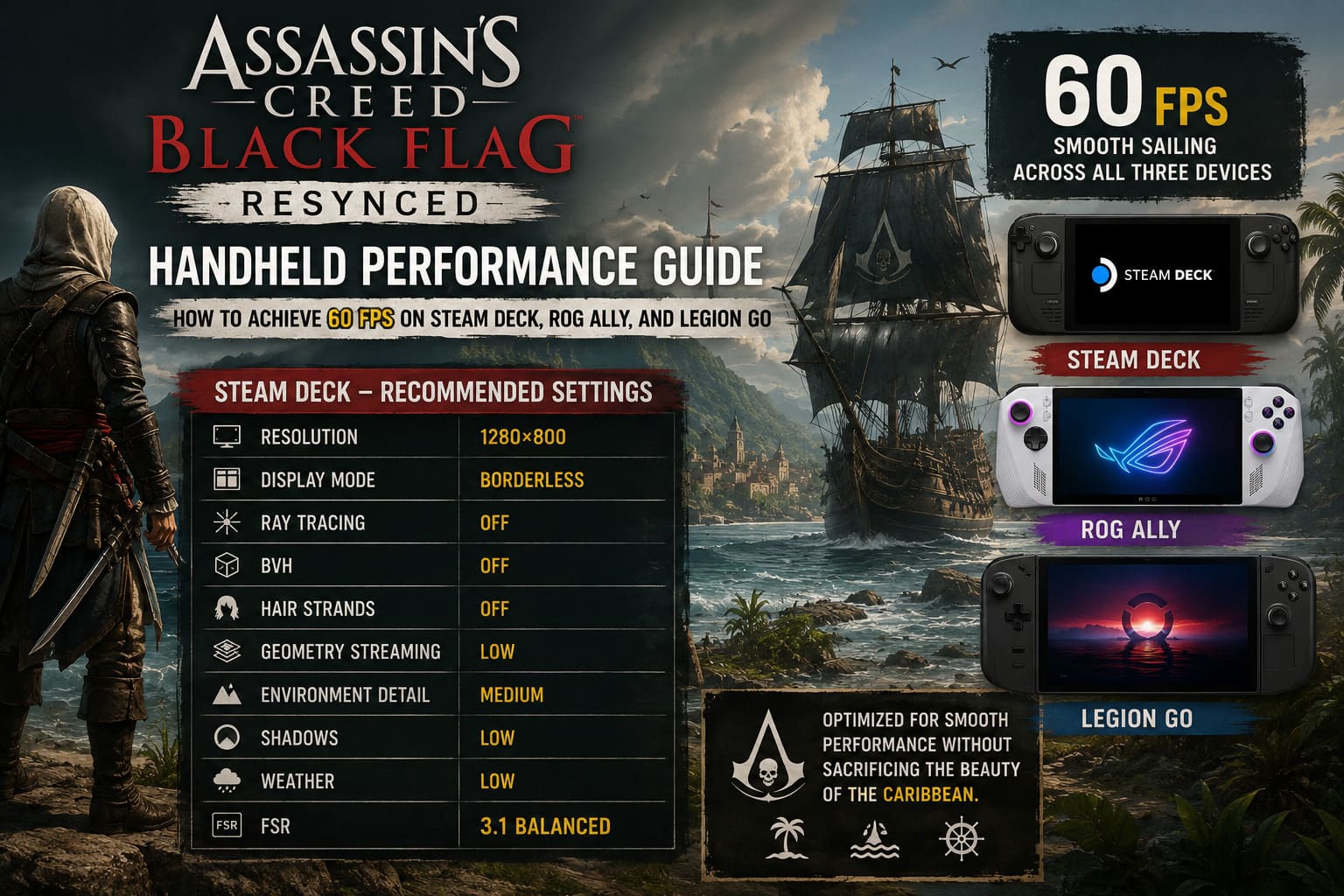
| Option | Recommendation |
|---|---|
| Resolution | 1280×800 |
| Display Mode | Borderless |
| Ray Tracing | Off |
| BVH | Off |
| Hair Strands | Off |
| Geometry Streaming | Low |
| Environment Detail | Medium |
| Shadows | Low |
| Weather | Low |
| FSR | 3.1 Balanced |
This configuration immediately removes the largest performance bottlenecks while keeping the game surprisingly attractive.
The Caribbean still looks fantastic because Ubisoft’s art direction carries most of the visual experience—not ultra shadows or expensive lighting.
Proton Experimental Is Worth Using
One thing I learned fairly quickly is that Proton Experimental generally delivers the smoothest experience on Steam Deck.
Shader compilation feels more consistent, loading appears cleaner, and I experienced fewer random hitching moments compared to older compatibility layers.
Installation only takes a minute through Steam’s Compatibility menu, so there’s little reason not to try it.
Don’t Chase Native 60 FPS on Steam Deck
This is probably the biggest misconception floating around online.
The Steam Deck simply doesn’t have enough GPU horsepower to maintain a locked native 60 FPS throughout the entire game.
Dense cities, storms, naval battles, and jungle interiors will eventually pull performance back into the 30s.
Instead of fighting physics, I think it’s smarter to build around a stable 30–40 FPS baseline and let modern frame generation smooth things out.
A consistent frame pacing always feels better than wildly fluctuating FPS numbers.
ROG Ally and Legion Go Have Much More Headroom
The situation changes dramatically once you move to newer Ryzen Z1 Extreme or Ryzen AI handhelds.
These chips have enough graphical power that you can finally start aiming for genuine high refresh gameplay.
That doesn’t mean you should simply crank every slider upward.
The engine still contains several settings that offer poor performance scaling.
Give the GPU More VRAM
If you’re playing on Windows handhelds, this is probably the first thing I’d adjust.
Many devices still ship with conservative automatic VRAM allocation.
For Black Flag Resynced, that’s rarely ideal.
I strongly recommend assigning:
- 6 GB VRAM
- or 8 GB VRAM if your handheld allows it
Doing this greatly reduces texture streaming hiccups and helps prevent large frame-time spikes during busy exploration.
My Favorite Graphics Configuration
Instead of running native 1080p, I had much better results lowering the internal resolution slightly while letting FSR handle reconstruction.
| Setting | Recommended |
|---|---|
| Resolution | 900p (720p on original Ally) |
| Texture Quality | High |
| Shadows | Medium |
| Reflections | Low |
| Hair | Medium |
| Ray Tracing | Off |
| BVH | Off |
| FSR 3.1 | Quality (900p) / Balanced (720p) |
Surprisingly, I didn’t feel like I sacrificed much visual quality.
What I did notice was how much smoother combat became.
Sword fights, parkour, and naval encounters all benefit far more from higher framerate than from expensive graphical effects.
Lossless Scaling Is Still My Favorite Trick
If there’s one utility I keep recommending to Windows handheld owners, it’s Lossless Scaling.
I’ve tested several frame generation solutions over the past year, and this one consistently delivers the cleanest experience for portable gaming.
Here’s the approach I usually follow:
- Launch Lossless Scaling before the game.
- Leave scaling disabled if you’re already using FSR.
- Enable LSFG 2X Frame Generation.
- Run the game in Borderless mode.
- Lock the game’s native framerate around 30 FPS.
- Activate Lossless Scaling.
Instead of forcing the game engine to generate frames itself, the software creates an impressively fluid output while keeping responsiveness surprisingly good.
It’s not magic—but on a handheld screen, it’s honestly difficult to complain about the results.
Settings I Always Disable
Some graphics settings simply aren’t worth the performance cost.
If I’m trying to maximize battery life and FPS, these are the first options I turn off.
| Feature | Why I Disable It |
|---|---|
| Ray Tracing | Biggest FPS loss |
| BVH | Heavy GPU load |
| Dynamic Auto Upscaling | Causes inconsistent image quality |
| Ultra Shadows | Minimal visual gain |
| High Weather Effects | Expensive during storms |
| Hair Strands Ultra | Heavy for almost no benefit |
I honestly stopped missing them after about five minutes of gameplay.
Recommended Profiles
| Category | Steam Deck | ROG Ally / Legion Go |
|---|---|---|
| Resolution | 1280×800 | 900p / 720p |
| Power Mode | 15W | 25–35W |
| Upscaling | FSR 3.1 Balanced | FSR 3.1 Quality |
| Textures | Medium | High |
| Shadows | Low | Medium |
| Ray Tracing | Disabled | Disabled |
| Frame Generation | SteamOS / FSR | LSFG 2X |
My Final Thoughts
I think Ubisoft made the right decision by modernizing Black Flag with today’s rendering technology, even if it pushed hardware much harder than many players expected.
Still, I don’t believe handheld gamers need to settle for a blurry 30 FPS experience.
After plenty of experimenting, I found that the biggest improvements don’t come from one miracle setting—they come from stacking dozens of small optimizations together.
Disable the expensive features that barely matter on a handheld screen. Give your APU enough VRAM. Use FSR intelligently instead of relying on automatic scaling. And if you’re playing on Windows, don’t overlook what Lossless Scaling can do with a stable baseline framerate.
The result is a version of Assassin’s Creed Black Flag Resynced that feels dramatically more responsive while still looking fantastic. Parkour becomes smoother, naval battles feel more cinematic, and sword combat gains the fluidity that this remake deserves.
For me, that’s ultimately the goal. I don’t need every ray-traced reflection or every ultra-quality shadow when I’m playing on a portable display. I’d much rather have smooth movement, responsive controls, and consistent performance while sailing through the Caribbean.
If you’re willing to spend ten or fifteen minutes adjusting your settings instead of trusting the defaults, your handheld can deliver an experience that’s far closer to desktop-quality performance than the specifications alone might suggest. And after seeing Edward Kenway glide across rooftops at a silky-smooth frame rate, I honestly wouldn’t want to go back.