How to Fix Assassin’s Creed Black Flag Resynced Audio Cutting Out on Bluetooth Headphones
There are few things more frustrating than jumping back into Assassin’s Creed Black Flag Resynced, hearing the opening music kick in, and then… silence. One moment the ocean sounds incredible, the next Edward Kenway’s dialogue disappears, your headset starts crackling, or the entire audio stream drops out for several seconds.
I ran into this problem myself while testing the game with a Bluetooth headset, and after digging through community discussions, experimenting with Windows settings, and trying different fixes, I realized the problem usually isn’t the headset at all. It’s the way Windows handles Bluetooth audio combined with how the game initializes its sound engine.
The good news is that this issue is usually fixable without buying new hardware or switching to wired headphones.
In this guide, I’ll go through the solutions that made the biggest difference and explain why they work instead of simply telling you which buttons to press.
Why Bluetooth Audio Breaks in Black Flag Resynced
Modern Bluetooth headsets are designed to switch between different operating modes depending on what Windows asks them to do.
The problem starts when Assassin’s Creed Black Flag Resynced checks for communication devices during launch or while loading certain scenes.
If your headset includes a built-in microphone, Windows may automatically switch it into Hands-Free mode. Unfortunately, this profile sacrifices audio quality for voice communication.
Instead of receiving clean stereo sound, the game suddenly has to work with a much more limited audio stream. That’s when players begin noticing:
- Dialogue disappearing
- Random crackling
- Short audio delays
- Missing ambient effects
- Complete sound loss during cinematics
From everything I’ve tested, this is the single biggest cause of Bluetooth audio issues.
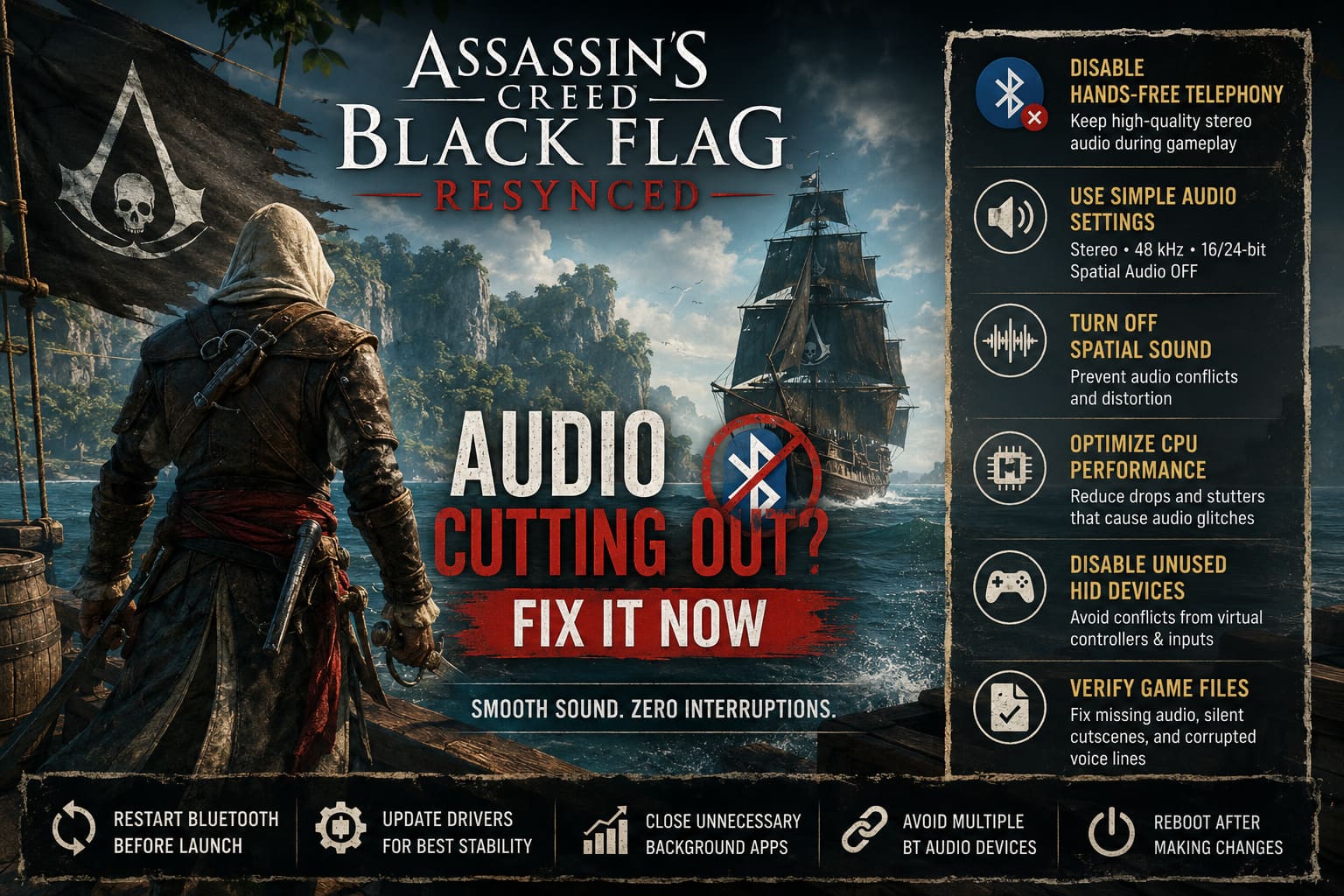
Disable Hands-Free Telephony First
If you only try one solution, make it this one.
Windows loves treating gaming headsets like communication devices even when you’re not using voice chat. Once that happens, the headset switches away from high-quality stereo playback.
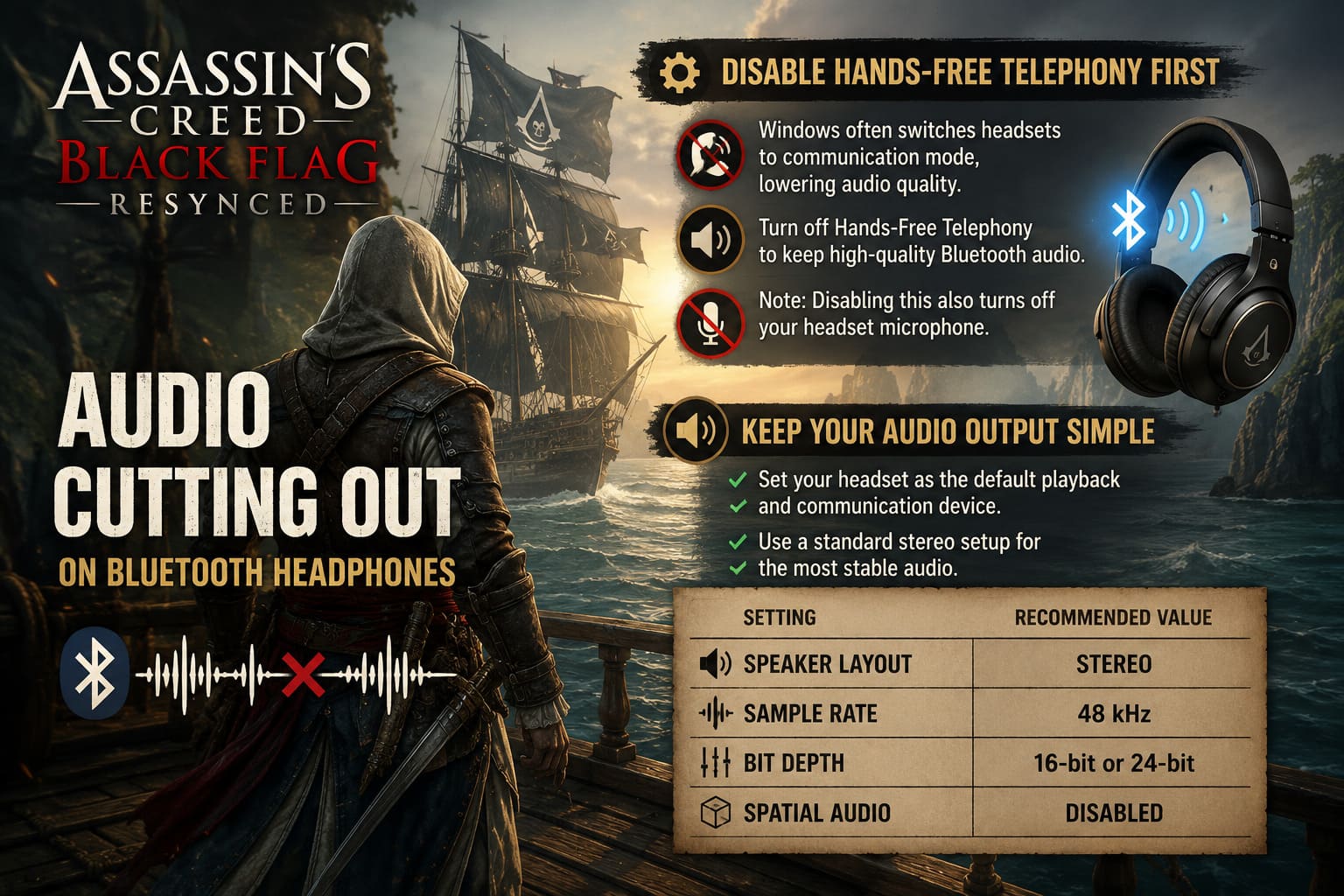
Disabling Hands-Free Telephony forces Windows to stay on the proper Bluetooth audio profile.
You can do this through the classic Devices and Printers settings by opening your headset’s properties, selecting the Services tab, and disabling Hands-Free Telephony before restarting Windows.
Keep in mind: disabling this feature also disables your headset microphone for Discord and in-game voice chat. Personally, I would rather use a dedicated USB microphone than sacrifice game audio quality every time I launch the game.
Keep Your Audio Output Simple
One mistake I see quite often is letting Windows automatically detect speaker layouts.
While surround sound works perfectly in many modern games, older engines—or remastered versions based on them—can become confused when trying to output multiple audio channels over Bluetooth.
I recommend keeping things simple.
Set your headset as both the default playback device and the default communication device. Then configure Windows to use a standard stereo setup with a 48 kHz sample rate.
| Setting | Recommended Value |
|---|---|
| Speaker Layout | Stereo |
| Sample Rate | 48 kHz |
| Bit Depth | 16-bit or 24-bit |
| Spatial Audio | Disabled |
I’ve experimented with higher sample rates like 96 kHz, but honestly didn’t notice any improvement in sound quality while gaming. What I did notice was less reliable audio performance. Sometimes the simplest configuration really delivers the best experience.
Turn Off Spatial Sound
Windows Sonic, Dolby Atmos, and DTS Headphone:X are fantastic features when supported correctly.
The problem is that Black Flag Resynced already performs its own positional audio processing. Running another layer of virtual surround on top of the game’s own system can introduce conflicts.
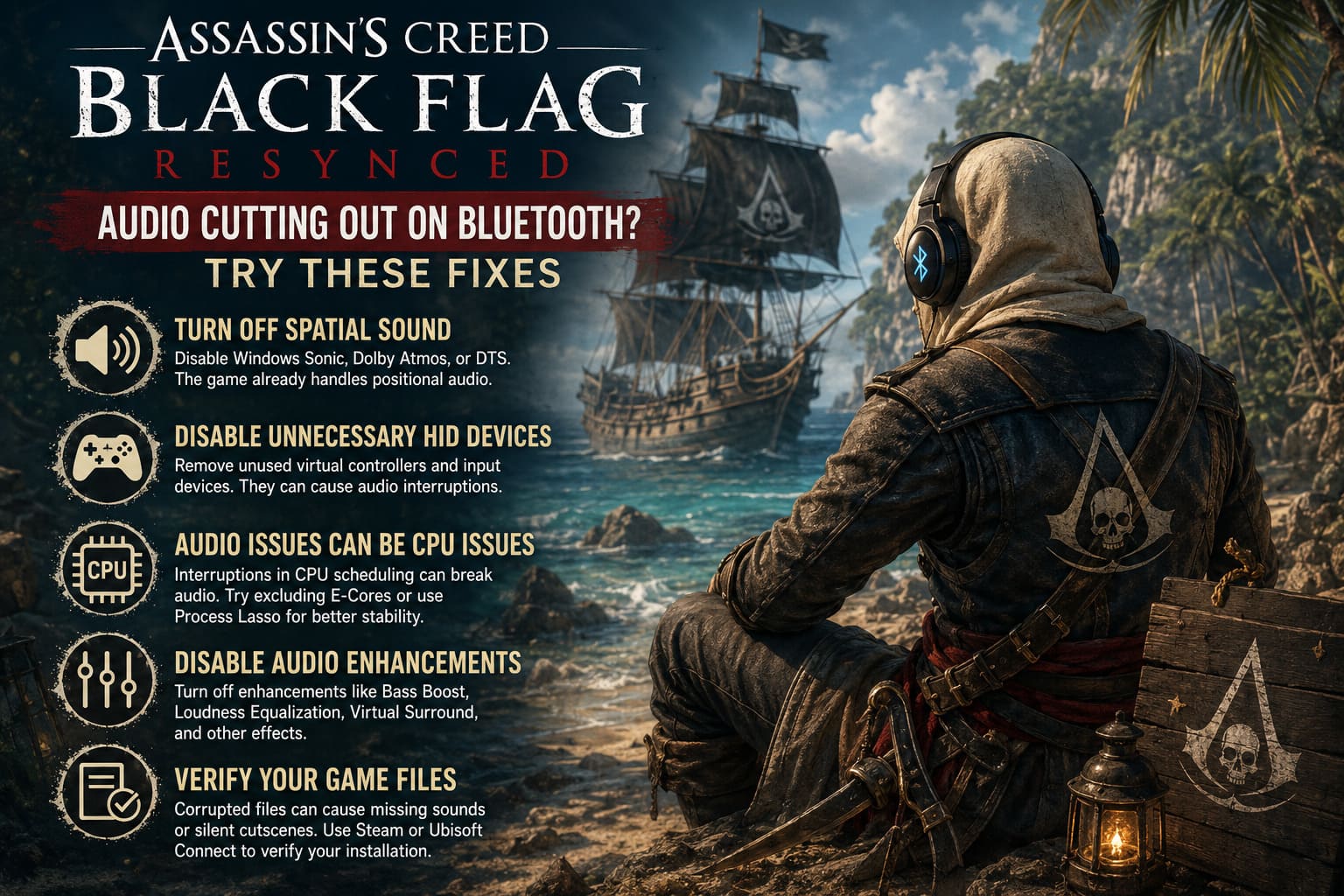
If you’re hearing echoing voices, distorted environmental effects, popping sounds, or delayed dialogue, try disabling every spatial enhancement before launching the game.
This only takes a minute and can completely eliminate strange audio behavior for many Bluetooth users.
Disable Unnecessary HID Devices
This fix genuinely surprised me.
During testing I discovered that several controller utilities, virtual gamepads, and keyboard software packages had created duplicate Human Interface Devices inside Windows.
Normally this causes no noticeable issues, but several players reported smoother gameplay and fewer audio interruptions after disabling unused virtual HID devices.
Only disable devices that you know belong to controller software or virtual input utilities. Never disable your physical keyboard or mouse.
Audio Problems Can Actually Be CPU Problems
It sounds strange at first, but audio processing depends heavily on consistent CPU scheduling.
If the game experiences tiny interruptions while distributing workloads across modern processors, audio buffers can fall behind. That’s exactly when you’ll notice stuttering, popping, brief moments of silence, or dialogue falling out of sync.
Players using newer Intel processors have reported better stability after excluding Efficiency Cores (E-Cores) from the game.
You can test this manually through Windows Task Manager by adjusting CPU affinity or automate the process using Process Lasso so the game always launches with your preferred configuration.
If every audio dropout happens alongside a small FPS dip, this is definitely worth trying.
Disable Audio Enhancements
Many Windows audio drivers install additional processing effects by default.
These may include:
- Loudness Equalization
- Bass Boost
- Virtual Surround
- Smart Volume
- Environmental Effects
Individually these features aren’t necessarily bad, but together with Bluetooth compression and the game’s own sound engine they can create instability.
I always recommend disabling every enhancement while troubleshooting. Once the game is running perfectly, you can experiment with enabling them one at a time if you want to see whether any provide an improvement without introducing new problems.
Verify Your Game Installation
It’s surprisingly easy to overlook corrupted game files because most people immediately assume every sound issue is caused by drivers or Windows.
Damaged or missing audio assets can produce silent cutscenes, missing music, absent voice lines, or broken environmental effects.
Fortunately, both Steam and Ubisoft Connect include a built-in file verification feature that checks your installation and automatically replaces damaged files without requiring a complete reinstall.
Since verification usually only takes a few minutes, I always recommend doing it before moving on to more advanced troubleshooting.
A Few Extra Tips That Helped Me
These aren’t guaranteed fixes, but together they noticeably improved stability during longer gaming sessions.
- Restart Bluetooth before launching the game instead of reconnecting your headset while the game is already running.
- Install the latest Bluetooth drivers directly from your motherboard or laptop manufacturer instead of relying only on Windows Update.
- Close unnecessary RGB software and hardware monitoring tools if you’re already seeing CPU spikes.
- Avoid connecting multiple Bluetooth audio devices simultaneously.
- Restart Windows after making major audio configuration changes instead of simply relaunching the game.
None of these solved the issue on their own, but together they noticeably improved overall stability.
How to Fix Assassin’s Creed Black Flag Resynced Micro Stuttering on Windows 11
Quick Troubleshooting Checklist
| Problem | Most Likely Solution |
|---|---|
| Audio randomly disappears | Disable Hands-Free Telephony |
| Crackling Bluetooth sound | Use Stereo 48 kHz output |
| Silent cutscenes | Verify game files |
| Voices delayed | Disable Spatial Audio |
| Audio drops during FPS spikes | Adjust CPU affinity |
| Sound glitches after connecting a controller | Disable unused HID devices |
How to Fix Assassin’s Creed Black Flag Resynced D3D12 Error Device Removed Crash
Final Thoughts
After spending quite a bit of time troubleshooting this problem, I don’t think the Bluetooth audio bug is caused by poor-quality headphones at all.
In most cases, the real culprit is how Windows manages Bluetooth communication together with the game’s audio initialization process.
The biggest improvement for me came from disabling Hands-Free Telephony and forcing Windows to stay in a simple Stereo 48 kHz configuration. Once I made those two changes, the random crackling, disappearing dialogue, and cutscene audio dropouts completely disappeared.
If you’re still experiencing problems after trying everything here, I’d also recommend updating your Bluetooth drivers and testing another headset if possible. Doing so can quickly tell you whether the issue is specific to one device or affects your entire system.
At the end of the day, Assassin’s Creed Black Flag Resynced deserves to be experienced with its incredible soundtrack, immersive sea shanties, and cinematic sound design fully intact. Thankfully, once Windows stops fighting your Bluetooth headset, you can finally enjoy the Caribbean exactly the way it was meant to sound.