WoW Forever Beta Black Screen on Startup: 7 Ways to Fix Launch Crashes
The World of Warcraft: Forever Beta is finally giving Classic players another reason to lose an entire evening to Azeroth. Unfortunately, for some players, the adventure ends before the character-selection screen even appears.
Instead of loading into the game, you get a black screen. Maybe WowB.exe appears in Task Manager for a couple of seconds and then vanishes. Maybe Battle.net says the game is running, only for the process to quietly die in the background. On macOS, some players are reporting an even nastier situation where the game hangs during the transition into the world and throws them back toward the Mac login screen.
That is a pretty brutal way to start a beta.
Reports across Blizzard Technical Support discussions, Reddit’s r/classicwow, gaming communities, Facebook groups, and YouTube troubleshooting videos suggest that the WoW Forever Beta black screen and crash-on-launch problems are not limited to one specific hardware configuration. High-end Windows gaming PCs can run into them, while Apple Silicon machines have their own collection of headaches.
The good news is that there are several things worth trying before you start reinstalling Windows or blaming your GPU.
Below are seven practical fixes for the WoW Forever Beta black screen, instant CTD, freezing, and Battle.net launch failures, including the DirectX workaround, shader compilation trick, folder reset, GPU configuration, security exclusions, macOS fixes, and Battle.net repair tools.
WoW Forever Beta Black Screen: What Is Actually Going Wrong?
There isn’t one universal cause behind every failed launch. That is the frustrating part.

A black screen can mean the renderer failed to initialize, the client is busy processing shaders, corrupted configuration files are interfering with startup, Windows selected the wrong GPU, or security software blocked something the game needs.
On Windows, the most commonly discussed possibilities include:
| Problem | Typical Symptom | First Thing to Try |
|---|---|---|
| DirectX 12 startup issue | Black screen or instant CTD | Force -d3d11 |
| Shader compilation | Long black screen | Wait 5–10 minutes |
| Corrupted UI/cache | Startup errors or repeated crashes | Reset Cache, Interface and WTF |
| Wrong GPU | Black screen on laptops/dual-GPU systems | Set WowB.exe to High Performance |
| Security software | Process disappears immediately | Check exclusions |
| Battle.net files | Launch fails after clicking Play | Scan and Repair |
| macOS display issue | Hang during world loading | Lower lighting / disconnect monitor |
The important thing is not to shotgun every fix simultaneously. Try one, launch again, and see what changes. Otherwise, you won’t know which workaround actually solved the problem.
Fix 1: Force WoW Forever Beta to Use DirectX 11
If your game produces a black screen almost immediately after clicking Play, DirectX 12 is one of the first things I would test.
The Forever Beta defaults to DX12, and graphics-driver or API initialization problems can prevent the game from properly creating its rendering environment. You don’t necessarily need a new GPU to experience this. Sometimes a perfectly capable card simply doesn’t like the current client build.
The workaround is straightforward.
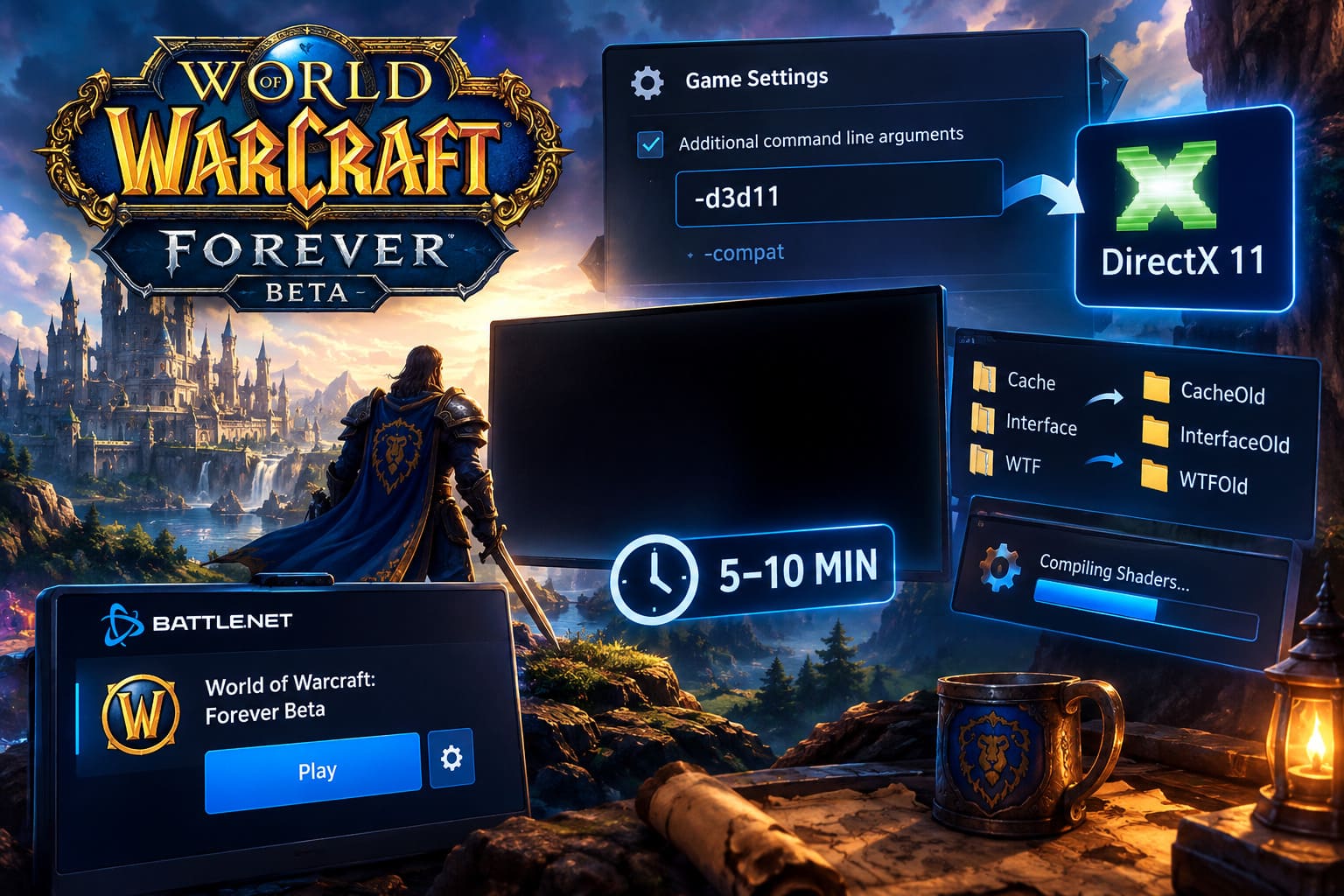
- Open the Battle.net Desktop App.
- Select World of Warcraft: Forever Beta.
- Click the gear icon next to the Play button.
- Open Game Settings.
- Find Additional command line arguments.
- Enable the checkbox.
- Enter:
-d3d11 - Click Done and launch the beta again.
The idea is simple: you’re telling the game to bypass the DX12 rendering path and start through DirectX 11 instead.
For players who get flickering or another application error with -d3d11, another community-reported argument worth testing is:
-compat
I wouldn’t throw both arguments into the field together. Test them separately.
If DX12 is what’s choking during initialization, this can be the difference between a dead-black monitor and actually reaching the login screen.
Fix 2: Don’t Immediately Assume the Black Screen Is a Crash
This one sounds ridiculous until it works.
Some first launches can involve a heavy shader compilation and caching process. Modern WoW clients have plenty of graphical data to process, and a beta build can make that initial process feel particularly ugly.
You click Play.
The screen goes black.
Nothing appears to happen.
Your natural reaction is to alt-tab, click the mouse, press Escape, kill the process, restart Battle.net and start cursing at your PC.
Don’t.
At least not immediately.
Try launching the game and leaving it completely alone for around 5–10 minutes. Don’t alt-tab. Don’t hammer the keyboard. Don’t click around.
On some systems, what looks like a frozen application can actually be working through its initial shader/cache workload. Once that process completes, the login screen may finally appear.
If it works, subsequent launches can be dramatically faster because the relevant shader data is already cached.
This is especially worth trying after:
- A graphics-driver update
- A fresh beta installation
- A major game patch
- A GPU change
- Deleting the game’s cache
It’s probably the least exciting fix in this guide, but I’ve seen enough games behave like this to know that sometimes the correct troubleshooting move is simply leaving the damn thing alone.
Fix 3: Reset the Cache, Interface and WTF Folders
World of Warcraft installations can accumulate a ridiculous amount of configuration and temporary data.
If you’ve got Retail, Classic, PTR, beta builds, addons and other WoW-related files living around the same installation structure, corrupted configuration data can potentially make troubleshooting considerably messier.
A clean reset is therefore worth doing.
First, completely close WoW and Battle.net. Use Task Manager if necessary to make sure the relevant processes are no longer running.
Then navigate to your main WoW installation, commonly something similar to:
C:\Program Files (x86)\World of Warcraft\
Find the folder associated with the Forever Beta. Depending on the installation/build, it may use a beta-style directory such as:
_classic_beta__forever_beta_
Inside the relevant folder, look for:
- Cache
- Interface
- WTF
You can delete them, but I personally prefer renaming them first:
CacheOldInterfaceOldWTFOld
That gives you an easy rollback if something important was stored there.
Start Battle.net again and launch the game.
If the problem was caused by stale configuration or UI data, WoW should generate clean folders during startup.
Fix 4: Tell Windows Which GPU WoW Forever Should Use
This is particularly important for gaming laptops and systems with integrated plus dedicated graphics.
Windows is generally pretty good at choosing the right GPU, but “pretty good” isn’t the same thing as “never screws it up.”
If WoW Forever is being launched through an integrated GPU instead of your dedicated NVIDIA or AMD card, you can end up with awful performance, initialization failures, or a black screen.
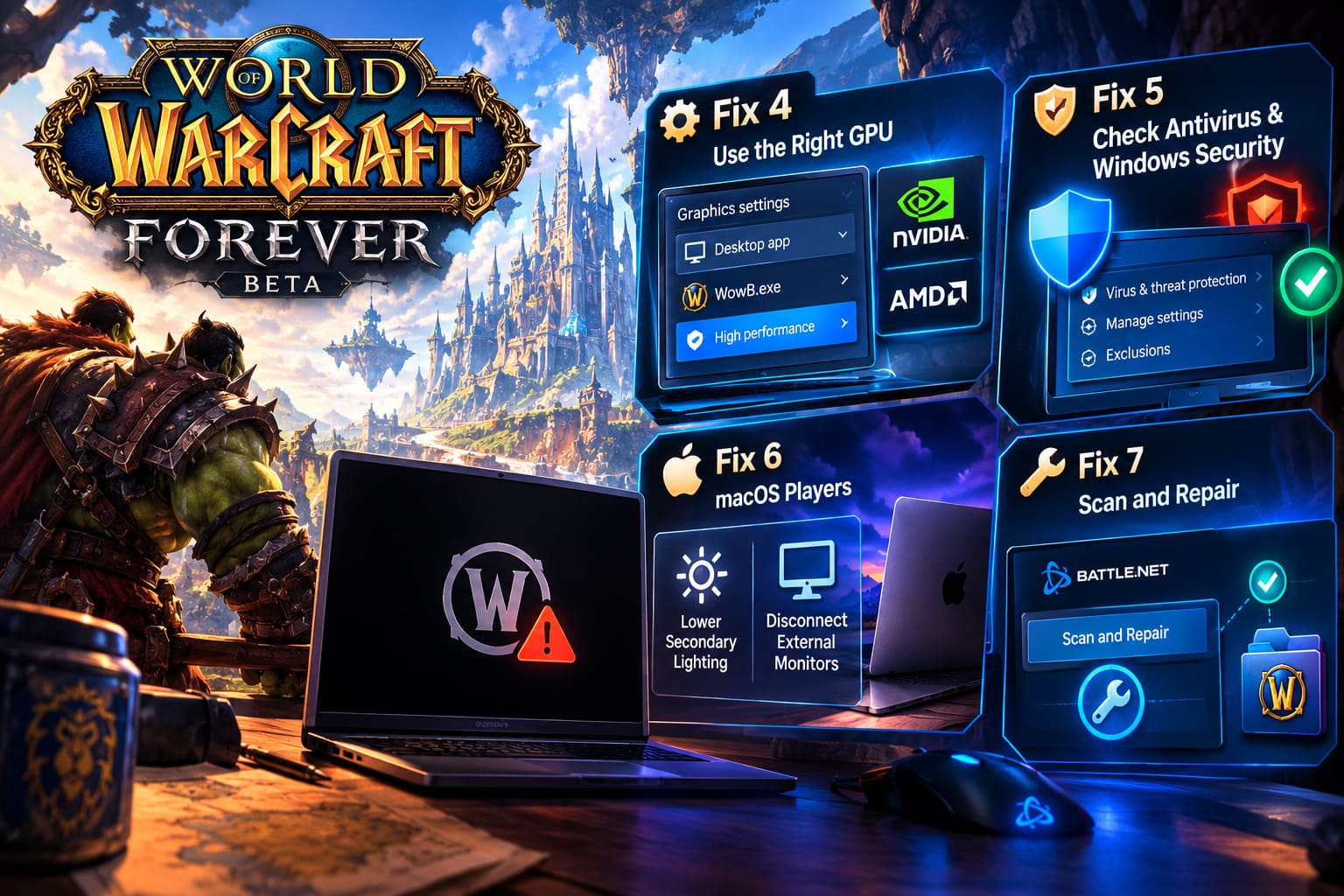
Here’s how to force the preferred GPU:
- Press the Windows key.
- Search for Graphics Settings.
- Open the Windows graphics settings page.
- Select Desktop app under the app preference section.
- Click Browse.
- Navigate to your Forever Beta installation.
- Select WowB.exe.
- Once it appears in the application list, click it.
- Choose Options.
- Select High Performance.
- Save the setting.
- Restart Windows and test the game again.
This is especially worth checking if you recently changed your graphics drivers or Windows has just received a major update.
For a desktop with one dedicated GPU, this fix may do absolutely nothing. For a laptop with hybrid graphics, however, it is a much more relevant troubleshooting step.
Fix 5: Check Antivirus and Windows Security Blocking
Security software can be incredibly aggressive when a brand-new game executable starts doing unfamiliar things.
That becomes even more relevant during a beta, where the executable and supporting files may change frequently.
If WowB.exe launches for two seconds and then disappears, security software is worth investigating.
Windows Security users can check:
Virus & Threat Protection → Manage Settings → Exclusions → Add or Remove Exclusions
From there, you can add the World of Warcraft installation folder as an exclusion if you have determined that your security software is blocking legitimate game files.
Third-party suites such as Norton and Bitdefender can have their own quarantine, exception, and application-control systems, so the exact menu will vary.
You may also want to check whether files associated with the client, including diagnostic components such as dbghelp.dll, have been quarantined or blocked.
There is one important caveat here: don’t blindly disable your antivirus because a random Reddit comment told you to. Verify that you’re dealing with the legitimate Blizzard installation and inspect what your security software actually blocked.
If you’re confident the files are legitimate, an appropriate exclusion can be much cleaner than permanently disabling protection.
You can also try running Battle.net with administrator privileges:
- Right-click the Battle.net shortcut.
- Select Run as administrator.
- Launch the beta again.
Fix 6: macOS Players Have a Different Battle
Windows troubleshooting doesn’t help much if your WoW Forever Beta installation is sitting on an Apple Silicon Mac.
Recent reports from players using M-series Macs, including M1, M3, M4 and newer hardware, describe hangs during the transition into the game world. In some cases, the issue appears connected to the macOS display environment rather than simply the WoW renderer.
Some users have reported behavior associated with WindowServer, including situations where the session becomes unresponsive and the player is returned toward the macOS login screen.
Two workarounds are particularly worth testing.
Lower Secondary Lighting
Before entering the world, open the game’s graphics settings and reduce Secondary Lighting to Medium or Fair rather than using a high setting.
The goal is to reduce the graphics workload during the initial world transition and avoid the specific rendering path that appears problematic on some Apple Silicon configurations.
Disconnect External Monitors
This sounds like an old-school troubleshooting trick, but display configurations can absolutely complicate game initialization.
If your MacBook is connected to an external monitor through HDMI, USB-C, a dock, or another adapter, disconnect the secondary display and perform the first launch using the built-in Retina display.
If the game suddenly launches normally, reconnecting the external monitor afterward can help determine whether the display configuration is part of the problem.
For Mac users, don’t overlook the display chain itself. A game can be perfectly fine on the internal screen while falling apart when another display is introduced.
Fix 7: Use Battle.net Scan and Repair
If you’ve worked through the previous fixes and WoW Forever still refuses to launch, it’s time to investigate the installation itself.
Battle.net includes its own Scan and Repair utility, and it should be one of your final steps before considering a complete reinstall.
Open the Battle.net app and:
- Select World of Warcraft: Forever Beta.
- Click the gear icon next to Play.
- Choose Scan and Repair.
- Select Begin Scan.
- Wait for the process to finish.
- Allow Battle.net to download or replace damaged files if necessary.
- Launch WoW Forever again.
This is particularly useful if the game was installed or patched during periods of heavy server traffic and something went wrong with the downloaded data.
You don’t need to immediately nuke the entire installation. Verify the files first.
A complete reinstall is a much bigger hammer, and there’s little reason to use it before you’ve allowed Battle.net to repair the client.
How to Fix WoW Forever Error Switching Realm: Step-by-Step 2026 Server Guide
Which WoW Forever Beta Fix Should You Try First?
If you want the shortest possible troubleshooting route, I’d work through these in roughly this order:
1. Force -d3d11 if you get an immediate black screen or CTD.
2. Wait 5–10 minutes if this is the first launch or you recently updated your GPU drivers.
3. Reset Cache, Interface and WTF if you’ve got a messy WoW installation with multiple clients or old configuration data.
4. Set WowB.exe to High Performance if you’re using a laptop or hybrid GPU setup.
5. Check antivirus/security logs if the executable simply disappears.
6. Apply the Mac-specific display fixes if you’re running Apple Silicon.
7. Run Scan and Repair if nothing else has changed the behavior.
That sequence lets you test the most common launch-level problems without immediately resorting to a full reinstall.
WoW Classic Era 1-60 Speedrun Route: Solo Leveling Guide for 2026
Final Thoughts
A beta launch is always going to be messy, but a black screen before you even get to Azeroth is a special kind of frustrating. You’ve waited for the client, hit Play, watched Battle.net pretend everything is fine, and then… nothing.
The good news is that these crashes don’t automatically mean your hardware is dying.
On Windows, DirectX 12 initialization, shader compilation, corrupted configuration files, GPU selection, security software, and damaged game data are all reasonable areas to investigate. On Apple Silicon Macs, the situation can be more complicated because display handling and WindowServer behavior enter the equation.
Start with the low-risk fixes. Force DirectX 11, give shader compilation time to finish, reset the temporary WoW folders, and make sure Windows is actually using the GPU you paid for.
If you’re on a Mac, temporarily simplify the display setup and lower the relevant lighting settings before assuming the entire client is broken.
And if none of that works, Scan and Repair is your final sanity check before reaching for the reinstall button.
The Forever Beta is supposed to be about returning to Azeroth, not staring at a black rectangle while Task Manager watches you suffer. Hopefully, one of these fixes gets you past the launcher and into the game before your guild starts asking why you’re still offline.