How to Fix WoW Forever Error Switching Realm: Step-by-Step 2026 Server Guide
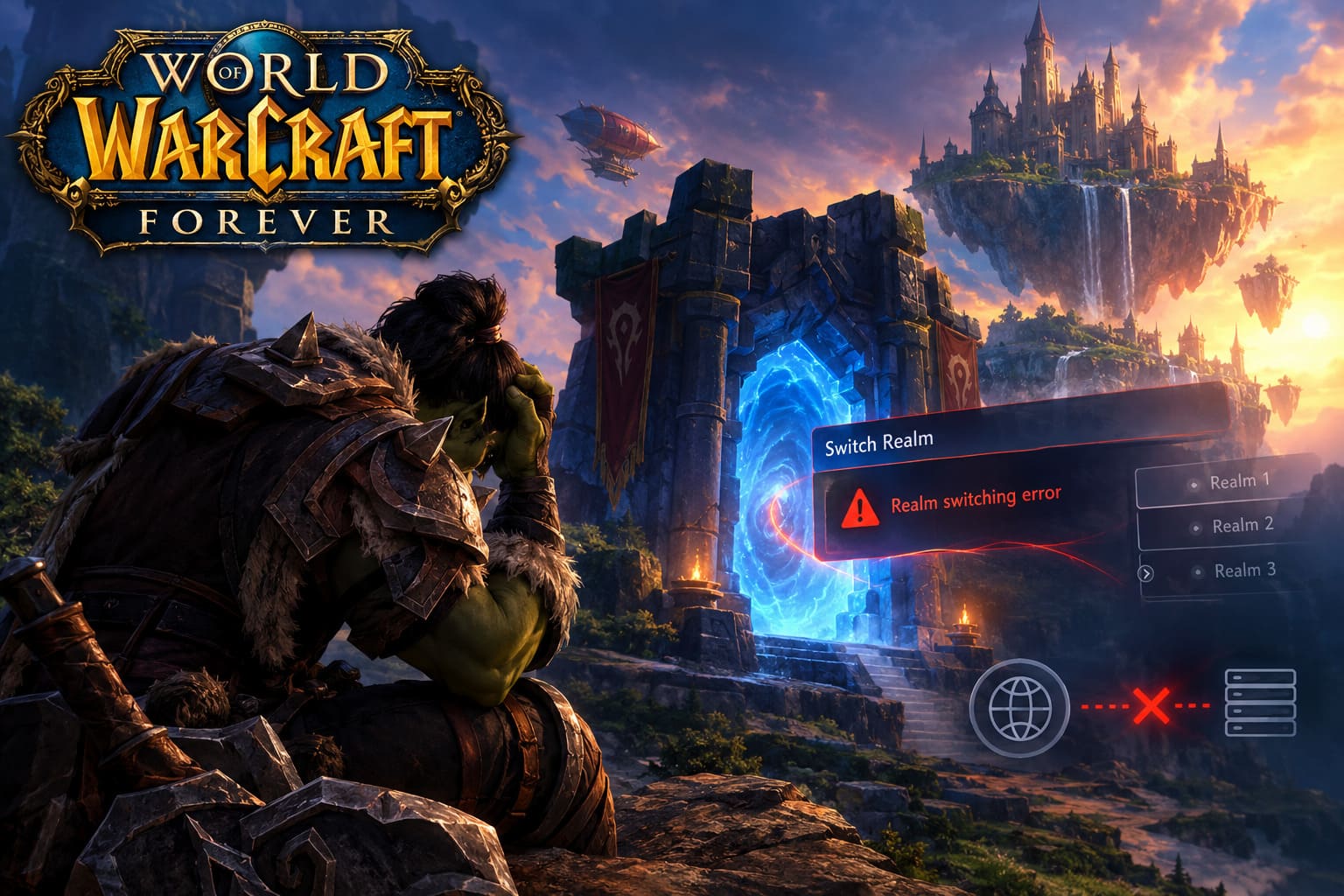
There is a special kind of frustration that only an online game can create: everything is working perfectly until you try to do something completely normal. In World of Warcraft Forever, one of those problems is the realm switching error.
You choose a different environment, try to move between rulesets, or simply attempt to reconnect to another server layer — and suddenly the game gets stuck. The loading screen refuses to finish, the connection drops, or the client throws you back to where you started.
It is particularly annoying because there is usually no obvious explanation. Your internet may be working. Battle.net may say the game is running normally. Other players may even be online. Yet your character remains trapped in what feels like a server-switching limbo.
The good news is that several practical fixes can help. Some take only a couple of minutes, while others require cleaning local Battle.net data or resetting Windows networking.
This guide walks through the methods I would try in order, starting with the least invasive options.
Why Does WoW Forever Get Stuck When Switching Realms?
The first thing to understand is that realm switching is not simply selecting another name from a list.
WoW Forever’s server structure is designed around large shared environments and different gameplay rulesets. Your client has to communicate with Blizzard’s authentication and routing infrastructure before it can place your character into the appropriate environment.
That means several things can potentially go wrong during the transition.
A failed switch can be caused by:
- A temporary server-side routing problem.
- An overloaded gameplay or phasing node.
- Corrupted Battle.net cache data.
- Stale authentication information.
- DNS or Windows networking problems.
- A client/server version mismatch.
- Damaged or incomplete game files.
And honestly, this is why I wouldn’t immediately start deleting random game folders or reinstalling the entire client. Most realm-switching problems are worth troubleshooting locally first.
Common Symptoms
| Problem | What You May See | Possible Cause |
|---|---|---|
| Realm switching loop | Loading screen repeats | Routing or authentication issue |
| Sudden disconnect | Game returns to login | Failed server handshake |
| Incompatible realm | Realm appears unavailable | Client/server version mismatch |
| Stuck loading | Character never enters world | Cache, network, or server issue |
| Wrong environment | Client returns to previous realm | Failed ruleset transition |
Let’s go through the fixes.
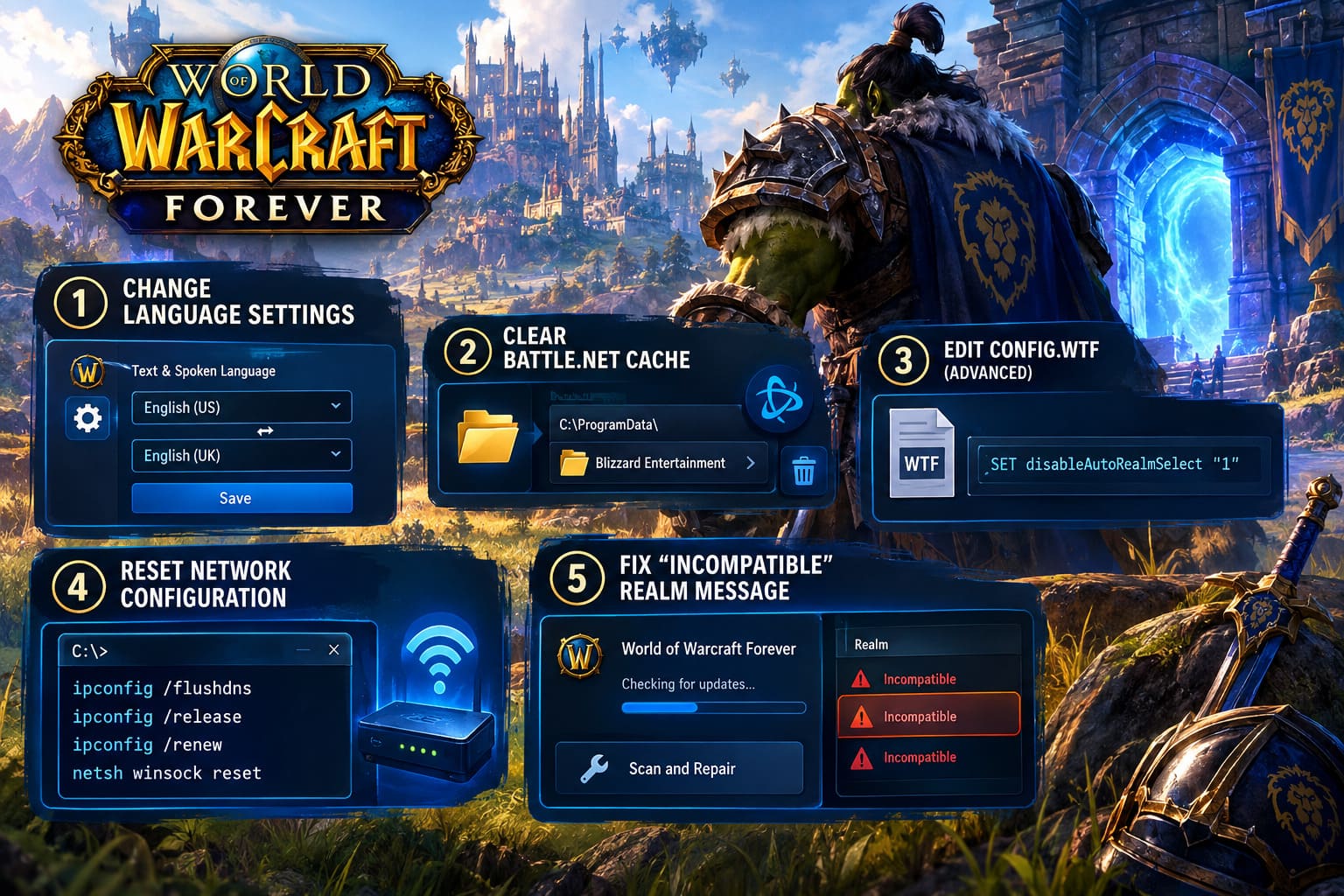
1. Refresh Your WoW Forever Language Settings
This sounds strange.
I’ll admit that if someone told me changing the language could fix a realm connection problem, I’d probably be skeptical too. But changing the language configuration can force Battle.net and the game client to rebuild part of their local configuration.
The idea is simple: change the language, launch the game, then change it back.
Completely close WoW Forever first.
Then open the Battle.net desktop application and select World of Warcraft Forever.
Look for the gear icon next to the Play button and open Game Settings. Find the Text & Spoken Language section.
Temporarily switch from your normal English configuration to another available option, such as an alternative English regional setting.
Save the change and launch the game.
Let the client reach the character selection screen completely. If the game successfully gets past the point where it previously became stuck, exit the game again.
Return to Battle.net and restore your usual language settings.
Launch WoW Forever once more and test realm switching.
Why Try This First?
It costs nothing, doesn’t touch your characters, and doesn’t require reinstalling anything.
It is also a much better first experiment than immediately editing configuration files.
2. Clear the Battle.net Cache
If the language reset doesn’t help, my next move would be clearing the Battle.net cache.
The launcher stores temporary information locally, and corrupted or outdated cache data can sometimes cause strange behavior after updates, crashes, or interrupted connections.
Before doing anything, make sure both WoW Forever and Battle.net are completely closed.
Open Windows Task Manager with:
Ctrl + Shift + Esc
Look through the running processes and close any remaining Blizzard-related processes, including:
wow.exeBattle.net.exeAgent.exe
Don’t rush this part. If Battle.net is still running in the background, deleting its cache may not accomplish what you expect.
Next, press:
Windows Key + R
Enter:
C:\ProgramData\
Look for the Blizzard Entertainment folder and open it.
Find the Battle.net cache data and remove it.
This does not delete your installed WoW game itself. You’re clearing temporary launcher information, not uninstalling Azeroth from your computer.
Restart Windows afterward.
Then open Battle.net, allow it to rebuild whatever temporary data it needs, launch WoW Forever, and test the realm switch again.
For a stubborn Battle.net problem, this is one of the first maintenance tricks I personally keep in my toolbox.
3. Check the Config.wtf File
This is the more advanced option, so don’t start here unless the simpler fixes have failed.
WoW keeps important client settings inside its WTF configuration folder. Depending on your installation, the exact directory can differ between versions and installations.
Look inside your World of Warcraft installation for the WTF folder and locate:
Config.wtf
Before changing anything, I recommend making a backup copy. It’s a tiny file, so there is really no reason not to.
Open the file with Notepad.
The provided troubleshooting method suggests adding:
SET disableAutoRealmSelect "1"
This is intended to prevent the client from automatically forcing a realm selection behavior that may be causing the loop.
If your configuration also contains outdated realm-related entries, check them carefully rather than blindly deleting lines.
After saving the file, check its Properties and make sure Read-only is disabled. Otherwise, the client may have trouble updating its configuration later.
One Important Warning
I would treat configuration edits as a troubleshooting experiment, not a guaranteed fix.
If the game behaves worse afterward, restore your backup instead of piling more commands into Config.wtf. One controlled change is much easier to diagnose than ten random changes.
4. Reset Windows Network Configuration
Now we’re getting into the fixes that can help when the problem isn’t really WoW at all.
You might have perfectly normal internet access while still having a problem with DNS resolution, Windows sockets, or your current network lease.
Open the Windows Start menu and search for Command Prompt.
Right-click it and choose Run as Administrator.
Run these commands one at a time:
ipconfig /flushdns
Then:
ipconfig /release
Follow it with:
ipconfig /renew
And finally:
netsh winsock reset
The first command clears the DNS resolver cache. The release and renew commands refresh your local IP configuration, while the Winsock reset rebuilds Windows’ networking configuration.
Once all four commands have completed, restart your PC.
I’d also restart your router or modem if the problem continues. Give it a couple of minutes to reconnect before launching the game again.
Then test WoW Forever.
Don’t Ignore Packet Loss
High-speed internet isn’t automatically reliable for online games.
A connection can be fast enough for streaming video while still experiencing packet loss or unstable routing that becomes obvious during an online game’s server transition.
So if realm switching keeps failing while everything else on your computer seems fine, your network deserves some attention.
5. Fix the “Incompatible” Realm Message
There is another situation that looks like a server problem but can actually be a client version issue.
If the realm or environment selection screen appears and options are marked Incompatible, check Battle.net before doing anything more complicated.
Close the game and return to the launcher.
Look at the WoW Forever game page and check whether Battle.net is downloading an update.
If an update is available, let it finish completely.
If Battle.net doesn’t appear to be updating correctly, open the gear menu beside the Play button and select:
Scan and Repair
Start the scan and allow Battle.net to check the installation.
This process can take a while, particularly if you have a large installation on a slower drive. Let it finish rather than cancelling halfway through.
If damaged or incomplete files are found, Battle.net can replace them with valid versions.
After the repair completes, restart the client and try switching realms again.
What I Would Try First
If I encountered the WoW Forever realm switching error myself, I wouldn’t jump straight into advanced configuration edits.
I’d go through the fixes in this order:
- Restart WoW Forever and Battle.net completely.
- Try the language preference reset.
- Clear the Battle.net cache.
- Flush DNS and reset Windows networking.
- Run Battle.net Scan and Repair.
- Only then experiment with Config.wtf.
That order matters because the first few solutions are relatively safe and easy to reverse.
There is no reason to spend an hour rebuilding your configuration if the actual problem disappears after clearing a temporary launcher cache.
WoW Classic Era 1-60 Speedrun Route: Solo Leveling Guide for 2026
What If None of These Fixes Work?
This is where it becomes important to separate a local problem from a server-side problem.
If several players are suddenly reporting the same realm switching error, constantly changing your Windows configuration probably isn’t going to solve it.
Likewise, if you can play normally but switching into one particular environment consistently fails, that points toward a problem specific to the target service or ruleset rather than your entire installation.
Before making major changes, check whether:
- Other players are reporting the same issue.
- Battle.net is showing an outage or maintenance message.
- The problem affects every realm or only one.
- The problem occurs on another network.
- WoW works normally until you attempt a specific realm transition.
That information can save a lot of pointless troubleshooting.
WoW Forever Skyborne Racial Abilities Breakdown: Alliance vs Horde Meta Analysis
Final Thoughts
Realm switching should be one of those invisible MMO systems that you never have to think about. You pick an environment, the game connects you, and you get back to playing.
When it breaks, however, it can make the entire game feel unavailable.
The important thing is not to panic and start deleting files at random. Start with simple resets, then move toward cache cleanup, network troubleshooting, file repair, and finally configuration changes.
For most players, the combination of a clean Battle.net cache, refreshed network settings, and a properly updated client is a much more sensible starting point than reinstalling the whole game.
And if none of those methods changes anything, don’t assume your PC is automatically the problem. A realm-switching failure can happen somewhere between your client and the destination server, and no amount of local tweaking can repair a backend issue you don’t control.
The best troubleshooting approach is therefore pretty boring — change one thing at a time, test the game, and pay attention to exactly when the error occurs. In an MMO as large and interconnected as WoW Forever, that approach can be the difference between fixing the problem in ten minutes and spending your entire evening reinstalling a game that wasn’t actually broken.