Jackal Not Launching? Fix Crashes & Black Screen Issues (2026 Guide)
If you just grabbed Jackal 2026 and your excitement turned into frustration with crashes, black screens, or freezes at the loading screen, you’re not alone.
Many players are reporting LowLevelFatalError issues right after startup. Luckily, after diving into Steam forums and gamer communities, I’ve put together some practical, tested fixes that actually work.
ICARUS Breeding Guide: How to Breed Bulls and Best Pig Talent Builds (Week 220)

1. Verify Game Files Integrity
The simplest culprit is often corrupted game files. Missing or broken .dll files can prevent the game from even starting. To fix this:
- Steam: Right-click Jackal in your Library → Properties → Installed Files → Verify Integrity of Game Files
- Epic Games: Click the three dots → Manage → Verify
Even one missing file can ruin the launch, so this is the first thing to try.
2. Update Graphics Drivers
Jackal 2026 uses modern rendering that loves fresh drivers. Outdated software can trigger LowLevelFatalError instantly.
- NVIDIA: Use GeForce Experience → Download Latest Game Ready Driver
- AMD: Use AMD Software: Adrenalin Edition → Check for Updates
- Pro Tip: If a standard update fails, run Display Driver Uninstaller (DDU) for a clean reinstall
Fresh drivers are a lifesaver for startup stability.
3. Disable Overlays & Background Apps
Overlays and performance monitors can silently sabotage your launch. Turn off everything that injects code:
- Steam Overlay, Discord Overlay, NVIDIA ShadowPlay
- Monitoring Tools like MSI Afterburner or RivaTuner
- Optional: Clean Boot via msconfig, disabling non-Microsoft services
Less background noise = more stable game startup.

4. Force DirectX 11 Mode
Jackal defaults to DX12, but some setups choke on it. You can bypass freezes by forcing DX11:
- Steam → Right-click Jackal → Properties → General → Launch Options → Type -dx11
It’s a small tweak that works surprisingly well for stubborn PCs.
5. Repair Visual C++ Redistributables
Many modern games crash instantly if runtime libraries are missing or broken. Download the latest Visual C++ Redistributable All-in-One and install both x86 and x64 versions.
6. Try the “Windows Audio” Workaround
Some users found that stopping the Windows Audio service before launching the game solves crashes after the intro logos:
- Open Services → Find Windows Audio → Stop
- Launch Jackal → Once at Main Menu → Restart Windows Audio
It’s a quirky trick, but it works on tricky setups.
7. Check Your System Requirements
Jackal 2026 isn’t very demanding, but it does need 64-bit Windows and a DX10-compatible GPU. Older OS versions like Windows 7 may run into unfixable issues. Recommended specs for smooth gameplay:
- OS: Windows 10/11 (64-bit)
- Processor: X64 architecture with SSE2
- Memory: 8 GB+ recommended
- Graphics: DX10, DX11, or DX12 capable
- Storage: 200-300 MB free space
Always make sure your system meets the minimum to avoid surprises.
Still having issues? Check community hubs for patches and personalized support. With these steps, you should be back to high-speed action in no time!

How to Fix Black Screen Issues in Jackal (2026): A Gamer’s Guide
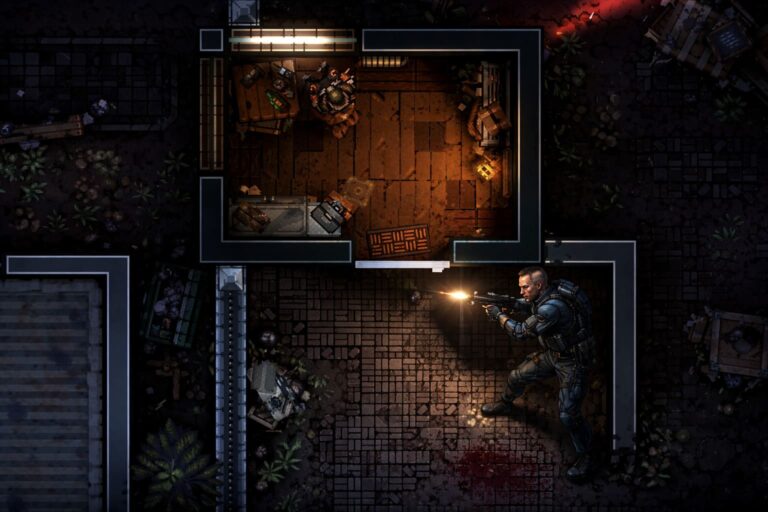
If you’ve just grabbed Jackal (2026), the adrenaline-pumping top-down shooter inspired by Hotline Miami, and found yourself staring at a black screen on launch, don’t panic. You’re not alone. Many gamers have reported this frustrating problem since the game’s February 2026 release.
Fortunately, there are several straightforward fixes that can get you back into the action without losing your mind.
Essential Fixes
Here are the top solutions that usually solve the black screen problem while keeping the game stable:
- Update Graphics Drivers: Outdated GPU drivers are the most common culprit. Open your NVIDIA, AMD, or Intel graphics software, check for the latest “Game Ready” updates, install them, and restart your PC.
- Disable Fullscreen Optimizations: Windows fullscreen tweaks can sometimes interfere with the game. Navigate to the Jackal installation folder, right-click Jackal.exe, go to Properties > Compatibility, check Disable fullscreen optimizations, apply, and restart the game.
- Verify Game Files: Corrupted or missing files can break the launch. In Steam, right-click Jackal > Properties > Installed Files > Verify integrity of game files.
- Install VP9 Video Extensions: If cutscenes stay black, your system might lack the necessary codecs. Grab the VP9 Video Extensions from the Microsoft Store to watch every cinematic smoothly.
- Toggle Windowed Mode: Press Alt + Enter while the black screen is active to force windowed mode. This can bypass initial display handshake issues.
Advanced Troubleshooting
If the usual fixes don’t help, try these deeper system-level solutions:
- Reset Graphics Driver: While the game is running, press Windows + Ctrl + Shift + B to restart your GPU driver without closing your session.
- Clear Steam Cache: Persistent issues sometimes stem from corrupted Steam cache. Go to Steam Settings > Downloads > Clear Download Cache.
- Increase Virtual Memory: Some modern titles demand larger pagefiles to handle memory spikes. Boosting Windows virtual memory can prevent black screen crashes at launch.
Pro Tip: As a gamer who’s spent hours in chaotic top-down shooters, I’ve found that keeping your drivers updated and disabling fullscreen optimizations solves about 90% of black screen headaches. It’s a tiny effort for uninterrupted gameplay and lets you enjoy all the fast-paced chaos that Jackal (2026) delivers.
With these tweaks, you can finally dive into the game’s neon-soaked action without staring at a blank monitor. Remember: patience and careful troubleshooting are part of the gamer’s journey!