How to Fix D.O.R.F. Real-Time Strategic Conflict Crash to Desktop on PC
There is something almost dangerous about starting a match in D.O.R.F. Real-Time Strategic Conflict when everything is finally going your way. You have a decent economy, your defensive line is holding, tanks are rolling across the map, and suddenly — desktop. No dramatic explosion, no useful error message, just Windows staring back at you like nothing happened. After playing enough PC strategy games to know that crashes can come from almost anywhere, I have learned not to immediately blame the game itself.
D.O.R.F. is an especially interesting case because it is trying to recreate the feel of classic real-time strategy games while running on a heavily customized OpenRA foundation. That combination gives it a fantastic old-school character, but it also means that some players can run into strange compatibility problems depending on their hardware, drivers, display setup, or local files. The good news is that a crash to desktop is often fixable without doing anything ridiculous to your Windows installation.
I would start with the simple stuff first. There is no reason to spend an hour editing configuration files if Steam is sitting there with a corrupted game file that can be repaired in a couple of clicks. Here is the order I would personally work through if D.O.R.F. Real-Time Strategic Conflict keeps crashing on PC.
DORF RTS Logistics Guide: Master Supply Lines and Base Layouts
First, Make Sure Your PC Is Not the Problem
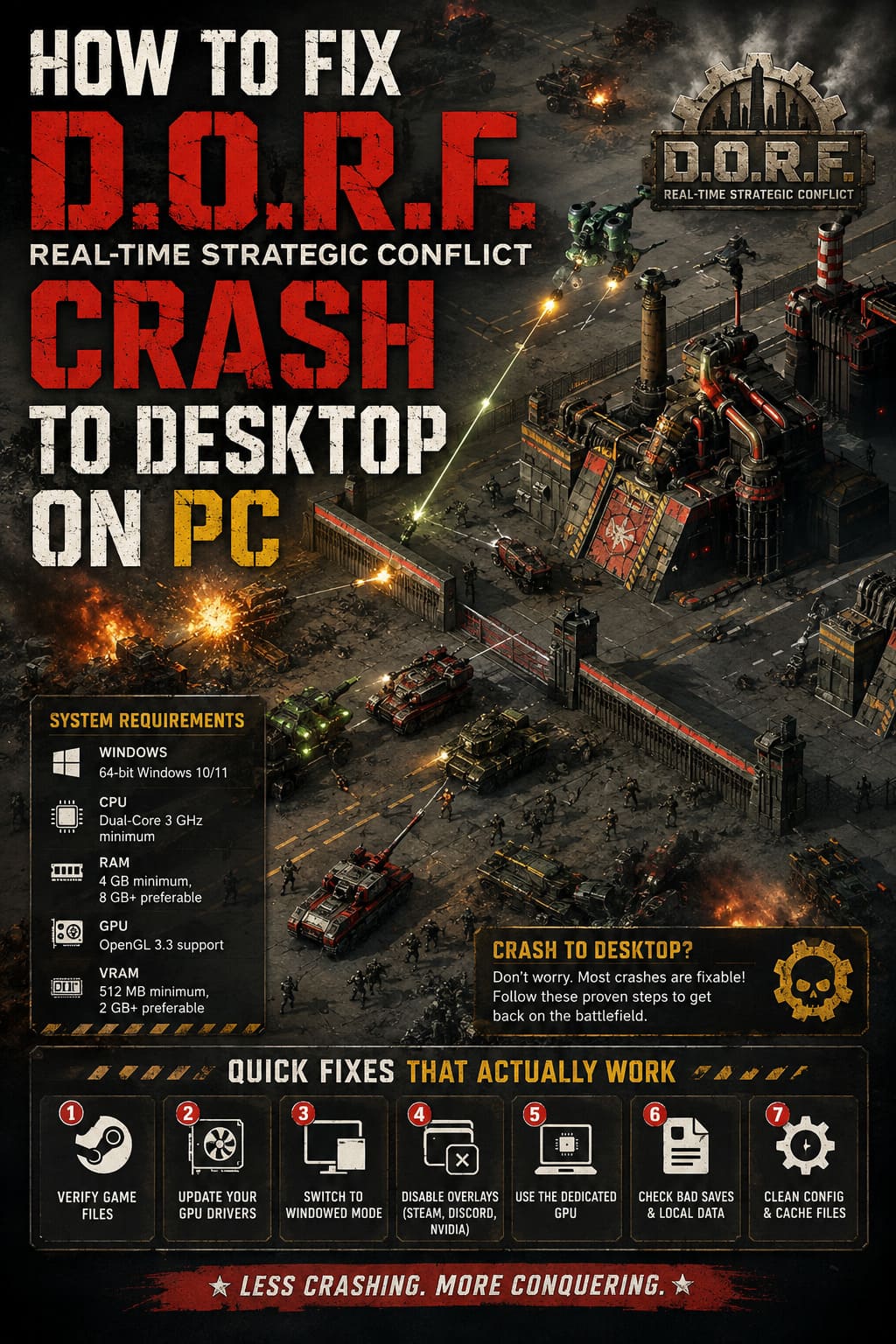
Before touching settings, check whether your system is actually comfortable running the game. D.O.R.F. may look relatively modest compared with modern AAA games, but an RTS can become surprisingly demanding once the battlefield fills with units, effects, buildings, projectiles, and destruction. Strategy games have a nasty habit of looking easy to run right up until the moment the screen becomes packed with hundreds of things happening simultaneously.
| Component | Baseline to Check | Why It Matters |
|---|---|---|
| Windows | 64-bit Windows 10/11 | Modern PC compatibility |
| CPU | Dual-Core 3 GHz minimum | Game simulation and unit logic |
| RAM | 4 GB minimum, 8 GB+ preferable | Large battles and background applications |
| GPU | OpenGL 3.3 support | Rendering the game world |
| VRAM | 512 MB minimum, 2 GB+ preferable | Reducing graphics-memory pressure |
If you are sitting comfortably above those requirements, I would not obsess over the specifications. Meeting the minimum requirements does not guarantee perfect stability, but being well above them makes it more likely that the crash has another cause. And if your PC is several generations old, testing the game with fewer background applications running is absolutely worth doing.
Verify the D.O.R.F. Game Files Through Steam
This is boring advice, but boring advice saves me more often than clever fixes. A broken download, incomplete update, or damaged file can cause D.O.R.F. to crash during startup or when loading a particular map. You don’t necessarily get an obvious warning that something is wrong, which makes file verification one of the first things I would try.
- Open Steam and go to your Library.
- Right-click D.O.R.F. Real-Time Strategic Conflict.
- Select Properties.
- Open Installed Files.
- Choose Verify integrity of game files.
- Let Steam finish the process before launching the game again.
If Steam discovers damaged or missing files, it should replace them automatically. I would also completely restart Steam afterward rather than immediately jumping back into the game. It takes almost no effort, and there is little point troubleshooting graphics drivers before confirming that the installation itself is healthy.
Update Your GPU Drivers — Especially If the Crash Happens at Launch
A crash immediately after launching D.O.R.F. makes me suspicious of the graphics stack. The game relies on OpenGL, and older or corrupted graphics drivers can create problems that aren’t necessarily obvious in other games. You might have a perfectly stable system in newer DirectX titles and still experience an ugly crash here.
Nvidia users should check their current GeForce driver through Nvidia’s software, while AMD users can use AMD Software: Adrenalin Edition. If you recently replaced your graphics card, things get even more interesting because remnants of the previous driver installation can sometimes cause bizarre behavior.
For a particularly stubborn case, a clean driver installation using Display Driver Uninstaller (DDU) can be worth considering. I would not jump straight to DDU for a single crash, though. Try a normal driver update first and only go deeper if D.O.R.F. continues to fail.
Fullscreen Might Be Your Enemy
This is one of those fixes that sounds too simple until it works. Older-style PC games and early builds can sometimes behave badly with modern displays, especially when you combine high refresh rates, multiple monitors, unusual resolutions, Windows scaling, and fullscreen mode. If D.O.R.F. crashes when entering the game rather than halfway through a match, display configuration deserves attention.
If you can reach the options menu, switch from Fullscreen to Windowed or Borderless Windowed. I would also set the game to your monitor’s native resolution instead of forcing an unusual resolution just because Windows supports it.
If you cannot reach the menu at all, look for D.O.R.F.’s local configuration files inside your Windows AppData folders. The exact location can change between builds, so I would search for a D.O.R.F. or DORFteam configuration directory rather than blindly deleting random files. If you find a display configuration, changing the windowed setting can sometimes get you back into the game.
Make Sure Windows Is Using the Correct GPU
This one matters most on laptops and systems with integrated and dedicated graphics. Windows can occasionally decide that an application does not need the powerful GPU, which is usually a reasonable decision for lightweight software but not necessarily what you want when troubleshooting a game.
Open Windows Settings > System > Display > Graphics and add the D.O.R.F. executable if it is not already listed. Open its options and select High Performance. Save the setting, restart the game, and see whether the crash disappears.
It is not the kind of setting I expect to fix every D.O.R.F. crash, but if you are on a gaming laptop, I would definitely check it. It takes less than a minute and eliminates one more variable from the troubleshooting process.
Kill Overlays Before They Kill Your Match
I have lost count of how many PC games have behaved perfectly after I disabled an overlay. Discord, Steam Overlay, Nvidia’s recording tools, performance monitors, RGB utilities, and other background programs all insert themselves into games in different ways. Most of the time they are harmless, but early-access and alpha builds are not always as forgiving.
Try launching D.O.R.F. with unnecessary overlays disabled. In particular, I would temporarily turn off Steam Overlay, Discord Overlay, and Nvidia ShadowPlay. You do not have to uninstall anything; this is simply a troubleshooting test.
It is also worth opening Task Manager with Ctrl + Shift + Esc and closing memory-heavy applications you do not need. A browser with thirty tabs open, a video editor, recording software, and several launchers running simultaneously can create a surprisingly messy environment for an unstable game build.
Try a More Aggressive Windows Power Plan
This is less likely to be the main culprit on a modern desktop, but it is another useful test. If Windows is being particularly aggressive with power management, changing your power profile can prevent the system from constantly adjusting CPU or GPU behavior while the game is running.
Open Windows Power Options and try High Performance instead of Balanced. On a laptop, make sure you understand that a performance-oriented profile can increase power consumption and heat. I would use this as a diagnostic step rather than assuming that everyone needs to leave their machine in maximum-performance mode permanently.
Crashing Only When Loading a Save? Look at Your Local Data
This is where the symptoms become really useful. If D.O.R.F. runs normally until you load one particular campaign or skirmish save, I would stop blaming your GPU immediately. A damaged save, configuration file, cache, or profile can cause a crash that looks like a general stability problem when it is actually tied to one piece of local data.
Before deleting anything, make a backup of your saves. If Steam Cloud is enabled, you may also want to temporarily disable synchronization while testing so that a problematic file is not immediately restored.
After backing everything up, locate the game’s local files in your Windows AppData directories and look for D.O.R.F. or DORFteam folders. Temporary cache or configuration data can sometimes be rebuilt automatically after deletion, but I would avoid deleting your entire save collection unless you know exactly which folder contains it. Losing a campaign because of a troubleshooting experiment is considerably more annoying than the original crash.
What I Would Try First
If I were sitting down with a fresh D.O.R.F. installation and getting random crashes, I would not perform all of these fixes at once. Changing ten settings simultaneously makes troubleshooting nearly impossible because you have no idea which change actually solved the problem.
- Verify the Steam installation.
- Update the GPU driver.
- Switch to Windowed or Borderless mode.
- Disable Steam, Discord, and GPU overlays.
- Force the dedicated GPU on dual-GPU systems.
- Test whether a particular save causes the crash.
- Only then start cleaning configuration and cache files.
That order keeps the troubleshooting relatively painless. More importantly, it helps identify whether your problem is related to installation files, rendering, Windows configuration, background software, or local game data.
D.O.R.F. Is Worth Troubleshooting If You Like Old-School RTS Games
The reason these crashes are particularly frustrating is that D.O.R.F. is clearly aimed at players who actually miss this style of strategy game. The combination of base construction, large-scale battles, land, air, and naval warfare, plus that deliberately grim industrial aesthetic, scratches a very specific itch. I have played plenty of modern RTS games that technically work better but somehow feel less interesting after twenty minutes.
At the same time, early builds deserve some patience. When a game is still being actively developed, stability problems can survive for a while before a developer identifies the exact hardware or software combination causing them. A crash during a playtest is annoying, but it is also useful information for the developers if the underlying logs and circumstances can be reported properly.
If D.O.R.F. Real-Time Strategic Conflict is crashing to desktop on your PC, start with the low-risk fixes rather than tearing apart your entire system. Verify the installation, update your graphics driver, experiment with display mode, disable overlays, and pay attention to exactly when the crash happens. The timing of the crash can tell you far more than a generic “D.O.R.F. keeps crashing” description.
And honestly, that is the approach I prefer with PC games in general. Don’t randomly change twenty settings because a forum post told you to. Change one thing, test it, and keep track of what happened. With a game as ambitious as D.O.R.F., a little methodical troubleshooting can be the difference between another crash to desktop and finally getting a proper RTS battle without Windows suddenly becoming your loading screen.