How to Fix The Left Behind Crash on Launch: Desktop Fixes and Startup Guide (2026)
The launch of The Left Behind brought exactly what many survival fans had been waiting for—an unforgiving open world filled with infected hordes, tense scavenging runs, and desperate nights where every bullet counts. The atmosphere is fantastic, exploration feels rewarding, and cooperative play makes every expedition unpredictable.
Unfortunately, there’s one enemy that has been ruining the experience before players even reach the main menu: startup crashes.
Across Steam discussions, Reddit communities, and PC gaming forums, players have been reporting the same frustrating symptoms. Some see a black screen before the game instantly closes. Others get stuck on the loading screen before Windows throws them back to the desktop without any warning. In many cases, there isn’t even an error message to point toward the cause.
The good news is that these launch crashes usually aren’t permanent. Like many newly released Unreal Engine-powered survival games, the problem often comes down to corrupted shaders, driver conflicts, Windows permissions, or background software interfering with initialization.
After digging through community reports, technical documentation, and countless player fixes, I’ve gathered the solutions that have consistently helped people get into the game. If you’re tired of launching The Left Behind only to watch it disappear a few seconds later, this guide walks through every worthwhile fix.
Why Does The Left Behind Crash Before It Starts?
Brand-new PC releases rarely behave perfectly on day one, especially ambitious open-world survival games.
Instead of one single bug, startup crashes are usually triggered by several different factors working together.
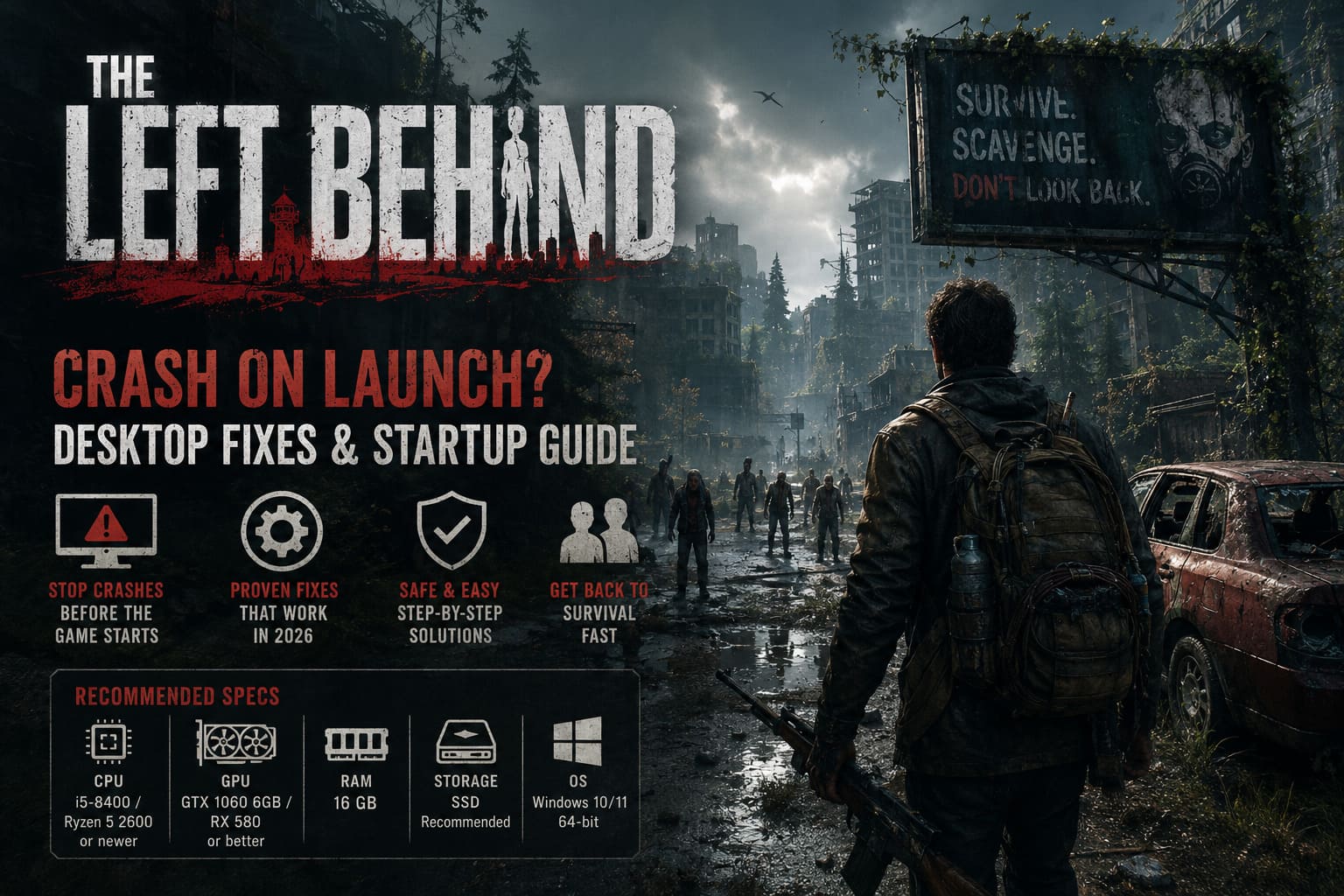
The most common causes include:
- Broken shader compilation
- Corrupted Steam installation files
- Outdated GPU drivers
- Windows security restrictions
- Overlay software conflicts
- Missing Visual C++ runtime libraries
The trick is figuring out which one is affecting your system.
Check Whether Your PC Meets the Requirements
Before changing Windows settings or reinstalling software, make sure your hardware isn’t already struggling before the game even loads.
While The Left Behind isn’t the most demanding survival title of 2026, its large environments and dynamic lighting require a decent amount of system resources.
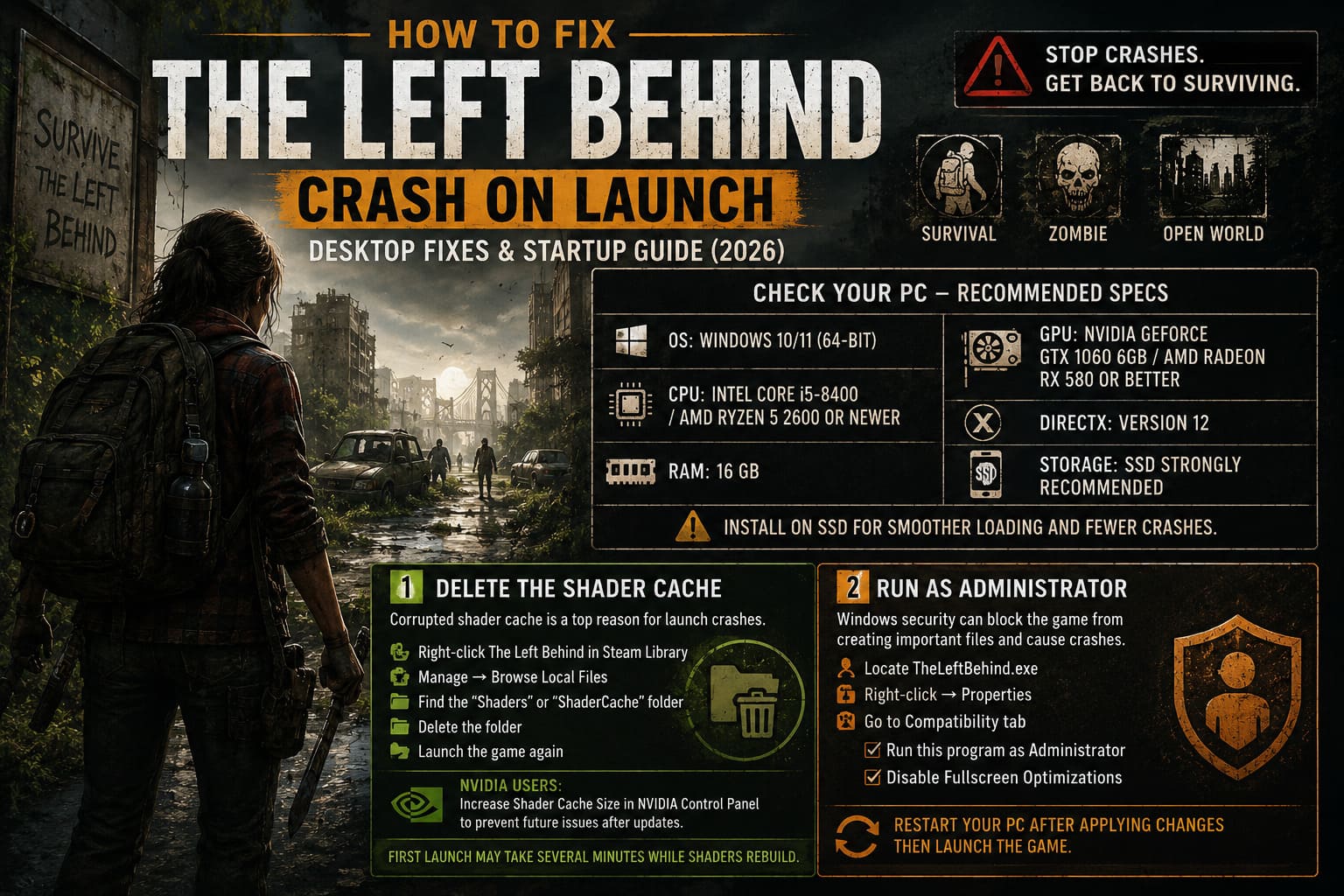
| Component | Recommended Starting Point |
|---|---|
| Operating System | Windows 10 or Windows 11 (64-bit) |
| CPU | Intel Core i5-8400 / AMD Ryzen 5 2600 or newer |
| Memory | 16 GB RAM |
| Graphics Card | NVIDIA GeForce GTX 1060 6GB / AMD Radeon RX 580 or better |
| DirectX | Version 12 |
| Storage | SSD strongly recommended |
Installing the game on an older HDD can also increase loading issues, especially while the engine streams large world assets during startup.
Delete the Shader Cache
If I had to bet on one fix that solves more launch crashes than anything else, it would be this one.
The very first time the game launches, it compiles thousands of shaders. If this process gets interrupted—even once—the cache can become corrupted, causing the game to crash every time it tries loading those files again.
Reset the shader cache:
- Open your Steam Library.
- Right-click The Left Behind.
- Select Manage → Browse Local Files.
- Locate the Shaders or ShaderCache folder.
- Delete the folder completely.
- Launch the game again.
If you’re using an NVIDIA GPU, it’s also worth increasing the available shader cache size inside the NVIDIA Control Panel. Letting Windows aggressively clean shader files sometimes creates problems after game updates.
The first launch afterward may take several minutes while everything rebuilds. That’s completely normal.
Run the Game with Administrator Permissions
This fix sounds old-fashioned, but it’s still surprisingly effective.
Windows security can prevent the game from creating configuration files or save folders inside your Documents directory. If initialization fails during that process, the game may simply close.
Enable administrator mode:
- Locate TheLeftBehind.exe.
- Open Properties.
- Select the Compatibility tab.
- Enable Run this program as Administrator.
- Enable Disable Fullscreen Optimizations.
Restart the PC afterward before testing again.
Verify the Steam Installation
Large downloads occasionally finish with damaged or incomplete files, even if Steam reports everything installed correctly.
Fortunately, Steam can compare every installed file against the official servers.
Verify game files:
- Open Steam Library.
- Right-click The Left Behind.
- Select Properties.
- Open the Installed Files tab.
- Click Verify Integrity of Game Files.
If anything is missing, Steam automatically downloads fresh copies.
This is usually much faster than reinstalling the entire game.
Force Windowed Mode
Sometimes the crash has nothing to do with the game itself.
Certain monitor configurations, unusual refresh rates, or multi-display setups can cause Unreal Engine games to fail while switching into fullscreen mode.
Adding launch parameters forces a safer startup.
Inside Steam’s Launch Options, try:
-windowed -noborderIf DirectX 12 appears to be the problem, test:
-dx11Many players have successfully reached the main menu this way before switching back to fullscreen later.
Stop Antivirus from Blocking the Game
Security software has become much more aggressive over the last few years.
Fresh indie releases often trigger heuristic scanning because the executable hasn’t built enough reputation yet.
If Windows Security or third-party antivirus quarantines part of the game during launch, the result is often an immediate desktop crash.
Create an exclusion for the entire installation folder.
Examples include:
- Windows Security
- Bitdefender
- Avast
- Malwarebytes
- ESET
Don’t forget firewall exceptions if you plan to play co-op.
Clear Steam’s Download Cache
Steam stores temporary authentication and download data that occasionally causes weird launch behavior after updates.
Clearing the cache only takes a minute.
Open:
Steam → Settings → Downloads → Clear Download Cache
Steam will ask you to sign in again afterward.
It’s a simple fix, but one that surprisingly solves launcher-related issues more often than you’d expect.
Repair Microsoft Visual C++ and DirectX
Modern PC games rely on Microsoft’s runtime libraries for everything from audio playback to animation systems.
If those packages become corrupted—or never installed properly—the game might never reach its splash screen.
Install or repair:
- Visual C++ 2015
- Visual C++ 2017
- Visual C++ 2019
- Visual C++ 2022
- Latest DirectX Runtime
Install both x64 and x86 versions even if you’re running a 64-bit operating system.
It avoids compatibility problems with third-party libraries bundled inside the game.
Disable Every Overlay You Can Find
This has become one of my first troubleshooting steps for almost every new PC release.
Overlay software hooks directly into DirectX, and some games simply don’t like sharing access during startup.
Applications worth disabling include:
- Discord Overlay
- Steam Overlay (temporarily)
- NVIDIA Overlay
- AMD Adrenalin Overlay
- MSI Afterburner
- RivaTuner Statistics Server
- OBS Studio
- Logitech G Hub
- Razer Synapse
Open Task Manager and close anything that isn’t essential before testing the game again.
It’s surprising how often one tiny overlay is the real culprit.
Perform a Completely Clean GPU Driver Installation
Simply installing a newer graphics driver over an old one doesn’t always eliminate corrupted settings.
For stubborn launch crashes, a clean installation usually works better.
The preferred approach is:
- Remove the current graphics driver using Display Driver Uninstaller (DDU).
- Restart Windows.
- Download the newest WHQL-certified driver directly from your GPU manufacturer.
- Perform a clean installation.
Whether you’re running NVIDIA, AMD, or Intel hardware, this removes leftover profiles that sometimes conflict with newer game engines.
The Left Behind Survival Guide: Loot and Hunt Mechanics Tutorial (2026)
Quick Troubleshooting Checklist
If you want the fastest route before diving into deeper diagnostics, work through this list.
| Fix | Difficulty | Success Rate |
|---|---|---|
| Verify Steam files | Easy | High |
| Delete shader cache | Easy | Very High |
| Run as Administrator | Easy | Medium |
| Disable overlays | Easy | High |
| Force DX11 | Easy | Medium |
| Clear Steam cache | Easy | Medium |
| Repair Visual C++ | Medium | High |
| Reinstall GPU drivers | Advanced | Very High |
Final Verdict
As much as I’m enjoying The Left Behind, there’s no denying that the PC launch has been rough for a portion of the community. The silver lining is that most startup crashes aren’t caused by failing hardware or permanently broken installations—they’re usually the result of software conflicts that can be fixed with a bit of patience.
If I were helping a friend troubleshoot the game, I’d tackle the solutions in this order: verify the Steam files, wipe the shader cache, disable overlays, force the game into windowed mode, and only then move on to driver reinstalls or runtime repairs. Those first few steps solve the majority of launch issues without wasting hours reinstalling everything.
As the developers continue releasing patches, many of these problems will likely disappear. Until then, keeping your drivers current, avoiding unnecessary background software, and rebuilding corrupted caches remain the most reliable ways to get back into the wasteland instead of staring at your desktop.
Once the crashes are gone, The Left Behind finally gets the chance to show what it does best: delivering those tense, edge-of-your-seat survival moments that make every successful supply run feel genuinely earned.