How to Fix Diablo 4 High Latency Lag and Rubberbanding on US Servers (2026 Guide)
If there is one thing that can completely ruin an otherwise great Diablo 4 session, it is network lag. I can tolerate a frame-rate dip when a screen suddenly fills with demons, but watching my character teleport three steps backward because the server decided my last few seconds of movement never happened is another story.
I’ve played plenty of online games over the years, from competitive shooters where a few milliseconds matter to MMOs where occasional latency spikes are simply part of the experience. Diablo 4 can be particularly annoying because the game is always online. Even when you’re playing solo, your connection still matters.
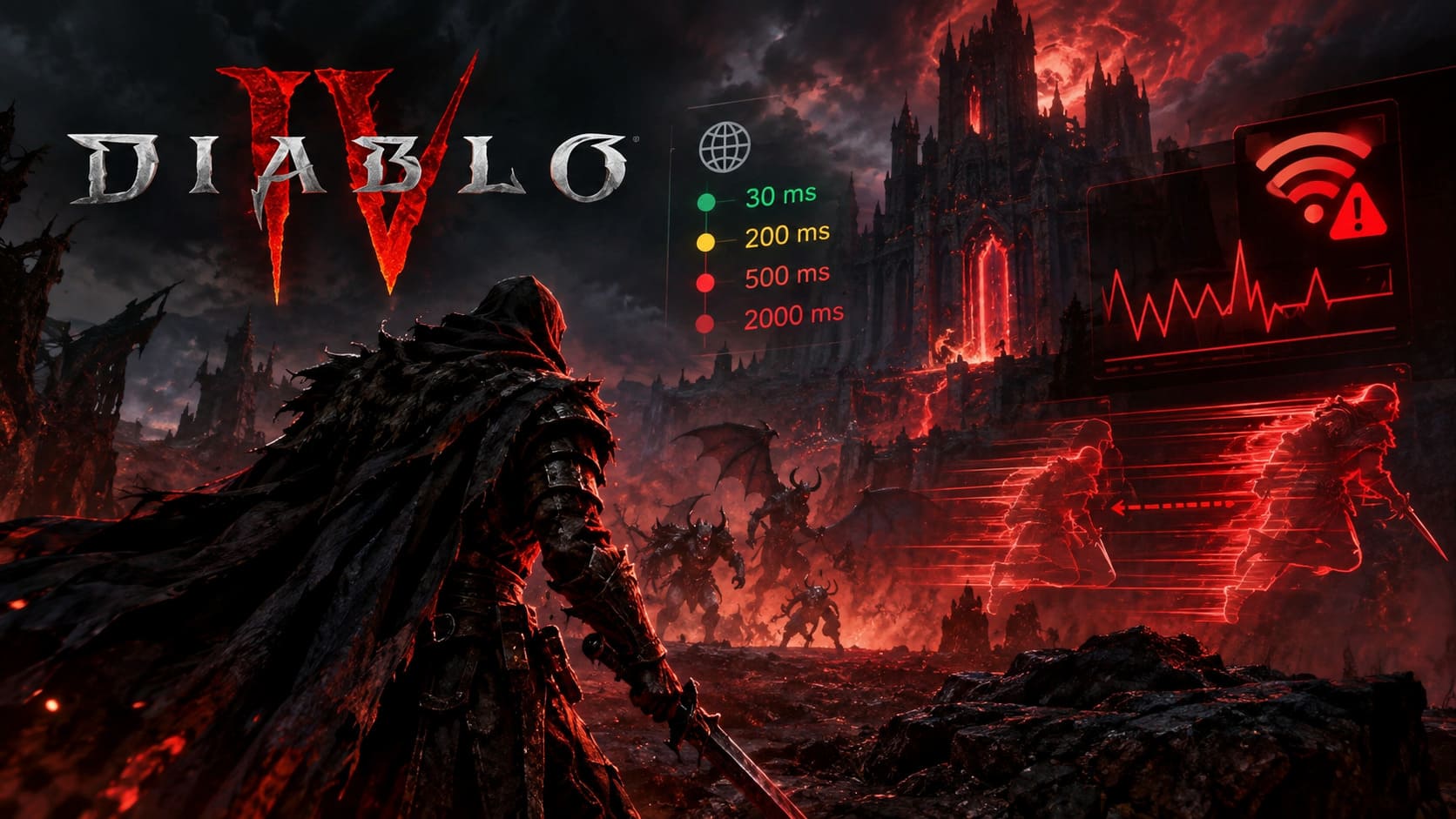
The frustrating part is that high Diablo 4 ping doesn’t always make sense. You can have a fast fiber connection, a modern gaming PC, and perfectly normal latency in every other game, yet Diablo 4 can suddenly jump from 30ms to 200ms, 500ms, or even several thousand milliseconds.
The good news is that not every rubberbanding problem is caused by your PC or internet speed. In my experience, you have to approach this like a troubleshooting problem rather than randomly changing twenty settings at once.
Here is the process I’d use in 2026.
First, Understand What Kind of Lag You’re Actually Seeing
Before changing anything, figure out whether you’re dealing with network latency, packet loss, or ordinary performance problems.
| Symptom | Most Likely Cause | First Thing I’d Test |
|---|---|---|
| Character snaps backward | Packet loss / unstable connection | Ethernet connection |
| Ping suddenly jumps | Routing or congestion | Traceroute / alternate route |
| Skills activate late | Network latency | Disable Wi-Fi and test route |
| FPS drops with normal ping | PC performance | Graphics settings |
| Loading takes forever | Server/client or connection issue | Battle.net repair |
| Lag happens only occasionally | ISP routing / congestion | VPN or GPN test |
This distinction matters. A 45 FPS game can feel awful, but it isn’t the same problem as a 45ms connection suddenly becoming 900ms.
Diablo 4 also makes this confusing because network problems and frame-time problems can feel surprisingly similar.
1. Start With Ethernet Before Touching Anything Complicated
This is the most boring recommendation in the article, but it is also one of the first things I’d test.
If you’re playing Diablo 4 over Wi-Fi, switch to Ethernet if you possibly can.
Wi-Fi isn’t automatically bad. I’ve played plenty of games wirelessly without issues. The problem is consistency. Interference, distance from the router, other devices, crowded channels, and short bursts of congestion can create packet loss that isn’t obvious when you’re simply browsing the web.
For Diablo 4, those little interruptions can become very noticeable.
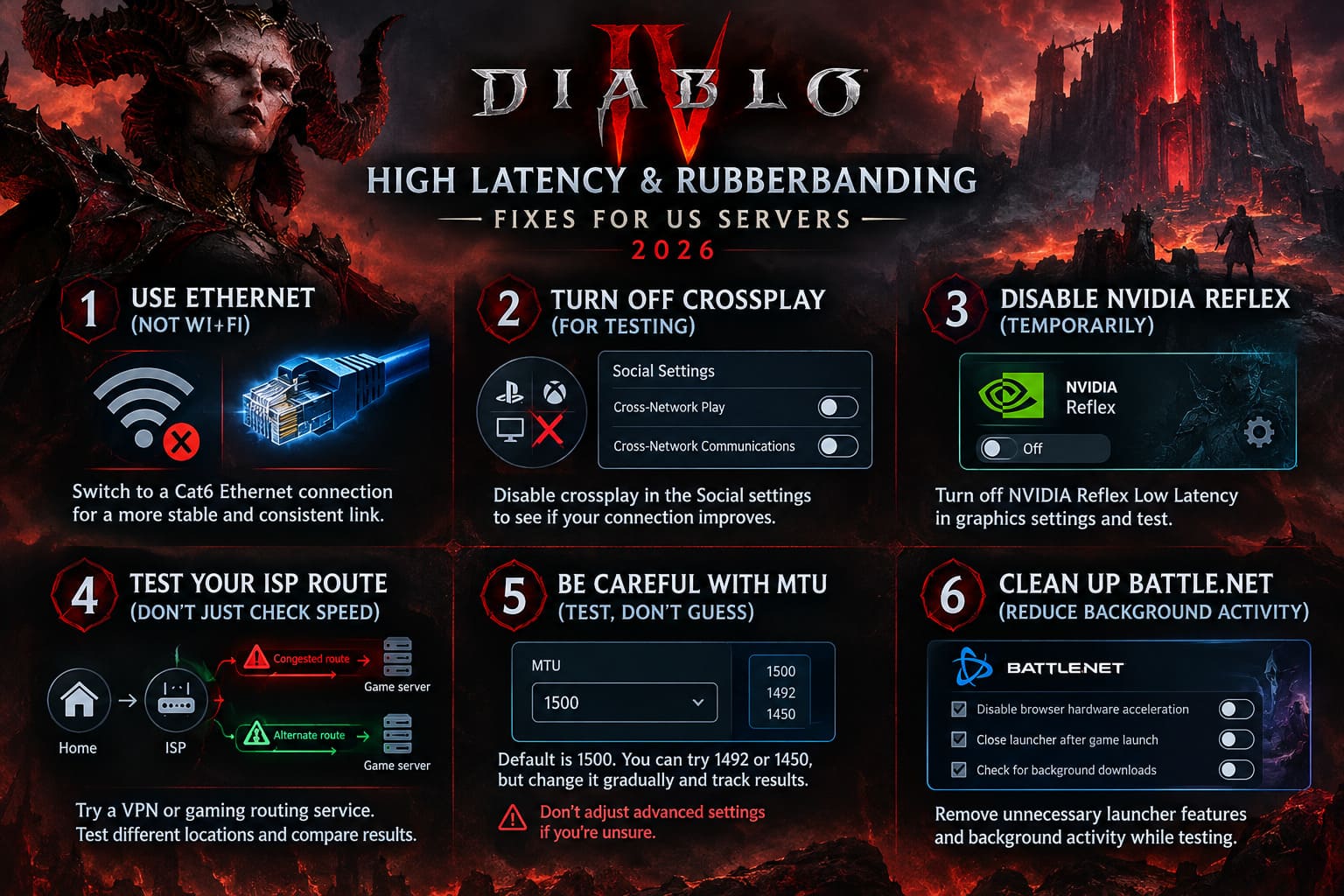
A direct Cat6 Ethernet connection is cheap, simple, and removes an entire category of potential problems.
If Ethernet isn’t practical, MoCA can be an interesting alternative for homes with existing coaxial wiring. Powerline adapters can also work, although results vary dramatically depending on the home’s electrical wiring.
I would test the connection before buying anything, though. There is no reason to spend money on networking hardware if the actual problem is somewhere upstream.
2. Turn Off Crossplay as a Diagnostic Test
Diablo 4’s cross-platform ecosystem is convenient, but if I’m troubleshooting rubberbanding, I don’t mind temporarily removing it from the equation.
Open the game’s Social settings and disable:
- Cross-Network Play
- Cross-Network Communications
You generally need to make this change from the appropriate menu rather than while actively playing.
I wouldn’t claim that disabling crossplay magically fixes every latency problem. It doesn’t. But if your connection becomes noticeably more stable afterward, you’ve learned something useful.
That’s the way I approach these fixes: don’t blindly believe that one setting is the cure. Use it as a test.
If you regularly play with friends on other platforms, you can always turn crossplay back on after testing.
3. Don’t Ignore NVIDIA Reflex When Troubleshooting
NVIDIA Reflex is designed to reduce system latency, so disabling it sounds counterintuitive.
However, when troubleshooting Diablo 4, I prefer to remove variables rather than assume every latency-related feature is helping.
Go to the game’s graphics settings and temporarily disable NVIDIA Reflex Low Latency.
If you’re currently using Enabled + Boost, switch it off and play for a while.
The important word here is temporarily. Reflex primarily concerns input and render latency, not your internet connection. It should not be treated as a universal “high ping fix.”
Still, if you’re experiencing stutters that feel like network lag, simplifying the graphics and latency pipeline can help determine whether you’re actually dealing with two separate problems.
4. Test Your ISP Route Before Blaming Your Internet Speed
This is probably the most important part of the entire guide.
A fast internet package does not guarantee a good route to a particular game server.
You could have gigabit fiber and still get a terrible path to a specific Diablo 4 server cluster.
Think of it like driving. Owning a Ferrari doesn’t help if the road between you and your destination is backed up with traffic.
This is where a VPN or gaming-focused routing service can become useful.
Services such as gaming VPN/GPN products can sometimes send your traffic through a different route. If your normal ISP path has congestion somewhere between your home and Blizzard’s infrastructure, changing that path may reduce latency or packet loss.
The important thing is to test rather than assume.
For example, if your normal connection gives you:
Home → ISP → congested route → game server
and an alternate route gives you:
Home → ISP → alternate backbone → game server
the second route may perform better even though it technically takes a different path.
Don’t choose a VPN server simply because it is geographically close to you. Test several sensible locations and compare the actual latency and stability.
A route through Chicago might be better for one player, while another connection could perform better through a different regional hub.
5. Be Careful With MTU Changes
MTU is one of those networking settings that gets recommended constantly in gaming communities.
The default value for many Ethernet connections is 1500, while some configurations use lower values.
If your connection has a path with a smaller MTU requirement, fragmentation or packet-handling issues can theoretically create problems. That’s why values such as 1492 or 1450 sometimes appear in troubleshooting guides.
But I would not immediately change your router to 1450 just because Diablo 4 is lagging.
This is one of those settings where testing matters.
If you want to experiment, change the value gradually and keep track of what you changed. If performance becomes worse, restore the previous configuration.
And if you don’t understand your router’s WAN settings, don’t start changing random advanced options. A bad configuration can create more problems than it solves.
6. Clean Up Battle.net Before Reinstalling Diablo 4
Before downloading the entire game again, I’d take a look at the Battle.net launcher.
If the launcher is running unnecessary browser features or background activity while you’re gaming, removing those variables is an easy troubleshooting step.
In Battle.net settings, look for the option related to browser hardware acceleration and test with it disabled.
I’d also consider setting the launcher to close after launching the game.
This isn’t because Battle.net is inherently responsible for Diablo 4 latency. Rather, it’s about reducing unnecessary background activity while testing.
The same philosophy applies to downloads. If Battle.net is downloading updates or another application is consuming bandwidth in the background, your connection may behave very differently from a completely idle network.
7. Use Scan and Repair Before Doing a Full Reinstall
If Diablo 4 is behaving strangely, corrupted or inconsistent game files are another possibility worth eliminating.
Battle.net provides a Scan and Repair function that can verify the installation.
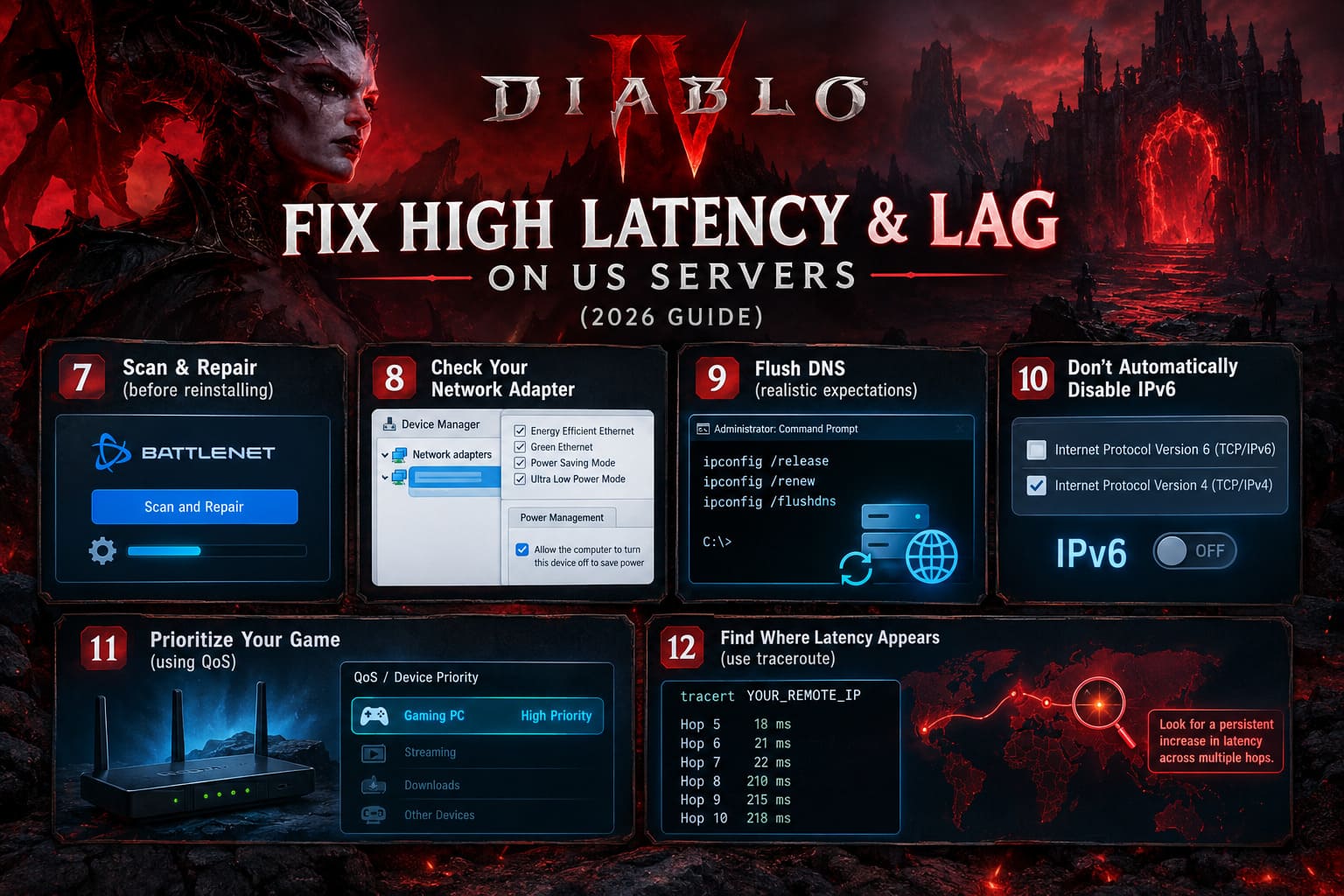
I would use that before deleting the entire game.
The same goes for optional game assets. If you’re experimenting with high-resolution assets, make sure the installation is complete and consistent rather than assuming that installing additional textures will automatically solve a networking issue.
Some community troubleshooting theories connect asset problems with background requests, but I would treat those claims as something to test rather than an established universal explanation for high ping.
8. Check Your Windows Network Adapter
Windows has a surprising number of power-management features hidden inside network adapter properties.
Open Device Manager → Network adapters, select your active Ethernet or Wi-Fi adapter, and check its properties.
Depending on your hardware, you may find options such as:
- Energy Efficient Ethernet
- Green Ethernet
- Power Saving Mode
- Ultra Low Power Mode
You can test disabling these features.
Also check the Power Management tab. If Windows is allowed to turn the network adapter off to save power, disabling that option can eliminate another potential variable.
I wouldn’t change every advanced NIC setting you find on the internet. Network adapter options differ between Intel, Realtek, Killer, and other controllers, and a setting that helps one system can do nothing—or cause problems—on another.
9. Flush DNS, But Keep Your Expectations Realistic
A DNS flush is quick and harmless enough to include in a troubleshooting routine.
Open Command Prompt as administrator and run:
ipconfig /release
ipconfig /renew
ipconfig /flushdns
Then restart Diablo 4.
Just don’t expect this to magically transform a 250ms route into a 30ms route.
DNS primarily handles name resolution. Once you’re connected to the appropriate service, DNS isn’t continuously controlling every packet sent during your game session.
So if you’re dealing with genuine routing congestion, changing DNS alone probably won’t fix it.
Still, it is a simple step and can help eliminate stale local network information.
10. Don’t Automatically Disable IPv6
IPv6 troubleshooting is another area where gaming guides often oversimplify things.
Some players have better results with IPv6 disabled. Others have perfectly stable connections using IPv6.
If your ISP has a problematic dual-stack configuration, testing IPv4 and IPv6 separately can be useful. But I would treat this as a diagnostic experiment, not a guaranteed optimization.
If you want to test it, open your network adapter properties and temporarily disable Internet Protocol Version 6 (TCP/IPv6).
Play for a while and compare the results.
If nothing changes, turn it back on.
There’s no prize for keeping IPv6 disabled.
11. Give Diablo 4 Priority on a Busy Home Network
This one becomes particularly important if you share your internet connection.
Someone streaming 4K video, downloading a massive game, uploading files to the cloud, or running several connected devices can create congestion even if your internet package looks extremely fast.
This is where Quality of Service (QoS) can help.
If your router supports QoS or device prioritization, give your gaming PC or console higher priority.
The goal isn’t necessarily to increase your maximum download speed. It’s to make your connection more predictable when other devices are competing for bandwidth.
That distinction matters enormously for online gaming.
12. Find Out Where the Latency Actually Appears
If you’re still experiencing severe spikes, stop changing settings randomly and start collecting evidence.
Windows provides tools that can help identify where a route becomes problematic.
You can use PowerShell or Command Prompt to inspect active connections and then perform a traceroute against a relevant remote address.
For example:
tracert YOUR_REMOTE_IPThe important thing isn’t simply finding one hop with a high number.
Some routers intentionally deprioritize or ignore traceroute packets. A single high-latency hop does not automatically mean that router is causing your gaming problem.
What you want to see is a persistent increase that continues through subsequent hops.
For example:
Hop 5    18 ms
Hop 6    21 ms
Hop 7    22 ms
Hop 8   210 ms
Hop 9   215 ms
Hop 10  218 ms
That pattern is much more interesting than:
Hop 8   300 ms
Hop 9    23 ms
Hop 10   24 ms
The second example may simply indicate that the intermediate router doesn’t prioritize diagnostic traffic.
This is why traceroute is evidence, not a magic answer.
Diablo 4 Living Steel Farming Guide: How to Get Living Steel Fast (2026 Meta)
My Order of Attack for Diablo 4 Lag
After playing enough online games to learn that complicated fixes are often unnecessary, this is the order I’d personally use:
- Switch to Ethernet.
- Check whether other devices are saturating the connection.
- Disable crossplay temporarily.
- Restart the router and PC/console.
- Test Battle.net without unnecessary background activity.
- Run Scan and Repair.
- Check network adapter power-saving features.
- Compare IPv4/IPv6 behavior if the problem persists.
- Run a traceroute and look for persistent route degradation.
- Test an alternative VPN/GPN route.
- Only then start experimenting with MTU or deeper router settings.
The reason I prefer this order is simple: start with changes that are easy to reverse and easy to measure.
There is no point changing ten Windows registry settings when the real problem is a congested ISP route three states away.
Diablo 4 PvP Tier List 2026: Best Classes and Meta Builds for Fields of Hatred
Final Thoughts
Diablo 4 latency problems are frustrating precisely because they aren’t always obvious. A fast connection doesn’t guarantee a clean route, and good FPS doesn’t guarantee a responsive online session.
I’ve learned the hard way with online games that the best troubleshooting method isn’t throwing every “FPS boost” or “network optimization” trick at the problem. It’s isolating one variable at a time.
If Diablo 4 suddenly starts rubberbanding while everything else on your PC works normally, look at the network path first. Ethernet, crossplay testing, router congestion, ISP routing, and traceroute analysis can tell you far more than blindly changing graphics settings.
And if an alternate VPN/GPN route suddenly makes the game stable, that’s a particularly useful clue: your PC may not be the problem at all.
The goal isn’t to make Diablo 4’s networking behave perfectly in every possible situation. The goal is to identify where the instability actually enters the connection, then remove or bypass that problem.
That approach has saved me a lot more time than reinstalling a 100+ GB game every time Sanctuary decides to teleport my character backward.