How to Fix Resonance A Plague Tale Legacy Black Screen on Launch (2026 PC Guide)
If Resonance: A Plague Tale Legacy launches into a beautiful soundtrack and absolutely nothing else, welcome to one of the most annoying PC problems a new game can throw at you.
You press Play. Steam says the game is running. Your GPU wakes up. You may even hear menu music or ambient sound in the background. And yet the monitor is staring back at you like you’ve just offended it personally.
For players jumping into Asobo Studio and Focus Entertainment’s latest A Plague Tale adventure, a black screen on launch can be especially frustrating. The game promises a darker journey with Sophia, the mysterious Minotaur’s Island, action-heavy encounters, and a story built around dual timelines. You don’t buy a game like this to spend your evening fighting Windows.
The good news? A black screen doesn’t automatically mean your GPU is dying or that the game needs a complete reinstall.
I’ve gone through the usual PC troubleshooting rabbit hole here — shader caches, display modes, VRR, overlays, audio devices, hybrid GPUs, corrupted files and the wonderfully cursed world of Windows redistributables. Some fixes are quick and obvious. Others are the kind of thing you’d never think to check until someone on a gaming forum casually says, “Try disabling your virtual audio device.”
Here are the fixes I’d try, in this exact order, before nuking the entire installation.
Quick Fix Guide

| Problem | First Thing To Try | Difficulty |
|---|---|---|
| Black screen with music | Clear DirectX Shader Cache | Easy |
| Black screen after fullscreen starts | Try Windowed Mode | Easy |
| Display flickers or stays blank | Disable G-Sync/FreeSync | Easy |
| Game launches but video never appears | Change audio output | Easy |
| Instant crash to desktop | Verify game files | Easy |
| Laptop uses the wrong GPU | Force High-Performance GPU | Easy |
| Strange behavior with menus | Disable overlays | Easy |
| Crash immediately after launch | Repair Visual C++ Redistributables | Moderate |
1. Start With the DirectX Shader Cache
This is the first thing I’d do.
Not because clearing a cache magically fixes every PC game — it doesn’t — but because shader compilation problems are particularly nasty when a game refuses to get past its opening render sequence.
Modern games build and reuse shader data to avoid compiling everything from scratch every time you launch. If that cached data becomes corrupted or conflicts with a new driver or game update, you can get some wonderfully unhelpful symptoms: frozen loading screens, black displays, stuttering or a crash shortly after startup.
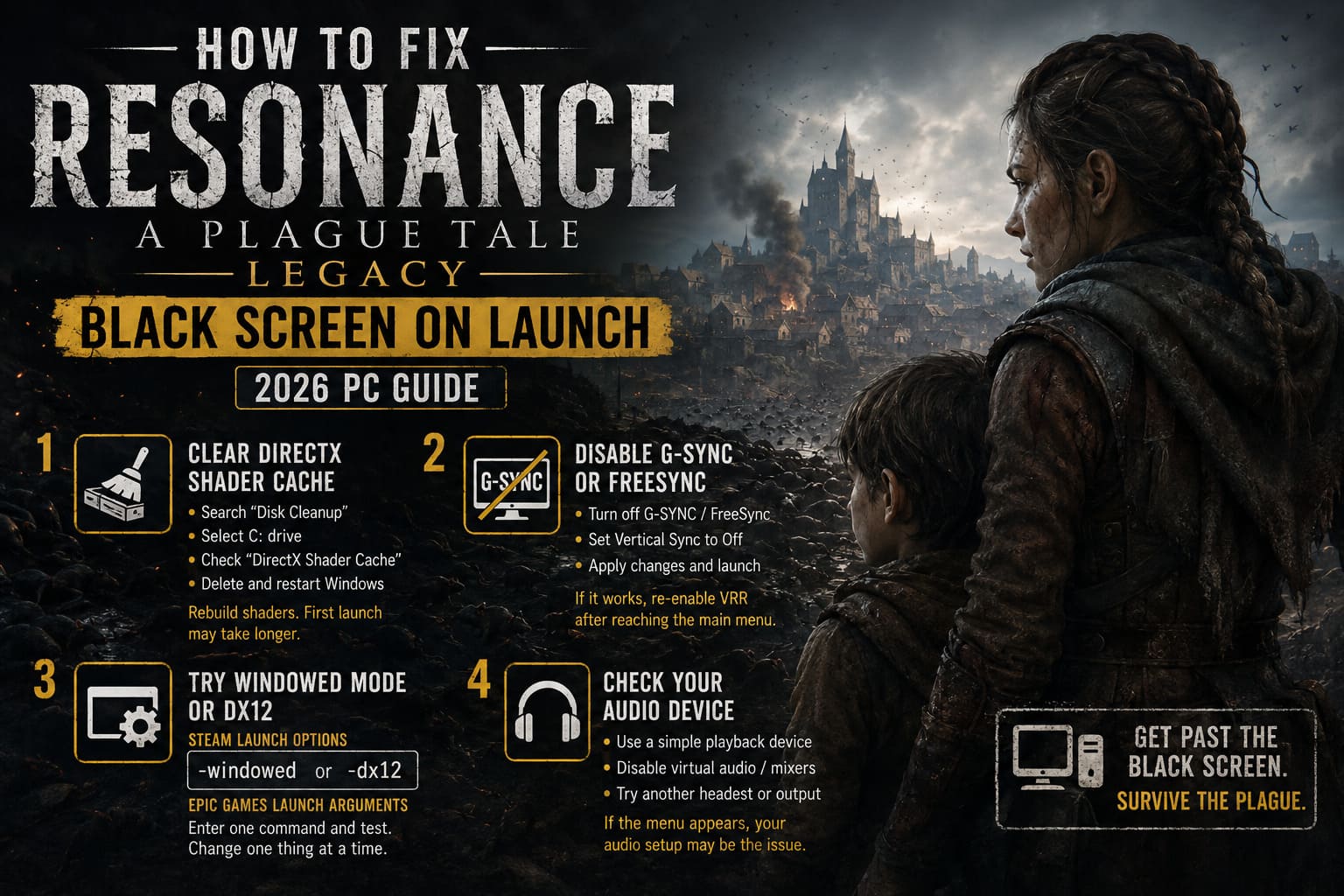
How to clear it
- Press the Windows key and search for Disk Cleanup.
- Open the utility and select your Windows drive, normally C:.
- Let Windows calculate the removable files.
- Find DirectX Shader Cache in the list.
- Tick it and leave anything else you don’t want to remove unchecked.
- Click OK, then confirm the deletion.
- Restart Windows.
Launch Resonance again.
Don’t panic if the first boot takes longer than normal. The game may need to rebuild shader data. That’s expected. Give it a little time rather than killing the process after ten seconds because nothing appears.
My recommendation: if you’re troubleshooting a black screen after updating your GPU driver or after a substantial game patch, this should be near the top of your list.
2. Turn Off G-Sync or FreeSync for the First Launch
Variable refresh rate is fantastic when everything works.
When it doesn’t, troubleshooting becomes considerably less fun.
A high-refresh-rate monitor running G-Sync, G-Sync Compatible or AMD FreeSync can sometimes complicate the initial transition into fullscreen rendering. If the game is trying to establish its resolution, refresh rate and VRR state simultaneously, a bad handshake can leave you with a black display while the application itself is technically running.
For NVIDIA hardware:
- Open NVIDIA Control Panel.
- Select Set up G-SYNC.
- Temporarily disable G-SYNC.
- Open Manage 3D Settings.
- Go to Program Settings.
- Select Resonance from the application list.
- Set Vertical sync to Off temporarily.
- Apply the changes.
- Launch the game.
AMD users can perform a similar test through AMD Software: Adrenalin Edition by temporarily disabling FreeSync for the game.
If Resonance suddenly boots normally, you’ve learned something important: the problem is probably connected to the display configuration rather than the game installation itself.
Once you’re safely at the main menu, you can restore your preferred VRR settings and test again.
3. Force Windowed Mode Before You Start Blaming Your GPU
Here’s one of those old-school PC tricks that still earns its place in the toolbox.
Sometimes the game is perfectly capable of rendering, but fullscreen initialization goes sideways. You get audio, perhaps mouse movement, maybe even the faintest sign that the game is alive — but the screen remains black.
Windowed mode is an excellent diagnostic test.
Steam
Open your Steam Library, right-click Resonance and select Properties.
Under General, find the Launch Options field and try:
-windowed
Launch the game.
If that doesn’t work, you can also test:
-dx12
The important part is not throwing five random launch parameters at the game simultaneously. Change one thing, test it, then move on. Otherwise you have no idea which setting actually fixed the problem.
If windowed mode works, enter the game’s display settings and manually choose your native resolution. Then try switching back to borderless or fullscreen.
Epic Games Store
Open the Epic Games Launcher and enter Settings.
Find Resonance in the installed-game settings and enable the option for Additional Command Line Arguments. Enter the launch parameter you want to test.
Again, start with one.
Don’t turn troubleshooting into alphabet soup.
4. Check Your Audio Device — Seriously
This sounds ridiculous.
It isn’t.
One of the strangest categories of PC launch problems involves audio devices, virtual mixers and software that sits between Windows and your physical hardware. If the game produces sound while the display stays black, that is actually useful information.
It means the game may not be completely frozen.
Before launching Resonance, switch Windows to a straightforward playback device. If you’re using something like a USB audio interface, virtual mixer, specialized surround software or a complicated multi-device setup, temporarily simplify it.
Try:
- A standard wired headset
- Your monitor’s basic audio output
- Another physical playback device
You can also temporarily disable virtual audio devices you don’t need.
Then launch the game.
If it reaches the main menu, you’ve found a strong suspect.
This is exactly the sort of PC problem that makes people think, “There’s no way my headphones are causing a black screen.” And that’s why it’s worth testing. PC gaming has a talent for making completely unrelated hardware appear guilty.
Once the game reaches the menu reliably, switch your normal audio setup back on and test it.
5. Kill Every Overlay You Don’t Need
I love overlays when they work.
I hate them when I’m troubleshooting.
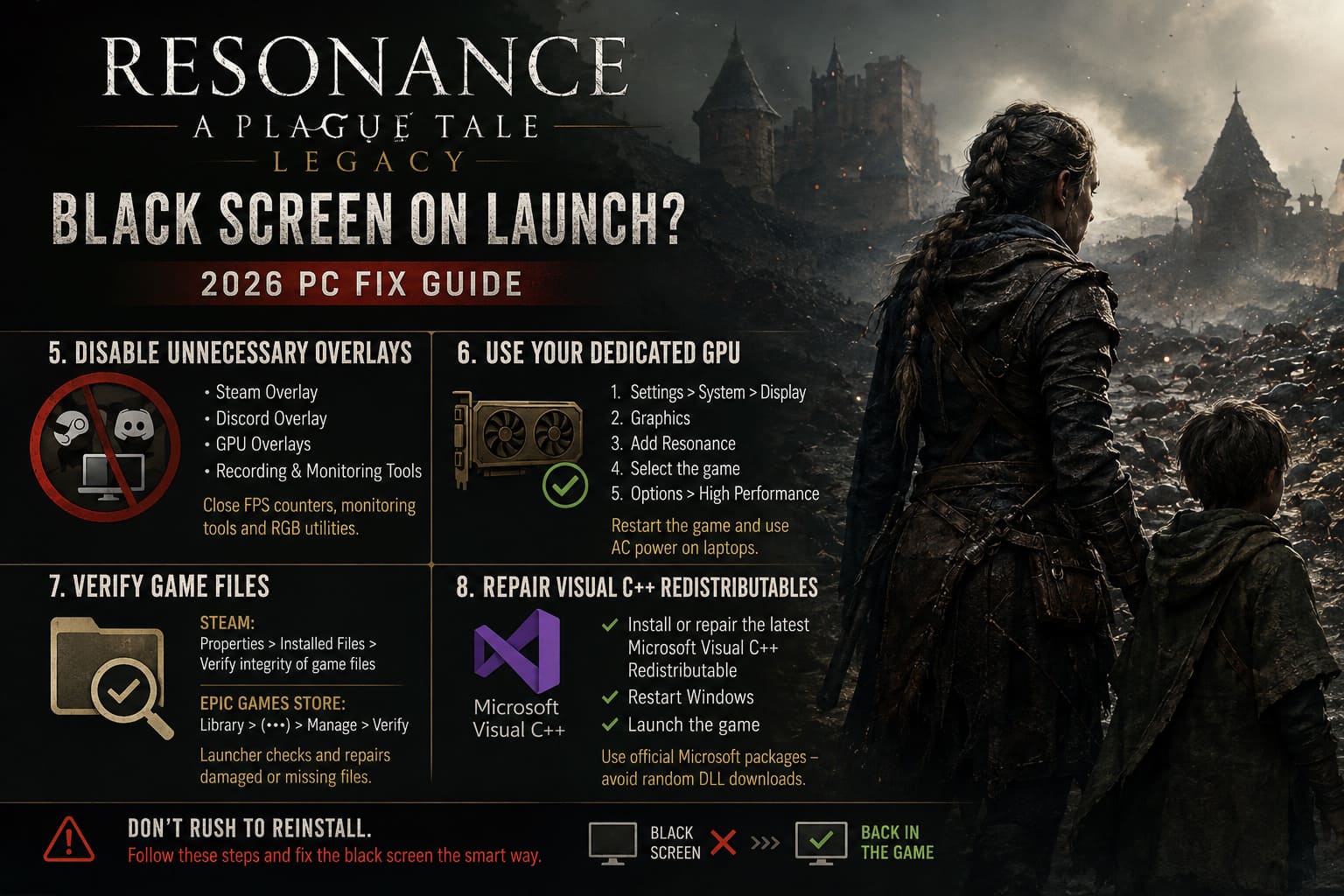
Steam Overlay, Discord Overlay, GPU monitoring tools, recording software and other background interfaces can hook into games while they’re launching. Most of the time, that’s harmless. When a game is already having trouble initializing its renderer, however, removing those extra layers is a smart move.
Start with the obvious suspects.
Steam Overlay: Open the game’s Properties in Steam and disable Enable the Steam Overlay while in-game.
Discord: Go to Discord’s settings and disable the in-game overlay. If you’re troubleshooting aggressively, you can also temporarily disable Discord’s hardware acceleration.
GPU software: Turn off recording widgets, performance overlays and other in-game HUD features from your graphics software.
I would also close things such as FPS counters, hardware monitoring overlays and aggressive RGB utilities during the test.
You don’t have to live without these features forever. The goal is simply to establish whether something injecting itself into the rendering pipeline is responsible.
6. Make Sure Resonance Is Using Your Real Gaming GPU
This one matters enormously on laptops.
Modern gaming laptops frequently have an integrated GPU and a dedicated NVIDIA or AMD GPU. Windows is generally pretty good at deciding which one should run a game.
“Generally” is doing a lot of work there.
If Resonance accidentally launches using the integrated graphics processor, you may see crashes, terrible performance, initialization failures or a black screen.
To force the dedicated GPU:
- Open Windows Settings.
- Go to System > Display.
- Select Graphics.
- Add Resonance as a desktop application.
- Browse to the game’s main executable.
- Select the game in the graphics-app list.
- Open Options.
- Choose High Performance.
- Save the setting.
Restart the game afterward.
If you’re using a laptop, I’d also make sure you’re connected to AC power during testing. Some aggressive battery-saving profiles can alter GPU behavior and power limits.
7. Verify the Installation Before Reinstalling the Entire Game
Please don’t immediately delete a huge modern game and spend the next hour downloading it again.
Verify the files first.
A damaged archive, interrupted update or failed installation can leave one or more files in a broken state. The launcher can often repair those files without making you reinstall everything.
Steam
Right-click Resonance in your Library.
Go to:
Properties → Installed Files → Verify integrity of game files
Let Steam finish the process before launching the game again.
Epic Games Store
Open your Library, click the three dots beside the game, select Manage, then choose Verify.
The launcher will check the installation and replace files it considers damaged or missing.
If the game suddenly stops crashing afterward, congratulations: you avoided the nuclear option.
8. Repair Microsoft Visual C++ Redistributables
If Resonance flashes a black screen for a second and immediately throws you back onto the Windows desktop, I’d look beyond display settings.
Some games depend on Microsoft’s runtime components to start correctly. A damaged or incomplete Microsoft Visual C++ Redistributable installation can cause applications to crash before they ever reach the menu.
Use Microsoft’s official supported Visual C++ Redistributable packages rather than downloading random “DLL fixer” utilities from questionable websites.
Install or repair the appropriate package, restart Windows and test the game again.
And please, don’t download a standalone DLL from a random website because a forum told you to. That’s how a simple game-launch problem becomes a much bigger security headache.
What I’d Try First If I Had the Black Screen
If I were sitting at my own PC with Resonance refusing to display anything, I wouldn’t spend three hours changing every Windows setting I could find.
I’d work through this sequence:
- Clear DirectX Shader Cache
- Disable G-Sync/FreeSync
- Try
-windowed - Switch to a basic audio output
- Disable all overlays
- Force the dedicated GPU
- Verify the game files
- Repair Visual C++ if the game crashes instantly
That order is deliberate. The first few tests are quick, reversible and don’t mess with your installation.
Resonance: A Plague Tale Legacy Steam Deck Best Settings Guide (2026)
Don’t Forget Your GPU Driver
A fresh game release is one of the worst times to run an ancient graphics driver.
Before digging into increasingly exotic fixes, check whether NVIDIA or AMD has released a driver specifically addressing the game’s launch or rendering behavior. If you’ve just updated your driver and the black screen started immediately afterward, however, don’t automatically assume “newer equals better.”
A driver update can introduce its own compatibility problems.
In that situation, clearing the shader cache and performing a clean driver installation are both reasonable troubleshooting steps.
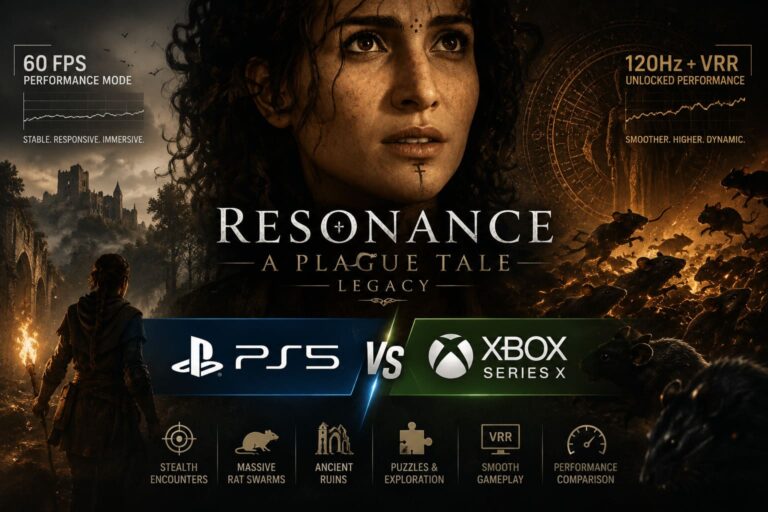
Resonance: A Plague Tale Legacy PS5 vs Xbox Series X Performance Comparison
The Bottom Line
A Resonance: A Plague Tale Legacy black screen on launch is frustrating because the symptoms don’t tell you much. A silent crash, black display with audio, fullscreen failure and instant desktop crash can all look almost identical from the player’s chair.
That’s why I wouldn’t jump straight to reinstalling Windows, replacing hardware or throwing obscure launch commands into Steam.
Start with the boring stuff that has a surprisingly high success rate: clear the DirectX shader cache, simplify the display setup, disable VRR, test windowed mode and remove overlays. If audio is playing behind the black screen, absolutely test another playback device. That weird little step can be more valuable than it sounds.
Then move toward GPU selection, file verification and runtime repairs.
The important thing is to change one variable at a time. PC troubleshooting becomes ten times easier when you know exactly what fixed the problem.
And when Resonance finally boots into that first proper scene after you’ve spent an hour fighting Windows? Don’t immediately start changing everything back.
Save the working configuration.
Then go enjoy the game.