How to Fix Soulbound Online Infinite Loading Screen: Complete Guide
Soulbound Online has quickly become one of the most interesting new multiplayer experiences for fans of pixel art adventures, action roguelites, and sandbox MMORPGs. Developed by SpiderWare, the game combines fast-paced bullet heaven combat, dungeon exploration, player-driven progression, and a persistent online world where every choice affects your adventure. After playing many Early Access games over the years, I have seen this pattern countless times: a promising online title launches, players rush in, and technical problems appear alongside the excitement.
One of the most frustrating problems currently affecting players is the Soulbound Online infinite loading screen bug. Instead of entering the game world, selecting a character, or loading into a dungeon, some players are trapped watching the same loading animation forever. The game can freeze after the opening screen, stop before character selection, or fail when moving from menus into the open world.
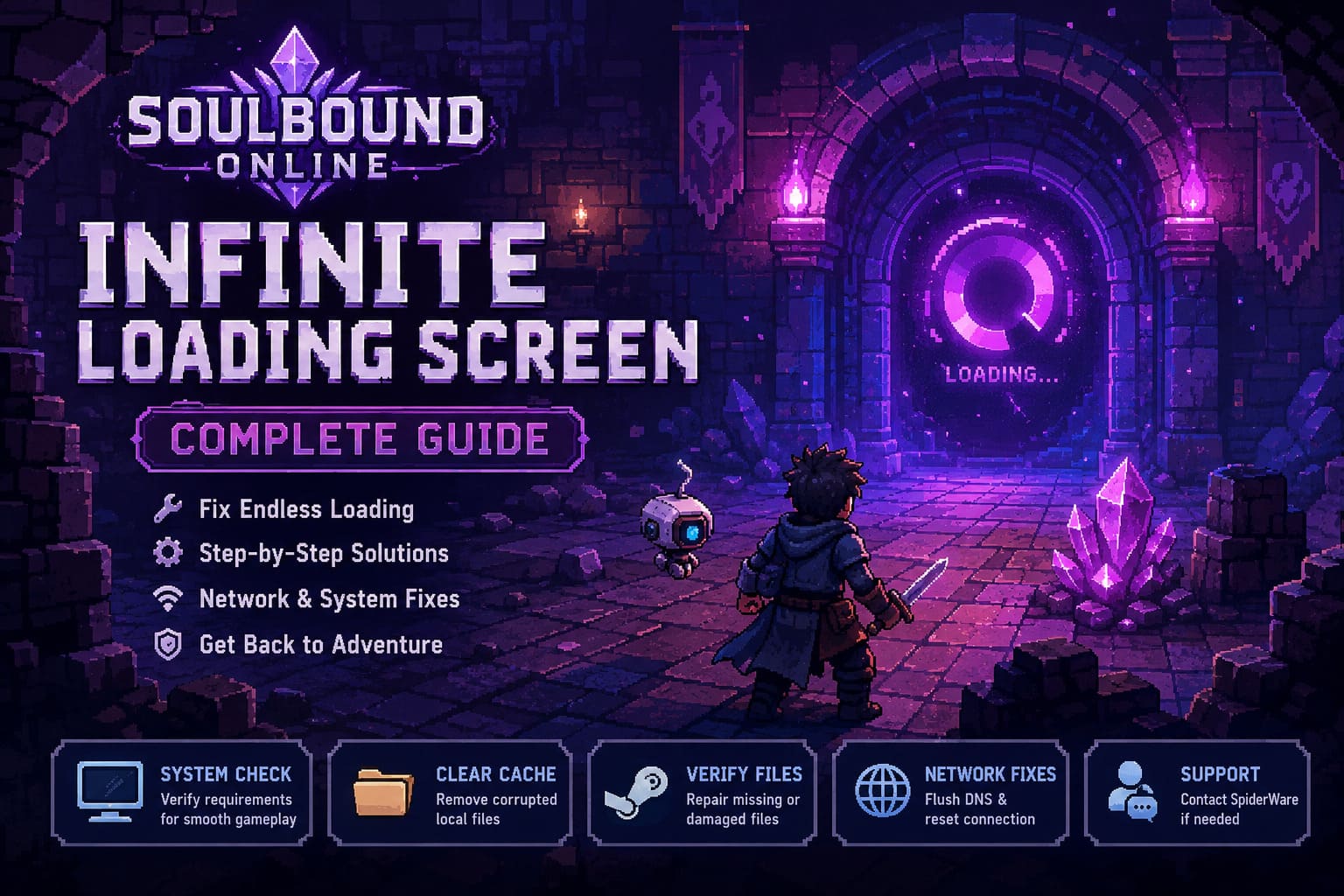
The good news is that this issue is usually caused by fixable problems such as corrupted files, Windows settings conflicts, network interruptions, or temporary server communication failures. After testing many troubleshooting methods across different PC games, I have collected the most effective solutions that can help you bypass the endless loading screen and return to Soulbound Online.
How to Fix Soulbound Online Crash on Startup on Steam (2026 Guide)
Why Does Soulbound Online Get Stuck on the Loading Screen?
Unlike traditional single-player games, Soulbound Online constantly communicates with online servers. Your character information, inventory, economy systems, apartments, multiplayer interactions, and dungeon progress all depend on stable communication between your PC and the game servers.
From my experience with MMORPG launches, an infinite loading screen is rarely caused by one single mistake. Usually, several smaller problems combine together. A damaged configuration file, a failed update, unstable internet routing, or incorrect Windows regional settings can interrupt the loading process and leave the game stuck in a loop.
Although Soulbound Online uses charming pixel art visuals, the game underneath still runs a complex online infrastructure. Before changing advanced settings, it is worth checking whether your hardware is capable of handling the game properly.
Check Your PC Hardware and Soulbound Online Requirements
Many players underestimate the importance of storage speed. Even visually simple games can require fast data streaming when they include large online worlds, multiple players, NPC systems, and constantly updated environments. Running Soulbound Online from an old mechanical hard drive can create extremely slow loading times or cause the game to appear completely frozen.
Recommended Soulbound Online System Requirements
| Component | Recommended Specification |
|---|---|
| Operating System | Windows 10 or Windows 11 64-bit |
| Processor | Intel Core i7-12700 or AMD Ryzen 7 5800X |
| Memory | 16 GB RAM |
| Graphics Card | NVIDIA RTX 3060 Ti or AMD Radeon RX 6700 XT |
| Storage | SSD strongly recommended |
If your PC matches these specifications and Soulbound Online still refuses to load, continue with the troubleshooting methods below.
Change Windows Region Settings to English (United States)
This solution might sound unusual, but it has helped many players who encountered loading problems in PC games. Some game engines struggle with regional formatting settings, especially when temporary folders, file paths, and text systems were designed around English-language environments.
A mismatch between Windows regional formatting and the game engine can prevent Soulbound Online from creating the correct temporary files. When this happens, the loading process may never complete.
How to Change Windows Region Format
- Open the Windows Start Menu and select Settings.
- Navigate to Time & Language.
- Open the Region section.
- Change Region Format to English (United States).
- Restart your computer and launch Soulbound Online again.
This option only changes formatting preferences used by applications. It does not completely change your Windows language or installed programs.
Clear Soulbound Online Cache Files
Corrupted cache files are among the most common reasons why games suddenly stop loading correctly. After updates, some older configuration files can remain and conflict with newer versions of the game. The result is often crashes, strange bugs, or infinite loading screens.
Removing the local Soulbound Online settings forces the game to rebuild fresh configuration files during the next launch.
Steps to Delete Local Cache Files
- Close Soulbound Online completely.
- Exit Steam or close it through Task Manager.
- Press Windows Key + R on your keyboard.
- Type appdata and press Enter.
- Open the Local or Roaming folders.
- Find folders related to SpiderWare or Soulbound Online.
- Delete those folders.
- Restart Steam and launch the game.
This process resets graphics, sound, and local preferences. Your online character, items, progression, and achievements remain safe because they are stored on the game servers.
Verify Soulbound Online Files Through Steam
Early Access games receive frequent updates, and sometimes Steam downloads incomplete or damaged files. A single missing asset can prevent the game from loading because the client cannot correctly build the required environment.
Steam includes a built-in repair system that scans installed files and replaces damaged components automatically.
How to Verify Game Files
- Open your Steam Library.
- Right-click Soulbound Online.
- Select Properties.
- Open the Installed Files section.
- Click Verify integrity of game files.
- Wait until Steam finishes scanning.
If Steam detects corrupted files, it will automatically download replacements. This method fixes many loading problems without requiring a full reinstall.
Refresh the Game Process Using Resource Monitor
Sometimes Soulbound Online is not actually frozen. The game process may simply become stuck during communication with the server while moving from character selection into the world. Instead of restarting the entire game, you can refresh the process connection manually.
How to Suspend and Resume Soulbound Online
- When the game is stuck on the loading screen, press Ctrl + Shift + Esc.
- Open Task Manager.
- Select the Performance tab and open Resource Monitor.
- Find the Soulbound Online process.
- Right-click the process and choose Suspend Process.
- Wait around 7–10 seconds.
- Right-click again and select Resume Process.
- Return to the game window.
In some situations, the loading screen immediately continues after this simple refresh trick.
Fix Network Problems and Flush DNS
Because Soulbound Online is built around multiplayer systems, unstable internet connections can easily interrupt important data transfers. This is especially noticeable when entering new zones, dungeons, or multiplayer areas.
Refreshing your network settings can remove outdated DNS information and rebuild your connection route to the servers.
Network Reset Commands
- Search for Command Prompt in Windows.
- Right-click it and select Run as Administrator.
- Enter the following commands:
- ipconfig /release
- ipconfig /renew
- ipconfig /flushdns
After completing these commands, restart Soulbound Online and try connecting again. If you normally play through Wi-Fi, switching to an Ethernet connection can significantly reduce packet loss and improve stability.
Contact SpiderWare Support If Your Character Is Stuck
Sometimes the problem is not located on your computer. Your character profile may become trapped in a corrupted area, broken dungeon instance, or server-side location error. When this happens, local fixes cannot solve the problem because the issue exists on the server.
If none of the previous solutions work, contacting SpiderWare support is the best option. Developers may be able to manually move your character back to a safe location or repair your account state.
Information to Provide Support
- Your character name
- Your server information
- The exact moment when the loading screen appears
- Your PC specifications
- Any error messages you received
Final Thoughts: Returning to Soulbound Online
The Soulbound Online infinite loading screen bug can be incredibly frustrating, especially when you are ready to explore dungeons, collect loot, and continue building your character. However, most cases are caused by common PC problems that can be fixed with the right approach.
After years of playing MMORPGs, roguelites, and Early Access titles, I know that technical issues are often part of the early journey for ambitious online games. The important thing is not to randomly change dozens of settings at once. Follow these fixes step by step, and there is a good chance you will quickly return to the world of Soulbound Online.
Once the loading screen problem is gone, you can get back to what matters: defeating enemies, improving your build, farming valuable resources, exploring the pixel world, and enjoying everything this promising MMORPG has to offer.