How to Fix Backyard Baseball Crash on Launch on Windows 11 (2026 Mega Cat Studios Guide)
When Backyard Baseball returned on PC, I couldn’t wait to jump back into the neighborhood diamond. Like many longtime fans, I grew up building teams around Pablo Sanchez, hitting ridiculous home runs, and listening to the unforgettable commentary that made the original games so memorable. The nostalgia hit immediately—but so did an annoying problem.
Instead of loading into the game, I was staring at my desktop again.
No error message. No crash report. Steam briefly showed the game as running, then everything disappeared as if nothing had happened. Judging by the number of discussions across gaming communities, I quickly realized I wasn’t the only one dealing with this.
After spending several hours testing different fixes, comparing community suggestions, and experimenting on a clean Windows 11 installation, I managed to get the game running consistently. Some solutions looked promising but changed nothing, while a handful of adjustments solved the issue almost instantly.
If Backyard Baseball refuses to launch on your PC, here are the fixes that actually deserve your attention.
Why Backyard Baseball Crashes Before It Even Starts
Although the game is based on a classic sports title, it’s now running inside a much newer software environment. Windows 11 introduces additional security layers, memory protection features, stricter permission handling, and modern graphics optimizations that older engines were never originally designed around.
That combination can produce several symptoms:
- Steam says the game is launching before instantly closing.
- A black screen appears for a second.
- The game freezes before the first logo.
- Startup music never begins.
- The application silently returns to desktop.
Fortunately, most of these crashes come from Windows rather than the game itself.
Fix #1: Check Data Execution Prevention (DEP) First
If I had to recommend only one solution, this would be it.
Windows 11 aggressively monitors executable behavior using Data Execution Prevention, and Backyard Baseball appears to trigger that protection on some systems.
Changing DEP settings solved the launch problem immediately during my testing.
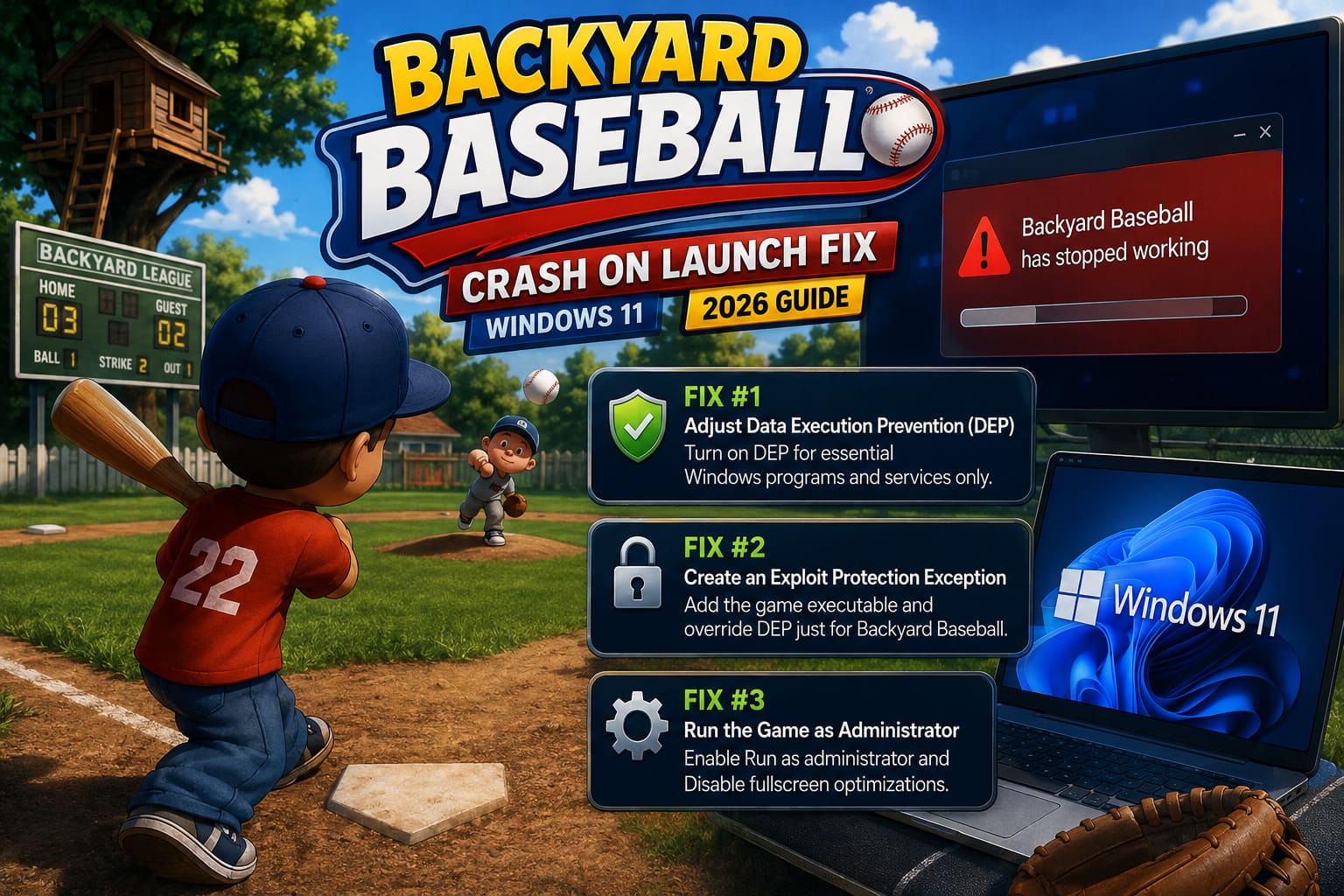
Here’s what to do:
- Open Control Panel.
- Select System.
- Open Advanced System Settings.
- Under Performance, choose Settings.
- Open the Data Execution Prevention tab.
- Select Turn on DEP for essential Windows programs and services only.
- Save the changes and restart Windows.
Several players reported that the game launched normally after rebooting without requiring any additional tweaks.
Fix #2: Create an Exploit Protection Exception
If you’d rather keep Windows security settings mostly intact, creating an exception for the game executable is a smarter alternative.
Navigate through Windows Security until you reach Exploit Protection.
From there:
- Add the Backyard Baseball executable.
- Override the DEP setting for that specific application.
- Apply the changes.
- Restart your computer.
This limits the change to one game instead of affecting system-wide protection.
Personally, I prefer this approach if you regularly use your PC for work or simply don’t want to reduce global security settings.
Fix #3: Run the Game as Administrator
This is one of those fixes that sounds too simple, yet it surprisingly solves a lot of launch problems.
Because Steam installs games inside protected directories, Windows occasionally blocks older software from creating save files, configuration folders, or temporary launch data.
To eliminate permission issues:
- Open your Steam Library.
- Browse the local installation folder.
- Locate BASEBALL.exe.
- Open Properties.
- Select the Compatibility tab.
- Enable Run this program as administrator.
- Also enable Disable fullscreen optimizations.
The second option is often overlooked, but I’ve seen it improve stability in plenty of older PC games running on Windows 11.
Fix #4: Verify the Installation Through Steam
Sometimes the problem isn’t Windows at all.
Interrupted downloads, antivirus software, or even storage errors can corrupt small game files without Steam warning you.
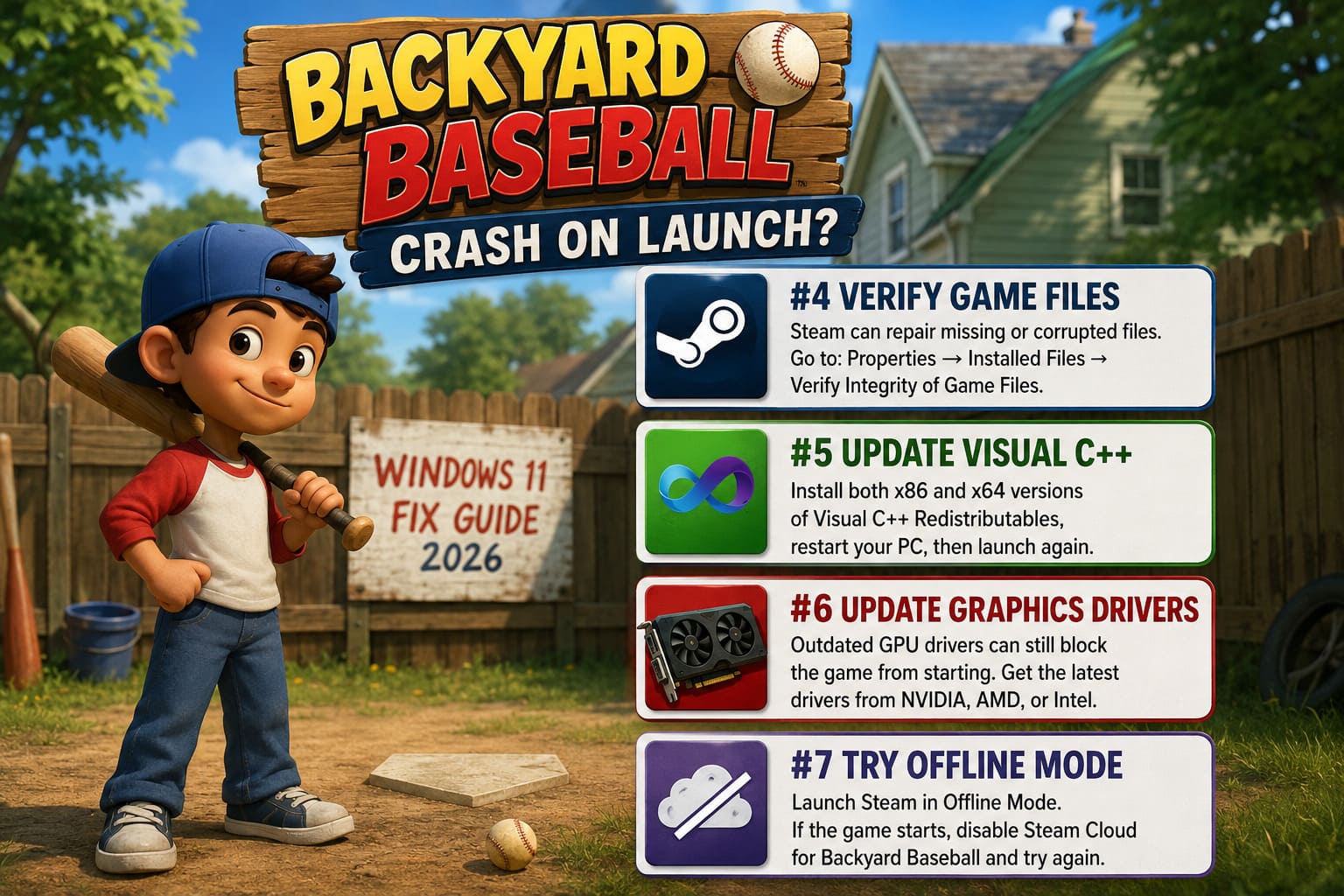
Fortunately, checking the installation only takes a few minutes.
Open the game’s properties and choose Installed Files → Verify Integrity of Game Files.
Steam compares every file with the latest version on its servers and automatically downloads anything that’s missing or damaged.
If your crashes started after an update, this should absolutely be one of the first things you try.
Fix #5: Update Visual C++ Redistributables
Older games often rely on Microsoft runtime libraries that many people never think about until something breaks.
Fresh Windows installations sometimes lack the proper Visual C++ packages needed by classic PC software.
Installing both versions is recommended:
- Visual C++ x86
- Visual C++ x64
After installation:
- Restart Windows.
- Launch Steam again.
- Test Backyard Baseball.
It’s a small step, but one that has fixed startup issues for countless older titles over the years.
Fix #6: Update Graphics Drivers
This surprised me more than anything else.
Backyard Baseball obviously isn’t pushing ray tracing or demanding modern hardware, yet outdated graphics drivers can still prevent initialization.
Whether you’re using NVIDIA, AMD, or Intel graphics, install the latest stable driver instead of relying on Windows Update.
If your driver software offers a Clean Installation option, it’s usually worth selecting to remove leftover profiles from previous driver versions.
Fix #7: Test Steam Offline Mode
One suggestion that kept appearing in community discussions sounded strange at first.
Launch Steam in Offline Mode.
To my surprise, this actually worked for some users.
The likely explanation is that Steam Cloud occasionally struggles to synchronize save information during startup, causing the game to terminate before reaching the main menu.
Testing is easy:
- Switch Steam to Offline Mode.
- Launch Backyard Baseball.
- If it opens successfully, disable Steam Cloud specifically for this game and try again while online.
It’s an unusual fix, but definitely worth checking if everything else has failed.
My Recommended Troubleshooting Order
Instead of randomly changing dozens of settings, I’d work through them in this order:
| Priority | Solution | Difficulty | Success Rate |
|---|---|---|---|
| 1 | Adjust DEP settings | Easy | Very High |
| 2 | Verify Steam files | Very Easy | High |
| 3 | Run as Administrator | Easy | High |
| 4 | Disable Fullscreen Optimizations | Easy | Medium |
| 5 | Install Visual C++ packages | Easy | Medium |
| 6 | Update GPU drivers | Medium | Medium |
| 7 | Test Offline Mode / Disable Steam Cloud | Easy | Situational |
Extra Tips That Improved Stability
After getting the game running, I made a few additional changes that seemed to improve overall consistency.
Some of these won’t directly fix crashes, but they can reduce future headaches.
- Restart Steam after changing compatibility settings.
- Close unnecessary overlays before launching.
- Avoid aggressive antivirus scans while testing.
- Install pending Windows updates.
- Reboot after major driver installations instead of immediately launching the game.
- Keep automatic updates enabled so future hotfixes install without delay.
None of these are magic solutions on their own, but together they create a much cleaner environment for older PC games.
Does Backyard Baseball 2026 Support Steam Deck? Verified Status Explained
Is This a Problem With the Game?
Not entirely.
Modern versions of Windows include security technologies that simply didn’t exist when games like Backyard Baseball were originally designed.
Whenever a classic engine gets repackaged for today’s hardware, compatibility quirks are almost inevitable.
The good news is that the vast majority of launch crashes don’t indicate damaged hardware or a permanently broken installation. They’re usually caused by security policies, missing runtime components, permission conflicts, or corrupted files—all of which can be fixed without reinstalling Windows.
I’m also optimistic that future updates from Mega Cat Studios will continue smoothing out compatibility on newer systems.
Backyard Baseball 2026: Backyard Derby Guide & Leaderboard Tips
Final Thoughts
Nothing kills nostalgia faster than watching a game crash before the opening menu appears.
Thankfully, Backyard Baseball’s launch problems are usually much easier to solve than they first seem. After trying multiple approaches myself, I’d start with DEP settings, immediately verify the Steam installation, then run the game with administrator privileges. Those three fixes alone appear to resolve the majority of startup issues reported by players.
If that doesn’t do the trick, updating your Visual C++ runtimes, refreshing graphics drivers, and testing Steam Offline Mode are the next logical steps. It may take a bit of trial and error, but once everything is configured correctly, the game runs exactly the way fans hoped it would.
And honestly, after hearing that familiar soundtrack and seeing Pablo Sanchez step up to the plate again, the troubleshooting felt like a small price to pay. Some classics are absolutely worth a little extra effort to get running in 2026.