How to Fix Big Walk Steam Download Error and Locked Game Issues (2026 Guide)
When Big Walk launched in 2026, I was genuinely excited. House House has a reputation for creating games that feel weird, charming, and surprisingly memorable, so my friends and I jumped in on day one expecting a relaxing co-op adventure.
Instead, I spent my first evening staring at a Steam download stuck at 99%.
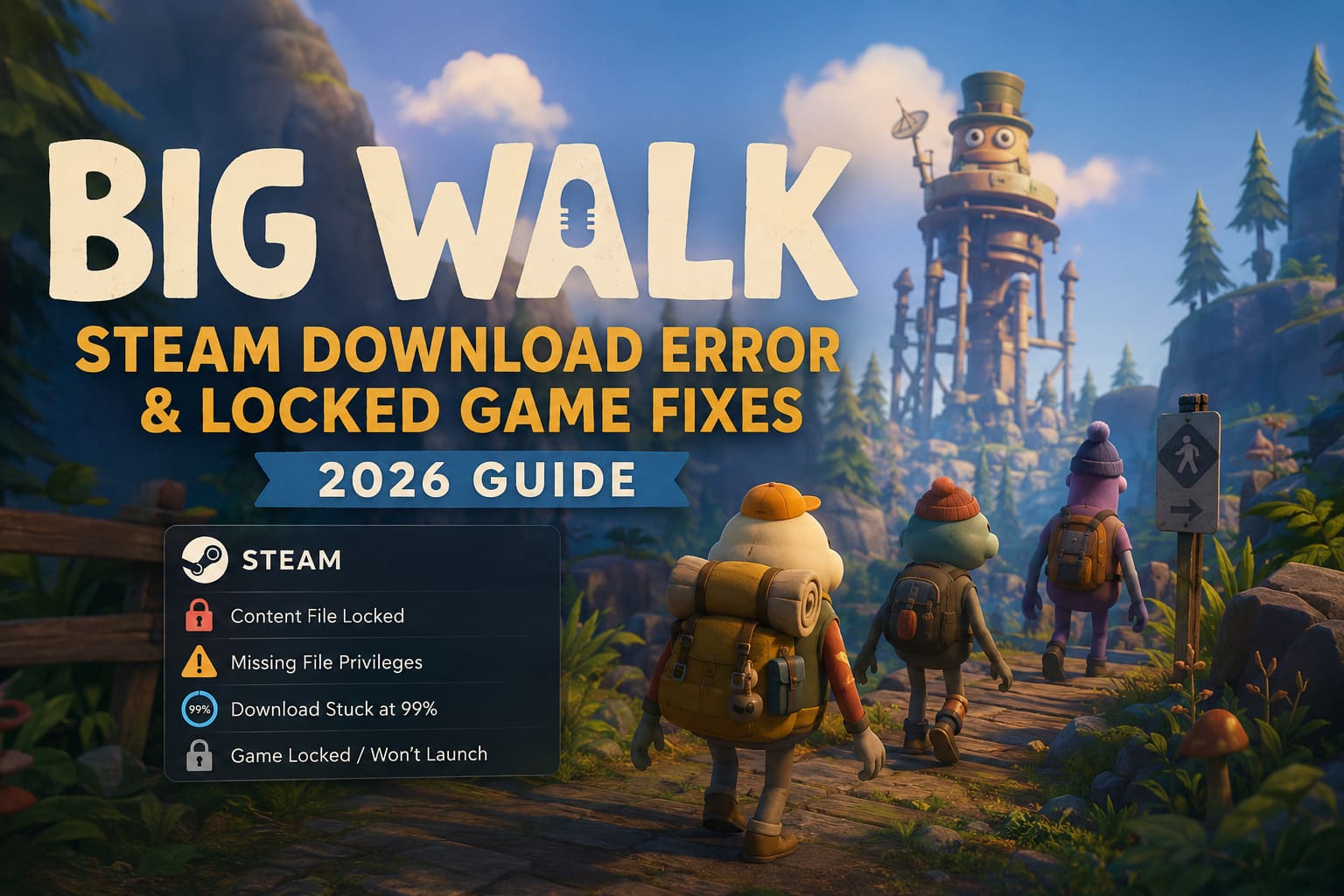
The worst part was that Steam kept throwing different errors every time I retried the installation. One moment it was “Content File Locked”, then “Missing File Privileges”, and after a restart the game appeared as if it were installed but remained completely locked and unplayable.
After digging through Steam Community discussions, Reddit threads, and a lot of trial-and-error on my own PC, I found a combination of fixes that consistently solved the issue. This guide is written from the perspective of someone who actually had to fight through the problem, not just repeat generic support documentation.
The Symptoms Most Big Walk Players Are Seeing
| Error | What Happens |
|---|---|
| Content File Locked | Steam refuses to update or finish installing the game |
| Missing File Privileges | Download stops immediately after allocating disk space |
| Download Stuck at 99% | The final installation phase never completes |
| Game Shows as Installed but Won’t Launch | Steam thinks the game is running or partially installed |
| Infinite Download Loop | Steam repeatedly downloads a small chunk of data without finishing |
For me, the 99% freeze eventually turned into a Content File Locked error after several retries, which turned out to be caused by a background Steam process that never closed properly.
Why Big Walk Is Triggering Steam Lock Errors
This isn’t really a Big Walk-only problem. Large modern games often unpack tens of thousands of small files during the final installation phase, and that’s where Steam can run into conflicts with Windows 11 permissions, antivirus software, or corrupted download cache data.
In my case, three things were contributing to the issue:
- Steam Client WebHelper was still accessing the game folder.
- Windows Defender briefly scanned the newly unpacked executable.
- The Steam download cache had become corrupted after a failed update attempt.
If you fix only one of these, the error may return later, so I recommend working through the steps in order.
Fix #1 — Kill Every Steam and Big Walk Background Process
This was the single biggest breakthrough for me.
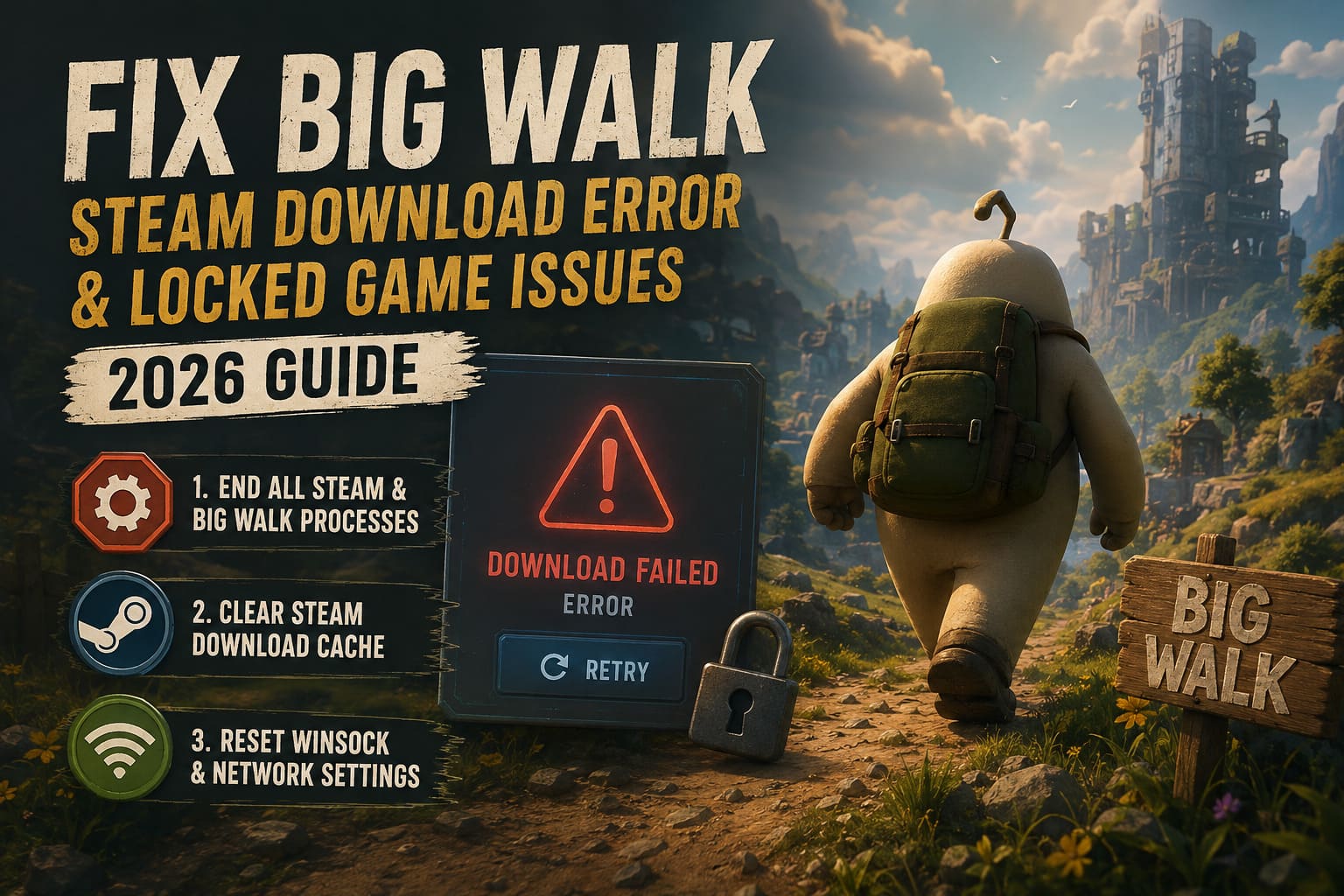
- Press Ctrl + Shift + Esc to open Task Manager.
- Look for:
- Big Walk
- Steam
- Steam Client WebHelper
- Steam Bootstrapper
- Right-click each related process and choose End Task.
After that:
- Right-click your Steam shortcut.
- Select Run as Administrator.
Why this works: Windows sometimes keeps file handles open even after the visible game window has closed. Steam then cannot overwrite those files during installation.
Fix #2 — Clear Steam’s Download Cache
I’ve seen a lot of players skip this step because it sounds too simple, but it solved the infinite retry loop on my second PC.
Steps
- Open Steam.
- Go to Steam → Settings.
- Select Downloads.
- Click Clear Download Cache.
- Confirm and log back into Steam.
Steam will restart and rebuild its temporary download data.
Extra Network Cleanup
Open Command Prompt as Administrator and run:
ipconfig /flushdnsThis refreshes your DNS cache and can help if Steam is connecting to a problematic content server.
Fix #3 — Reset Winsock (Surprisingly Effective)
After a recent Windows update, my network stack became unstable enough that Steam downloads would randomly fail verification.
Run these commands:
netsh winsock resetThen restart your computer.
This resets the Windows socket catalog to its default state and often resolves strange download interruptions that don’t appear to be network-related at first glance.
Fix #4 — Verify Big Walk’s Game Files
If Steam partially installed the game before failing, verification is much faster than reinstalling the entire package.
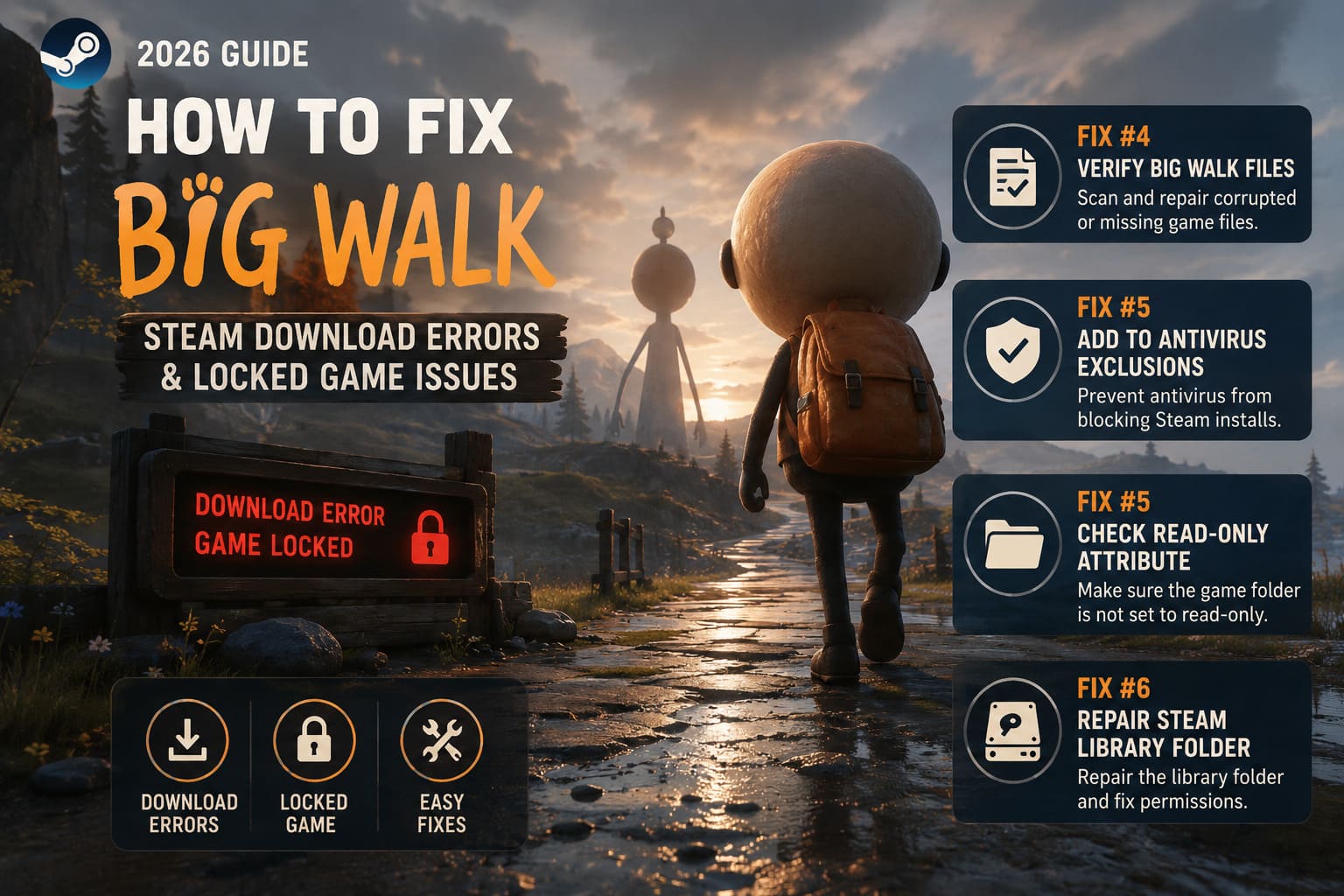
How to verify
- Open your Steam Library.
- Right-click Big Walk.
- Choose Properties.
- Open Installed Files.
- Click Verify integrity of game files.
Steam will compare your local files against the official build and download only the damaged or missing files.
My result: Steam found 3 corrupted files and replaced them automatically. After that, the locked status disappeared immediately.
Fix #5 — Add Big Walk to Your Antivirus Exclusions
This is the step that finally made the fix permanent for me.
Temporarily disable real-time protection and try resuming the download. If it suddenly works, your antivirus is interfering with Steam’s unpacking process.
Add this folder to your exclusions
C:\Program Files (x86)\Steam\steamapps\common\Big WalkAlso exclude the broader Steam library folder if you have games installed on a secondary drive.
Check the Read-Only Attribute
- Open the Big Walk folder.
- Right-click → Properties.
- Ensure Read-only is unchecked.
- Apply changes to all subfolders and files.
I’ve seen this attribute become incorrectly enabled after interrupted installs, especially on external SSDs.
Fix #6 — Repair the Steam Library Folder
Steam includes a built-in repair tool that many players don’t know exists.
Repair process
- Go to Steam → Settings → Storage.
- Select the drive containing Big Walk.
- Click the three-dot menu next to the drive.
- Choose Repair Folder.
- Confirm the repair process.
Steam will scan the library structure, repair permissions, and rebuild its internal installation database.
This is particularly useful if multiple games are showing update or download problems.
Quick Troubleshooting Order
If you don’t want to read everything again, this is the exact order I would follow on a fresh system:
| Priority | Action |
|---|---|
| 1 | Restart the PC completely |
| 2 | End all Steam and Big Walk processes |
| 3 | Run Steam as Administrator |
| 4 | Clear the Steam download cache |
| 5 | Verify Big Walk game files |
| 6 | Add Steam and Big Walk to antivirus exclusions |
| 7 | Repair the Steam library folder |
| 8 | Reset Winsock if downloads still fail |
In my experience, Steps 2–5 solve the majority of cases.
What About macOS?
A friend of mine was playing on a MacBook Pro and ran into a different problem: the download would restart repeatedly after appearing to finish.
The workaround was to open the hidden Steam console:
steam://open/consolePaste that into Safari and press Enter while Steam is running. This opens Steam’s developer console, which can force a fresh manifest request for the game.
Mac users should also make sure Steam has Full Disk Access enabled under:
System Settings → Privacy & Security → Full Disk Access
Without that permission, macOS can block Steam from modifying certain application support directories.
Is Mistfall Hunter Season 1 Premium Battle Pass Worth It? Full Value Breakdown
A Few Extra Tips That Helped Me
Keep at least 20 GB of free SSD space
Even if Big Walk requires less space than that, Steam often needs additional temporary storage while unpacking and verifying files.
Avoid installing during heavy background activity
I had Discord streaming, OBS recording, and a browser with dozens of tabs open during my first failed install. Closing unnecessary applications noticeably reduced disk contention.
Update your storage drivers
If you’re using a newer NVMe SSD, check for updated chipset and storage controller drivers from your motherboard manufacturer. Outdated drivers can cause intermittent write failures that look like Steam problems.
Mistfall Hunter Leveling Guide: How to Hit Level 12 Fast (2026 Meta)
My Final Verdict
After spending several hours troubleshooting this on two different systems, I’m convinced that Big Walk’s Steam issues are mostly caused by a combination of background file locks and security software interference, not by a fundamentally broken game build.
The exact sequence that fixed it for me was:
- End all Steam processes
- Clear the download cache
- Verify game files
- Whitelist the Big Walk folder in Windows Defender
- Repair the Steam library folder
Once I completed those steps, the game downloaded normally, launched without errors, and I was finally able to join my friends in the co-op world that I’d been trying to access all evening.
If your Big Walk Steam download is stuck, locked, or endlessly retrying, don’t immediately reinstall Windows or re-download your entire Steam library. In most cases, the problem is recoverable with a few targeted fixes and about 10–15 minutes of cleanup work.
And honestly? After finally getting into Big Walk, I can say the frustration was worth it — just maybe not the three hours I spent fighting Steam before discovering that a single Steam Client WebHelper process was holding the entire game hostage.