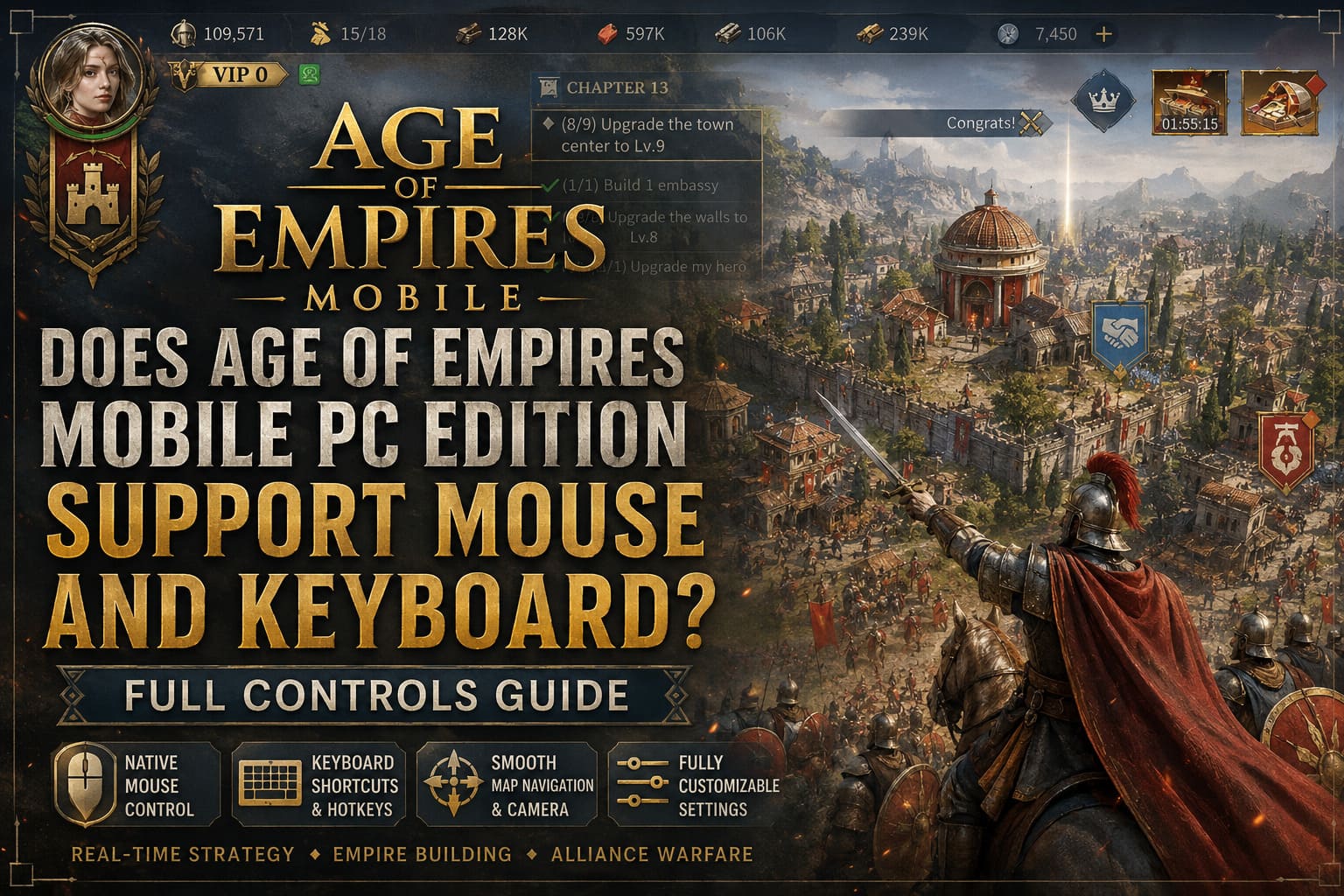
Does Age of Empires Mobile PC Edition Support Mouse and Keyboard? Full Controls Guide
When I first tried the PC version of Age of Empires Mobile, I honestly expected a typical mobile port experience: stretched UI, awkward controls, and the feeling that the game was never really meant for a desktop. But after spending time with it, the experience turned out to be much closer to a real PC strategy game than I initially assumed.
The biggest question most players ask is simple: does it actually support mouse and keyboard properly? The short answer is yes—and it’s not just a basic compatibility layer. The game genuinely feels designed around desktop input rather than simply adapted from mobile.
Age of Empires Mobile PC Client vs BlueStacks: Ultimate Performance Guide
A Proper PC-Style Control System
Unlike many mobile ports that just simulate touch input on a bigger screen, this version of Age of Empires Mobile takes a more thoughtful approach. It introduces a control system that feels native to PC gaming rather than layered on top of a mobile framework.
The game uses direct input handling for both mouse and keyboard, which immediately improves responsiveness and precision during gameplay.
Main Input Improvements
Some of the most noticeable improvements include:
- Native mouse cursor interaction instead of touch emulation
- Smooth map navigation using scroll wheel controls
- Context-sensitive cursor behavior for actions and menus
- Fully functional keyboard shortcuts for key gameplay actions
These changes may sound simple, but they significantly improve how the game feels during long strategy sessions, especially in large-scale battles.
Mouse Controls and Gameplay Responsiveness
The mouse controls are probably the strongest part of the entire PC edition. Movement across the map feels smooth, and selecting units or buildings is accurate and immediate.
What stood out most to me is how naturally the camera behaves. Instead of fighting with awkward drag mechanics, everything responds like a traditional RTS.
Key Mouse Features
- Left-click selection for units and structures
- Right-click contextual commands (move, attack, interact)
- Scroll wheel zoom and map navigation
- Hover tooltips for UI clarity and information
This setup removes a lot of the frustration that usually comes with mobile-to-PC transitions.
Keyboard Controls and Hotkeys
While the game is not as complex as traditional hardcore RTS titles, it still includes a useful set of keyboard shortcuts that improve gameplay flow.
The hotkey system is designed more for convenience than competitive depth, but it still makes a noticeable difference in how quickly you can manage your empire.
Hotkey Categories
| Category | Function |
|---|---|
| Interface Controls | Open menus, city management, alliance systems, and tech trees quickly |
| Combat Actions | Deploy troops and activate hero abilities faster |
| Utility Navigation | Switch screens and manage notifications efficiently |
This system helps reduce unnecessary clicking, which becomes important during fast-paced alliance battles or defensive situations.
Customization and Accessibility Options
One of the better design choices in the PC edition is the ability to customize input settings. Many mobile ports ignore this entirely, but here it actually feels like a core feature.
Players can adjust multiple input and UI elements to match their preferences and hardware setup.
Available Settings
- Mouse sensitivity adjustment for smoother or faster control
- Left-handed mouse button swapping
- UI scaling for different monitor resolutions
- Cursor size and visibility options
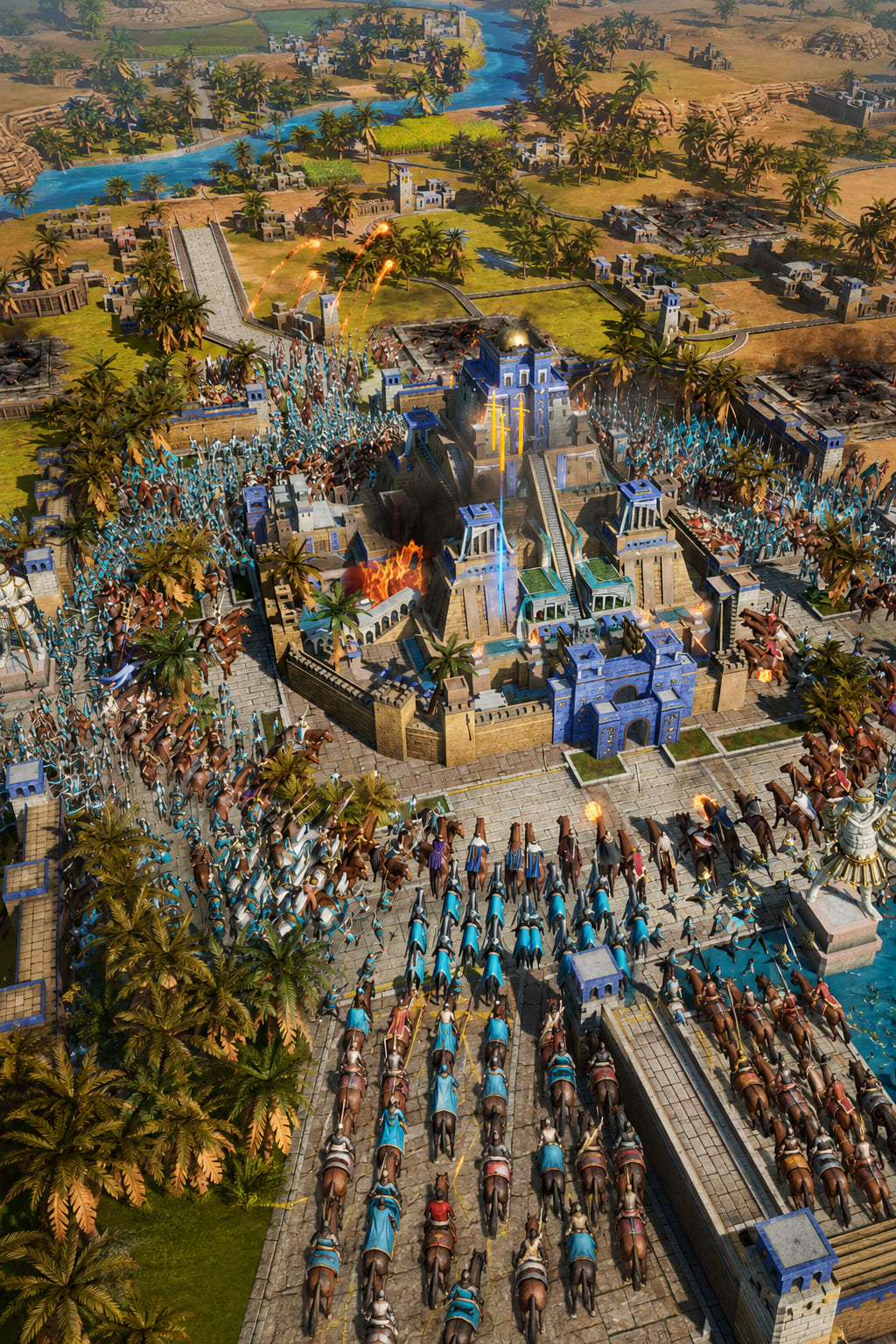
These options help reduce visual clutter, especially during large-scale battles where the screen can become crowded with units and effects.
Emulator vs Native PC Version
Before the official PC edition existed, most players relied on Android emulators like BlueStacks. That experience was functional, but it never felt truly native.
The difference between emulator play and the official PC version is actually quite significant.
| Feature | Emulator Version | Native PC Edition |
|---|---|---|
| Controls | Touch simulation with key mapping | Direct mouse and keyboard input |
| Performance | Depends on emulator load | More stable and optimized |
| UI Scaling | Often inconsistent | Designed for desktop displays |
| Responsiveness | Indirect input layer | Immediate interaction |
The most important improvement here is the removal of the “middle layer” between player input and the game itself.
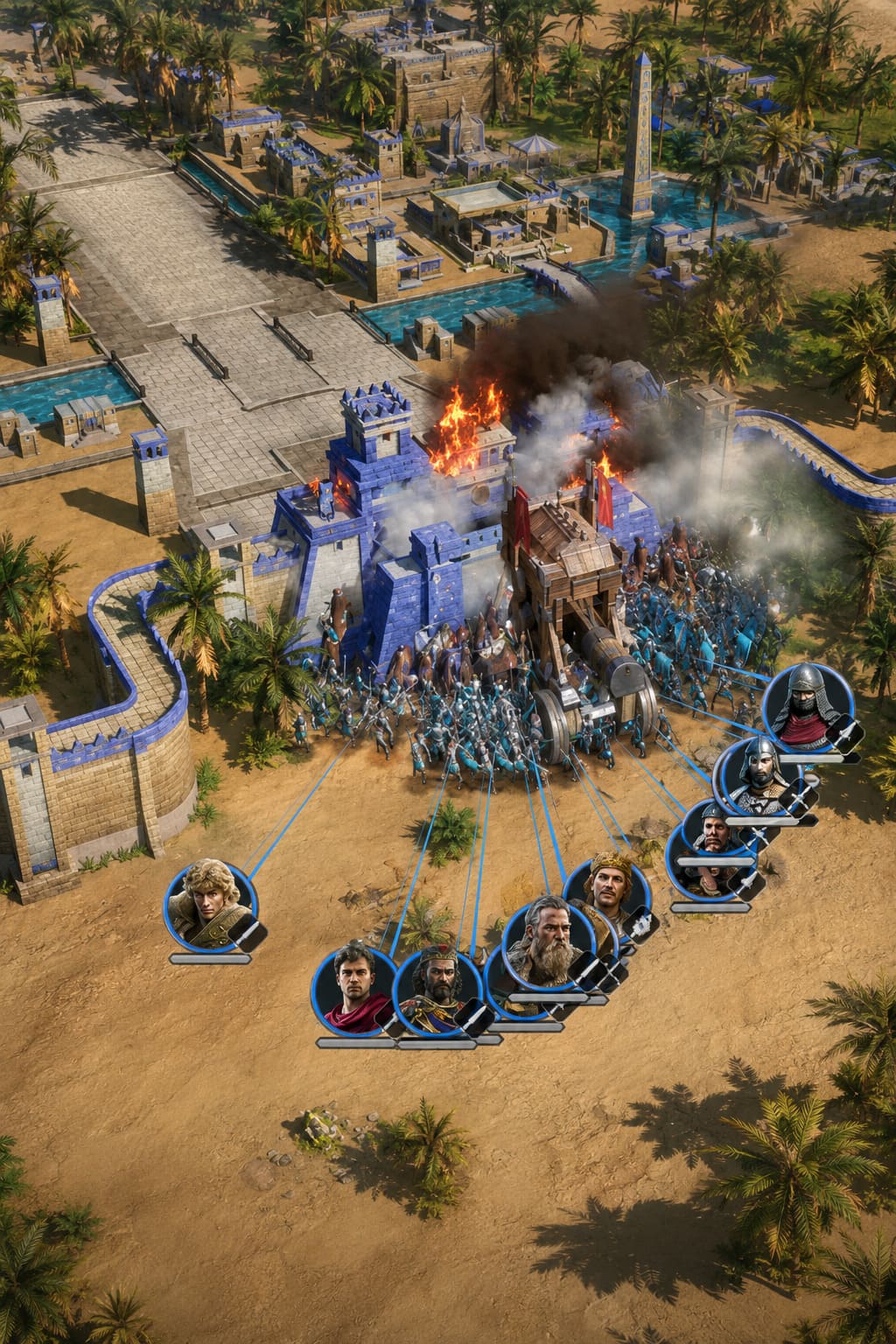
How the Game Feels in Real Play
In actual gameplay, the control system supports the game’s structure rather than redefining it. This is not a high-APM competitive RTS where micro-management dominates every second.
Instead, the focus is more on strategic decision-making, alliance coordination, and timing key abilities during battles.
Mouse and keyboard support enhances this structure by making it easier to react quickly and manage multiple systems at once.
Final Thoughts
Overall, Age of Empires Mobile PC Edition does a solid job of supporting mouse and keyboard controls. It doesn’t try to compete with hardcore RTS titles like Age of Empires IV, but it also doesn’t feel like a lazy mobile port anymore.
For players who prefer playing strategy games on a desktop, this version is clearly the better option compared to emulators or touch-based gameplay.
It sits in a middle space between mobile strategy design and PC convenience, and while it still carries some mobile DNA, the control system is one of the strongest aspects of the experience.