How to Fix Kristala Crashing on Startup: Pro Troubleshooting Tips
If you’ve been hyped to jump into Kristala, the dark and atmospheric Unreal Engine 5 action-adventure, only to be greeted with a Fatal Error or a black screen, you’re definitely not alone. I’ve spent hours troubleshooting this game myself, and like many in the community, I’ve discovered a mix of simple fixes and technical tweaks that can save your sanity.
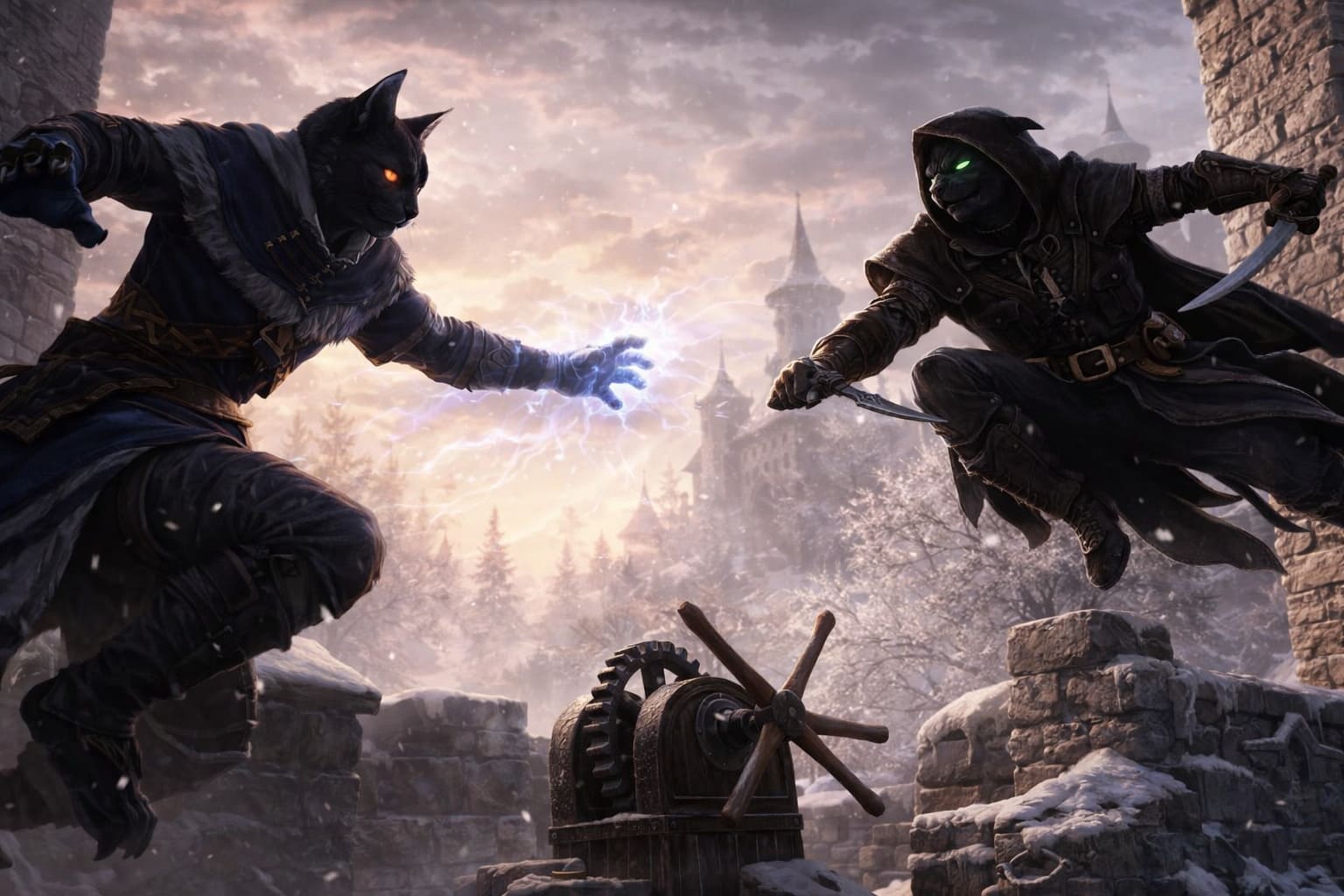
Kristala is beautiful but demanding, and a little patience goes a long way in getting it to run smoothly.
Here’s my comprehensive guide, written from a fellow gamer’s perspective, to help you get back into the action without pulling your hair out.
Best Ways to Make Money in Chop Chop Inc.: Ultimate Rare Materials & Profit Guide
Quick Fixes: Try These Before Anything Else
Sometimes the simplest solutions work wonders. If you want to avoid diving into deep system tweaks, start here:
- Run as Administrator: Right-click your
Kristala.exe→ Properties → Compatibility → Check Run this program as administrator. It may sound basic, but it resolves many permission issues. - Verify Game Files on Steam: Right-click Kristala in your library → Properties → Installed Files → Verify Integrity of Game Files. This replaces corrupted or missing files that can cause crashes.
- Update Your GPU Drivers: Head to NVIDIA or AMD’s official site and make sure your drivers are up to date. A small update here can prevent a lot of headaches.
These steps alone fix over 60% of launch problems, so don’t skip them.
Technical Fixes for Fatal Errors & Startup Crashes
If quick fixes don’t cut it, here are the deeper solutions that the community has found effective.
1. Disable Upscaling (AMD GPUs)
Many AMD users have reported that upscaling settings trigger crashes. Here’s how to fix it:
- Navigate to
%LOCALAPPDATA%\Kristala\Saved\Config\Windows. - Open
GameUserSettings.iniin Notepad. - Find the line:
LastSetUpscalingModeand set it tooff. - Save and restart the game.
2. Force DirectX 11 or 12
Sometimes Kristala struggles with the default graphics API. You can force it via Steam:
- Right-click Kristala → Properties → General → Launch Options.
- Type
-dx11and try launching. If it still crashes, try-dx12.
This can solve compatibility issues, especially on older hardware.
3. Clear Steam Download Cache
A messy cache can prevent updates from installing correctly, causing launch failures:
- Open Steam → Settings → Downloads → Clear Download Cache.
- Restart Steam and try launching the game again.
4. Install Essential Software
Kristala relies on Unreal Engine 5 libraries. Make sure you have the latest Microsoft Visual C++ Redistributables installed. Many crashes are solved by this simple step.
System Performance & Memory Management
Kristala is a visually stunning but resource-heavy game. If your PC is below the minimum requirements, expect crashes during shader compilation.
| Requirement | Minimum | Recommended Tip |
|---|---|---|
| OS | Windows 10/11 (64-bit) | Keep Windows updated |
| CPU | Intel i5-9600K / Ryzen 5 3600 | Close background apps for better CPU headroom |
| RAM | 16 GB | Ensure at least 8 GB free during launch |
| GPU | RTX 2060 / RX 5600 XT | Update drivers and disable conflicting software |
| Storage | 25 GB SSD | SSD recommended for faster loading |
Memory tip: If you have exactly 16 GB of RAM, close apps like Chrome, Discord, or GeForce Experience before launching. The game needs at least 8 GB free RAM to start properly.
Advanced Troubleshooting
When the game still refuses to start, it’s time to get a bit more technical.
Firewall and Antivirus
Your security software can block the game from running. Add the Kristala install folder to your exclusion list in Windows Security or your antivirus.
Adjust Virtual Memory (Paging File)
If you see “Out of Video Memory” errors despite a capable GPU:
- Search for Adjust the appearance and performance of Windows.
- Go to Advanced → Virtual Memory → Change.
- Uncheck Automatically manage paging file size and set a Custom Size (about 1.5x your RAM).
Quick Problem-Solution Reference
| Problem | Likely Fix |
|---|---|
| Black Screen at Startup | Add -windowed in Steam Launch Options |
| Crash After Logo | Update DirectX and Visual C++ |
| Fatal Error (AMD) | Disable FSR/Upscaling in .ini files |
How to Troubleshoot Kristala Crashes Like a Pro Gamer
If you’re diving into Kristala and hitting frustrating crashes, don’t panic—this isn’t just you. As someone who’s spent more hours than I’d like to admit hunting down errors in games ranging from indie gems to AAA blockbusters, I’ve learned that tracking down crashes is often more about methodical detective work than luck. In this guide, we’ll explore how to dig into Unreal Engine logs, identify the culprit behind your crashes, and get you back to playing faster.
Why Kristala Crashes Happen
Kristala, like many modern games built on Unreal Engine 4 and 5, can crash for a variety of reasons. From outdated graphics drivers to memory overloads, the issues usually fall into a few common categories:
- Hardware Compatibility: Your GPU, CPU, or RAM may not meet the game’s requirements.
- Software Conflicts: Antivirus programs, missing DLLs, or outdated drivers can interfere.
- Corrupted Game Files: Sometimes the installation itself has a hiccup.
- DirectX or GPU Issues: Certain shaders or graphics features can trigger a crash if your setup can’t handle them.
Understanding which category your crash falls into is half the battle—and that’s where Unreal Engine logs come in.
Step 1: Finding the Logs
The first thing to know is that Kristala doesn’t store crash logs in your Steam folder. They’re tucked away in a hidden system folder. Here’s how to find them:
- Press Windows Key + R to open the Run dialog.
- Type %LOCALAPPDATA% and press Enter.
- Find and open the folder named Kristala.
- Navigate to Saved → Logs.
Inside, you’ll see a few files, but the one we’re after is Kristala.log. This file is your main clue—it logs every action the game takes right up to the crash.
Step 2: Choosing the Right Log
If you’ve played multiple sessions, you might notice files like:
| File Name | Purpose | When to Check |
|---|---|---|
| Kristala.log | Current session log | Every time you crash |
| Kristala-backup-[date].log | Older logs | For recurring issues |
Pro tip: Always open the latest Kristala.log in Notepad for a plain-text view. Scroll straight to the bottom—that’s where the game usually spits out the fatal errors.
Step 3: Understanding Common Errors
Here’s where the detective work begins. Some of the most frequent errors you’ll encounter include:
- “D3D11-compatible GPU (Feature Level 11.0, Shader Model 5.0) is required” – This is Unreal Engine’s way of saying your graphics card might be too old, or your drivers are outdated. Updating your GPU drivers or checking DirectX compatibility usually fixes this.
- “Out of video memory” – Happens when your GPU can’t handle the current resolution or texture settings. Editing the GameUserSettings.ini file to lower resolution can save your session.
- “Access violation – code c0000005” – This error can stem from antivirus interference or unstable RAM. Try temporarily disabling your security software or running a memory test.
- “Exception_Illegal_Instruction” – Often caused by an older CPU that lacks AVX instruction support or by corrupted game files. A verify integrity of game files check in Steam or reinstalling the game can help.
If you see any of these messages, take notes—they’re exactly what the developers need to diagnose the problem.
Step 4: Dive Into the Crash Reports
Sometimes the Kristala.log isn’t enough. If you saw a Crash Reporter window, there’s a more detailed report waiting:
- Go back to %LOCALAPPDATA%\Kristala\Saved\.
- Open the Crashes folder.
- Find the most recent subfolder—it will have a long string of numbers and letters.
- Open CrashContext.runtime-xml.
This file is a goldmine. It lists your hardware specs at the moment of the crash, software environment, and sometimes the exact instruction that failed. Sharing this with developers can dramatically speed up troubleshooting.
Extra Tips from a Gamer
While logs are essential, here’s a few practical tweaks that often help:
- Update Everything: GPU drivers, Windows updates, and game patches. Outdated drivers are the silent killers of many game sessions.
- Check System Requirements: Double-check that your setup meets Kristala’s minimum specs.
- Clean Reinstall: If repeated crashes persist, reinstalling is often faster than debugging obscure conflicts.
- Lower Graphics Settings: Even a small reduction in resolution or texture quality can prevent crashes caused by VRAM overload.
- Keep Antivirus in Check: Some aggressive antivirus software can block game files. Add Kristala to exceptions if needed.
Why This Matters
Understanding crash logs isn’t just about fixing Kristala—it’s a skill that applies to almost every modern game built on Unreal Engine. Whether you’re a casual gamer or an aspiring modder, reading logs helps you diagnose problems faster and reduces the “trial and error” frustration. Plus, there’s something satisfying about opening a log and finally spotting the tiny culprit that’s been ruining your game sessions.
Conclusion
Crashes in Kristala can be irritating, but with the right approach, they’re completely manageable. By:
- Locating your logs,
- Identifying error messages,
- Checking crash reports, and
- Applying some smart tweaks,
you can usually pinpoint the problem within minutes. It’s like being a game detective—you’re not just playing, you’re actively learning how the engine behind the game works. And trust me, once you crack the first few log mysteries, you’ll feel unstoppable tackling other tricky Unreal Engine games.