Total War Warhammer 3 Multiplayer Server Connection Failed: 2026 Fix Guide
If you have ever organized a Total War: Warhammer 3 multiplayer session with friends, you already know the pain. Everyone is online, Discord is ready, the campaign lobby is created, and then the game casually throws “Multiplayer Server Connection Failed” straight into your face.
Sometimes it says “Failed to join game: Connection timed out.” Other times Warhammer 3 suddenly decides that your PC has no internet connection despite Steam, Discord, YouTube, and every other online game working perfectly.
It is the kind of error that can turn a planned three-hour Immortal Empires session into forty minutes of everyone restarting Steam.
The good news is that these failures are usually fixable. The trick is identifying which layer is actually broken. Steam authentication, Creative Assembly account services, Epic Online Services, Windows networking, firewall rules, outdated mods, and local configuration files can all interfere with multiplayer.
This guide focuses on the fixes that make the most sense when Total War: Warhammer 3 multiplayer refuses to connect in 2026, starting with the less invasive solutions and moving toward the more aggressive repairs.
First: Figure Out What Kind of Multiplayer Error You Have
Before deleting files or messing with Windows networking, look at the exact message.
| Error | Common Area To Check |
|---|---|
| Multiplayer Server Connection Failed | Authentication, network services, firewall |
| Failed to Join Game: Connection Timed Out | Lobby handshake, routing, host connection |
| You Appear To Be Offline | Steam, EOS, account or manifest problems |
| Modified Log / Mod Error | Mods, scripts, mismatched files |
| Game Shows No Internet Connection | Steam installation state or network configuration |
This distinction matters. If your friend can enter the lobby while you are stuck at the connection screen, repeatedly reinstalling the entire game is usually overkill.
Start small.
1. Fix the Steam Appmanifest When Warhammer 3 Thinks You’re Offline
One of the strangest problems is when Total War: Warhammer 3 suddenly reports that Steam is offline or that the game has no internet connection, while everything else on your PC works normally.
In cases like this, the Steam appmanifest can become part of the problem. This file tells Steam how the game is installed and indexed.
The file you are looking for is:
appmanifest_1142710.acf
The number corresponds to Warhammer 3’s Steam application ID.
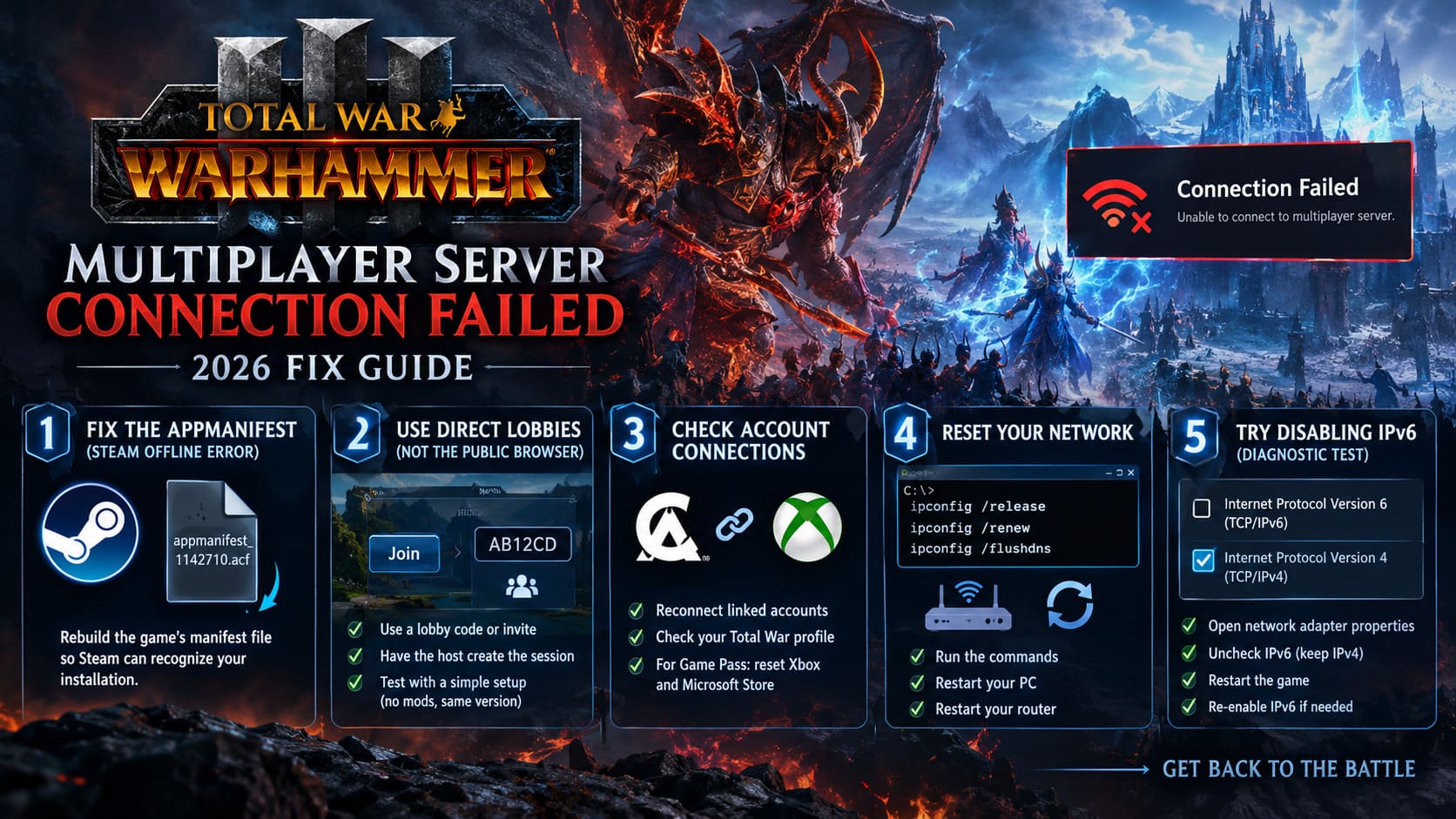
How to rebuild the manifest
- Completely close Steam.
- Open Task Manager with
Ctrl + Shift + Esc. - Make sure no Steam processes are still running.
- Open your Steam
steamappsdirectory. A common location is:C:\Program Files (x86)\Steam\steamapps\ - Find appmanifest_1142710.acf.
- Move it temporarily to your desktop rather than immediately deleting it.
- Start Steam again.
- Warhammer 3 may now appear as if it is not installed.
- Click Install and select the same Steam library where the existing game files are located.
- Let Steam discover the existing installation.
The important part is that you are not trying to download the entire game again. Steam should scan the existing files and rebuild its installation information.
This is one of those fixes that looks ridiculous until it works. If your problem is caused by Steam’s local installation metadata, however, forcing Steam to rediscover the game can cleanly reset that state.
2. Stop Fighting the Public Lobby Browser
The classic multiplayer headache is the connection timeout while joining a friend’s lobby.
You see the lobby.
You click Join.
The game thinks about it.
Then nothing.
Or worse, you get dumped back into the menu with another timeout message.
If the normal browser is behaving badly, try using a direct lobby code or invitation method supported by your current game build instead of repeatedly refreshing the public lobby list.
Have the host create the multiplayer session first and send the available invitation or lobby information directly to the other players.
The idea is simple: remove unnecessary matchmaking steps from the equation.
If direct joining works while the public browser fails, that gives you a useful clue. Your game installation may be fine, while the problem is somewhere in lobby discovery or matchmaking.
What if the connection still dies?
At that point, test the simplest possible multiplayer scenario.
Have the host create a fresh lobby with:
- No mods
- A standard multiplayer battle or campaign
- No unusual settings
- Everyone using the same game version
If that works, start adding your normal setup back one piece at a time.
That is much faster than changing ten variables simultaneously and having absolutely no idea which one fixed the problem.
3. Check Creative Assembly and Crossplay Account Connections
Warhammer 3’s online ecosystem involves more than Steam. Depending on the platform and configuration, account services and cross-platform authentication can become another potential failure point.
If your account connection has become stale, logging out and reconnecting your linked accounts can refresh the authentication process.
Open your Creative Assembly account management page and check the accounts connected to your Total War profile.
If your platform account is linked incorrectly or the authentication state appears stuck, sign out and reconnect it.
For players using PC Game Pass, there is another layer worth checking: the Xbox ecosystem.
Game Pass authentication reset
- Close Warhammer 3.
- Open the Xbox app.
- Sign out of your account.
- Open Microsoft Store.
- Sign out there as well.
- Restart Windows.
- Sign back into Microsoft Store.
- Sign into the Xbox app with the account that owns the Game Pass entitlement.
- Launch Warhammer 3 through the Xbox app.
It sounds like the nuclear option for a simple login problem, but cached Microsoft authentication tokens can behave strangely.
If the game suddenly recognizes your online status afterward, you have found the culprit.
4. Try the Basic Network Reset Before Touching IPv6
Before changing adapter settings, do the boring stuff.
It works surprisingly often.
Open Command Prompt as Administrator and run:
ipconfig /release
ipconfig /renew
ipconfig /flushdns
These commands force Windows to refresh its IP configuration and clear the local DNS resolver cache.
Restart your PC afterward.
Also restart your router if the problem affects multiple games or devices on your network.
Why DNS can matter
DNS does not directly solve every multiplayer connection problem, but stale or incorrect network resolution can prevent applications from reaching the services they expect.
If Warhammer 3 is the only game failing, DNS is not automatically guilty. Treat it as a troubleshooting step rather than a magic performance tweak.
5. IPv6: Test It, Don’t Blindly Blame It
IPv6 gets blamed for practically everything in PC gaming.
Sometimes it deserves the suspicion. Sometimes it absolutely does not.
If you have ruled out the obvious causes and multiplayer still refuses to establish a connection, you can temporarily disable IPv6 as a diagnostic test.
Press:
Windows + R
Enter:
ncpa.cpl
Find your active Ethernet or Wi-Fi adapter, right-click it, and select Properties.
Locate:
Internet Protocol Version 6 (TCP/IPv6)
Temporarily uncheck it and keep IPv4 enabled.
Click OK, restart the game, and test multiplayer again.
If nothing changes, simply restore IPv6.
I would not leave networking components disabled permanently just because one game had a bad afternoon. The goal here is diagnosis.
6. Your Firewall May Be Quietly Killing the Lobby
Windows Firewall and third-party security software can interfere with multiplayer traffic without producing an obvious “blocked!” notification.
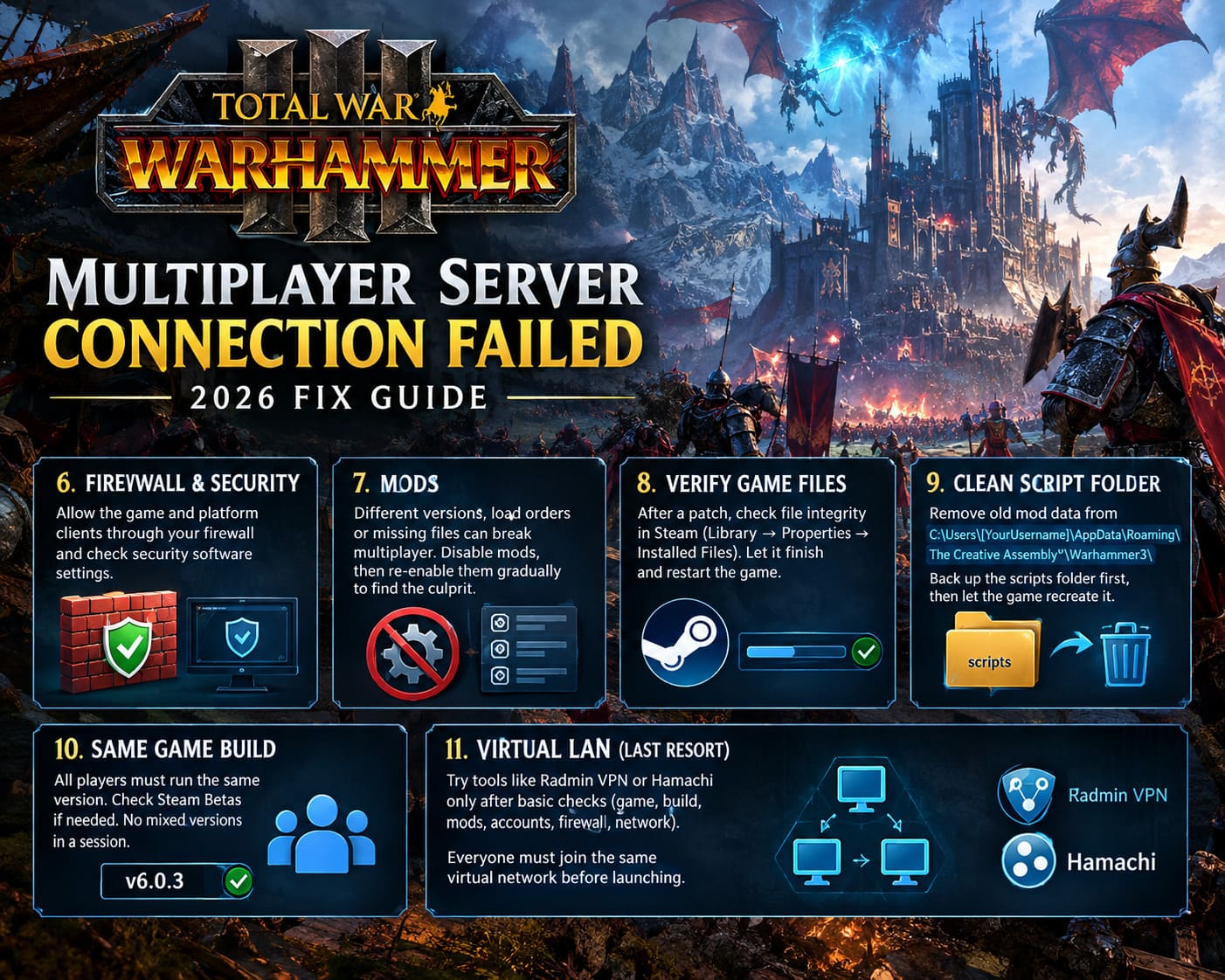
Check your firewall permissions and make sure Total War: Warhammer 3 and its associated platform clients are allowed through the network firewall.
The game’s executable is commonly located somewhere similar to:
SteamLibrary\steamapps\common\Total War WARHAMMER III\
Your exact Steam library path may be different.
If you use third-party security software, check its application firewall or network protection settings as well.
Do not randomly disable your entire antivirus package and leave the PC exposed. A much better approach is to create a proper application exception when your security software supports it.
Also check Steam and, where relevant, the platform services used by your version of the game.
7. Mods Are Multiplayer Landmines
This is the section every Warhammer 3 veteran already suspects.
Mods are fantastic.
They can also destroy a multiplayer session with the subtlety of a Skaven army appearing behind your capital.
A multiplayer setup can fail because players have:
- Different mod versions
- Different load orders
- Missing Workshop files
- Old script files
- Mods designed for another game build
- One player running a mod the others do not have
The easiest test is brutal but effective:
Disable every mod.
Start a completely vanilla multiplayer session.
If the connection suddenly works, congratulations: your network probably was not the real problem.
Now re-enable your mods gradually.
Do not turn everything back on at once. Add a few, launch another multiplayer test, and continue until the problem returns.
That identifies the offender.
8. Verify Your Game Files After a Patch
Large Warhammer 3 updates can occasionally leave an installation in an awkward state, especially if Steam was interrupted during an update.
In Steam:
Library → Total War: WARHAMMER III → Properties → Installed Files → Verify integrity of game files
Let Steam finish the entire process.
Do not launch the game halfway through verification just because the percentage looks finished enough.
If Steam replaces damaged or missing files, restart the game afterward and test multiplayer before reinstalling anything.
9. Clean the Warhammer 3 Script Folder
If you are dealing with persistent mod-related errors, particularly messages involving modified logs or old configuration data, your local Creative Assembly files deserve attention.
The relevant directory is generally located under:
C:\Users\[YourUsername]\AppData\Roaming\The Creative Assembly\Warhammer3\
The scripts folder can contain leftovers from previous mod configurations.
Before deleting anything, close the game completely.
For troubleshooting, you can move the scripts folder somewhere safe as a backup rather than permanently deleting it.
Then launch Warhammer 3 and allow the game to recreate the required configuration.
This is especially useful after major patches when an old mod setup has been removed but remnants are still causing problems.
10. Make Sure Everyone Is Running the Same Build
This sounds obvious.
It is also incredibly easy to overlook.
Every player in the session should be running the same Warhammer 3 version.
If one player has updated while another is on an older branch, multiplayer compatibility can fall apart before the actual battle begins.
This becomes particularly important if somebody has manually selected a beta or rollback branch.
Steam’s Betas section can contain previous versions when Creative Assembly makes them available. A rollback can be useful for compatibility with older mods, but everyone participating in the same multiplayer session needs a compatible build.
Do not mix versions and then spend an hour blaming the router.
11. Virtual LAN Software Is a Last-Resort Diagnostic
Tools such as Radmin VPN or Hamachi can create virtual network environments between players.
They can sometimes help when direct network routing is the problem, but I would not make them your first move.
First establish that:
- The game launches normally.
- Steam recognizes the installation.
- Everyone has the same build.
- Mods are disabled.
- Accounts are authenticated.
- Firewall rules are correct.
- Basic network troubleshooting has been completed.
Only then is it worth experimenting with a virtual LAN.
If you do use one, every participant needs to join the same virtual network and remain connected before launching the game.
The goal is to determine whether the virtual network changes the connection behavior. If it does, you have learned something useful about the underlying network path.
Best Total War: Warhammer 3 Steam Deck Settings For Patch 9.0 (2026 Optimization Guide)
A Fast 2026 Troubleshooting Order
If you just want the shortest route through the mess, use this sequence:
- Restart Steam, the game, and your router.
- Check that everyone has the same Warhammer 3 build.
- Disable all mods.
- Verify Steam game files.
- Test direct lobby joining or an invitation instead of the public browser.
- Refresh Creative Assembly/platform account authentication.
- Check Windows Firewall and security software exceptions.
- Run the IP release/renew and DNS flush commands.
- Test IPv6 temporarily disabled.
- Reset the local Warhammer 3 scripts/configuration data.
- Only then experiment with virtual LAN software.
- Rebuild the Steam appmanifest if Steam incorrectly reports the game as offline or uninstalled.
That order matters because it starts with reversible fixes and saves the more disruptive options for later.
Total War Warhammer 3 Neferata Guide: Campaign Strategy, Web of Power, and Battle Build
Final Thoughts
There is nothing more annoying than having a perfectly healthy campaign ruined before the first army even moves.
The important thing with Total War: Warhammer 3 multiplayer connection errors in 2026 is not to throw random fixes at the problem. Treat the connection like a chain. Steam has to recognize the installation. Your account has to authenticate. The game versions have to match. Mods have to agree. Windows has to permit the traffic. Finally, the players need to establish a stable multiplayer connection.
Break any one link and the entire session can collapse.
For most players, the biggest suspects are mod mismatches, corrupted local configuration, authentication problems, firewall restrictions, and Steam installation metadata. Network changes such as IPv6 testing should come later rather than being the first thing you alter.
And please, for the love of the Old Ones, do not reinstall the entire 100+ GB game before checking your mods and verifying the files. That is the Warhammer equivalent of declaring Exterminatus because one Goblin stole your lunch.
Work through the fixes methodically, change one thing at a time, and test multiplayer after each major change. That way, when the lobby finally loads and your friends appear on the other side of the map, you will actually know what fixed it.