How to Fix Total War: Warhammer 3 Black Screen on Startup in Windows 11 (2026 Guide)
There are few things more annoying than booting up Total War: Warhammer 3, expecting a massive fantasy battle, and getting… absolutely nothing.
You launch the game through Steam. The window appears. Maybe you hear the menu music. Maybe that familiar Warhammer cursor moves around the invisible interface. And yet the entire screen is black. In some cases, the game sits there indefinitely. In others, the black window survives for a few seconds before Warhammer 3 crashes straight back to the desktop with no useful error message.
I have seen enough PC game launches go sideways to know that this kind of problem is rarely caused by one single thing. With Warhammer 3, the trouble can come from corrupted configuration files, display-mode conflicts, old mod leftovers, GPU drivers, hybrid graphics, Windows 11 behavior, or even an unstable GPU power state.
The good news? You don’t need to reinstall Windows just because Warhammer 3 decided to become a black rectangle.
Here are the fixes I’d work through in 2026, starting with the ones that are relatively quick and painless.
Warhammer 3 Black Screen Fixes at a Glance
| Problem | Fix to Try | What It Targets |
|---|---|---|
| Black screen after launch | Delete Creative Assembly AppData | Corrupted settings |
| PC/GPU crashes completely | Lower GPU Power Limit | GPU instability |
| Audio works but screen is black | Force Windowed Mode | Fullscreen handshake |
| Game crashes after mods | Verify Steam files | Corrupted/modded files |
| Launcher struggles with profile path | Use Latin characters | Windows path issues |
| Crash before menu appears | Steam Launch Options | DX11/windowed startup |
| Black screen during launch | Win + Ctrl + Shift + B | GPU driver reset |
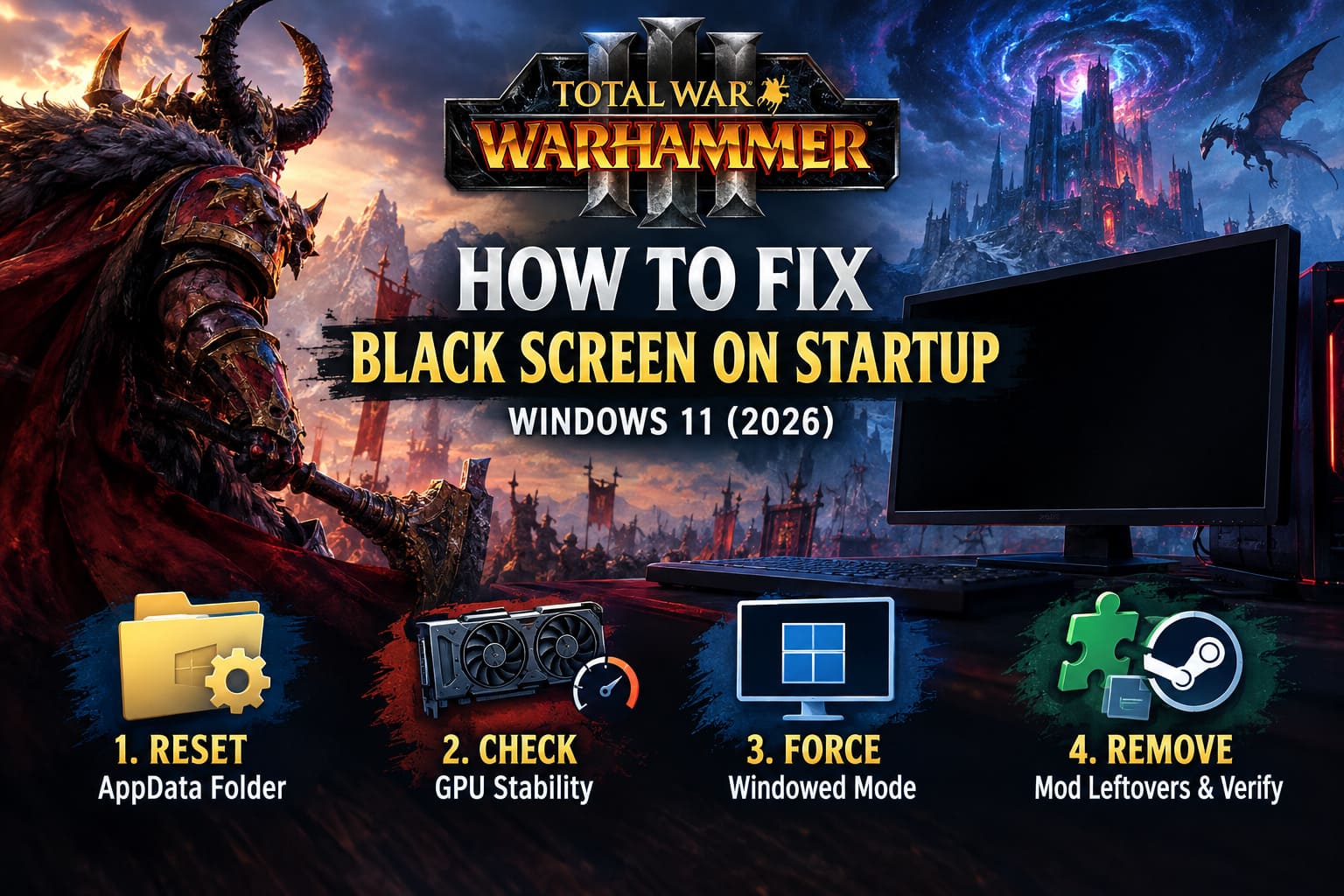
1. Delete the Creative Assembly AppData Folder
If I had to pick one troubleshooting step to try first, this would be it.
Warhammer 3 stores configuration data outside the main Steam installation folder, and that data can become messy after patches, graphics changes, crashes, or heavy mod usage. A broken preferences file can cause the game to launch incorrectly even when the actual game installation is perfectly healthy.
The result can be particularly confusing: Steam says the game is running, you might hear audio, but the display never properly initializes.
How to reset the configuration
- Press Windows + R.
- Enter
%appdata%and press Enter. - Find the The Creative Assembly folder.
- Open it and locate the Warhammer3 or Warhammer III folder.
- Before deleting anything, copy the folder somewhere safe as a backup.
- Delete the original Warhammer 3 configuration folder.
- Restart Windows.
- Launch the game again through Steam.
Warhammer 3 should regenerate fresh configuration files when it starts.
This resets your graphics and display preferences, so don’t be surprised if the game forgets your previous settings.
Why is this worth trying? Because it attacks the problem at the configuration level rather than wasting time reinstalling gigabytes of game files that may not actually be damaged.
If your black screen appeared after changing resolution, switching monitors, installing mods, or a major game update, this is particularly worth testing.
2. If the Entire PC Goes Black, Check GPU Stability
This one is different from a simple game window turning black.
If the whole monitor loses signal, your system freezes, the GPU driver crashes, or the computer requires a hard reset, I’d start looking beyond Warhammer 3 itself.
Modern high-end GPUs can pull substantial power during sudden rendering workloads. Community troubleshooting around newer hardware, including cards such as the RTX 5080, has also highlighted situations where aggressive clocks, power behavior, or driver instability can show up during game initialization.
A temporary power-limit test can help determine whether your GPU is becoming unstable.
Try reducing the GPU power limit
Using a GPU utility such as MSI Afterburner:
- Open the application.
- Find Power Limit (%).
- Temporarily reduce it to around 80–85%.
- Apply the setting.
- Launch Warhammer 3.
This isn’t supposed to be your permanent performance configuration. Think of it as a diagnostic test.
If Warhammer 3 suddenly starts normally with the reduced power limit, you have a useful clue that the problem may involve GPU stability, drivers, power delivery, temperatures, or factory-overclock behavior.
Once you’ve confirmed that, update your graphics driver and test again.
Don’t immediately assume the RTX 5080 or another high-end card is defective. PC troubleshooting is about isolating variables, and a temporary power-limit reduction gives you one more variable to test.
3. Force Warhammer 3 Into Windowed Mode
This is one of those fixes that feels almost stupidly simple when it works.
If you can hear the game but the screen remains black, the game itself may actually be running. The problem can be the transition between Windows, your monitor, the GPU, and the game’s fullscreen mode.
This becomes especially interesting on laptops, multi-monitor systems, and machines using hybrid graphics.
Check your GPU assignment
On an NVIDIA system:
- Open NVIDIA Control Panel.
- Go to Manage 3D Settings.
- Open Program Settings.
- Select Total War: Warhammer 3.
- Make sure the game is using the dedicated/high-performance GPU rather than integrated graphics.
Laptop users should also check whether their machine offers a display mode such as NVIDIA GPU Only. Hybrid graphics and Advanced Optimus configurations can occasionally complicate fullscreen behavior.
Force Windowed Mode manually
If you can’t reach the graphics menu, edit the configuration file directly.
Go to:
C:\Users\[Your Username]\AppData\Roaming\The Creative Assembly\Warhammer3\scripts
Find:
preferences.script.txt
Open it with Notepad and search for:
gfx_fullscreen true;
Change it to:
gfx_fullscreen false;
Save the file and start the game again.
If Warhammer 3 suddenly appears in a window, you’ve learned something important: the game was probably getting stuck during fullscreen initialization rather than failing to launch entirely.
From there, you can experiment with fullscreen, borderless, resolution, and monitor settings from inside the game.
4. Remove Mod Leftovers and Verify the Game
Warhammer 3 has one of the biggest modding communities around, and I’m absolutely not going to tell anyone to stop modding it. Mods are a huge part of the game’s appeal.
But they can also make troubleshooting a nightmare.
Disabling a mod through the launcher doesn’t necessarily mean your installation is completely clean. Old .pack files or modified assets can remain in the game directory and interfere with a new patch.
If your black screen started immediately after a mod update or major Warhammer 3 patch, suspect your mod setup first.
Verify the Steam installation
- Open Steam.
- Right-click Total War: WARHAMMER III.
- Select Properties.
- Open Installed Files.
- Choose Verify integrity of game files.
Allow Steam to complete the process and replace anything it considers damaged or missing.
For a more aggressive cleanup:
- Right-click Warhammer 3 in Steam.
- Choose Manage > Browse local files.
- Open the
datafolder. - Look for leftover third-party files associated with old mods.
- Remove files only when you’re confident they are mod leftovers.
Back up anything you’re unsure about before deleting it.
A clean vanilla launch is an extremely useful troubleshooting test. If the game works without mods, you can start adding your mods back one at a time instead of throwing the entire load order back into the game and wondering which one broke everything.
5. Check Your Windows Username and File Path
This is an older Windows gaming issue that still deserves attention.
Some Total War-related tools and configurations have historically behaved badly when important paths contain non-Latin or Cyrillic characters. If your Windows account path contains unusual characters, the launcher or game may encounter problems creating or reading configuration files.
For example, a profile path containing characters outside the expected Latin alphabet can potentially complicate older software.
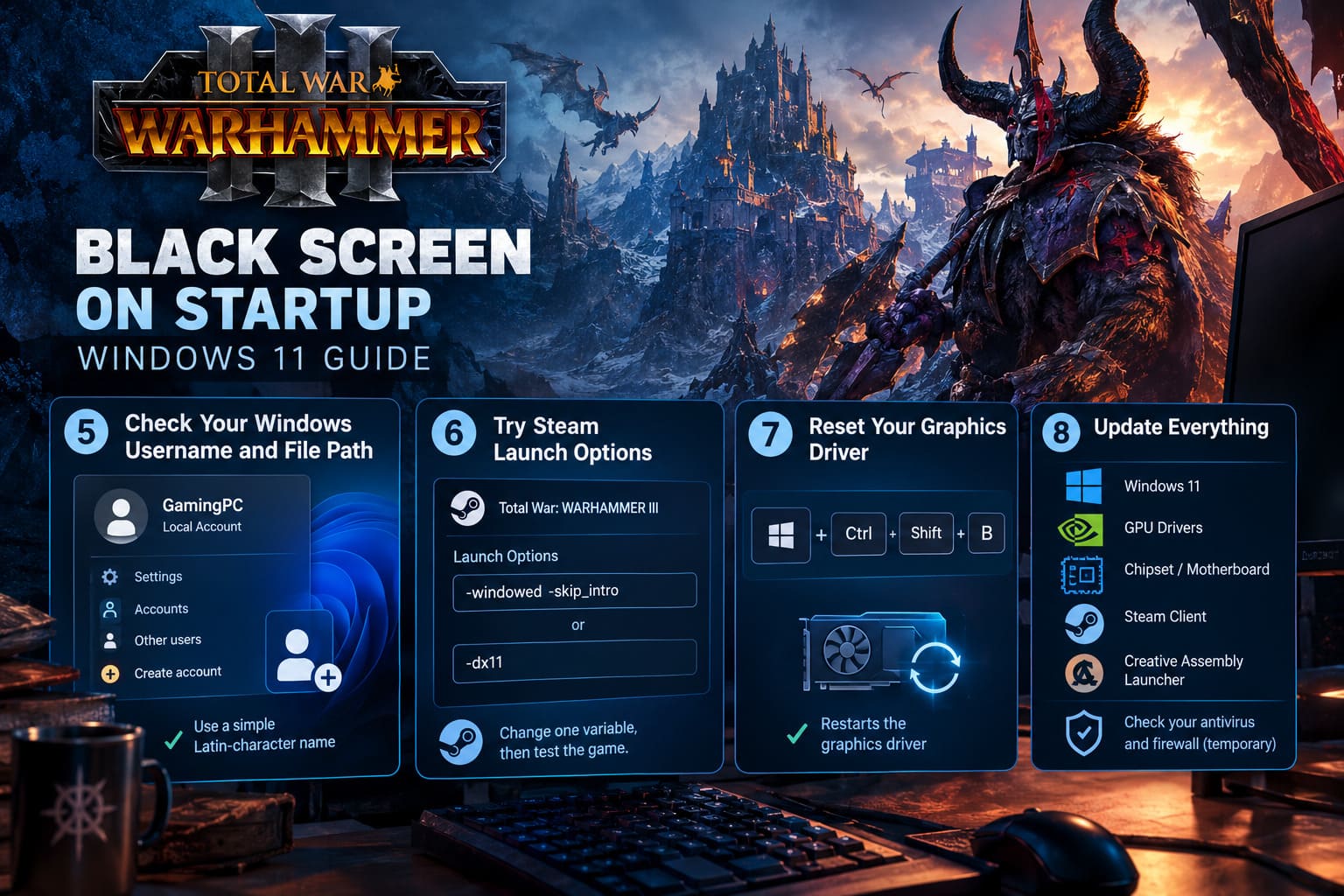
The workaround
You can create a separate local Windows account using a simple Latin-character name, such as:
GamingPC
Then:
- Open Windows Settings.
- Go to Accounts.
- Create a secondary local account.
- Use a simple Latin-character username.
- Give it administrator privileges if required.
- Sign into that account.
- Launch Steam and test Warhammer 3.
This isn’t the first thing I’d do. Creating another Windows account is considerably more hassle than deleting a broken preferences folder.
But if you’ve already tried the obvious fixes and Warhammer 3 still crashes before the menu, it’s worth eliminating the Windows profile path as a variable.
6. Experiment With Steam Launch Options
Sometimes Warhammer 3 needs a little push to get past the startup sequence.
Steam allows you to add launch commands that alter how the game starts.
Right-click Total War: WARHAMMER III in your Steam Library, select Properties, and look for the Launch Options field.
Two commands worth testing are:
-windowed -skip_intro
and:
-dx11
The first combination can help bypass problems related to the initial presentation and fullscreen startup.
The second forces the game to use DirectX 11 instead of its normal graphics API path.
Don’t throw ten different launch commands into the box at once. That’s a great way to turn troubleshooting into guesswork.
Change one variable, launch the game, and see what happens.
If -dx11 gets you into the menu, you’ve narrowed the issue down considerably. You can then investigate the DirectX 12 path, driver behavior, and graphics settings separately.
7. Don’t Forget the Windows Graphics Driver Reset
Here’s a tiny Windows shortcut that every PC gamer should know.
If the screen goes black during startup, press:
Windows + Ctrl + Shift + B
Windows will attempt to restart the graphics driver.
You may hear a short beep and see the screen flicker.
If the display returns, you know the GPU driver had stopped responding at least temporarily.
This doesn’t permanently fix a broken Warhammer 3 installation, but it’s an excellent quick test when the screen suddenly disappears.
8. Update Windows, GPU Drivers, and Security Software
Windows 11 changes rapidly, and PC games don’t always love every combination of operating-system update, GPU driver, overlay, antivirus, and background utility.
Before spending an entire evening deleting folders, make sure the basics are current.
Check for:
- Windows 11 updates
- NVIDIA or AMD graphics driver updates
- Motherboard/chipset updates where appropriate
- Pending Steam client updates
- Creative Assembly launcher updates
Third-party antivirus and firewall software can also interfere with game launchers. As a temporary diagnostic step, you can disable aggressive third-party security software and test the game.
Don’t leave your system unprotected permanently. The point is simply to determine whether security software is blocking the launcher or game process.
Total War Warhammer 3 End Turn Crash: 2026 Troubleshooting Guide to Fix Campaign Freezes and CTD
My Recommended Order for Troubleshooting
If I were sitting at my own PC with Warhammer 3 showing nothing but a black screen, I wouldn’t randomly try every solution above.
I’d work through them in this order:
- Delete the Creative Assembly AppData configuration folder.
- Restart Windows and launch the vanilla game.
- Force Windowed Mode through
preferences.script.txt. - Verify Steam game files.
- Remove obvious mod leftovers.
- Test
-windowed -skip_intro. - Test
-dx11. - Check GPU drivers and Windows 11 updates.
- Investigate GPU stability if the entire PC loses display output.
- Test a Latin-character Windows profile if nothing else works.
That order matters because it starts with relatively low-risk fixes before moving into hardware and Windows-account troubleshooting.
Best Beginner Factions in Total War: Warhammer 3 Immortal Empires (2026 Guide)
Final Thoughts
A Total War: Warhammer 3 black screen on Windows 11 can look like a catastrophic problem, especially when the game gives you no error message and happily plays audio behind a completely useless black window.
In reality, the cause can be surprisingly mundane.
A corrupted preferences file, an old mod, fullscreen settings, a hybrid-GPU configuration, a problematic driver, or a broken startup path can all produce symptoms that look almost identical from the player’s side.
The biggest mistake is jumping straight to a complete reinstall. Start with the Creative Assembly AppData reset, test Windowed Mode, verify the Steam files, and remove mod variables. Those steps give you the most useful information without turning a 10-minute troubleshooting session into a three-hour reinstall.
And if you’re running a brand-new high-end GPU, don’t automatically assume that more powerful hardware means fewer problems. PC gaming has never worked that way. Sometimes the monster graphics card is perfectly fine and the real culprit is one tiny configuration file hiding in AppData.
Once you get back into the campaign, though, the frustration usually disappears pretty quickly. There’s nothing quite like watching a carefully planned Warhammer battle descend into absolute chaos after spending an hour trying to make the game launch.