Forza Horizon 6 Ghosting Fix: TAA vs DLSS Best Graphics Settings Guide
When I first launched Forza Horizon 6 on PC, I was honestly blown away. The lighting across Tokyo highways looked incredible, rain reflections at night felt almost photorealistic, and the mountain roads had that perfect arcade-racing atmosphere. But after about twenty minutes of driving, I noticed something that completely ruined the experience for me: ghosting.
Not the subtle kind you sometimes ignore in modern games. I’m talking about heavy trails behind mirrors, blurry rear bumpers, smeared license plates, and weird halos around moving cars at high speed. Once you see it, you can’t unsee it.
After testing settings for several days, reading discussions across Reddit and hardware forums, and trying almost every combination of anti-aliasing options, I finally found a setup that makes the game look dramatically cleaner without sacrificing too much performance. If you’re tired of blurry visuals in FH6, this guide will save you a lot of frustration.
Why Ghosting Looks So Bad in Forza Horizon 6
The biggest reason is simple: modern racing games rely heavily on temporal rendering techniques.
Unlike older Forza titles that used cleaner forms of anti-aliasing like MSAA, FH6 pushes players toward TAA, DLSS, DLAA, FSR, and XeSS.
These technologies reconstruct images using data from previous frames. In slower games, that usually works well. In a racing game where the environment moves insanely fast, things become messy very quickly.
At 200 mph, your GPU is constantly trying to predict motion while sharpening details at the same time. That combination creates motion smearing, blurry edges, dark trailing, double image effects, and shimmering around thin objects.
The worst offenders are usually car antennas, side mirrors, rear spoilers, license plates, road markings, and power lines.
And honestly, the default settings in FH6 make it even worse.

The NVIDIA Fix That Actually Works
If you own an RTX GPU, there’s one tweak that made the biggest difference for me.
Instead of using the default DLSS preset shipped with the game, force a different DLSS model through the NVIDIA App.
This sounds minor, but visually it changes everything.
How To Enable It
- Close the game completely.
- Open the NVIDIA App.
- Go to Graphics.
- Find Forza Horizon 6.
- Locate DLSS Override – Model Preset.
- Change it from Default to Custom.
- Select Model M.
- Apply settings.
- Launch the game again.
On some RTX 30-series cards, Model L can also work well.
What Changed After Switching to Model M
The improvement was immediately obvious.
- Rear bumper trails became significantly less noticeable.
- Mirrors looked much sharper in motion.
- Drifting scenes stopped smearing across the screen.
- The overall image felt cleaner and more stable.
It didn’t completely eliminate ghosting, because temporal rendering still exists underneath, but it reduced the distracting artifacts enough that I stopped noticing them during gameplay.
That’s the important part.
DLSS vs DLAA vs TAA — Which One Actually Feels Best?
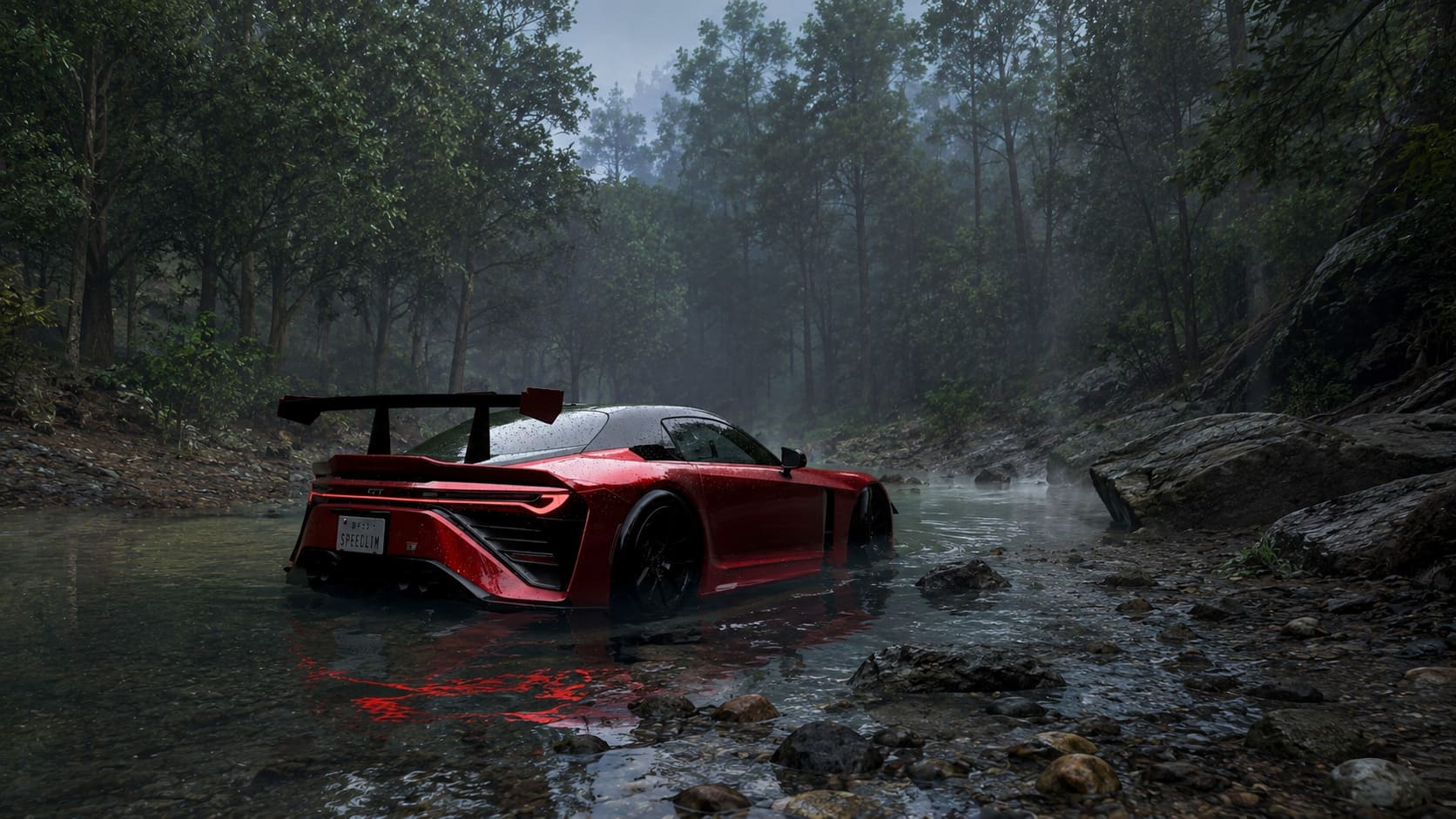
After testing all three for hours, I think every option has strengths depending on your hardware.
DLSS – Best Balance for Most RTX Users
DLSS is still the smartest option if you want strong FPS without making the game look terrible.
Pros
- Huge performance gains.
- Great for Ultra settings.
- Stable frame rates.
- Excellent 1440p experience.
Cons
- Can look blurry on lower presets.
- Default preset causes heavy ghosting.
- Texture softness in motion.
With the Model M override enabled, DLSS Quality became my favorite setting overall.
Balanced mode also works surprisingly well if your GPU struggles.
DLAA – Best Visual Quality
DLAA looks stunning when stationary.
Car paint, fences, vegetation, and fine geometry all look incredibly stable. It’s the sharpest overall presentation FH6 currently offers.
But there’s a catch.
Without the DLSS override fix, DLAA creates very noticeable dark trailing behind cars during fast driving.
Pros
- Excellent image clarity.
- Minimal shimmering.
- Great at native resolution.
- Perfect for 4K setups.
Cons
- Heavy GPU load.
- Ghosting still possible.
- No FPS boost.
If you own something like an RTX 4080 or RTX 5080, DLAA with Model M is probably the best visual setup in the game.
TAA – Safe But Soft
TAA is basically the fallback option.
It works on almost everything, including older GTX cards and AMD GPUs, but the entire image feels softer compared to DLSS or DLAA.
Pros
- Stable anti-aliasing.
- Works on all hardware.
- Removes jagged edges well.
Cons
- Blurry motion.
- Texture softness.
- Visible smearing during fast turns.
It’s playable, but I personally wouldn’t choose it unless I had no RTX support available.
The Settings That Reduced Ghosting The Most
| Setting | Recommended Option |
|---|---|
| Resolution | Native |
| Upscaling | DLSS Quality |
| DLSS Preset | Model M |
| Sharpness | 0.2 |
| Motion Blur | Off |
| Frame Generation | Off |
| Car LOD | Ultra |
| Environment Geometry | Ultra |
| Reflection Quality | High |
| Ray Tracing | High or Off |
This gave me the cleanest image while still keeping excellent performance.
Why Frame Generation Makes Everything Worse
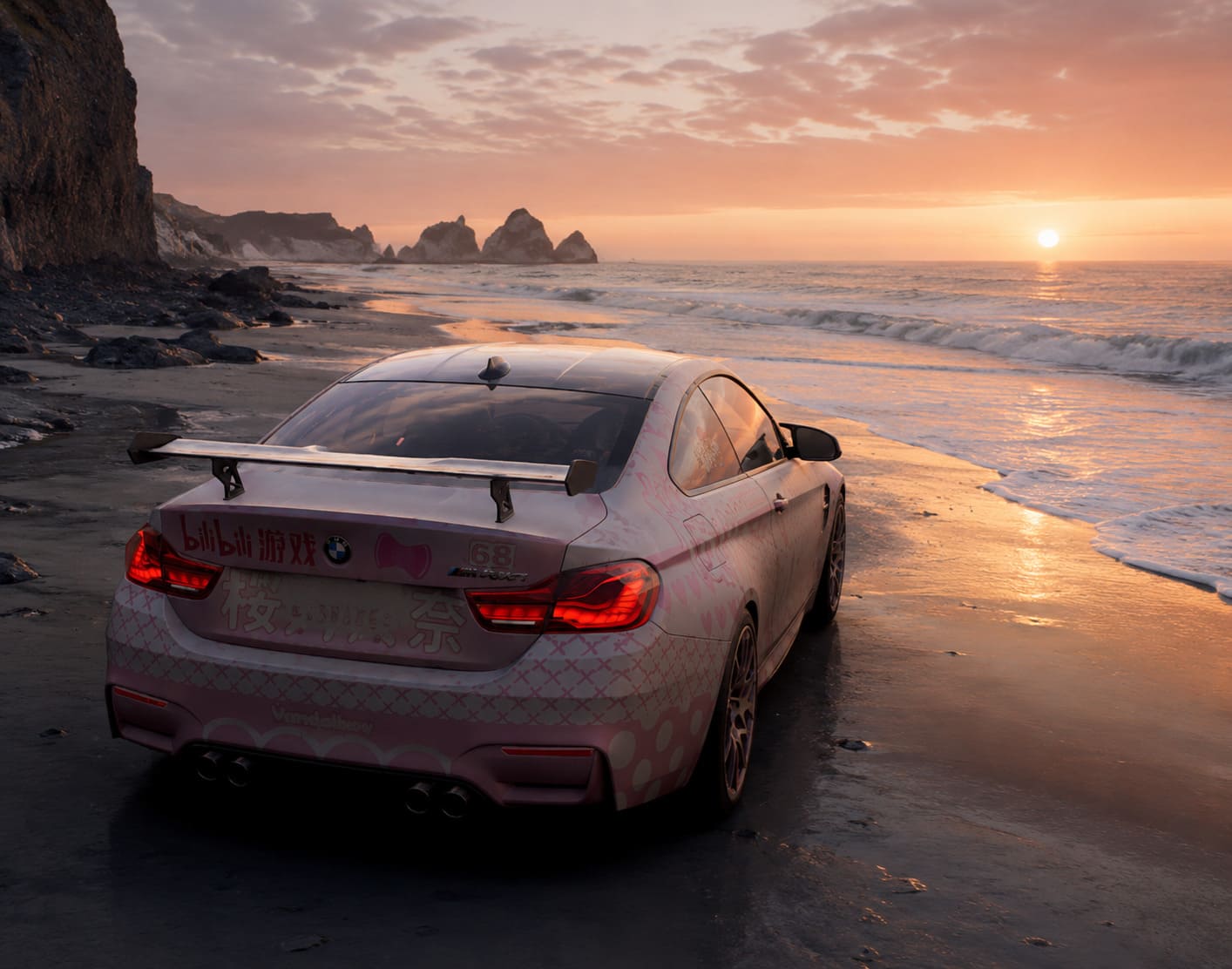
I know a lot of people love Frame Generation because it massively boosts FPS numbers.
But in FH6, it honestly made ghosting far more noticeable for me.
The issue is that Frame Generation inserts AI-generated frames between real frames. In slower games this can feel smooth. In a racing game where cars move extremely fast, it sometimes creates weird visual interpolation artifacts.
The result is extra smearing, strange edge duplication, and more motion instability.
Turning it off immediately cleaned up the image on my setup.
Higher FPS numbers aren’t worth it if the entire car looks blurry while drifting through corners.
AMD GPU Users Still Have Options
If you’re running Radeon hardware, don’t worry — there are still ways to improve clarity.
Avoid FSR Performance Mode
This was one of the biggest issues during my testing.
FSR Performance mode introduced aggressive instability in motion, especially around trees, road barriers, thin geometry, and reflections.
Instead, try using FSR Native AA or XeSS Native.
Both produce a cleaner image overall.
ReShade + SMAA Is Surprisingly Good
For players who absolutely hate temporal anti-aliasing, there’s another route.
Disable TAA, DLSS, and DLAA entirely.
Then use ReShade together with the SMAA injector.
This creates a much sharper image with zero temporal smearing.
The downside is that you’ll notice more jagged edges and shimmer in distant objects.
Still, some players genuinely prefer this because the image feels more responsive and clean.
Personally, I think SMAA looks fantastic for screenshots and slower cruising sessions.
Forza Horizon 6 Fanta Car Guide: How to Unlock the Toyota Sports 800 Fanta Edition Fast
One Setting Most Players Get Wrong
Sharpness.
A lot of people crank sharpening to maximum because the image feels blurry.
That actually makes ghosting worse.
High sharpening creates halo artifacts, edge flickering, overprocessed textures, and visual noise.
The sweet spot for me was between 0.0 and 0.2.
Anything above 3 started looking unnatural.
How to Fix Forza Horizon 6 Low Video Memory Warning and VRAM Crashes
Final Thoughts
Right now, ghosting is probably the single biggest visual issue in Forza Horizon 6 on PC. The game itself looks gorgeous, but the default temporal rendering setup holds it back more than it should.
The good news is that the problem can be improved significantly with the right tweaks.
If you own an RTX GPU, forcing DLSS Model M through the NVIDIA App is easily the best fix currently available. Pair that with low sharpness, disabled Motion Blur, and no Frame Generation, and the game finally starts looking the way it should have at launch.
Hopefully Playground Games releases additional patches soon, because the driving itself is fantastic. Once the ghosting gets under control, FH6 becomes one of the best-looking arcade racers ever made on PC.