How to Fix Super Battle Golf Multiplayer Connection Error (2026 Guide)
There are few things more frustrating than gathering a group of friends for a few rounds of Super Battle Golf, only to spend the next thirty minutes staring at a “Connection Failed” message instead of launching into a match.
I’ve been playing since release, and after digging through Steam discussions, Reddit threads, community Discord servers, and experimenting on my own PC, I realized something important: there isn’t one universal cause behind the multiplayer issues. Different players run into different problems, but the good news is that most of them can be solved without waiting for another game update.
This guide collects the solutions that consistently worked for me and for many other players in the community. If you’re dealing with endless loading screens, random disconnects, failed matchmaking, or the infamous camera glitch that throws you under the course, these are the fixes worth trying first.
Why Super Battle Golf Multiplayer Breaks
Unlike many competitive games that rely entirely on dedicated servers, Super Battle Golf depends heavily on Steam networking services and peer-to-peer communication. That means your connection isn’t just talking to official servers—it’s also trying to establish stable communication with the lobby host and every other player.
Because of that, even a small issue can interrupt the connection.
The most common symptoms include:
- Connection Failed immediately after selecting Multiplayer.
- Lobby browser loading forever.
- Disconnecting seconds after joining a match.
- “Host Left” or “Lobby Closed” messages despite the host remaining online.
- Camera spawning underneath the course while controls stop responding.
- Joining friends works sometimes but fails repeatedly afterward.
In my experience, the game itself usually isn’t completely broken. Instead, it’s often a combination of Windows, Steam, network routing, or damaged game files.
Start With Steam File Verification
This is always the first thing I recommend because it’s quick and surprisingly effective.
Every update has the potential to leave behind corrupted or incomplete files, especially if Steam was interrupted during a download.
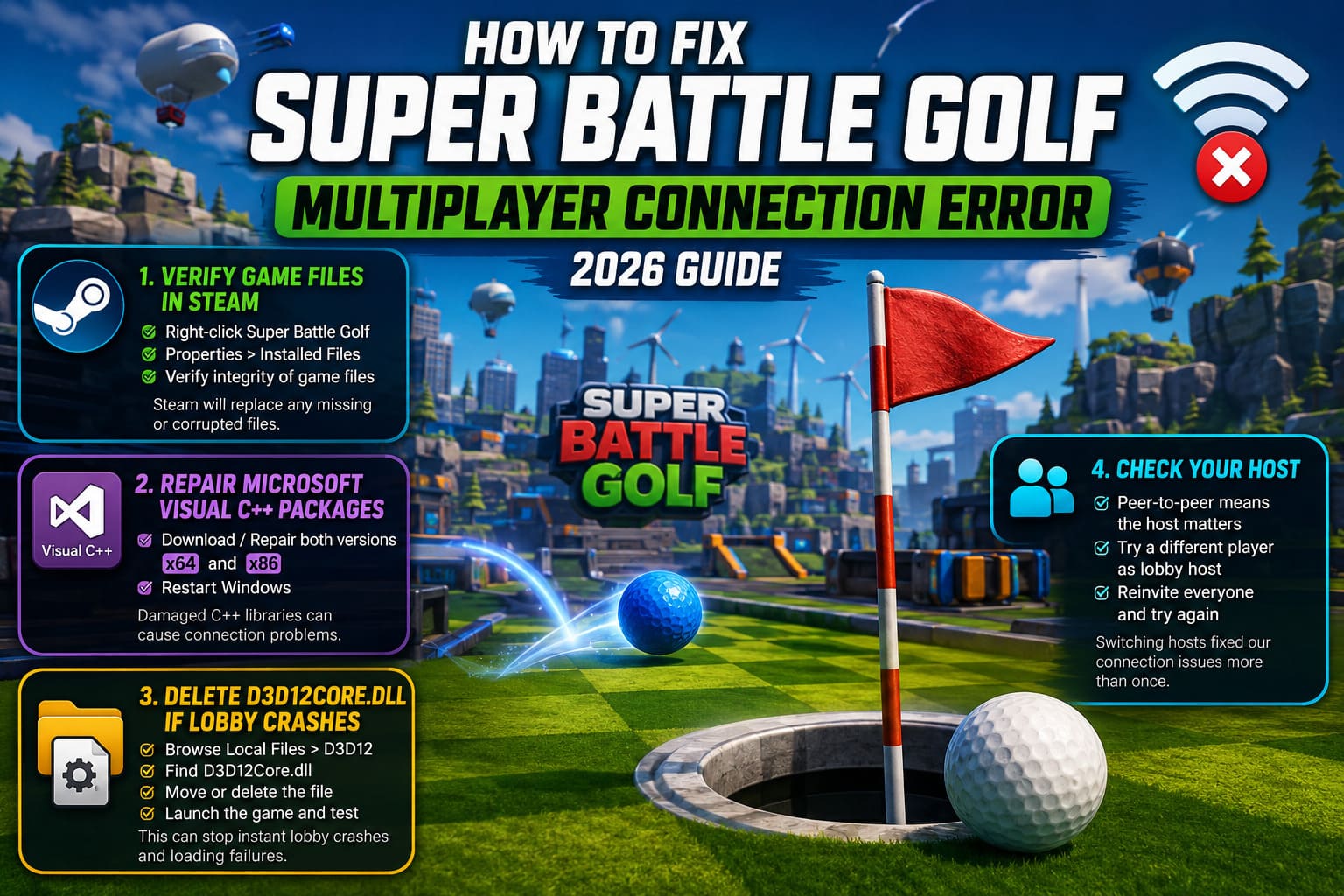
To verify the installation:
- Open Steam Library.
- Right-click Super Battle Golf.
- Select Properties.
- Open Installed Files.
- Choose Verify integrity of game files.
Steam compares your installation against the latest version and replaces anything that’s damaged or missing.
I’ve seen players spend hours changing firewall settings only to discover one corrupted file was preventing multiplayer from loading properly.
Repair Microsoft Visual C++ Packages
This fix sounds boring, but it’s probably the one I’ve recommended the most.
Many PC games rely on Microsoft’s Visual C++ runtime libraries, and if those become damaged or partially removed, networking features can behave unpredictably even when the game launches normally.
Download both versions from Microsoft’s official website:
- x64
- x86
If they’re already installed, choose Repair instead of uninstalling them.
Afterward, restart Windows before launching Steam again.
It’s a simple step, but I’ve watched it solve connection issues on more than one machine.
Delete the D3D12Core.dll File If Lobby Crashes Begin Instantly
This one surprised me.
Several players discovered that deleting a specific Direct3D file eliminated instant lobby crashes and connection failures during the loading screen.
Navigate to your installation folder:
Steam → Super Battle Golf → Manage → Browse Local Files
Open the D3D12 folder.
Locate:
D3D12Core.dll
Instead of permanently deleting it, I recommend moving it somewhere safe first.
Launch the game afterward and test multiplayer again.
For some systems this completely removed the crash that happened immediately after joining online matches.
Sometimes the Host Is the Problem
One thing I noticed after several evenings playing with friends was that one person consistently had trouble hosting.
Oddly enough, everyone connected perfectly once another player created the lobby.
This makes sense considering the game’s peer-to-peer networking.
If your group keeps disconnecting, don’t keep retrying with the same host.
Instead:
- Have another player create the lobby.
- Reinvite everyone.
- Try again before changing any PC settings.
This solved our issue more than once.
Skip Driving Range Sessions
This sounds strange, but enough players have mentioned it that it’s worth bringing up.
Driving Range sessions appear to trigger networking bugs more often than normal matches.
Whenever our group experienced repeated failures, switching directly into:
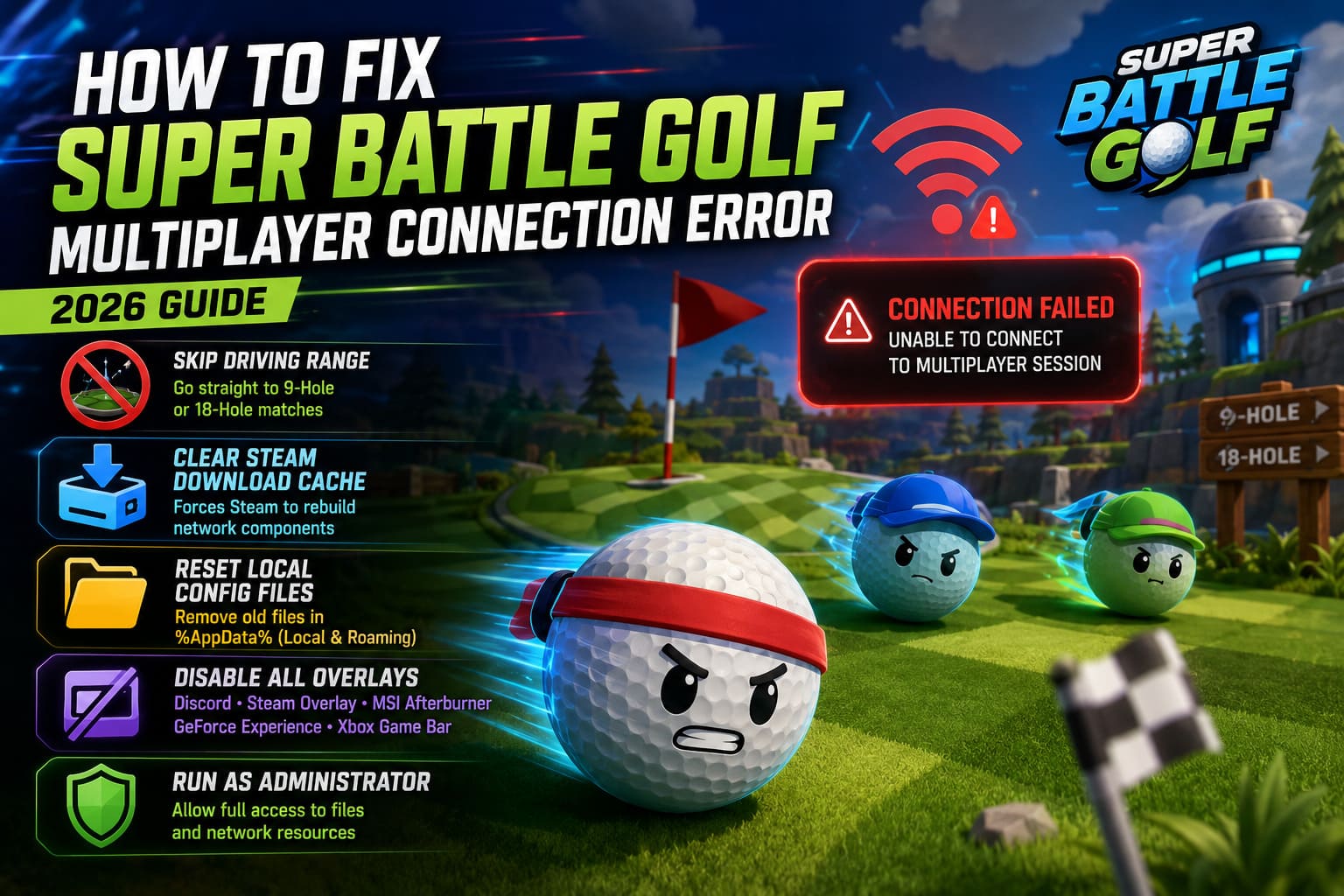
- 9-Hole Matches
- 18-Hole Matches
Usually resulted in a stable connection.
It isn’t guaranteed, but if you’re troubleshooting, remove every extra variable you can.
Clear Steam Download Cache
Steam occasionally stores outdated authentication information inside its download cache.
Clearing it forces Steam to rebuild several networking components.
Open:
Steam → Settings → Downloads
Select:
Clear Download Cache
Steam will restart afterward.
You’ll need to sign back into your account, but the process only takes a minute.
Reset Local Configuration Files
Configuration files stored inside AppData sometimes survive updates for months.
If an old configuration becomes incompatible with a newer version of the game, multiplayer settings may never initialize correctly.
Press:
Windows + R
Type:
%AppData%
Look through both:
- Local
- Roaming
If you find folders belonging to Super Battle Golf (or its developer), back them up before deleting them.
The game recreates fresh configuration files the next time it launches.
Disable Every Overlay Before Testing
I’ve stopped assuming overlays are harmless.
- Discord
- Steam Overlay
- MSI Afterburner
- RivaTuner
- GeForce Experience
- Xbox Game Bar
I’ve personally seen overlay software interfere with online games in unexpected ways.
Before assuming the game itself is broken, disable every overlay and launch a fresh multiplayer session.
It’s surprising how often this eliminates random disconnects.
Run the Game With Administrator Permissions
Windows security occasionally blocks games from accessing files or network resources normally.
Running the executable as Administrator can eliminate those permission conflicts.
Open the game executable.
Right-click it.
Choose Properties.
Under Compatibility:
- Enable Run this program as administrator.
- Enable Disable Fullscreen Optimizations.
Restart Steam afterward.
Could Your Network Be the Real Issue?
Not every multiplayer problem comes from the game.
Certain internet providers route Steam traffic inefficiently depending on region.
If you’ve noticed:
- High ping.
- Frequent packet loss.
- Random disconnects.
Then your route to Steam Relay servers could be unstable.
Interestingly, some players fixed their issue by enabling a VPN.
Others fixed theirs by turning the VPN off.
The lesson?
Don’t assume your current network configuration is the best one.
Test both options.
How to Fix Super Battle Golf Crashing on Launch: 2026 PC Troubleshooting Guide
Quick Troubleshooting Order
If I were helping a friend over Discord, this is exactly the order I’d suggest.
- Verify Steam files.
- Restart the PC.
- Repair Visual C++ Redistributables.
- Clear Steam download cache.
- Disable every overlay.
- Test with another lobby host.
- Move or remove D3D12Core.dll.
- Reset AppData configuration folders.
- Try a different network or VPN.
- Launch the game as Administrator.
Working through the list from top to bottom usually saves the most time.
Super Battle Golf Physics Guide: Advanced Mechanics and Shot Optimization
Common Problems and Their Most Likely Fixes
| Problem | Most Likely Cause | Recommended Solution |
|---|---|---|
| Connection Failed | Corrupted installation | Verify Steam files |
| Infinite lobby loading | Steam cache or routing issue | Clear Steam cache and restart |
| Disconnect after joining | P2P host instability | Let another player host |
| Crash while entering lobby | Direct3D conflict | Remove D3D12Core.dll |
| Camera under the map | Lobby synchronization bug | Rejoin after changing host |
| Random multiplayer freezes | Overlay conflict | Disable overlays completely |
My Final Thoughts
After spending far more time troubleshooting than I ever expected for what should have been a relaxing golf game, I’ve come to one conclusion: Super Battle Golf is incredibly fun once the multiplayer behaves.
The networking system isn’t perfect, and there are definitely rough edges that still need polishing. But the encouraging part is that most connection issues aren’t permanent. In many cases, the solution is surprisingly simple—repairing a runtime package, verifying files, or even letting someone else host the lobby.
If I had to recommend just three fixes to try first, I’d start with Steam file verification, repairing Visual C++, and switching the lobby host. Those three alone solved the majority of problems my friends and I encountered during our first week with the game.
Hopefully future patches continue improving matchmaking stability, but until then, these community-tested fixes should help you spend less time troubleshooting and more time chasing ridiculous long-distance shots with your friends.