How to Fix Grounded 2 DirectX 12 Crash on Startup (Steam Guide 2026)
When Grounded 2 works, it is one of the most immersive survival games I have played in years. The sense of scale, the danger lurking in every patch of grass, and the constant feeling that you’re just one mistake away from becoming bug food make it incredibly addictive.
But if you’re reading this, chances are you haven’t even made it into the backyard.
Over the last few weeks, Steam forums, Reddit discussions, and community Discord servers have been flooded with players reporting the same issue: Grounded 2 crashes immediately on startup when running DirectX 12. Some people get stuck during shader compilation, others see an Unreal Engine error window, and a few never get past the splash screen before being kicked straight back to desktop.
I spent a ridiculous amount of time digging through community fixes, testing solutions on multiple systems, and comparing reports from NVIDIA, AMD, and Intel users. The good news is that most startup crashes seem to come from a handful of common causes.
If Grounded 2 refuses to launch on your PC, these are the fixes worth trying first.
Why Grounded 2 Crashes at Startup
The majority of startup crashes appear to be linked to one of the following problems:
- DirectX 12 compatibility issues
- Corrupted shader cache files
- Broken or outdated GPU drivers
- Missing Windows media components
- Faulty game files after updates
- Overlay software conflicts
- Incorrect GPU selection on laptops
The frustrating part is that different systems react differently. A fix that solves the issue instantly for one player may do absolutely nothing for another.
That’s why it’s worth working through these solutions one by one.
Fix #1: Force Grounded 2 to Use DirectX 11
This is easily the most successful workaround reported by the community.
While DX12 generally offers better performance and modern rendering features, it is also significantly more sensitive to driver issues and hardware instability. If Grounded 2 crashes before reaching the main menu, switching back to DX11 is often enough to get the game running.

How to Do It
- Open Steam.
- Go to your Library.
- Right-click Grounded 2.
- Select Properties.
- Find the Launch Options field.
- Enter:
-d3d11Some players have also reported success using:
-dxlevel 110After applying the launch command, start the game again.
If you previously experimented with launch arguments, make sure old DX12 parameters such as -dx12 or -d3d12 are removed completely.
In my experience, this remains the fastest way to determine whether DirectX 12 itself is responsible for the crashes.
Fix #2: Perform a Proper Clean Driver Installation
One thing I’ve learned from years of troubleshooting PC games is that “updating drivers” and “clean installing drivers” are not the same thing.
Grounded 2 relies heavily on modern graphics APIs, and damaged driver remnants can create all sorts of startup instability.
The solution many players swear by is using Display Driver Uninstaller (DDU).
Recommended Process
| Step | Action |
|---|---|
| 1 | Download latest GPU driver package |
| 2 | Download DDU |
| 3 | Boot Windows into Safe Mode |
| 4 | Run DDU and select Clean & Restart |
| 5 | Install fresh GPU drivers |
| 6 | Reboot and test Grounded 2 |
This process completely removes old driver files, registry entries, and leftover components that standard updates often leave behind.
Several Reddit users reported that startup crashes disappeared immediately after a clean installation.
Fix #3: Install the Windows Media Feature Pack
This one sounds strange until you understand what’s happening.
Players using Windows N or Windows KN editions often lack multimedia components included in standard Windows installations.
Grounded 2 appears to rely on some of these media frameworks during startup.
When they’re missing, the game may crash within seconds.
Check If You’re Affected
- Open Settings.
- Navigate to Apps.
- Select Optional Features.
- Click Add a Feature.
- Search for Media Feature Pack.
- Install it if available.
- Restart Windows.
It’s a surprisingly simple fix that has solved launch issues for a lot of users.
Fix #4: Verify the Integrity of Game Files
Never underestimate the possibility of corrupted files.
A partially downloaded patch, interrupted update, or damaged storage sector can break critical game assets.
Steam makes verification incredibly easy.
Steps
- Open Steam.
- Right-click Grounded 2.
- Select Properties.
- Open Installed Files.
- Click Verify Integrity of Game Files.
Steam will compare your installation against official servers and automatically replace damaged files.
This should always be one of the first troubleshooting steps after a major update.
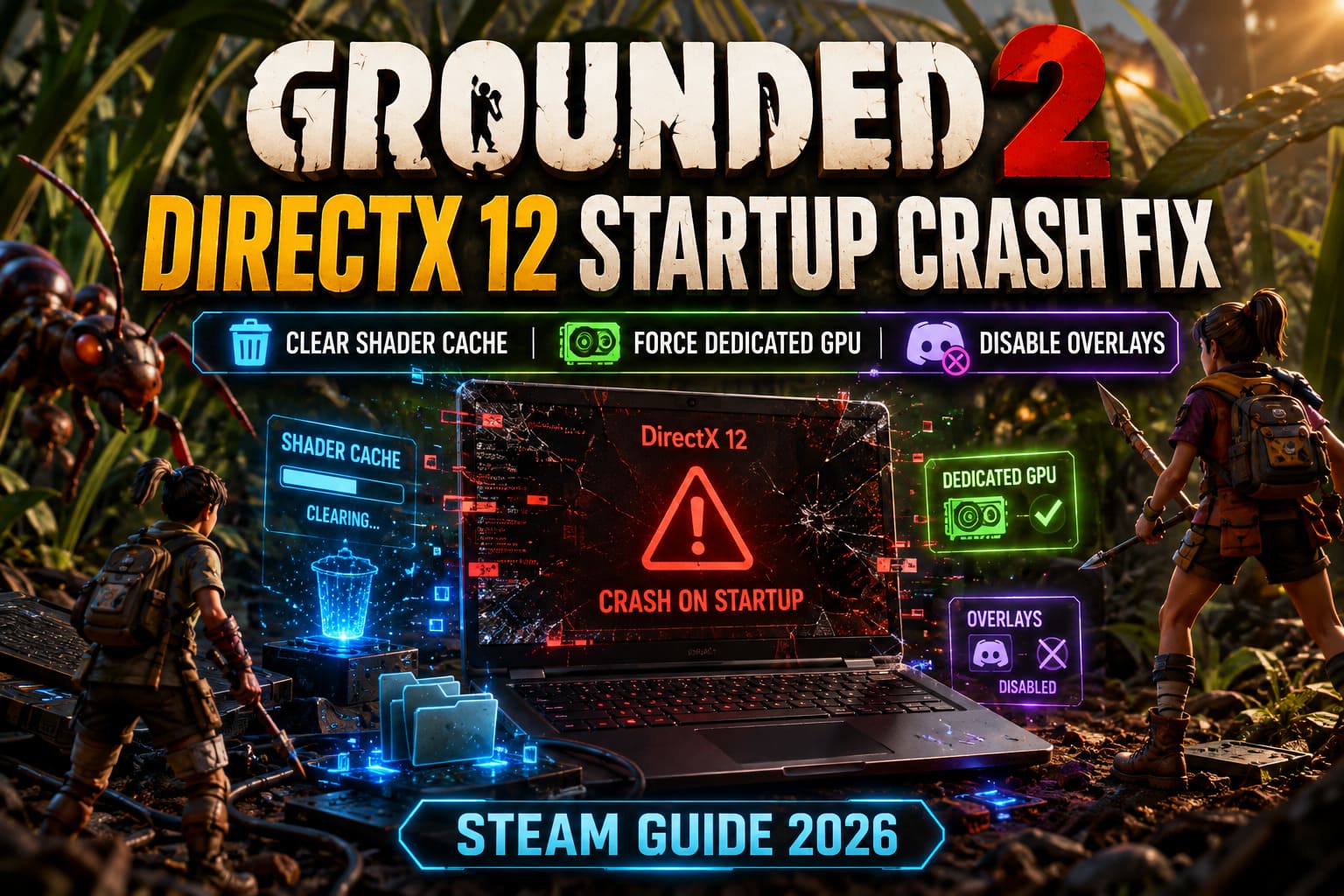
Fix #5: Clear Shader Cache Files
Shader compilation has become one of the biggest pain points in modern PC gaming.
When shader caches become corrupted, games may freeze, stutter, or crash before reaching the main menu.
Grounded 2 appears to be particularly sensitive to cache issues after patches.
Steam Download Cache
- Open Steam Settings.
- Navigate to Downloads.
- Select Clear Download Cache.
- Log back into Steam.
NVIDIA Users
- Open NVIDIA Control Panel.
- Navigate to Manage 3D Settings.
- Locate Shader Cache Size.
- Disable it temporarily.
- Reboot your PC.
- Re-enable it afterward.
AMD Users
- Open AMD Adrenalin.
- Go to Graphics Settings.
- Find Shader Cache.
- Reset the cache.
A clean cache often forces the engine to rebuild everything correctly.
Fix #6: Make Sure Grounded 2 Uses Your Dedicated GPU
Laptop users encounter this issue more often than desktop players.
Windows occasionally decides that a game should launch using integrated graphics instead of the dedicated GPU.
The result can be immediate crashes, black screens, or DirectX initialization failures.
Assign the Correct GPU
- Search for Graphics Settings in Windows.
- Add Grounded 2 manually.
- Click Options.
- Select High Performance.
- Save the configuration.
This forces Windows to prioritize your dedicated graphics card.
If you’re using a gaming laptop, I strongly recommend checking this setting even if you think it’s already configured correctly.
Fix #7: Remove Broken Cache Files from the Paks Folder
This fix surfaced repeatedly in Steam discussions after recent updates.
Grounded 2 stores packaged assets inside the game’s Paks directory. Sometimes outdated fragments remain behind after updates and cause startup conflicts.
What to Do
Navigate to:
Grounded 2\Content\Augusta\Content\PaksInside that folder:
- Keep the main large archive file.
- Remove smaller cache-related package files.
- Verify game files afterward through Steam.
This forces the game to rebuild damaged references while preserving the core installation.
If your crashes started immediately after a patch, this fix is definitely worth trying.
Fix #8: Disable Overlays and Run as Administrator
Overlay software continues to cause problems in Unreal Engine games.
Applications that inject themselves into rendering pipelines can interfere with DirectX initialization.
The most common offenders include:
- Discord Overlay
- MSI Afterburner
- RivaTuner Statistics Server
- GeForce Experience Overlay
- Third-party FPS counters
Additional Recommendation
Navigate to the Grounded 2 executable and enable:
Run this program as administrator
Doing so grants the game unrestricted access to required hardware resources and system files.
It’s a small adjustment, but several players have reported success after enabling administrator privileges.
Grounded II Dedicated Server Hosting Guide: Setup & Configurations (2026)
Recommended Troubleshooting Order
If you want the quickest route to a solution, this is the order I’d personally follow:
| Priority | Fix |
|---|---|
| 1 | Force DX11 |
| 2 | Verify Game Files |
| 3 | Clear Shader Cache |
| 4 | Disable Overlays |
| 5 | Assign Dedicated GPU |
| 6 | Install Media Feature Pack |
| 7 | Clean Driver Installation |
| 8 | Clean Paks Folder |
Grounded 2 Crossplay Guide: How to Invite Friends Cross-Platform (Xbox, PS5, Steam)
Final Thoughts
From everything I’ve seen across Steam discussions and community troubleshooting threads, DirectX 12 remains the biggest trigger behind Grounded 2 startup crashes. The overwhelming majority of successful fixes involve either forcing DirectX 11, rebuilding shader data, or performing a genuinely clean graphics driver installation.
The good news is that most cases don’t require reinstalling Windows, replacing hardware, or performing complicated system modifications. In many situations, a five-minute settings change is enough to get the game running normally again.
If I had to recommend only one fix to try first, it would be switching the game to DirectX 11 using the -d3d11 launch option. It consistently appears at the top of successful community reports and remains the quickest way to determine whether DX12 is the source of the problem.
Once you’re back in the backyard, hopefully the only thing trying to kill you will be the giant insects.